
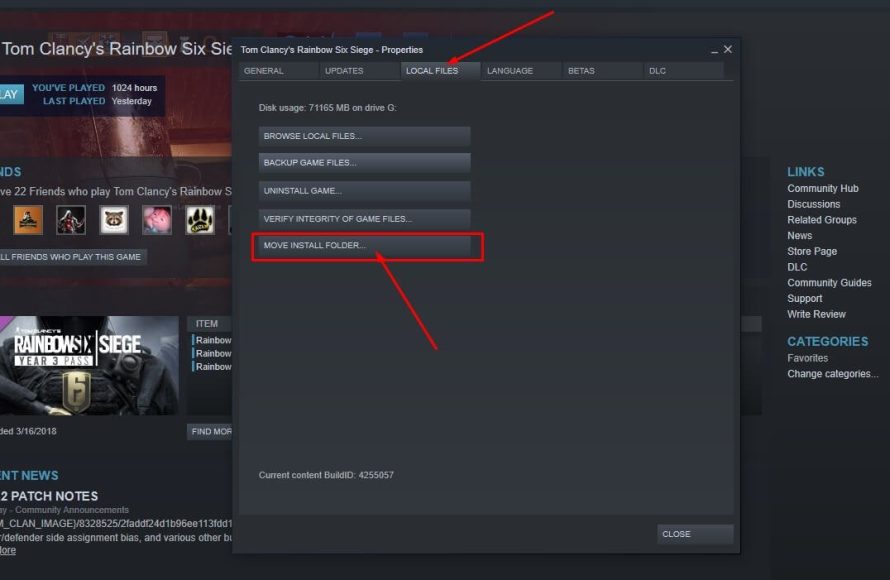
Unfortunately, Steam does not offer a direct feature to transfer Steam games to another account.
Have you ever wished you could gift your games to a friend after you’ve finished them? It’s a common question, and many players find themselves wondering how to transfer steam games to another account. The idea of sharing your collection seems practical, but the platform has some limitations.
Currently, the platform doesn’t allow moving games from one account to another. You can gift games during purchase, but transferring them later isn’t possible. This is a measure by Steam to protect game licenses and prevent unauthorized reselling.

How to Transfer Steam Games to Another Account
Okay, let’s talk about something a lot of gamers wonder: transferring Steam games to another account. Maybe you have a friend who really wants a game you own, or you’re getting a new account and want to move your collection over. It’s a common question, and the answer isn’t as simple as copy-pasting files. Steam has some rules and systems in place to manage how games are shared, and sometimes it might feel like they are designed to make it hard to move games around.
Understanding Steam’s Game Ownership
First, it’s important to get what it means to “own” a game on Steam. When you buy a game on Steam, you’re not actually buying a physical copy like you used to with cartridges or disks. Instead, you’re buying a license to play that game linked to your specific Steam account. This license is kind of like a digital key that says, “This person is allowed to play this game”. This means the game is not something you can just pack up and give to someone else. It lives in the digital world and is connected to your user profile.
Because Steam controls these game licenses, they also control how they can be used, including how or if they can be transferred. Steam wants to make sure you paid for your games and that no one is trying to steal or resell licenses. This keeps things fair for everyone involved, from the game developers to the gamers. This also means there are some limitations about how you can share the games you purchased on Steam.
The Short Answer: Direct Transfer Isn’t Possible
Here’s the truth: Steam doesn’t let you directly transfer a game from one account to another. There is no button or option in Steam that says “Give this game to another person’s account”. You cannot simply drag and drop your games from your game library to someone else’s Steam library. That’s just not how Steam works. This is a frustrating reality for some, but it’s there for security and fairness. It prevents people from taking games that they did not pay for.
But, don’t worry. While a direct transfer is not possible, there are some workarounds that allow you to “share” your games. These aren’t exactly the same as transferring games, but they can help you play your games with your friends and family. Let’s look at the main way Steam allows you to share.
Steam Family Sharing: The Most Common Way to “Share”
The most legitimate and widely accepted method to let others experience your games without directly transferring is through Steam Family Sharing. This feature allows you to share your game library with family members and close friends on authorized devices. It doesn’t give anyone the license to the game; it allows another person to access games in your library while you are not using them.
How Family Sharing Works
Steam Family Sharing operates on the premise of authorizing specific computers to access your game library. It’s tied to your Steam account and a machine instead of an account itself. This means you’ll need to enable the feature from a specific computer and have the other person log in to their account from that same computer before using the games. Here’s a basic rundown of how it works:
- Authorization: You enable Family Sharing on a computer by logging into your account and making sure that the “authorize library sharing on this computer” option is ticked. You can authorize up to five accounts to share your library.
- Access: Users who log in on an authorized computer will be able to see and download games from your library.
- One Player at a Time: Only one user can play games from a shared library at a time. If the owner of the library starts playing a game, the other users get a short warning period before they are kicked out.
- Not All Games Are Shareable: Certain games might not be shareable due to technical reasons or publisher policies. Most games are shareable, but do not be surprised if you see some exceptions.
- Limitations: The feature is not designed to circumvent game purchases, or to share your game with everyone. It is really meant to share within a household or with very close friends.
Steps to Set Up Steam Family Sharing
Let’s get into the specific steps to set this up. It’s not super complex, but you have to follow the steps correctly to make sure that it works:
- Log in to your account: On the computer you want to share your library from, log in to your Steam account. This is important – the authorization is done on a computer, not through the web or the Steam app on another computer.
- Enable Family Sharing: Click on “Steam” at the top left corner of the application, then click on “Settings.”
- Go to Family Settings: In the settings window, click on “Family”.
- Authorize Computer: Check the box that says “Authorize Library Sharing on this computer.”
- Authorize an Account: Check the box that says, “Authorize an account to share my library to” and choose the other account you want to share with. In the same menu, you can also select specific user accounts to share your library with from the list displayed.
- Have the Other Person Log In: Have the person you want to share with log into their Steam account on the same computer.
- Start Playing: They can now access the games from your library (when you are not playing) by going to their account on that specific computer.
Remember, if you play any game on your account, the other person’s game session will end after a few minutes, because only one user can use the library at a time. Think of it like only one person can use a library book at a time in real life.
Steam Gifts: A Different Way to Share Games
While you can’t move games from one library to another, you can purchase a game as a gift for someone else. This is different than family sharing. When you buy a game as a gift on Steam, you do not add the game to your library, instead, you get a gift item which you can send to another account. This is the closest option to transferring a game. Let’s look at this gifting option in more detail:
How Steam Gifts Work
Gifting games is actually pretty easy. This is how it usually works:
- Buy as a Gift: During the purchasing process of a game on the Steam store, you will be presented with an option to buy the game as a gift for another Steam user rather than for yourself.
- Choosing the Recipient: You’ll then choose who to send the gift to using their Steam username, email, or even a link. Make sure that you send it to the correct person, because once it has been gifted, you can’t get it back to your own account.
- Receiving the Gift: The recipient will receive a notification that they have been gifted a game. They will get to choose whether to add the game to their account’s library or decline it.
- It’s Theirs Now: Once the recipient accepts the gift, it adds the game to their library and it’s theirs to keep. They do not have to share it or worry about other limitations. This is where the license goes into their possession.
Steps to Gift a Game on Steam
Here’s a basic guide on how to gift a game. It’s usually pretty straightforward:
- Find the Game: Find the game that you want to gift on the Steam Store.
- Click “Add to Cart”: Click on the “Add to Cart” button on the game’s store page.
- Select “Purchase as a Gift”: When you are on the cart page, you can find two options, one is “Purchase for myself”, and the other is “Purchase as a Gift”. Select “Purchase as a Gift” button.
- Choose the Recipient: Enter the recipient’s Steam username or their email address, or choose a friend from your list.
- Finalize the Purchase: Complete the purchase of the gift.
- Gift Confirmation: The recipient will receive a notification and then add the game to their library.
Things to Keep in Mind While Gifting
Gifting is fairly simple, but be aware of these few things:
- Region Restrictions: Some games have regional restrictions, which means you can’t send a gift to someone in a country where the game is not available or if they do not have an account registered in a particular region. Always make sure your friend lives in the correct region for the gift to work.
- Gifts are One-Time: Once you gift a game, you don’t have it on your account anymore, and if the person you gifted to refunds it, the refund goes back to them, not you. Always be sure before gifting.
- Steam Gift Cards: You can buy digital Steam gift cards and send them to other people, but it is not the same thing as gifting a specific game. This gives them Steam Wallet funds that they can use to buy any game they want. This is very helpful when you don’t know which game they might want to have.
Why Can’t You Directly Transfer Games?
It’s natural to wonder why Steam doesn’t just let you transfer games to another account. There are a few important reasons for this:
Preventing Game Reselling
If direct transfer were possible, people could just resell games they no longer wanted. This would hurt game developers and publishers who make money from selling games. Game developers want to make sure that users purchase the game directly from Steam or another store, rather than buying and reselling from a third party.
Protecting Game Licenses
Steam’s system of linking games to accounts is designed to protect the game’s license. If licenses could be moved easily, it would become much harder to prevent piracy and illegal distribution of games. When a game is tied to an account, it prevents people from sharing licenses all over the internet.
Ensuring Fair Sales
The way Steam handles licenses helps to make sure that every game sold contributes to supporting the developers who created them. By keeping games tied to accounts, it makes it more fair for the game makers. If people could trade and give away games as they pleased, it would greatly reduce game sales and may hurt the industry and the number of good games being created.
What About Account Transfer?
Sometimes people aren’t just trying to move a single game, they actually want to move their whole Steam account to another person. This is not as common, but it’s a good thing to talk about in this article.
Steam’s Policy on Account Transfer
According to Steam’s user agreement, you cannot sell, trade, or transfer your account to another person. Your account is meant to be just for you. This is a very strict rule that can lead to serious penalties if you do it.
Why Account Transfer Is Prohibited
The main reason for this restriction is that Steam accounts are linked to a user’s personal and payment information. To prevent scams, identity theft, or potential account compromise, Steam does not permit a transfer of account from one person to another. The rules are in place to help protect the user’s safety.
Consequences of Transferring Accounts
If you are found transferring or buying an account, you will be at risk of losing the account and its games. Steam can and will shut down accounts that have been transferred, and you may not get any recourse back to regain access. It’s a serious violation of their policies, so it’s best to stay away from that option. It also opens up both parties to scams, as the person who buys an account is not always guaranteed to have access to it later.
Can I Copy Game Files to Play on Another Account?
Sometimes, people may think that they can copy the game files from one computer to another to play on another account. This is usually not a way to get a game to work on another account, because of how the game is tied to your license on Steam. The game has to be linked to a Steam account license for it to work. Even if you copy the game over, the other account will not be able to launch and play the game because it is not included in their library.
Why Copying Files Doesn’t Work
Games installed on Steam are protected by a Steam license check. Even if you physically copy game files from one computer to another, the new account will not be able to run the game. Without that license, Steam will not recognize that the account owns the game. This also means that the saves will not transfer over, as saves are usually connected to your specific user account.
What About Third-Party Sites?
There are some websites that claim to transfer games or game licenses from one account to another. These are not legitimate ways to get games or share games. These third-party sites can be full of scammers and usually do not provide safe ways to trade games. They can also put your account at risk.
Why Third-Party Sites Are Risky
- Scams: There is always a high risk of being scammed and losing your money with those sites.
- Account Bans: Using those methods of account transfer is a violation of Steam’s terms of service, and can cause your account to be banned.
- Loss of Game Access: Steam can shut down those types of services without any warning, and it is not unusual that people who traded or purchased games in such a way will lose access.
Best Practices for Game Sharing
While direct transfers are not possible, there are legitimate ways to share games with others.
- Use Steam Family Sharing: If you want to share your games within your household or with a close friend, Steam Family Sharing is the safest and easiest way to go.
- Gift Games: If you want to give a game to someone to keep, consider purchasing it as a gift through Steam’s gifting system.
- Buy Gift Cards: If you are unsure of what game to give them, then consider buying them a gift card.
- Do not share accounts: Never share your account details with anyone, and never consider purchasing or using an account that you don’t own.
- Avoid third-party services: Do not risk your account, games, and personal information by using third-party sites.
Following these guidelines is the easiest way to make sure your account is safe and you are following Steam’s rules. It also allows you to enjoy your games without taking a risk.
So, while direct transfer isn’t something Steam does, you have some safe and legitimate options to share the games you like to play. Just always remember to stay safe, and be careful about the sites you visit!
How to Share Games on Steam 2024 – Steam Family
Final Thoughts
Unfortunately, you cannot directly transfer games between Steam accounts. Steam’s design prohibits this. Family Sharing provides a way to share your library, but it doesn’t transfer ownership. You must purchase games again for a different account.
While not ideal, family sharing remains the best option for sharing your library with another person. Therefore, understanding “how to transfer steam games to another account” is essential since actual transfer is not feasible. Remember, you must buy new games for other accounts.

