
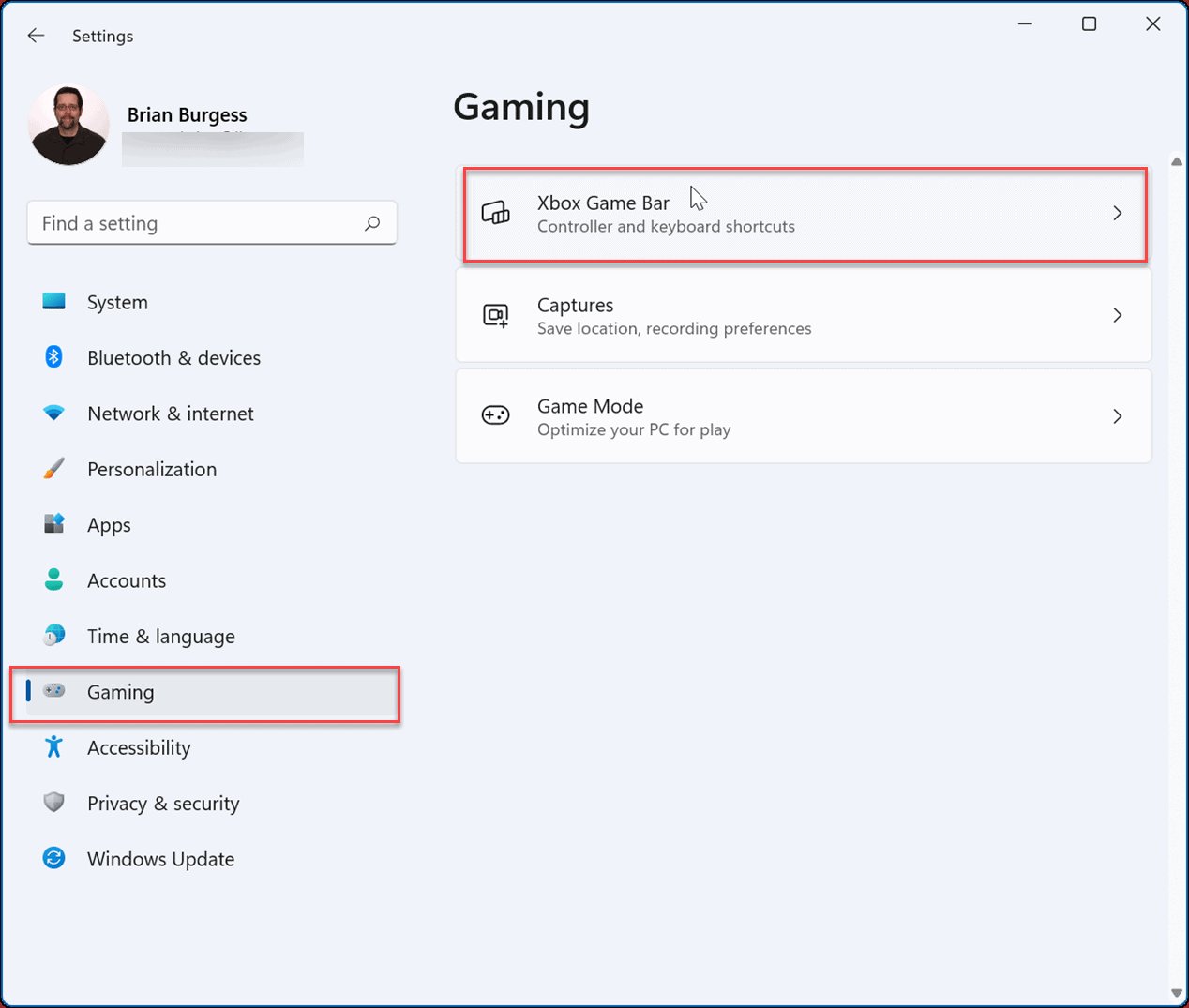
To turn game bar off, go to Windows Settings, click on Gaming, then select Game Bar, and toggle the switch to the Off position.
Is that pesky game bar popping up when you least expect it? It can interrupt your focus, especially when you’re not gaming. Many users find it useful, but it’s not for everyone. Knowing how to turn game bar off can give you back that control.
It’s a simple process, and once you do it, you’ll get rid of those unexpected screen overlays. This quick guide shows you the few steps you need to take to turn off the game bar feature in Windows.

How to Turn Game Bar Off: A Complete Guide
The Game Bar, a handy tool in Windows, lets you capture gameplay, chat with friends, and adjust audio settings. It’s great for gamers, but it can sometimes get in the way. Maybe it pops up when you don’t want it to, or perhaps you just don’t use it. If you’re looking to make it disappear, you’ve come to the right place. This guide will show you all the ways to turn off the Game Bar on your Windows computer, step-by-step.
Why Turn off the Game Bar?
Before we dive into how to turn the Game Bar off, let’s quickly go over why you might want to do that in the first place. Some common reasons include:
- Performance Issues: Sometimes, the Game Bar can use up resources on your computer, which might slow down your games. If you have a less powerful PC, turning it off can give you a boost in performance.
- Accidental Activation: The Game Bar can sometimes pop up when you accidentally press the Windows key and ‘G’ at the same time. This can be annoying if you’re in the middle of doing something else.
- Resource Usage: Even when you’re not actively using the Game Bar, it can still be running in the background, taking up precious memory and processing power.
- Personal Preference: Maybe you just don’t like the way it looks or don’t use any of its features. That’s perfectly fine, and you have the option to turn it off.
Turning Off the Game Bar Through Settings
The easiest and most common way to turn off the Game Bar is through the Windows Settings. Here’s how you can do it:
Step 1: Open Windows Settings
Click on the Start button, which is usually in the bottom-left corner of your screen. Then, click the gear-shaped icon to open the Settings menu. You can also use the shortcut by pressing the Windows key + I at the same time.
Step 2: Navigate to Gaming
Inside Settings, click on the option labeled “Gaming.” It has a picture of an Xbox controller next to it. This section contains all the settings related to gaming on your Windows PC.
Step 3: Access Game Bar Settings
On the left-hand side of the Gaming settings window, you’ll see several options. Click on “Game Bar.” This is where you can change how the Game Bar behaves.
Step 4: Toggle the Game Bar Off
You will see a switch labeled “Record game clips, screenshots, and broadcast using Game Bar”. This is the master switch for the Game Bar. To turn it off completely, click the switch so that it is in the “Off” position. It will look grayed out, instead of blue. That means the Game Bar will no longer pop up or run in the background. Now your PC won’t show it up when you press Windows Key + G.
Step 5: Verify
To make sure Game Bar is off, try to open it using Windows key + G. If it is turned off properly, it will not show. You have successfully turned it off.
Additional Settings within Game Bar Options
Within the same Game Bar settings, you’ll find a few more options. While not necessary for turning the Game Bar off, they’re good to know about:
- Keyboard shortcuts for the Game Bar: You can customize the keyboard shortcut to open the Game Bar. Even if you turn the Game Bar off, these shortcuts are still stored. If you are planning to keep the Game Bar off for a long time, you might want to change these shortcuts to something you will not accidentally press. If you choose to turn on the game bar in future you can use the new shortcuts you made.
- Open Xbox Game Bar using this button on a controller: This option lets you open the Game Bar with a button on a controller. If you don’t use a controller for games, you probably will not have any accidental openings.
Turning Off Game Bar Using Registry Editor (Advanced)
If for some reason you can’t turn off the Game Bar through the Settings menu, you can use the Registry Editor. Be careful when using the Registry Editor. Making mistakes here can cause problems with your computer. So, please follow these instructions carefully.
Step 1: Open Registry Editor
Press the Windows key, type “regedit” and then click on “Registry Editor” when you see it in the search results. You might see a prompt asking for permission, click yes or allow to continue.
Step 2: Navigate to the Correct Key
In the Registry Editor, you’ll need to navigate to a specific folder. It’s a little like finding a file in a computer folder. Use the following path:
HKEY_CURRENT_USER\Software\Microsoft\GameBar
You can also copy this and paste it in the top bar of registry editor and hit enter for faster navigation.
To do that, click on the small arrow next to “HKEY_CURRENT_USER” to see its contents, then the arrow next to “Software”, then “Microsoft”, and finally select “GameBar”.
Step 3: Modify the AppCaptureEnabled Value
On the right side of the Registry Editor window, you will see a list of values. Look for one called “AppCaptureEnabled”. If you see it, double click on it to open an edit window. If not, you may need to create a new one.
Creating a new value (if needed)
If you don’t see the AppCaptureEnabled value, right-click on the empty space in the right-hand pane of Registry Editor and choose New > DWORD (32-bit) Value. Then, give this new value the name “AppCaptureEnabled.” Now you should be able to double click it.
Step 4: Change the Value Data
When you open the “Edit DWORD (32-bit) Value” window, you will see a field called “Value data”. Change this from 1 to 0. A value of 1 means the Game Bar is enabled, and 0 means it’s disabled. Click OK to save your changes.
Step 5: Close Registry Editor and Restart
Close the Registry Editor. Then, restart your computer to make sure that the changes you made have taken full effect. Now, your Game Bar should be off and won’t open up when you press Windows key + G.
Turning Off Game Bar Using Group Policy Editor (Windows Pro Users)
If you have Windows 10 Pro, Education, or Enterprise versions, you can also use the Group Policy Editor to control the Game Bar. This method is usually used by system administrators, but you can use it too. It’s a more technical way to turn off the Game Bar.
Step 1: Open Group Policy Editor
Press the Windows key, type “gpedit.msc” and hit Enter. This will open the Local Group Policy Editor.
Step 2: Navigate to Game Bar Policy Settings
In the Group Policy Editor, navigate to the following path:
Computer Configuration > Administrative Templates > Windows Components > Windows Game Recording and Broadcasting
To do that, double-click on “Computer Configuration,” then on “Administrative Templates,” then on “Windows Components,” and finally, click on “Windows Game Recording and Broadcasting.”
Step 3: Disable the Game Bar
On the right side of the Group Policy Editor window, find the setting called “Enable Xbox Game Bar”. Double-click on this setting.
A new window will pop up. Here, select the “Disabled” option. Then, click “Apply” and “OK” to save your changes.
Step 4: Verify Your Change
Close the Group Policy Editor, restart your computer and then check if the Game Bar is off by pressing Windows key + G. It shouldn’t open.
Other Helpful Tips and Tricks
Here are some additional things you may want to consider for even better experience after you have disabled the Game Bar
- Check for Updates: Sometimes problems with the Game Bar can be fixed with updates to Windows. Make sure you have the most recent updates for your system. You can go to Settings > Update & Security > Windows Update to check for updates.
- Background Applications: If you still see some impact on your PC performance even after you have disabled the Game Bar, make sure you are not running too many apps in background. You can close unused apps through Task Manager by pressing Ctrl + Shift + Esc and closing the apps you don’t need using right-click and the end task option.
- Specific Games: Some games may have their own capture or overlay features. If you have trouble with those, you may need to turn those features off within the specific game settings.
By following any of the methods explained above, you should be able to turn the Game Bar off quickly and easily. Remember that you can turn it back on if you want to use it in the future. This way you can set up the system as you prefer for your usage.
How To Turn Off Xbox Game Bar In Windows 11 – Full Guide
Final Thoughts
Disabling Game Bar is quite straightforward. You can achieve this through Windows Settings. Just navigate to the Gaming section and turn off the Game Bar toggle.
Alternatively, use the Xbox app settings to disable it. These steps will ensure Game Bar does not interfere with your activities. You now know how to turn game bar off, offering a cleaner experience.

