
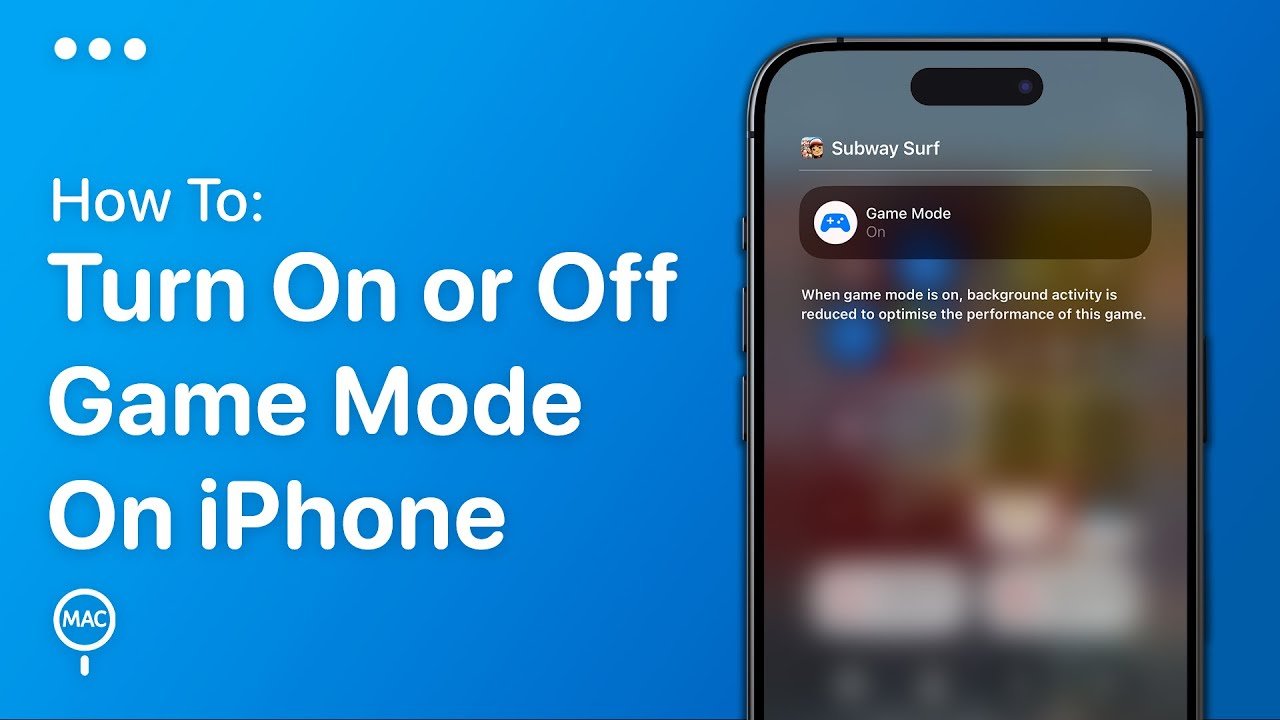
To turn off game mode on iPhone, navigate to Settings, then Focus, select Gaming, and toggle the switch off.
Having that persistent “Gaming” focus activate when you don’t need it can be annoying, right? It dims the screen and silences notifications at the wrong times. This might make you wonder how to turn off game mode on iphone.
Luckily, disabling it is quite simple and takes only a few steps. Let’s walk through the process, so you regain full control of your iPhone settings. It’s really a straightforward adjustment.

How to Turn Off Game Mode on iPhone
Have you ever been playing a super fun game on your iPhone and suddenly noticed things acting a little different? Maybe your notifications are quiet, or the screen seems extra smooth? That’s likely because your iPhone has switched into Game Mode! This special setting helps your phone focus all its power on your game, making it run faster and more smoothly. But what if you want to turn it off? Maybe you want your notifications back, or you’re done playing and want everything to go back to normal. Don’t worry, it’s super easy! This article will guide you through all the ways you can turn off Game Mode on your iPhone, step-by-step.
Understanding Focus Modes and Game Mode
Before we dive into turning off Game Mode, it’s helpful to know how it works. Game Mode is actually a part of a bigger iPhone feature called “Focus Modes.” Think of Focus Modes like different settings for different times. You have one for “Do Not Disturb” when you want to sleep, one for “Work” when you need to focus, and yes, one for “Gaming!” When you activate Game Mode, your iPhone changes a few things. It limits notifications, prioritizes game performance, and sometimes adjusts how your screen looks. It’s like giving your game the VIP treatment!
How Focus Modes Work
Focus Modes are all about managing distractions. They let you filter out notifications, calls, and other alerts that might interrupt you. You can even customize them to only allow certain apps or people to reach you. Game Mode is a specific type of Focus Mode, designed to give you the best possible gaming experience. When you start a game, your iPhone might automatically turn on Game Mode, or you might do it yourself.
Key Aspects of Game Mode
- Notification Management: Game Mode silences most notifications, so you’re not interrupted while you’re playing. You can set it to only show you urgent notifications or none at all.
- Performance Boost: It allocates more of your phone’s processing power to the game, making it run faster and smoother. This is especially helpful for graphics-heavy games.
- Screen Adjustments: Sometimes Game Mode adjusts things like the screen refresh rate to give you an even better gaming experience.
Methods to Turn Off Game Mode
Now, let’s get to the main event: turning off Game Mode. There are a few different ways you can do it, so let’s explore them. You can choose the method that you find easiest.
Turning Off Game Mode from the Control Center
The easiest way to turn off Game Mode is through the Control Center. This is a quick menu you can access from anywhere on your iPhone.
- Open Control Center: Swipe down from the top-right corner of your screen (if you have an iPhone with Face ID) or swipe up from the bottom of the screen (if you have an iPhone with a Home button).
- Locate Focus Button: Look for a button that says “Focus” and likely shows the moon icon, or the symbol of the focus mode which is currently enabled, if another focus mode is active.
- Tap the Focus Button: Tap the button to see your different Focus Mode options. You’ll see a list like Do Not Disturb, Personal, Work, and maybe Gaming!
- Tap Gaming Again to Disable: If Game Mode is on, the gaming icon will be highlighted. Tap the highlighted Gaming icon to turn it off. You’ll see the highlight disappear, and all your normal notifications will start coming through again.
Turning Off Game Mode from the Settings App
You can also turn off Game Mode directly from your iPhone’s Settings app. This method gives you a little more control over your Focus Modes.
- Open Settings App: Find the gray gear icon, which is the Settings app, and tap on it.
- Tap Focus: In the Settings menu, look for the “Focus” option (it has an icon that looks like a circle). Tap on it.
- Find the Gaming Focus: You will see the list of your available focus modes on the screen, including Game Mode. If game mode is active, it would be highlighted.
- Tap the Gaming Focus: Tap on the “Gaming” option.
- Toggle Off: At the top of the Gaming settings screen, you’ll see a switch next to “Gaming.” Tap this switch to turn it from green (on) to gray (off).
- Confirm: The game mode is now off. You can leave the settings and return back to your homescreen.
Checking if Game Mode is Active
Sometimes, you might be unsure if Game Mode is even turned on. Here are a couple of quick ways to check:
- Look at the Lock Screen: If Game Mode is on, you’ll likely see a small gaming controller icon at the bottom of your lock screen near the time.
- Check the Control Center: As described above, the Focus button in the Control Center will be highlighted, and when you tap it, the Gaming option will be highlighted if active.
Customizing Your Game Mode Settings
While we’ve been focusing on turning Game Mode off, it’s good to know that you can also customize it. Maybe you like the focus it gives you, but want to allow some specific notifications through. Here’s how you can tweak Game Mode settings:
Adjusting Allowed Notifications
You can choose which people and apps can send you notifications even when Game Mode is active.
- Go to Settings > Focus: Open your iPhone’s Settings app, then tap on “Focus.”
- Select Gaming: Select the “Gaming” focus mode on the list.
- Tap People: In the “Allowed Notifications” section, tap on “People.”
- Choose Who Can Contact You: Here, you can add or remove the people who are allowed to call or text you while Game Mode is on. You can choose specific contacts, or allow all calls/text or none.
- Tap Apps: Back on the main Gaming settings screen, tap “Apps.”
- Choose Allowed Apps: You can select which apps can send you notifications when Game Mode is turned on. Maybe you need to get important messages from your mail app, you can choose this here.
Customizing the Lock Screen and Home Screen
You can also change how your lock screen and home screen look when Game Mode is on.
- Go to Settings > Focus > Gaming: Navigate to the Gaming settings as described before.
- Tap Customize Screens: Look for the “Customize Screens” area and tap on the “Choose” button.
- Choose Customization Options: Here you can select what your lock screen and home screen will look like when game mode is on. You can select different wallpapers, and widgets.
Automatic Activation
You can set up Game Mode to turn on automatically when you start specific games or even at certain times of the day or when you arrive at a specific location.
- Go to Settings > Focus > Gaming: As before, navigate to the Gaming focus settings.
- Tap Add Schedule or Automation: Look for the “Turn On Automatically” area and tap on “Add Schedule or Automation” button.
- Choose Your Automation Settings: You can choose “Time,” “Location,” or “App.” For example, you can choose “App” and select a game, so whenever you start that game the gaming focus mode turns on automatically. You can select from multiple games as well.
When to Use Game Mode (and When Not To)
Game Mode is fantastic for an immersive and undisturbed gaming experience, but it’s not always the right choice. Here’s a quick guide to help you decide when to use it and when not to:
Best Times to Use Game Mode
- Playing Intense Games: When playing games with lots of action and fast graphics, Game Mode can make them run much better.
- Avoiding Interruptions: If you want to fully concentrate on your game without being bothered by notifications.
- Immersive Experience: If you prefer a smooth, distraction-free environment for your gaming.
Times When You Might Want to Turn Off Game Mode
- Expecting Important Notifications: If you’re expecting an important call or text, you might want to turn off Game Mode so you don’t miss it.
- Casual Gaming: For simple games, Game Mode may not make a big difference, and you might want your normal notifications.
- After Gaming: Once you’re done playing, you likely don’t need the notification silence and performance focus anymore. It’s good to return to normal phone operations.
Troubleshooting Game Mode
Sometimes, you might experience some minor issues with Game Mode. Here are a few common problems and how to handle them.
Game Mode Won’t Turn Off
If you’re having trouble turning off Game Mode, try these steps:
- Restart your iPhone: Sometimes, a simple restart can fix small glitches. Turn your phone off and back on.
- Check for Software Updates: Make sure your iPhone is running the latest version of iOS software. Outdated software can sometimes cause problems. Go to Settings > General > Software Update and see if there is any pending update.
- Reset Focus Settings: If other options doesn’t work, try resetting all your Focus settings. Go to Settings > Focus and at the bottom you will find the option to reset all the focus settings. Doing so will reset the game mode as well and fix issues. But keep in mind that this will delete all your customized focus modes, so use with caution.
Notifications Still Coming Through in Game Mode
If you find notifications are still showing up when Game Mode is turned on, double check the settings:
- Check Allowed Notifications: Go to Settings > Focus > Gaming and check which people and apps you have allowed to send you notifications.
- Ensure Quiet Notifications is On: Go to Settings > Notifications > and check for notification settings of the app that you are receiving notification from, make sure that notification settings are customized to “deliver quietly”.
Turning off Game Mode on your iPhone is usually a very simple process. Whether you prefer to use the Control Center or the Settings app, you can easily manage your Focus Modes. Remember, Game Mode is a tool to improve your gaming experience, but you’re always in control. By understanding how it works and how to adjust its settings, you can make your iPhone work perfectly for you.
How To Turn Off Game Mode on iPhone (iOS 18)?
Final Thoughts
Disabling game mode on your iPhone is straightforward. You can find this setting within the Focus menu in your iPhone’s Settings. Simply select the Game mode focus and toggle it off. This action will cease game mode’s focus and notifications.
To reiterate, how to turn off game mode on iphone involves visiting the Focus settings. Find the active game focus, and simply tap its toggle to deactivate it. You can now receive all notifications as normal.

