
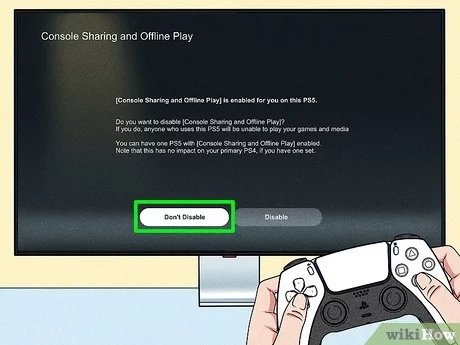
To turn off game sharing on your PS5, go to Settings, then Users and Accounts, and select Other. Choose Console Sharing and Offline Play, and then select Disable.
Want to keep your games private on your PS5? Maybe you’ve shared with a friend or family member, and now you need to revert to just your account. Don’t worry it’s a simple process to disable sharing.
This is exactly what you need if you’re wondering how to turn off game sharing ps5. This brief guide walks you through the steps to regain full control of your digital library.

How to Turn Off Game Sharing on PS5
Have you ever shared your awesome PlayStation 5 games with a friend or family member? It’s a cool feature called “Console Sharing and Offline Play” that lets others enjoy your digital library. But sometimes, you might want to turn it off. Maybe you’re getting a new PS5, or you just want to keep your games to yourself. Whatever the reason, knowing how to stop game sharing is really useful. This guide will walk you through all the steps to disable this feature on your PS5.
Understanding Console Sharing and Offline Play
Before we dive into turning off game sharing, let’s make sure we all understand what it is. “Console Sharing and Offline Play” is a setting that connects your PlayStation Network (PSN) account to a specific PS5 console. When enabled, anyone who uses that console can play the digital games you’ve bought, even if you aren’t signed in. It’s like lending your friend a book, but with video games! It’s great for families, but also needs some management, that’s why sometimes we need to turn off the feature, so there is no conflict between the user who want to access a games in a same time, and also for the privacy and other reasons. This is important to understand, because how you disable it might depend on whether it’s your primary console or not.
Primary vs. Non-Primary Console
Your “primary” PS5 is the console that’s activated as the main one connected to your PSN account. This console gets all the benefits of your PSN account, like access to your games. If you have more than one PS5, only one of them can be the primary console. This is important because changing or disabling sharing on your primary console is slightly different from a non-primary one. To see if the console is a primary console for an account, you can check it from your PS5’s settings.
- Primary Console: This is where your games are shared with other users of this console, even when you are not signed in.
- Non-Primary Console: This console requires the account owner to be logged in to access games and services.
Why Turn Off Game Sharing?
There are several reasons why you might want to stop game sharing on your PS5. Here are some common scenarios:
- You Got a New PS5: When you buy a new console, you often need to make it your primary one. To do that, you will need to deactivate the console you were using as your primary before.
- Protecting Your Account: You might have lent your console to a friend for a while, and now you want to make sure your games are not accessible by other people or even by strangers.
- Sharing with a Specific Person: You may want to share games with one person but not everyone who uses your console.
- Moving or selling the console: You may want to turn off game sharing to ensure that when you move or sell a PS5 you are not sharing your account and games with other users.
Step-by-Step: Turning Off Game Sharing on Your Primary PS5
If you want to stop game sharing on the PS5 that’s currently set as your primary console, follow these steps:
- Go to Settings: Turn on your PS5 and go to the home screen. Look for the “Settings” icon (it looks like a little gear) and select it. It’s usually at the top-right of your screen.
- Select “Users and Accounts”: Scroll down through the Settings menu until you find “Users and Accounts” and select it.
- Choose “Other”: After entering “Users and Accounts”, you’ll see several options. Go to the “Other” option and select it.
- Select “Console Sharing and Offline Play”: This option is where you control game sharing. Select it.
- Disable Console Sharing: If your console is currently set as the primary one, you will see the option “Disable”. Select it, and the system will ask for your confirmation. Select the confirm option and the game sharing function of your account will be deactivated in this console.
Things to Remember
- After disabling console sharing on your primary PS5, you will still have access to your games when you are signed in on the PS5.
- Other users on that same console will no longer be able to play games from your account when you are not signed in.
Turning Off Game Sharing on a Non-Primary PS5
If the console where you want to stop game sharing is not your primary one, the process is a little different.
- Sign In: Make sure you are signed in with your PSN account on the non-primary console.
- Go to Settings: From the PS5 home screen, go to “Settings”.
- Select “Users and Accounts”: In Settings, find and select “Users and Accounts”.
- Choose “Other”: As before, within “Users and Accounts”, go to the “Other” option.
- Deactivate Option: When you select “Console Sharing and Offline Play” on a non-primary console, the option will show up as “Deactivate” instead of “Disable”. Select the “Deactivate” option to remove this console from your account’s primary console status.
Important Note about Deactivating a Non-Primary Console
Once a console is deactivated, it can no longer access your shared digital content or benefits. To regain access, the console would need to be activated as your primary console again. This is not something you can simply reverse with a single click. If you need the game sharing to work on the same console again, you need to re-activate it as primary console, if it’s not primary it can only access to your game while you are signed in.
What Happens After You Turn Off Game Sharing?
It’s important to know what to expect after you’ve turned off game sharing. Here’s a quick overview:
- No more sharing for other users: Other users on the console will no longer be able to play your digital games if you’re not signed in.
- You still have access: You can still access your digital games and services by signing in with your account on the console.
- Offline play limitations: For a non-primary console, you may need an active internet connection to play your games when you are signed in.
- Games will be locked: Games will show a lock icon and can only be started when the PSN account that purchased the game is signed in.
Sharing Games again
If you want to share your games again after turning off game sharing, you will need to activate console sharing. To do this you need to make the desired console as your primary, by following the same steps we used to turn off game sharing, but choosing the enable or activate option.
Tips for Managing Game Sharing
Here are a few helpful tips to keep game sharing managed well:
- Keep track of your primary PS5: Always remember which of your consoles is activated as your primary one. This can avoid a lot of confusion and prevents you from locking out games.
- Be careful who you share with: Only share your console with people you trust. Sharing with untrusted users can lead to unauthorized access of your account and games.
- Password Security: Always have strong and secure passwords for your PSN account. Also make sure no one else knows your password.
- Two-Step Verification: Enable two-step verification for extra security. This will help you protect your PSN account from unauthorized access.
Troubleshooting Common Issues
Sometimes, things don’t go as planned. Here are a few common issues and how to fix them:
“Cannot Deactivate” Error
If you get an error message saying you can’t deactivate, it could be because you’ve recently deactivated other consoles. Sony limits how often you can deactivate. If that’s the case, wait a few days and try again, or contact Playstation support if your issue is not resolved.
Games are Locked
If your games are locked and you can’t play them, it usually means you are not signed in to the PSN account that purchased the games, or that game sharing on the console is turned off. Make sure you’re signed in with the correct account and that the primary console setting is correct. If the console is not your primary console, and you are not logged in, you can’t access the games.
Problems with Offline Play
If you are having issues playing offline, make sure that your console has been set as the primary console for the account that owns the games, in order to have offline access of the games.
Turning off game sharing on your PS5 is simple once you know the steps. Whether you’re getting a new console, keeping your games secure, or just want a little privacy, this guide has you covered. Keep managing your settings carefully, and you can enjoy your PlayStation games the way you want! Remember to always manage your primary consoles and game sharing settings according to your needs.
How to Stop Game Sharing on PS5 | Manually Remove Your Account from Another PS5 & Lock Games
Final Thoughts
To stop game sharing on your PS5, you need to deactivate console sharing and offline play. This can be done through the settings menu on your Playstation. Navigate to user and accounts, then select other and console sharing and offline play and then select disable.
Remember that deactivating this setting impacts all accounts on your PS5. It will also remove the ability for other accounts to access your downloaded games. Finally, you know how to turn off game sharing PS5, so manage your settings carefully.

