
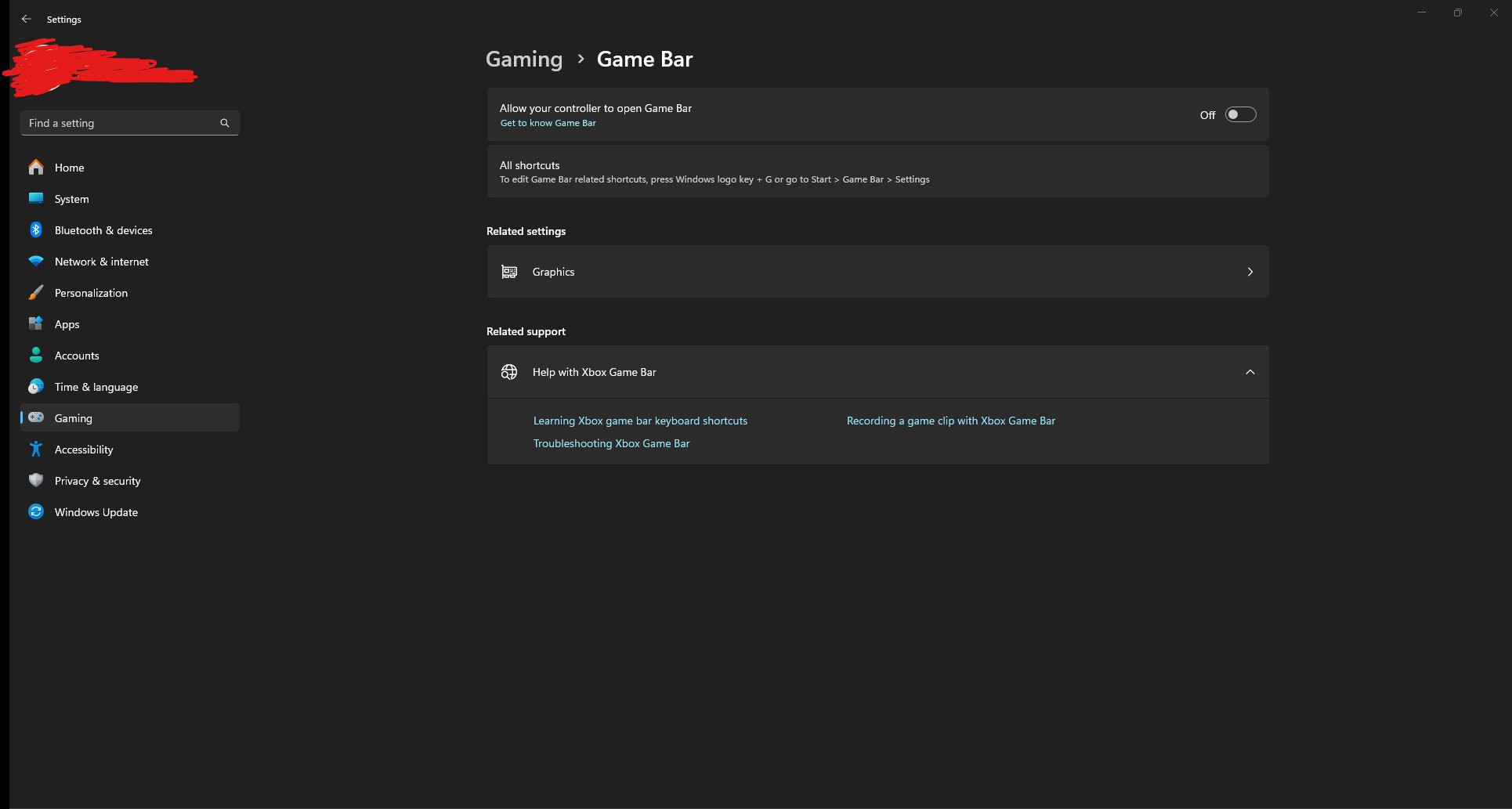
To turn off Xbox Game Bar in Windows 11, navigate to Settings > Gaming > Xbox Game Bar and toggle the switch to ‘Off’.
Is that annoying overlay popping up during your favorite game? You are not alone. Many users want to know how to turn off xbox game bar windows 11. This feature, while useful for some, can be a distraction for others.
It’s actually quite simple to disable the game bar. We’ll guide you through the steps. Just a few clicks, and you’ll be back to gaming uninterrupted. Let’s get it done.

How to Turn Off Xbox Game Bar Windows 11
Okay, so you’re here because the Xbox Game Bar in Windows 11 is popping up when you don’t want it to, right? Maybe it’s interrupting your game, getting in the way of other apps, or you just don’t use it at all. That’s totally understandable! The Xbox Game Bar is a handy tool for recording gameplay, chatting with friends, and even monitoring your system’s performance. But if you’re not a gamer or simply don’t find it useful, it can be more of a nuisance than a help. The good news? Turning it off is simple. This guide will walk you through all the ways you can disable the Xbox Game Bar in Windows 11, step-by-step.
Understanding the Xbox Game Bar
Before we jump into turning it off, let’s quickly chat about what the Xbox Game Bar actually is. It’s a built-in feature in Windows designed to provide easy access to gaming-related functions. Think of it as a quick toolkit for gamers. When activated, it gives you options like:
- Screen Recording: Capture your gameplay or other screen activities.
- Taking Screenshots: Save quick pictures of what’s on your screen.
- Xbox Social: Chat with your friends on Xbox Live.
- Performance Monitoring: Track how your computer is doing while gaming.
- Audio Controls: Manage sound levels for different applications.
All of these features are great, especially for gamers, but the overlay itself can sometimes slow down your PC or cause conflicts with other programs. If you’re experiencing those problems, then disabling it might be the best choice for you.
Disabling the Xbox Game Bar Through Windows Settings
The easiest and most common way to turn off the Xbox Game Bar is through the Windows Settings app. It’s straightforward and doesn’t require any technical know-how. Here’s how you do it:
- Open Settings: Click on the Start button, which is usually at the bottom left of your screen. Then, click on the gear icon to open the Settings app.
- Go to Gaming: In the Settings window, you will see a list of categories on the left side. Click on “Gaming.”
- Select Xbox Game Bar: Within the “Gaming” section, find and click on “Xbox Game Bar.”
- Toggle the Switch: You will see a toggle switch that says “Open Xbox Game Bar using this button on a controller.” To turn off the Game Bar, simply click the switch to turn it off. It should slide to the left and look grayed out.
That’s it! The Xbox Game Bar is now disabled. This should prevent the overlay from popping up unexpectedly. If you ever want to re-enable it, just go back to the same setting and turn the switch back on.
Checking if it’s truly off
To make sure it’s fully turned off, try pressing the Windows key + G. If the Game Bar doesn’t appear, then you have successfully disabled it through the Windows Settings.
Turning off Xbox Game Bar using the Registry Editor
For those who prefer a more advanced method or if the Windows Settings method doesn’t work for any reason, you can turn off the Xbox Game Bar using the Registry Editor. This is a powerful tool, so it’s essential to be careful and follow instructions precisely. Incorrect changes in the Registry Editor can cause problems with your computer.
Important Note: Before making changes to the registry, it’s always a good idea to create a backup of the registry or a system restore point. This way, you can undo any accidental changes.
How to Open Registry Editor
- Press the Windows key, type “regedit” and then press Enter.
- A pop-up will ask if you want to allow the app to make changes to your device, click “Yes”.
Navigate to the correct registry key
- In the Registry Editor, on the left sidebar, paste the following path into the address bar at the top.
Computer\HKEY_CURRENT_USER\SOFTWARE\Microsoft\Windows\CurrentVersion\GameDVR - If you are not seeing address bar, press F4 key to enable the address bar.
Modify the Registry Value
- Now look for the entry called AppCaptureEnabled in the right-hand panel. If it doesn’t exist, you will have to create it.
- To do that, right-click on the empty area in the right panel, select New > DWORD (32-bit) Value.
- Now Rename it to AppCaptureEnabled.
- Once created, double click the AppCaptureEnabled to open up a window to modify the value.
- Change the “Value data” to “0” and click “OK.” The default value is “1,” and this is the value which needs to be changed.
Disable Game Bar in the other Registry Location
- Navigate to the following key by pasting it into the address bar:
Computer\HKEY_CURRENT_USER\System\GameConfigStore - Look for the GameDVR_Enabled in the right panel and double click to open it.
- Change its “Value data” to “0” and click “OK”
Restart your PC
To make the changes take effect, you have to restart your computer.
After the computer restarts, the Xbox Game Bar should be disabled. You can try the Windows key + G shortcut to confirm the change. If it doesn’t open, then you’ve successfully turned off the Game Bar using the Registry Editor.
Using Group Policy Editor to Disable Xbox Game Bar
The Group Policy Editor is another method, especially useful for administrators who manage multiple computers or have a Windows Pro version. However, if you are using Windows Home version, this method may not be available to you. Group policy can provide you more control over various aspects of how your PC functions, but it is also an advance method of disabling the xbox game bar and may also lead to system malfunction if not properly followed.
How to Open Group Policy Editor
- Press the Windows key, type “gpedit.msc” and then press Enter.
Navigate to the correct Group Policy
- In the Local Group Policy Editor, expand Computer Configuration.
- Expand Administrative Templates.
- Expand Windows Components.
- Look for the “Windows Game Recording and Broadcasting” folder, and select it.
Modify the Group Policy Setting
- Find the setting named “Enable Xbox Game Bar” on the right side panel, and then double click on it.
- A window will open that shows three options – “Not Configured,” “Enabled,” and “Disabled.” Select “Disabled,” click “Apply,” and click “OK”.
Restart your Computer
After making the changes in the Group Policy Editor, restart your computer to have the changes implemented.
After restarting, try using the shortcut Windows Key + G to see if the Game Bar appears. It shouldn’t, if you successfully followed the steps.
Specific Scenarios Where Disabling is Useful
Let’s explore some specific situations where turning off the Xbox Game Bar might be helpful:
Improving Game Performance
The Xbox Game Bar uses system resources, even when you’re not actively using it. On lower-powered computers, this can lead to a drop in frame rates, stuttering, or lag during gameplay. Disabling it frees up those resources for your game, potentially leading to a smoother experience. It’s all about making sure your computer focuses on the game, and nothing else.
Avoiding Conflicts with Other Software
Sometimes, the Game Bar can conflict with other programs that use overlays, such as Discord, OBS Studio, or certain graphics card utilities. These conflicts can result in crashes, glitches, or unexpected behavior. If you’re experiencing such issues, turning off the Xbox Game Bar may be necessary to resolve them. This allows other software to function correctly without interference.
Preventing Accidental Activation
If you tend to accidentally press the Windows key + G shortcut, the Xbox Game Bar might keep popping up when you don’t want it to. This can be frustrating and disruptive. Disabling it can prevent such accidental activations from occurring, making sure you only activate it when you need to.
Privacy Concerns
Some users are concerned about privacy and prefer not to have features like screen recording or social integration running in the background. If this is a concern for you, disabling the Xbox Game Bar gives you more control over these aspects of your computer. You can choose exactly what data you want to be recorded and shared.
Simplifying your UI
If you prefer a minimalist desktop environment, you might just find the Game Bar unnecessary and intrusive. Disabling it can help you achieve a more uncluttered and focused desktop experience, without unnecessary pop ups getting in the way of what you are trying to do.
Re-enabling the Xbox Game Bar
If you change your mind or decide you want to use the Xbox Game Bar again, don’t worry, turning it back on is as easy as turning it off. Here’s how to do it using the same methods we used to disable it:
Re-enabling through Windows Settings
- Open the Settings app.
- Click on “Gaming”.
- Click on “Xbox Game Bar”.
- Toggle the switch to turn it back “on”. It should slide to the right and look blue.
Re-enabling through Registry Editor
- Open the Registry Editor.
- Navigate to
Computer\HKEY_CURRENT_USER\SOFTWARE\Microsoft\Windows\CurrentVersion\GameDVR - Double click on AppCaptureEnabled and change the “Value Data” to 1.
- Navigate to
Computer\HKEY_CURRENT_USER\System\GameConfigStore - Double click on GameDVR_Enabled and change the “Value Data” to 1.
- Restart your computer.
Re-enabling through Group Policy Editor
- Open the Group Policy Editor.
- Navigate to Computer Configuration > Administrative Templates > Windows Components > Windows Game Recording and Broadcasting.
- Double-click on “Enable Xbox Game Bar” and change its setting to either “Enabled” or “Not Configured”.
- Click “Apply” then “OK”.
- Restart your computer.
Once you re-enable the Xbox Game Bar, it will work just like it did before you turned it off. You can once again access it with the Windows Key + G shortcut and utilize all the screen capturing and social features it provides.
Disabling the Xbox Game Bar can provide improvements in gaming performance and avoids software conflicts. It is an easy process and can be done through the Windows Settings, Registry Editor, or Group Policy Editor. The best method depends on the user’s technical comfort and the version of Windows they are running. The Xbox Game Bar can easily be re-enabled if needed, using the same method used to disable it. By understanding how to control this Windows feature, users can achieve a more personalized experience on their computers.
How To Turn Off Xbox Game Bar In Windows 11 – Full Guide
Final Thoughts
To conclude, you can disable the Xbox Game Bar via the Settings app. Navigate to the Gaming section, then select Xbox Game Bar. Simply toggle the switch to the off position. This action completes how to turn off xbox game bar windows 11, preventing its overlays.
Turning off the Game Bar will stop its recording and other features. This simple method will give you a cleaner experience. Therefore, no more interruptions during other tasks.

