
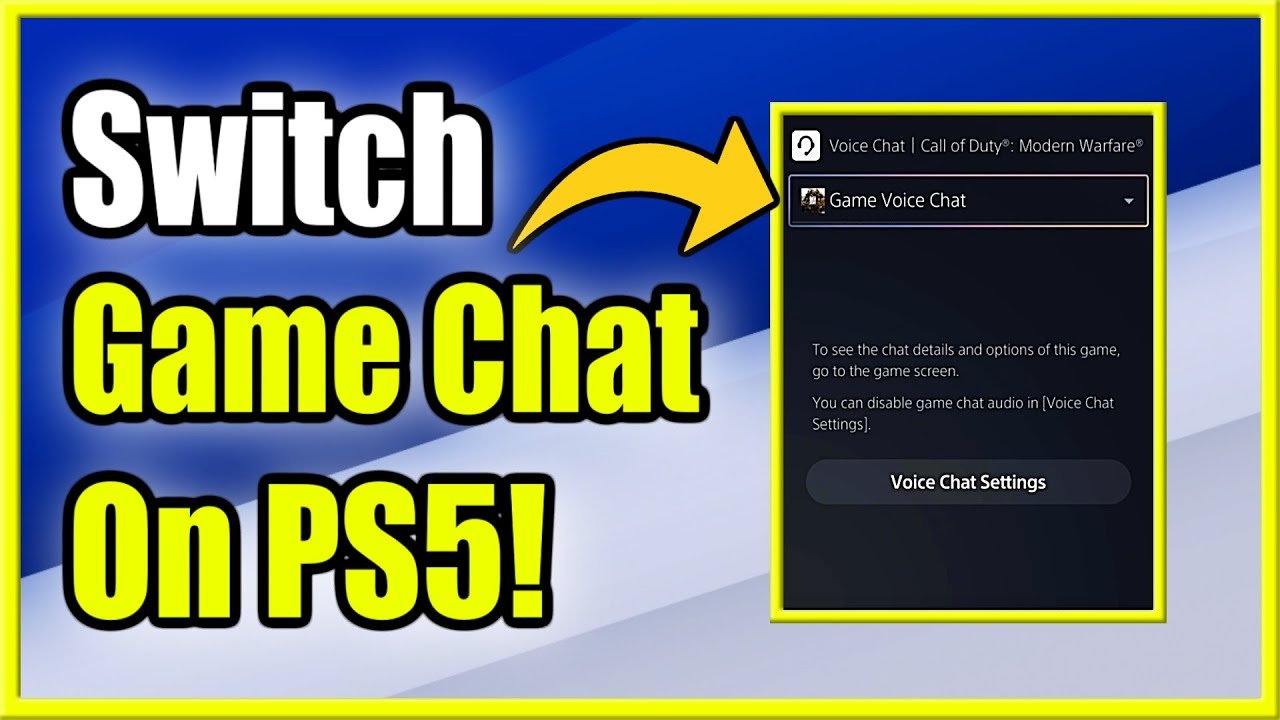
To turn on game chat on PS5, press the PlayStation button, go to the ‘Voice’ tab, and select your preferred chat method or adjust your microphone settings.
Ever found yourself in a silent online match, wondering how to connect with your teammates? It can be frustrating not being able to strategize or just chat about the game. Learning how to turn on game chat PS5 doesn’t need to be a chore. We will guide you through the simple steps so you can get back to gaming and interacting.
It’s a crucial part of online gaming experience, enabling communication and coordination. In this brief guide, we will show you what to do to quickly set up your chat.

How to Turn On Game Chat on PS5: A Simple Guide
Getting ready to talk to your friends while playing your favorite PlayStation 5 games? That’s awesome! Game chat is super important for teamwork, strategizing, and just having fun. But sometimes, it can be tricky to figure out how to get it going. Don’t worry! This guide will walk you through everything you need to know about turning on game chat on your PS5, making sure your voice is heard loud and clear in the gaming world. Whether you are using a headset, the DualSense controller’s microphone or something else, we have you covered.
Understanding the Basics of PS5 Game Chat
Before diving into the specifics, let’s cover the fundamental parts of using game chat on your PS5. There are several ways to communicate, and knowing them will make it easier to troubleshoot any problems you might face. We will talk about:
- Headsets: These are the most popular way to chat and will have superior sound quality. They can connect with a cable or wirelessly.
- DualSense Controller Mic: Your PS5 controller has a built-in microphone. This is a great backup if you don’t have a headset.
- Game Settings: Every game has its own chat settings you might have to adjust for the perfect experience.
- PS5 System Settings: The PS5 itself has settings that manage how voice chat functions across all games.
Setting Up Your Headset for Game Chat
A headset is usually the best way to communicate with your friends during a game. It helps you hear clearly and allows others to hear you clearly too. Here’s how to set it up:
Wired Headsets
Wired headsets connect directly to your controller or console using a cable. Here’s how:
- Plug It In: Find the audio port on your DualSense controller or the designated audio output on the front or back of your PS5 console. The port is normally a round socket.
- Check Connection: Once connected, your PS5 should automatically identify your headset. Look for a small symbol that pops up on the screen showing the headset is connected.
- Adjust Volume: If you’re not hearing game sound or chat at the right volume, use the volume buttons on your headset or adjust the volume slider on the PS5 menu. Press the PlayStation button to open the quick menu and navigate to sound options.
Wireless Headsets
Wireless headsets connect using Bluetooth or a USB dongle. Here’s the process:
- Bluetooth:
- Enter Pairing Mode: Put your headset into pairing mode by pressing and holding its power button or by pressing the pairing button, as per your headset instructions. It usually blinks a light when in pairing mode.
- Go to Settings: On your PS5, go to Settings > Accessories > Bluetooth Accessories.
- Select Your Headset: Your PS5 will search for your headset. Select it from the list and follow any prompts to finish pairing.
- USB Dongle:
- Plug It In: Connect the USB dongle to one of your PS5’s USB ports.
- Turn On Headset: Turn on your headset, and it should automatically connect to the dongle. Sometimes, you will need to press a pairing button on both the dongle and headset.
- Check Connection: Similar to wired, your console should show you that the headset has connected correctly.
Troubleshooting Headset Connections
- No Sound? Check if the headset is correctly connected. Make sure the volume is turned up and not on mute. Look for any physical mute buttons on the headset itself.
- Microphone Not Working? Check the microphone settings on your console. We will cover that in the next section. Also ensure that the microphone boom arm is correctly positioned, if you have a headset that has one.
- Bluetooth Issues? Restart both your headset and PS5. Try moving the headset closer to the console, as range might be an issue if the headset is far away. Ensure that no other device is connected to the headset over Bluetooth that might be interfering with its connection.
Using the DualSense Controller Microphone
The DualSense controller has a built-in microphone that can be a great option if you don’t have a headset. Here is how to use it:
Enabling the Controller Microphone
- Check the Mute Button: There is a small button below the PlayStation button on the front of your controller, with a small microphone symbol on it. Ensure that the button is not glowing orange. If it is glowing orange, your microphone is muted. Press the button once to turn off the mute function.
- Game Settings: Check the in-game settings of the game you are playing and ensure that voice chat is enabled.
Controller Microphone Settings
- Adjust Microphone Level: If others are having difficulty hearing you, you might need to adjust the microphone level in the PS5 settings. Go to Settings > Sound > Microphone and adjust the input volume slider. Speak into the microphone to test if it is working, and make changes as required.
- Microphone Sensitivity: Some games offer microphone sensitivity settings, which let you control how loud or soft your voice is.
- Mute Toggle: Remember you can quickly mute yourself by pressing the mute button on the DualSense controller.
Troubleshooting Controller Microphone Issues
- Muted by Accident? Check the mute button on your controller. It’s easy to hit it by mistake!
- Sound Quality? The controller mic is not as good as a headset. It is convenient, but it might pick up background noise. Try to play in a quieter environment to improve audio quality.
- Not picking up sound? Check the microphone volume setting in the PS5 settings. Try to gently blow into the mic to remove any dust or debris that might be causing issues.
Navigating PS5 System Settings for Game Chat
The PS5’s main settings let you customize how voice chat works across all of your games. Let’s go through the important settings:
Accessing System Settings
- Go to Settings: From the PS5 home screen, select the gear icon (Settings) in the top-right corner.
- Find Sound Options: Scroll down and select ‘Sound’ from the list.
Adjusting Microphone Settings
Here, you can find settings to:
- Choose Input Device: This is where you choose whether your headset or controller microphone is used for voice chat.
- Adjust Microphone Level: Adjust the sensitivity of your microphone here. Test your microphone by speaking into it as you adjust the volume and see the input levels.
- Mute Microphone When Not In Use: You can select a feature where your microphone is automatically muted when you’re not talking.
Adjusting Audio Output Settings
Here, you can manage where the sound is coming from. Key settings include:
- Output Device: Choose where game audio and voice chat should be heard from – your headphones, TV, or speakers.
- Chat Audio Priority: You can choose to make voice chat more prominent than game sound.
- Volume Controls: Set the volume level for the game and the chat separately.
Troubleshooting PS5 System Settings
- Wrong Device Selected? Make sure the correct input and output devices are chosen in the settings. It is easy to choose the wrong option by accident.
- Sound Issues? Restart your PS5. Sometimes a simple restart will fix things. Make sure your PS5 is up to date with all of the current firmware.
- Mic Level Too Low/High? Adjust your microphone settings until your voice sounds clear and at a good volume.
Game-Specific Chat Settings
Each game has its unique voice chat settings. It’s crucial to adjust these for the best experience. Let’s discuss game settings:
Accessing In-Game Chat Settings
- Start Your Game: Open the game you want to play.
- Go to Options or Settings: Look for an ‘Options,’ ‘Settings,’ or ‘Audio’ menu in the game’s menus.
- Find Voice Chat Settings: Look for ‘Voice Chat,’ ‘Audio Chat,’ or ‘Communication’ options within the game’s settings.
Common In-Game Chat Options
- Enable/Disable Voice Chat: Most games have an option to completely disable voice chat.
- Voice Chat Input/Output Devices: Some games let you select your microphone and speaker from a list.
- Push-to-Talk (PTT): Some games offer PTT, where your microphone is only active when you hold a specific button.
- Microphone Sensitivity: Control how sensitive the microphone is.
- Chat Volume: Adjust the volume of the voice chat to balance against the game sound.
Troubleshooting In-Game Chat Issues
- No Voice Chat Option? Not every game has voice chat. Some games rely solely on text chat or other communication methods.
- Not Heard? Make sure the microphone is enabled and the correct input device is selected within the game’s settings, as well as within the PS5’s system settings.
- Too Quiet? Adjust your microphone volume in the game settings and the PS5 system settings. Try to reposition your microphone or speak louder.
Party Chat vs Game Chat
It’s also important to understand the difference between Party chat and game chat.
What is Party Chat?
- Party chat is a feature that allows you to create a group chat with your friends regardless of the game you are playing. This means you can communicate with your friends even if you are all playing different games.
- Party chat is handled by the PS5’s system, not by the game itself.
What is Game Chat?
- Game chat is a feature built into specific games that allows players in that game to talk to each other.
- Game chat settings vary depending on the game you are playing.
Which one should I use?
- If you want to communicate with your friends regardless of what games you are playing, use Party Chat.
- If you want to communicate with other players in your specific game, use the game chat feature.
Tips for Better Game Chat Quality
Getting great quality game chat is all about making sure everything is set up right. Here are some tips to help:
- Use a Good Headset: A headset with a good quality microphone and noise cancellation can make a big difference.
- Minimize Background Noise: Play in a quiet area to prevent background noises from interfering. If you have kids or loud family members, ask them to be quiet for a short while.
- Position Your Microphone: If you have a headset with a boom arm, position the microphone near your mouth but not directly in front of it.
- Adjust Your Mic Level: Spend some time adjusting your microphone volume to ensure that your voice is clear and not too loud or too quiet.
- Test with Friends: Have your friends test out your mic settings to see how you sound.
By understanding these steps, you’ll have no problem using game chat on your PS5. Remember to check both your console settings and in-game settings for best results. Enjoy talking with your friends and collaborating with your teammates!
PS5: How to Switch From Party Chat to Game Chat Tutorial! (For Beginners) 2024
Final Thoughts
To use in-game chat, press the PlayStation button. Navigate to the ‘Game Base’ menu. Select the ‘Voice Chat’ option. You can then adjust audio settings and join or create parties.
Remember, game chat requires a compatible game. You also need a working microphone. Follow these simple steps for clear communication.
The ability to talk with teammates enhances the overall experience. So ‘how to turn on game chat ps5’ is crucial. Enabling this feature is easy. Enjoy better online play.

