
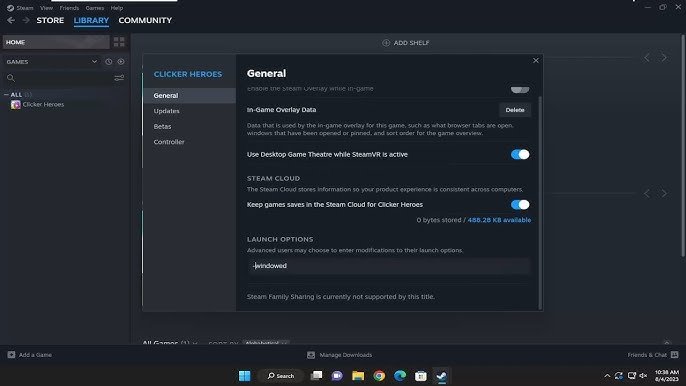
To un fullscreen a game, typically press the ‘Alt’ and ‘Enter’ keys simultaneously, or sometimes the ‘Esc’ key.
Have you ever been completely engrossed in a game, only to find yourself wanting to quickly switch to another application or see something else on your screen? You might be wondering how to un fullscreen a game. It can be a little frustrating if you don’t know the trick!
The good news is, it’s usually very simple. Most games and applications will respond to a key combination for this purpose, letting you move back into windowed mode without much hassle. We’ll cover the common method and the variations you may encounter.

How to Un Fullscreen a Game
Have you ever been playing your favorite game, totally immersed in the action, and then suddenly needed to quickly check something else on your computer? Maybe you got a message, or you want to change your music. This is where knowing how to get out of fullscreen mode is super helpful. It’s like having a secret exit button for your game! This article will show you all the ways you can go back to windowed mode, so you can jump between your game and other tasks easily. Let’s get started!
The Quick Keyboard Shortcuts
The fastest and easiest way to switch from fullscreen to windowed mode is usually by using a keyboard shortcut. These are like secret codes that your computer knows. Here are some of the most common ones:
Alt + Enter
This is the most widely used shortcut for toggling between fullscreen and windowed mode in many games. Just press the “Alt” key and the “Enter” key at the same time. It’s super simple and works in lots of different games. Think of it as your go-to option when you’re trying to get out of fullscreen quickly.
Windows Key + Shift + Enter
Sometimes, especially with older games, the regular Alt + Enter doesn’t work. In these cases, try pressing the Windows key (the key with the Windows logo), the Shift key, and the Enter key all together. This combination often works when other methods fail. Give it a try!
Function Keys (F1-F12)
Some games let you switch between fullscreen and windowed mode using a specific function key. Typically, this is F11, but it may be different depending on the game. Look in your game’s settings menu to see if there’s a specific key mentioned. Some games will even allow you to rebind this to another key. Try pressing F11 to see if it takes you out of fullscreen, and if it doesn’t, check your game’s settings.
Using the Game’s Settings Menu
Every game has its own special settings, and most of them have an option to choose between fullscreen and windowed mode. This is a great way to make the change when keyboard shortcuts don’t work or if you prefer a menu.
Finding the Graphics or Display Settings
To do this, first look for the main settings menu in your game. It’s usually found by pressing the “Esc” key while you’re playing, or sometimes by a gear icon or a settings button on the game’s main screen. Once you’re in the settings menu, look for a section called “Graphics”, “Display”, “Video”, or something similar. The name might be a little different in different games, but usually, it’s pretty easy to find.
Changing the Display Mode
Inside the graphics or display settings, you’ll see a setting that says something like “Display Mode,” “Fullscreen,” or “Windowed”. You might see a drop-down menu or a toggle switch. To switch from fullscreen to windowed mode, simply change the setting to “Windowed” or “Borderless Windowed.” This will tell the game to play inside a window on your screen, which makes it much easier to switch to other programs.
Understanding the Different Window Modes
There are a few different window modes that games use. Knowing what they are can help you pick the best one for your needs.
Windowed Mode
This mode plays the game inside a window on your screen. You can see the game’s title bar at the top and often the borders of the window. It’s great for easy switching between the game and other programs. The game might be smaller than your screen, but you can usually resize the window and move it around as you like. This is usually the best mode when you need to jump back and forth to other programs a lot.
Borderless Windowed Mode
This is sometimes called “Fullscreen Windowed” or “Windowed (Fullscreen)”. This mode looks like fullscreen, filling the entire screen, but it is still running in a window. This means you get the best of both worlds: the game looks like it is in fullscreen, but you can easily Alt-Tab or use other ways to quickly switch between the game and other programs. It’s often the preferred method for people who want the immersive feel of fullscreen, but the ability to easily switch to other applications.
Fullscreen Mode
Fullscreen mode makes the game take over your entire screen. This can provide better performance in some cases, but it makes it harder to switch to other programs. To get back to your desktop, you’ll usually need to use a keyboard shortcut to minimize or change the mode.
Troubleshooting Common Issues
Sometimes, un-fullscreening a game doesn’t go as smoothly as we expect. Here are some things to try if you are having trouble.
Game Not Responding to Keyboard Shortcuts
If keyboard shortcuts like Alt + Enter aren’t working, try closing the game and restarting it. Sometimes, the game may get stuck, and a fresh start can fix it. If that doesn’t do the trick, check if another program on your computer is using that keyboard shortcut, causing a conflict. Also, sometimes games have known bugs that can stop the shortcut from working, so try other methods, like the game’s settings menu.
Display Issues After Switching
If the game looks funny after you change to windowed mode, it’s usually a problem with the game’s display settings. Go back to the game’s settings and try changing the resolution (how clear the game looks). If your monitor has a different resolution than the game does, this may cause glitches. Try different resolutions until you find one that works best with your monitor. You can also try changing other graphics settings, like antialiasing or texture detail, as sometimes those settings can have unintended results after switching between fullscreen and windowed mode. Also, make sure that your computer’s graphics card drivers are up to date, as out-of-date drivers can sometimes cause visual issues with some games.
Game Freezing or Crashing
If the game freezes or crashes when trying to un-fullscreen it, there may be a larger issue, such as a software compatibility issue, or your system might be struggling to run the game. Try lowering the game’s graphics settings (like resolution and detail levels) to see if that helps. Also, close other programs that might be running on your computer, to free up more system resources. If the issue still occurs, restarting your computer and trying again might clear up some temporary problems. If the problem persists, consider reinstalling the game, to make sure that there were no errors during the installation process. Finally, if nothing else seems to work, check the game’s support forums online, as it may be a known problem that other players have also encountered and there might be potential solutions suggested by other players, or even by the game’s developers.
Game Still Fullscreen Despite Settings Changes
Sometimes, even if you change the settings in the game to windowed mode, it will still launch in fullscreen. If this happens, check the game’s configuration file. Most games save settings in a file on your computer, and they may be different from the settings that are available inside the game. Check the game’s files in your Documents folder or in the game’s install directory to see if there’s a config or ini file you can open with a text editor. Look for settings about “fullscreen” and set it to “0” or “false,” then save and try launching the game again. Additionally, some game launchers have settings that override the actual game’s settings. Check the launcher that you use to launch the game to make sure that there aren’t any fullscreen settings there, and also make sure that you’re actually launching the game, not just using the launcher in fullscreen mode.
Tips for Smoother Gameplay
Here are some extra tips to make your gaming experience even better.
- Choose the Right Mode: If you’re jumping between your game and other programs a lot, “Windowed” or “Borderless Windowed” are usually best. Fullscreen is good for when you want to be totally focused on the game, but can make it hard to quickly switch between programs.
- Adjust Resolution: Make sure your game’s resolution matches your monitor’s resolution for the best picture. If you pick a resolution that is smaller or larger than your monitor, the image might look stretched or blurry.
- Update Your Drivers: Keep your computer’s graphics drivers up to date. Outdated drivers can cause problems with how games look and perform. If you have an NVIDIA or AMD graphics card, you can go to their website to download their latest drivers. Or you can often check for graphics driver updates through the computer’s settings.
Why You Might Want to Un Fullscreen
You might be wondering, “why do I even need to un-fullscreen a game in the first place?” There are many reasons, and here are some of the most common:
- Multitasking: When you’re in windowed mode, you can easily check messages, browse the web, or do other tasks without having to close your game. This is perfect if you’re doing something like following a guide or communicating with friends.
- Live Streaming or Recording: If you stream your gameplay, you’ll often want to use windowed mode. This allows you to easily capture the game with your broadcasting software, and it also makes it easier to see all the information on your screen without having to constantly switch views.
- Game Guides: Sometimes you’re stuck in a game, and you need to quickly look up a walkthrough or a guide. Windowed mode makes it much easier to jump over to your browser to find the answer that you’re looking for.
- Accessibility: For some users, windowed mode might be more comfortable or easier to work with if they have multiple monitors, or if they have special accessibility needs that are best served when the game is in a window.
The Importance of Flexibility
Being able to switch between fullscreen and windowed modes adds a lot of flexibility to your gaming experience. Knowing how to quickly change modes using keyboard shortcuts and game settings means you don’t have to interrupt the flow of your gameplay to handle other tasks. It makes your gaming more convenient and gives you more control over how you play your games. So now that you know the different ways to manage your games’ screen display, you can easily make the change whenever you want!
So, there you have it – all the ways you can un-fullscreen a game. Whether you use keyboard shortcuts, game menus, or a combination of both, you’re now equipped to handle any game display situation. Remember to choose the mode that best suits your needs and gaming habits, and don’t be afraid to experiment with different settings to find what works best for you. With these tools at your disposal, you can easily manage your games and enjoy a smoother, more convenient gaming experience.
HOW TO MAKE DELTARUNE FULLSCREEN!
Final Thoughts
To quickly return to windowed mode, press Alt + Enter. Another way involves using the game’s settings menu, usually under display options.
If those do not work, try the Escape key or the Windows key itself. These methods provide easy ways for how to un fullscreen a game. You can always try closing the game entirely if other solutions fail, then restarting.

