
Press the ‘Alt’ and ‘Enter’ keys simultaneously or press the ‘Esc’ key to unfullscreen a game.
Ever been engrossed in a game, only to feel trapped in fullscreen mode? Maybe you need to quickly check something else or prefer a windowed view. Figuring out how to unfullscreen a game can be frustrating if you don’t know the right method.
Luckily, exiting fullscreen is usually quite simple. Games often use common keyboard shortcuts for this purpose. We’ll explore the easiest options you can use to return your game to a window.

How to Unfullscreen a Game: Your Guide to Windowed Gaming
Ever been playing your favorite game, totally immersed in the action, and then suddenly need to quickly check another application? Maybe you want to browse a website for a walkthrough, or hop onto a chat with your friends. That’s when fullscreen mode, while great for immersion, can become a bit of a hurdle. Learning how to unfullscreen a game is a handy skill that makes switching between tasks on your computer much smoother. Let’s explore all the ways you can get your game out of fullscreen and back into a window.
Understanding Fullscreen vs. Windowed Mode
Before we dive into the “how,” let’s quickly understand the “why.” Fullscreen mode uses your entire monitor to display the game, eliminating any distractions like your taskbar or other open windows. It often gives better performance because the computer focuses solely on the game. Windowed mode, on the other hand, displays the game in a resizable window, allowing you to see other applications and switch between them easily. There are a few variations of windowed mode, each with its own benefits.
Borderless Windowed Mode
Borderless windowed mode is like a hybrid of the two. The game appears as if it’s in fullscreen, but it’s actually a window that takes up the whole screen. You can still see the game, but you also can quickly jump to other apps without the game minimizing or pausing. This mode is often a good balance of performance and convenience. It makes Alt-Tabbing a breeze.
Regular Windowed Mode
Regular windowed mode puts your game in a defined window which you can resize, move around your screen, and minimize or maximize, just like any other window. This is great for multitasking, but might not look as sleek as fullscreen or borderless windowed modes. You can often drag the corners of the window to make it bigger or smaller. It’s great for playing games on a smaller part of your screen.
Common Methods to Unfullscreen a Game
Now that we know the difference between these display modes, let’s explore the several common ways of switching out of fullscreen. Some games respond differently to these methods, so it’s useful to know them all. The way you unfullscreen a game can vary slightly based on the game itself or your operating system (like Windows or macOS).
The Alt + Enter Shortcut
This is perhaps the most universal shortcut for toggling between fullscreen and windowed mode. Simply press the Alt key and the Enter key simultaneously. This shortcut works in many games, and can quickly get you out of fullscreen. If a game is stuck in fullscreen or isn’t responding to other methods, this keyboard command is always worth trying.
Here’s how to use the Alt + Enter method:
- Make sure the game is running and is the active application (meaning, you’ve clicked on the game window).
- Press and hold the Alt key.
- While holding Alt, press the Enter key.
- Release both keys.
- The game should switch out of fullscreen, and hopefully into windowed mode.
Using the Game’s Built-In Settings
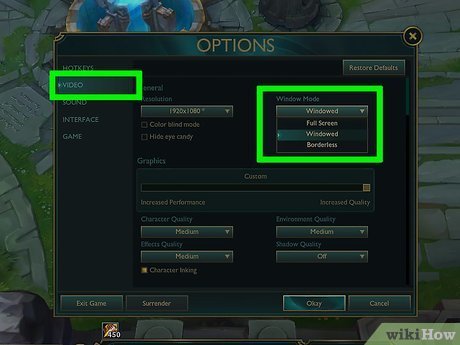
Most games have their own settings menu that allows you to change the display mode. This method will always be the most reliable method, if your game allows. Often, the game’s menu will have a specific drop down where you can select “Fullscreen,” “Windowed,” or “Borderless” mode.
To change settings using the game’s menu, follow these general steps:
- Open your game, and look for the Settings or Options menu. It may look like a gear icon or the word ‘Settings’ on the main menu.
- Once you find the settings menu, search for an option labelled “Display,” “Graphics,” or “Video.”
- Within the video settings section, you’ll typically find a “Display Mode” option.
- Click on this option to see your available options like fullscreen, borderless, or windowed mode.
- Select your desired mode (for example, windowed mode), then click “Apply” or “Ok” to save your changes.
The Esc Key and in-game menus
Sometimes, the Esc key can also help bring up a menu where you can change the display mode. When a game starts in fullscreen, pressing Esc may allow you to get to an in-game menu. From there, you can try changing the game to the desired display mode. It’s similar to changing settings in a game’s menu.
The Windows Key Shortcut
The Windows key, or Win key, also has a useful shortcut. Pressing the Windows key will usually bring up the Start menu and show your Taskbar. Usually this can force the game to a windowed mode or minimize it. From there, you can try to manually resize the game window, and change display options in the game menu.
The Function Keys (F1-F12)
Some older games may use Function keys to change between fullscreen and windowed modes. You may have to try pressing them one by one, but be careful to press only one key at a time. It’s a good idea to check the game’s manual for a list of possible shortcuts.
Specific Game Scenarios and Solutions
Let’s look at some specific examples of how to unfullscreen certain types of games or situations you might encounter.
Games that Don’t Respond to Alt + Enter
If the Alt + Enter shortcut isn’t working, you’ll want to explore other methods. Some games require you to manually adjust settings from the in-game menu. Check if there are particular ways of switching display modes that are specific to the game you are playing.
Games with Limited Graphics Options
Occasionally, you might find games with very basic graphics settings. These games might not offer a full range of display mode options. You may be limited to either fullscreen or a specific windowed size. In these cases, the best you can do is either try using the Alt + Enter shortcut or trying to adjust settings directly within the game’s settings menu. Sometimes a game might only have one “windowed” mode and not borderless.
Older Games and Compatibility Issues
Older games may have compatibility issues, especially when running on modern systems. They might have problems switching out of fullscreen mode. Try running the game in compatibility mode (a feature available in Windows). To do this, right-click the game’s executable file, select “Properties,” go to the “Compatibility” tab, and enable “Run this program in compatibility mode for” and choose an older operating system like Windows XP or Windows 7.
Games Stuck in Fullscreen
Sometimes, a game will become stuck in fullscreen, making it hard to switch modes. Pressing Alt + Tab to switch to a different window might be one option. Also, try pressing the Windows key or Ctrl + Alt + Delete to bring up the menu, then go back to the game to see if the game switches to windowed mode. If nothing works, you can try closing the game forcefully through Task Manager (Ctrl + Shift + Esc on Windows).
Using Task Manager to Force Close Stuck Games
If you have a game that is fully frozen, and won’t minimize or change screen mode, you might have to use Task Manager to close the game.
Here is how to use Task Manager:
- Press Ctrl + Shift + Esc keys to open Task Manager.
- In the Task Manager, go to the “Processes” tab.
- Look for your game in the list of processes.
- Click on the game, and then click “End task” in the bottom-right of the Task Manager.
- This will force close the application, and you can restart the game.
Multiple Monitors
If you use multiple monitors, a game might launch in fullscreen mode on the wrong screen. You can usually move the windowed game to the desired screen using Windows keyboard commands. You can try the command: Windows key + Shift + Left Arrow or Windows key + Shift + Right Arrow to move the game to the monitor of your choosing.
Tips for Smooth Unfullscreening
Here are a few useful tips to make the process of switching from fullscreen smoother:
- Always try the Alt + Enter shortcut first, as it’s the most common shortcut.
- Check your game’s settings menu for graphics options to change display modes.
- Keep your game’s documentation or manual handy. These might include specific instructions on how to change the display.
- Ensure your display drivers are up-to-date to avoid issues with screen modes.
- If having problems with switching display modes, try closing all other programs before launching the game.
- Restart the game if all else fails as sometimes simply restarting the game will fix any issues.
By understanding these various methods, and keeping the game documentation handy, it’s quite easy to switch between fullscreen and windowed modes. This allows you to quickly multitask, or troubleshoot your game if needed. Learning how to get a game out of fullscreen gives you more control, and lets you experience your games the way you want to.
With practice and familiarity with these methods, switching a game from fullscreen to windowed mode will become second nature. You can easily move between browsing the internet and playing a game, all on the same screen. This ability will certainly improve your general user experience on your computer, allowing you to use multiple programs with ease.
How to Go Full screen on Pc
Final Thoughts
To summarize, you can usually exit fullscreen mode in a game by pressing the ‘Esc’ key. Another common method is using ‘Alt + Enter’. Games often display specific instructions within their options menus too.
‘How to unfullscreen a game’ depends on the particular program you are using. Check the game’s settings or try those keyboard shortcuts.

