
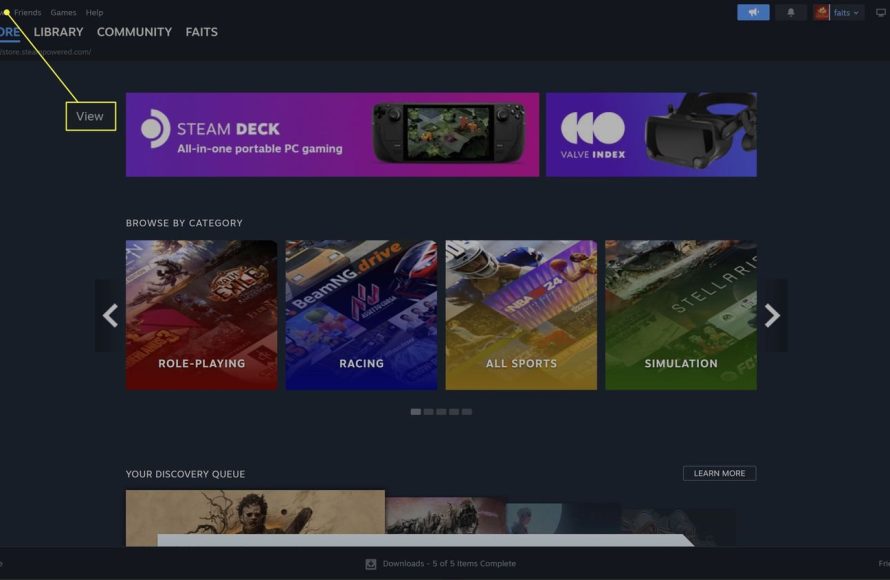
To unhide steam games, navigate to your Steam library, click ‘View’ then ‘Hidden Games’. From there, select the games you wish to unhide and click ‘Manage’ then ‘Remove from Hidden’.
Ever accidentally hid a game in your Steam library and wondered where it went? It happens to the best of us! Finding them again isn’t as tricky as it might initially seem. We will guide you through the straightforward process of how to unhide steam games.
It only takes a couple of clicks and you’ll be back to your gaming in no time. So, get ready to see all your beloved titles displayed once again and accessible!

How to Unhide Steam Games: A Simple Guide
Sometimes, you might accidentally hide a game in your Steam library. Maybe you were trying to tidy up, or maybe a friend played a prank! Don’t worry, it’s easy to get those hidden games back into view. Let’s explore all the ways you can make your games visible again. We will look at various methods, from the simple to the slightly more advanced, ensuring that no game remains hidden from your sight.
Understanding Why Games Get Hidden
Before we get into the ‘how,’ let’s quickly touch on the ‘why.’ Steam gives you the power to hide games for different reasons. Perhaps you want to create a cleaner-looking library by hiding games you rarely play. Or maybe you’ve lent your account to a friend or family member, and you don’t want them to see certain games. Whatever the reason, knowing that this feature exists is the first step. It’s also helpful to remember that hiding a game does not remove it from your account; it simply makes it less visible.
The Quickest Way: Using the Steam Client
The most common and easiest way to unhide your games involves using the Steam client itself. Here’s how you do it:
Navigating to the View Menu
First, you need to open up your Steam application. After that, look at the top-left corner of the Steam window. You’ll see a few options, including “Steam”, “View,” “Friends,” and “Games.” Click on “View.” This will show you a dropdown menu with different viewing options.
Finding the “Hidden Games” Option
Inside the “View” dropdown menu, you’ll find several choices. Look for one that says “Hidden Games.” It’s usually located a bit down the menu. If you don’t see it, make sure you’re in the main Steam window (not in a game, for example). Click on “Hidden Games.”
Unhiding Specific Games
When you click on “Hidden Games,” Steam will show you a list of all the games that you’ve hidden. This list is typically organized alphabetically. To unhide a game, simply right-click on it. A small menu will appear. Select “Manage,” and then click on the “Remove from Hidden” option. Voila! The game is now back in your main library list. You can repeat this process for as many games as you like.
Using Steam’s Search Bar for Quick Access
Sometimes you might not remember the exact name of a game. Instead of scrolling through all your hidden games, you can use the search bar. This approach is particularly handy if you know a few words from the game’s title.
How to Use the Search Bar
At the top of your Steam client, you’ll see a search bar, right above your list of games. Click on this bar, and type any part of the name of the hidden game you’re trying to find. As you type, Steam will show you a list of results. These results include games that are both visible and hidden.
Unhiding from the Search Results
Once you locate the game in the search results, right-click on the game name. Similar to the previous method, a small menu will come up. From here, select “Manage,” and then “Remove from Hidden.” The game will now appear in your regular library list, easy to access.
This method is not only efficient, but also beneficial when you’re trying to locate a hidden game but have difficulty remembering its full name. The search function helps you quickly pinpoint the specific game and unhide it, instead of needing to go through every game.
Exploring Steam Filters for Better Organization
Steam has filters that help you manage and organize your games. They are helpful when you have many games and want to make them easier to manage. You can use them to find the hidden games.
How to Access and Use Filters
In your Steam library, on the left side you will find a list of filters. These filters allow you to sort through the games by various criteria. You can filter by installed games, collections, categories, and also hidden games. Click on the filter option labeled “Hidden”. Steam will then only show your hidden games. You can then follow the same steps in the first section to unhide the games.
Steam Mobile App for Unhiding on the Go
Many gamers also use the Steam mobile app, which is useful for managing your game library even when you’re away from your computer. Unhiding games is also possible in the app.
Accessing Your Library on the App
Start by opening the Steam mobile app on your phone or tablet and log in. Look for the “Library” option. It is usually represented by an icon of a book or similar. Click on that to go into your list of games.
Viewing Hidden Games on Mobile
On the app, there is not a direct “Hidden Games” option like on the desktop client. However, you can still find them by using the search function. Tap on the search bar. Then type the name of your hidden game. When you see the game on the list, select it.
Unhiding a Game Through the Mobile App
Once you’ve selected the hidden game, you’ll be taken to the game’s page. Look for the three dots menu (usually represented by a set of three dots aligned vertically or horizontally), which opens a menu. Select the “Manage” option. You’ll then see the “Remove from Hidden” option. Tap this, and your game will be unhidden.
While unhiding via the mobile app is a bit different compared to the desktop client, it’s still very easy, and it allows you to control your library from almost anywhere.
What If the Game is not Appearing? Troubleshooting Tips
Sometimes, even after trying the methods above, a game might not appear. There might be some reasons why you don’t see a game you think you have hidden, and here are some things to check.
Checking Game Ownership
Sometimes, you might think that you own a game, but it might not be under your account. Double-check to be sure that the game is licensed under your account. Check your purchase history. If the game was gifted to you, it might be under another account. Make sure you are logged into the correct Steam account. If you can’t find the game in your list of purchased games, it could be that you didn’t buy it with your current account. Log out and log back in with the right account.
Account Settings and Restrictions
Your account settings might prevent some games from showing up. Steam has features such as family settings that may hide specific games. Review these settings and make sure that there aren’t any restrictions affecting the visibility of your games. If you share your Steam account with family or friends, make sure that no one has created rules that are hiding certain games. Check the settings under the “Family” section of the Steam client to check any restrictions.
Restarting Steam or Your Computer
Sometimes, the simplest solutions are the best. There might be some temporary issues with the Steam app or your computer’s operating system. Closing Steam and reopening it may be helpful. Sometimes even restarting the computer can help correct these issues. When you restart the computer or the Steam client, the settings get refreshed, which may make a game visible after it wasn’t appearing.
Checking Steam Client Updates
Make sure that your Steam client is up to date with the latest version. Sometimes, older versions of the Steam client can have bugs that stop certain features from functioning properly. If there is an update available, install it and restart Steam.
The Benefits of Organizing Your Steam Library
Knowing how to hide and unhide games is only a small part of library organization. Here are some reasons why having a well-managed game library can improve your gaming experience:
- Easier Navigation: A clutter-free library makes it easier to find the game you want to play.
- Better Focus: With a cleaner library, you can concentrate on the games that matter to you most, instead of having to search through a lot of unwanted content.
- Improved Performance: If your library is large, it can sometimes affect how fast Steam operates, or it can make it slow down. Keeping the games you play most in your primary library can speed things up.
- Personalization: Hiding games lets you create a library that matches your personal style. You can keep the games you enjoy and hide the ones you don’t want to see all the time.
Additional Tips for Managing Your Games
Beyond the ability to hide and unhide games, here are some other tips that can help improve your overall experience using Steam:
- Use Categories: Group your games into different categories like “Completed,” “Multiplayer,” or “Indie.” This will make it easier to find specific types of games when you’re looking to play something new.
- Create Collections: Steam has a collections feature that lets you create custom lists of games. This is especially useful if you have games you want to keep together for a specific reason, such as games from the same series or from a particular developer.
- Use Screenshots and Art: Steam allows you to customize the appearance of your library with custom images and screenshots. This can make your library more fun and engaging.
In conclusion, managing your Steam library is all about keeping it organized and user-friendly. With the tips and methods discussed in this guide, you should be able to easily handle any games that you’ve hidden. By using these strategies, you can make sure your library is set up to provide you with a more convenient and fun gaming experience.
How to Hide & Unhide Games (Steam 2022)
Final Thoughts
To reveal your hidden games on Steam, navigate to your library and use the view menu. Then, select “Hidden” to display all previously concealed titles. This is how to unhide steam games quickly and easily.
Games appear normally, just as before you hid them. You can manage visibility again using the same menu options. It’s simple to regain access to your full library.

