
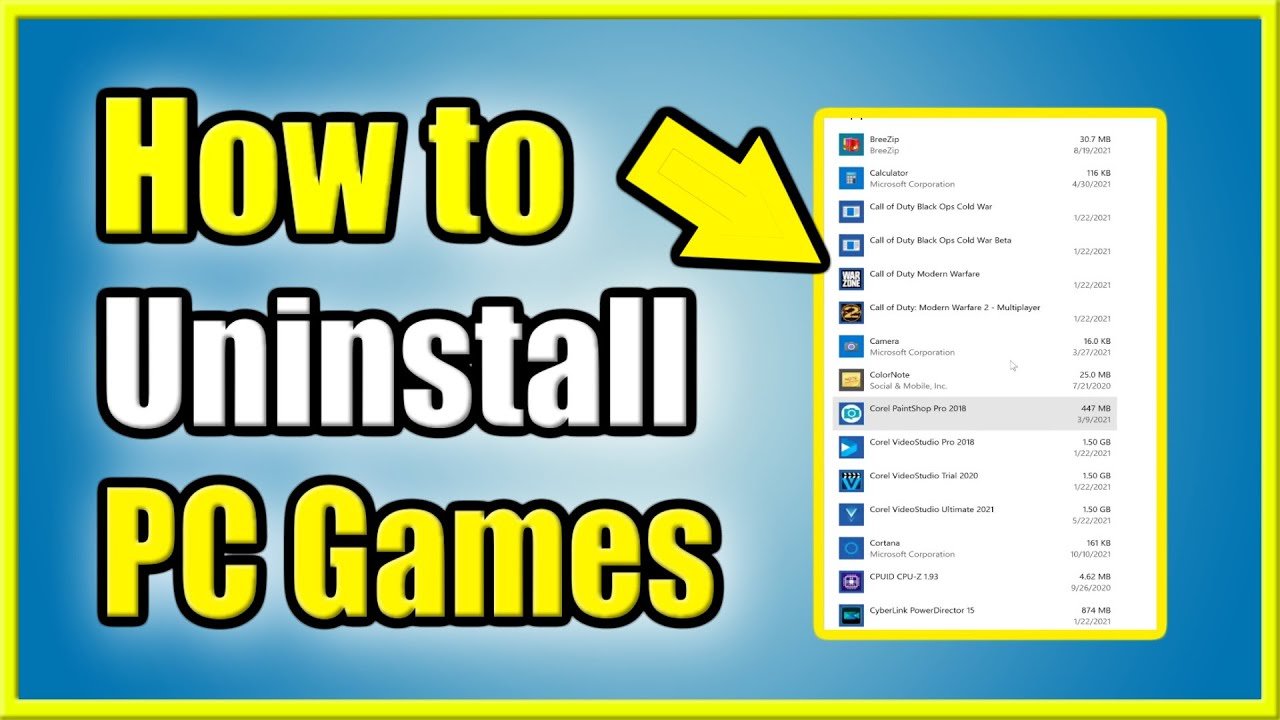
To uninstall a game on your PC, you typically need to go to your computer’s settings or control panel, find the list of installed programs, locate the game, and then choose the uninstall option.
So, you’ve finally decided it’s time to say goodbye to that game taking up precious space on your hard drive. Maybe you finished it, or perhaps it just isn’t sparking joy anymore. Whatever the reason, knowing how to uninstall game on pc is a handy skill for any computer user.
We will walk you through the simple steps, ensuring you can easily remove any unwanted game and free up space for new adventures (or just more important files!). This process is quite straightforward, we will make it even simpler.

How to Uninstall a Game on Your PC
So, you’ve decided it’s time to say goodbye to a game. Maybe you’ve beaten it, maybe it’s not as fun as you thought, or maybe you just need more space on your computer. Whatever the reason, uninstalling a game is a pretty simple process, and we’re here to guide you through it. This article will show you different ways to remove games from your computer and help you keep your PC clean and organized. We’ll cover everything from using the standard Windows tools to handling games from different platforms. Let’s jump in!
Using the Windows Settings App
The easiest way to uninstall most games on your PC is through the Settings app. This method works for games you’ve installed through the Microsoft Store and also for many games from other sources. Here’s how you do it:
- First, click the Start button, which is usually in the bottom-left corner of your screen. It looks like a window.
- Next, click the Settings icon. It looks like a little gear.
- In the Settings window, click on “Apps”. It might also say “Apps & features” on older versions of Windows.
- You’ll see a list of all the apps and programs installed on your computer. This can be a long list, so you can use the search bar at the top to find the game you want to remove. Just type the game’s name.
- Once you find the game, click on it. You should see an “Uninstall” button appear. Click that button.
- A new box may pop up asking if you’re sure. Confirm by clicking the “Uninstall” button again. Windows will then begin the uninstall process.
The process might take a few seconds or a few minutes depending on the size of the game. Once finished, the game should disappear from the list. That’s it, you’ve successfully uninstalled a game using the settings app!
Uninstalling Games Through the Control Panel
While the Settings app is the new way to uninstall programs, you can still use the old Control Panel for some games. Especially older games, might only show up here. Here’s how to get rid of games using the Control Panel:
- Click the Start button again.
- Type “Control Panel” and click on the app when it appears in the search results.
- In the Control Panel, look for “Programs” and click on “Uninstall a program” (Sometimes it might say “Programs and Features”).
- You will now see a similar list to the one in settings. Again, either scroll down to find the game or use the search bar to locate it.
- Click on the game you want to remove. An “Uninstall” button should appear at the top of the list or by right-clicking on the name of the program. Click on this button.
- Like with the settings app, you may get a confirmation box. Click “Yes” or “Uninstall” to confirm.
The control panel method is a reliable way to get rid of programs. It’s often used to remove programs that were installed before the Settings app became the primary way to do it.
Removing Games From Specific Game Platforms
Many games are installed through platforms like Steam, Epic Games, or Origin (now EA App). These platforms often have their own ways to remove games. Let’s take a look at each of them:
Uninstalling Steam Games
Steam is one of the most popular platforms for PC games. To uninstall a game from Steam:
- Open the Steam app.
- Go to your “Library”, located at the top of the window.
- Find the game you want to remove from the list.
- Right-click on the game’s name.
- A menu will pop up, select “Manage”.
- From this submenu, choose “Uninstall”.
- Steam will ask if you are sure. Confirm it by clicking “Uninstall” again.
Steam will now begin the uninstallation process. Once complete, the game will be gone from your library, although it may still show up there, grayed out, until you decide to delete it completely.
Uninstalling Epic Games Store Games
The Epic Games Store is another popular platform with a simple uninstall process:
- Open the Epic Games Launcher.
- Go to the “Library” section.
- Locate the game you want to uninstall in your library.
- Click the three dots (…) next to the game’s name.
- In the menu that appears, choose “Uninstall”.
- Confirm the uninstallation by clicking “Uninstall” again if prompted.
The game will then be removed from your computer. It’s a very similar experience to removing a game on Steam.
Uninstalling Games From the EA App (Origin)
Origin has been replaced by the EA App, but the uninstall process is quite similar. Here’s how to remove games from the EA App:
- Open the EA App.
- Go to your “Library”.
- Find the game you want to uninstall.
- Hover your mouse over the game cover. Click the three dots (…) that will appear.
- From the options, choose “Uninstall”.
- Confirm your decision by clicking “Uninstall” in the confirmation box.
The game will be uninstalled, and the app will tell you once it’s complete. Simple, right?
Uninstalling Games From Other Platforms
If you have games from other platforms like GOG Galaxy or Ubisoft Connect, the process will be similar. Typically, you would open the platform, navigate to your game library, find the game, and look for an uninstall option within the game’s menu or by right-clicking on it.
Regardless of the platform, always double-check you’ve selected the right game before confirming the uninstallation. Also, if you have cloud saves enabled, your game progress should still be there if you choose to reinstall the game at a later date. However, local save files not stored in the cloud, will be removed along with the game, so please be careful.
Dealing With Stubborn Uninstalls
Sometimes, a game might refuse to uninstall correctly. This can happen for a number of reasons, like corrupted installation files. If the normal uninstall methods do not work, here are a few steps you can take:
Using the Program Install and Uninstall Troubleshooter
Microsoft provides a tool that can help with problematic uninstalls. Here’s how to use it:
- Go to the Microsoft website and search for “Program Install and Uninstall Troubleshooter.”
- Download and run the troubleshooter tool.
- Click “Next” on the welcome screen.
- Choose “Uninstalling”.
- It will show a list of the programs and applications installed on your computer.
- Select the game that you are having trouble removing, and click “Next”.
- Follow the instructions on the screen. The troubleshooter will attempt to fix any issues that are stopping the uninstallation.
This tool often works by automatically finding the program’s install files and forcing the uninstaller to work correctly. Give it a try before doing anything else.
Manually Removing Leftover Files
Sometimes, the standard uninstallation process doesn’t remove all files and folders associated with a game. These leftover files can take up space on your hard drive. If you want to really clean things up, you can remove these files manually. Here’s how:
- First, use Windows Explorer (the file manager) and search for the game’s name on your hard drives.
- Look for game folders usually located in the “Program Files”, “Program Files (x86)”, and “Users/YourName/AppData” (the AppData folder is hidden, so you may need to enable showing hidden folders).
- Right-click on any leftover folder and then click “Delete”.
- Confirm the deletion by clicking “Yes”.
Be very careful while doing this. You want to make sure you are only deleting the game’s files and nothing important to your operating system or other programs. If you’re unsure, it’s best to leave certain files alone. It might also be worthwhile checking the Registry if you’re comfortable doing so, but this is best left to more advanced users.
Reinstalling and Uninstalling
If the game refuses to uninstall, try reinstalling the game. After reinstalling, you might find the uninstall process works properly. This approach often fixes issues with missing files needed for the uninstaller to work correctly.
Why Uninstall Games?
Uninstalling games is a normal part of having a PC. Here are a few reasons why people uninstall games:
- To Free Up Space: Games can take up a lot of storage space on your computer. Removing old games you no longer play can free up space for new ones.
- Improving Performance: Having too many games and programs can sometimes make your computer run slower. Uninstalling those games you’re not using can help improve performance.
- Organization: Uninstalling games that you aren’t playing will make your games library cleaner and easier to manage.
- Trying New Things: Sometimes you need to uninstall old games to try new games. This is especially important for people who like to switch up what they are playing.
Important Reminders
- Double-Check the Game: Before uninstalling, make sure you have selected the right game. You don’t want to accidentally remove a game you still enjoy.
- Cloud Saves: If a game supports cloud saves, uninstalling it will not delete your saved progress. Your save files will remain in the cloud ready for you if you ever decide to install it again.
- Local Saves: If a game does not use cloud saves, any save files on your computer will be removed when you uninstall the game. This could result in you losing game progress.
- Restart Your PC: After uninstalling a game, it might be a good idea to restart your PC. This can often help the changes take effect and help to remove any temporary files linked to the game.
Uninstalling games on your PC is quite easy, regardless of the method you decide to use. Whether you’re just clearing up space or giving up on a game that wasn’t fun, the simple steps we’ve shown here will guide you through the process. By following these tips, you’ll keep your PC running smoothly and neatly.
How to Uninstall PC Game on Windows 10 & 11 (Save Space!)
Final Thoughts
To summarize, uninstalling a game on your PC is straightforward. You can do it through the Windows settings app, or via the game’s launcher. Both methods effectively remove the game files. This frees up valuable storage space.
Alternatively, some games offer uninstaller programs within their installation folder. Choosing any of these options achieves the objective of how to uninstall game on pc. Finally, verifying the game’s removal from your system is important for complete process.

