
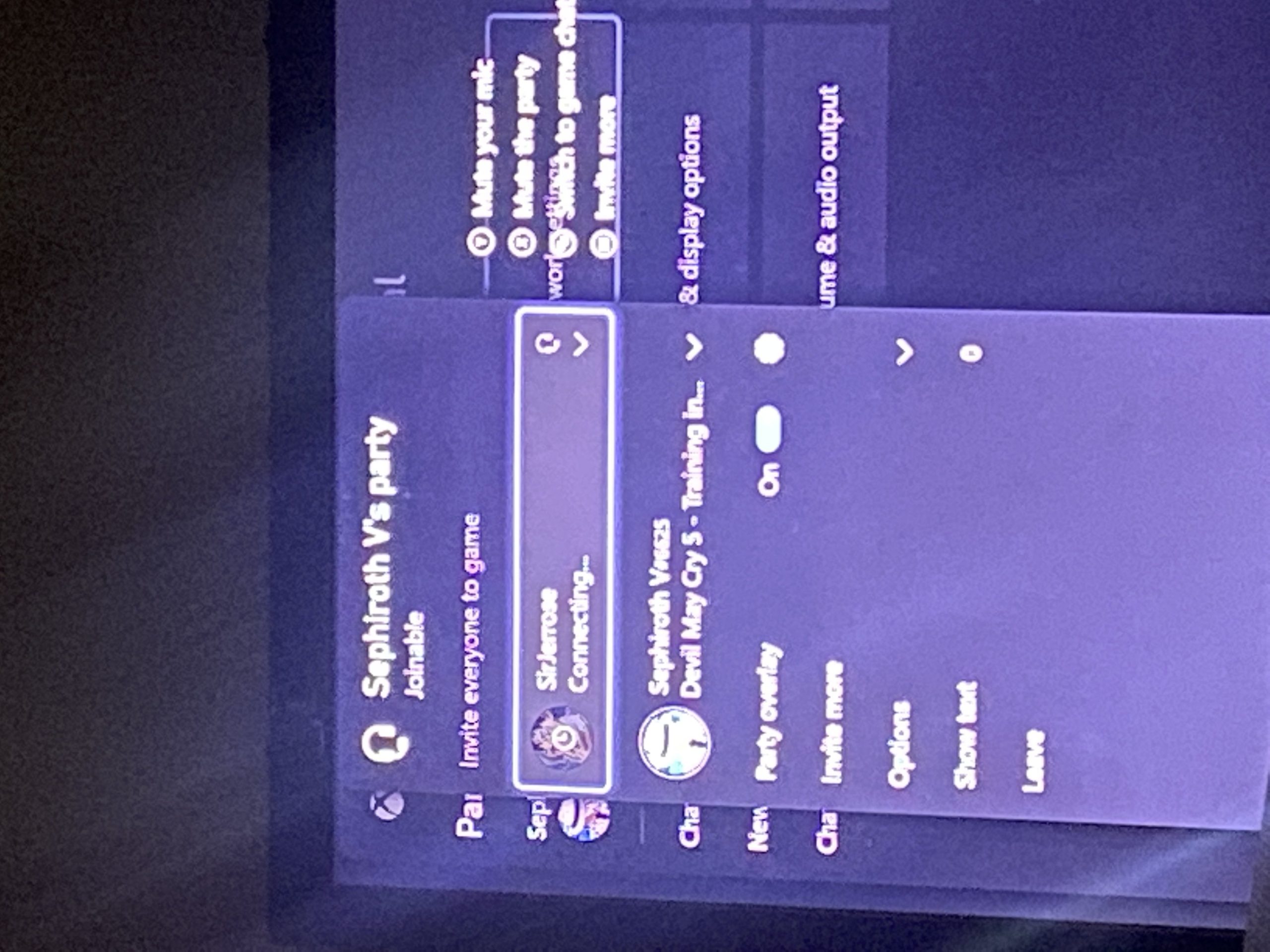
Your Xbox may be stuck in game chat due to network issues, incorrect privacy settings, or a glitch in the system software.
Ever felt like your voice is lost in the digital void? You are not alone. Many players ask, “why am i stuck in game chat xbox?” It is frustrating when you cannot communicate with your teammates. This problem can interrupt your gameplay and overall gaming experience.
Let’s explore some common reasons. It might stem from connection problems. Sometimes, the privacy settings on your account could also restrict your voice chat. A simple software glitch can also cause this annoying issue.

Why Am I Stuck in Game Chat Xbox?
It’s super frustrating, right? You’re ready to team up with your friends, strategize for the next big level, or just chat about how awesome that last play was, but… silence. Or worse, you can hear them, but they can’t hear you. Getting stuck in Xbox game chat is a common problem, and there are many reasons why this might be happening to you. It’s like having a walkie-talkie that sometimes forgets how to work! Let’s dive into some of the most common causes and explore what we can do to get you back in the conversation.
Understanding the Basics of Xbox Game Chat
Before we go troubleshooting, let’s quickly understand how Xbox game chat usually works. When you talk into your headset, your voice is changed into digital data. This data then travels through your internet connection to Xbox servers, and then to the game servers or to your friends’ consoles. The data is then changed back into sound, which you hear through your headset or speakers. Any problem in this chain of events can cause you to be stuck in game chat. It’s like a message getting lost in the mail!
Types of Game Chat
Xbox offers different kinds of game chat, and it’s helpful to know the differences:
Party Chat: This is when you create a specific group with your friends outside of the game. It’s like having a private room to talk in.
Game Chat: This is when you talk to other players who are in the same game as you. It’s like talking to other people in the same classroom.
Game Specific Chat: Some games have their own chat systems, which might work a bit differently than standard Xbox chat.
Knowing which type of chat you’re having trouble with is the first step in figuring out what’s going wrong.
Common Reasons for Being Stuck in Game Chat
There are many reasons why you might be experiencing Xbox game chat problems. Here are some of the usual suspects:
Network Issues
Your internet connection is super important for game chat. If your connection is weak or unstable, your voice might not be sent properly, or you might not hear other people. Here are some common network-related problems:
Slow Internet Speed: If your internet is too slow, it will have a hard time sending and receiving voice data at the same time. Think of it like a tiny pipe trying to send too much water at once.
High Latency (Ping): High latency means that the data is taking a long time to travel to the servers and back. It’s like sending a letter across the world that takes days to arrive. This can cause a delay in your voice, making the chat very choppy.
Packet Loss: Packet loss is when some of the data gets lost on its journey. Think of it like a letter getting lost in the mail. If enough packets get lost, the chat becomes hard to understand or even impossible.
Network Congestion: If many devices are using your internet at the same time, this can cause the connection to slow down for everything, including game chat. It’s like too many cars trying to use a small road at once.
Wi-Fi Problems: Wi-Fi signals can be affected by walls or other objects, leading to weak or unstable connections. A wired connection using an Ethernet cable is often more stable for gaming.
Troubleshooting Network Problems
Check your internet speed: Use an internet speed test on your phone, computer, or console to see if your download and upload speeds are as expected. If they’re much slower than they should be, you might need to talk to your internet provider.
Restart your router and modem: Turn them off, wait a minute, and then turn them back on. This is a classic fix that often helps.
Use a wired connection: If possible, plug your Xbox directly into your router using an Ethernet cable. This usually gives you a more stable connection.
Move your Xbox closer to the router: If using Wi-Fi, try moving your Xbox closer to the router to get a stronger signal.
Close other applications: If other devices are using a lot of internet, close the apps or pause downloads to free up some bandwidth for your game.
Xbox Console Settings
Your Xbox console has settings that can affect game chat. Here are some important things to check:
Privacy Settings: Xbox has privacy settings that control who can talk to you. If your privacy settings are too restrictive, it could block game chat.
Communication Settings: There are also communication settings that control who can send you messages and participate in party chat.
Audio Output Settings: The audio output settings control which device your headset is using and if it’s selected for chat audio.
Troubleshooting Xbox Settings
Check your privacy settings: Go to Settings > Account > Privacy & online safety > Xbox privacy > View details & customize > Communication & multiplayer, and make sure that “You can communicate with voice and text” is set to “Everybody” or “Friends”. This can help with voice chat issues with other players.
Check your communication settings: Go to Settings > Account > Privacy & online safety > Xbox privacy > View details & customize > Communication & multiplayer, and ensure that settings for both voice chat and text messages are not overly restrictive.
Check your audio output settings: Go to Settings > General > Volume & audio output, and then check that your headset is correctly selected for party chat. Make sure your headset volume isn’t turned all the way down.
Headset and Microphone Issues
Sometimes, the problem might be with your headset or microphone itself:
Microphone Muted: Make sure that the microphone on your headset isn’t muted. There’s usually a button or switch to unmute your mic.
Headset Connection Issues: If your headset isn’t properly connected to your Xbox, it won’t be able to send or receive sound.
Old or Damaged Headset: If your headset is old or damaged, it may not work correctly anymore.
Troubleshooting Headset Issues
Check the mute button: Make sure the mute button or switch on your headset is not enabled.
Check your headset connection: Unplug and plug your headset back in to your controller or console, making sure the connection is secure and clean.
Try a different headset: If you have a different headset available, try using it to see if the problem persists. This will help you determine if the issue is with your headset or something else.
Test your microphone: On your Xbox, you can find settings to test your mic input and make sure it is working properly.
Game-Specific Issues
Some games might have their own built-in chat system. This can sometimes interfere with the Xbox chat, or if it is faulty, it will not work correctly. Some games will also only allow specific chat options.
Game Settings: Some games have chat options in their settings menus that you should check. These settings might disable or mute your microphone.
Game Glitches: Sometimes there are glitches in a game that can affect the chat system. These can sometimes be solved by restarting the game or console.
Troubleshooting Game Specific Issues
Check the game’s chat settings: Go into the game’s settings menu and look for audio or chat options. Make sure your microphone isn’t muted and that the correct audio output is selected.
Restart the game: If you suspect a game glitch, close the game and start it again. This can fix temporary problems.
Check for game updates: Make sure you have the latest version of the game installed. Updates often include fixes for game bugs, including chat-related ones.
Xbox Live Issues
Sometimes, the problem may be on Xbox’s side. Xbox Live servers can sometimes have problems that cause chat issues.
Server Outages: If there’s an outage, you might not be able to use voice chat until it is resolved.
Maintenance: When Xbox performs maintenance, some services, including voice chat, might be temporarily unavailable.
Troubleshooting Xbox Live Issues
Check the Xbox Live status: Go to the Xbox Live status page on the Xbox website, or your console, to see if there are any reported outages or maintenance.
Wait it out: If it is an Xbox live issue you may have to wait until the server issues are fixed.
Advanced Troubleshooting Steps
If you’ve tried all the basic steps and you’re still stuck in game chat, here are some more advanced things you can try:
Clear Your Xbox Cache
Your Xbox stores temporary files, called cache. Sometimes, this cache can become corrupted, leading to problems with game chat. Clearing your console’s cache may help. Here’s how to do it:
1. Hold down the Xbox button on your console for about 10 seconds until it shuts off.
2. Unplug the power cord from the back of the Xbox.
3. Wait for a minute or two.
4. Plug the power cord back in.
5. Turn your Xbox back on.
This will clear your console’s cache. It’s like cleaning out a messy closet.
Check Your NAT Type
Your NAT (Network Address Translation) type affects how well your Xbox connects to other Xboxes. Here’s how to check it:
1. Go to Settings.
2. Select Network.
3. Select Network Settings.
4. Select Test NAT Type.
If your NAT type is “Strict,” it can cause problems with game chat. If you have a strict NAT type, contact your internet provider to see if they can help you change it. There are different NAT types: Open, Moderate, and Strict. Open is the best, and strict is the most restrictive. Moderate can still cause issues, but not as severe as a strict one.
Update your Console
Make sure you have the latest version of your console’s system software installed. Sometimes, the latest updates have fixes for bugs that cause chat problems. Here’s how:
1. Go to Settings.
2. Select System.
3. Select Updates.
4. Select update console.
If there’s an update available, download and install it.
Reinstall Game
Sometimes, the issue lies within the game itself. If you’re having trouble with a specific game, try reinstalling it:
1. Go to My Games & Apps.
2. Find the game you’re having trouble with.
3. Select Manage game & add-ons.
4. Select Uninstall.
5. After uninstalling, reinstall the game from the Microsoft Store.
Reinstalling a game is like giving it a fresh start.
Contact Xbox Support
If all else fails, consider reaching out to Xbox Support for further help. They may be able to identify issues specific to your account or hardware, and they can help you with more specific troubleshooting.
Preventing Future Chat Issues
The best way to handle game chat problems is to try to prevent them in the first place. Here are some tips:
Keep your console updated: Regularly check for updates to make sure your console is running the latest software.
Maintain a stable internet connection: Try to use an Ethernet cable rather than Wi-Fi for more stability, and make sure you aren’t using a lot of internet while gaming.
Check your audio devices: Make sure your headset and microphone are well-maintained and in good working order.
Check your game settings: Be sure to double check your in-game settings to ensure that your audio is setup correctly.
Restart your console: Try to restart your console once a week to make sure everything is running well.
Check your Xbox live status: Before you start playing a game, check the Xbox live status page for any issues.
These steps can help you reduce the chance of facing chat issues and make sure your voice is heard.
Staying stuck in game chat on Xbox can be a real downer, but with a bit of patience and some troubleshooting, you can often get back into the action. Remember to check your basic settings first, then dive deeper into more advanced solutions if necessary. Good luck, and get back to gaming and chatting!
NEW how to fix Xbox game chat and party chat EASY
Final Thoughts
Connection issues and settings are the main culprits behind game chat problems on Xbox. Sometimes, a simple restart fixes the problem. Make sure your microphone is working correctly.
Incorrect privacy settings can prevent you from using voice chat. Your network might also cause disruptions to game communication. You must carefully check these settings.
Ultimately, these are the primary reasons for your struggles with in-game communication. Therefore, the answer to ‘why am i stuck in game chat xbox’ often lies within your system’s configuration and network stability.

