
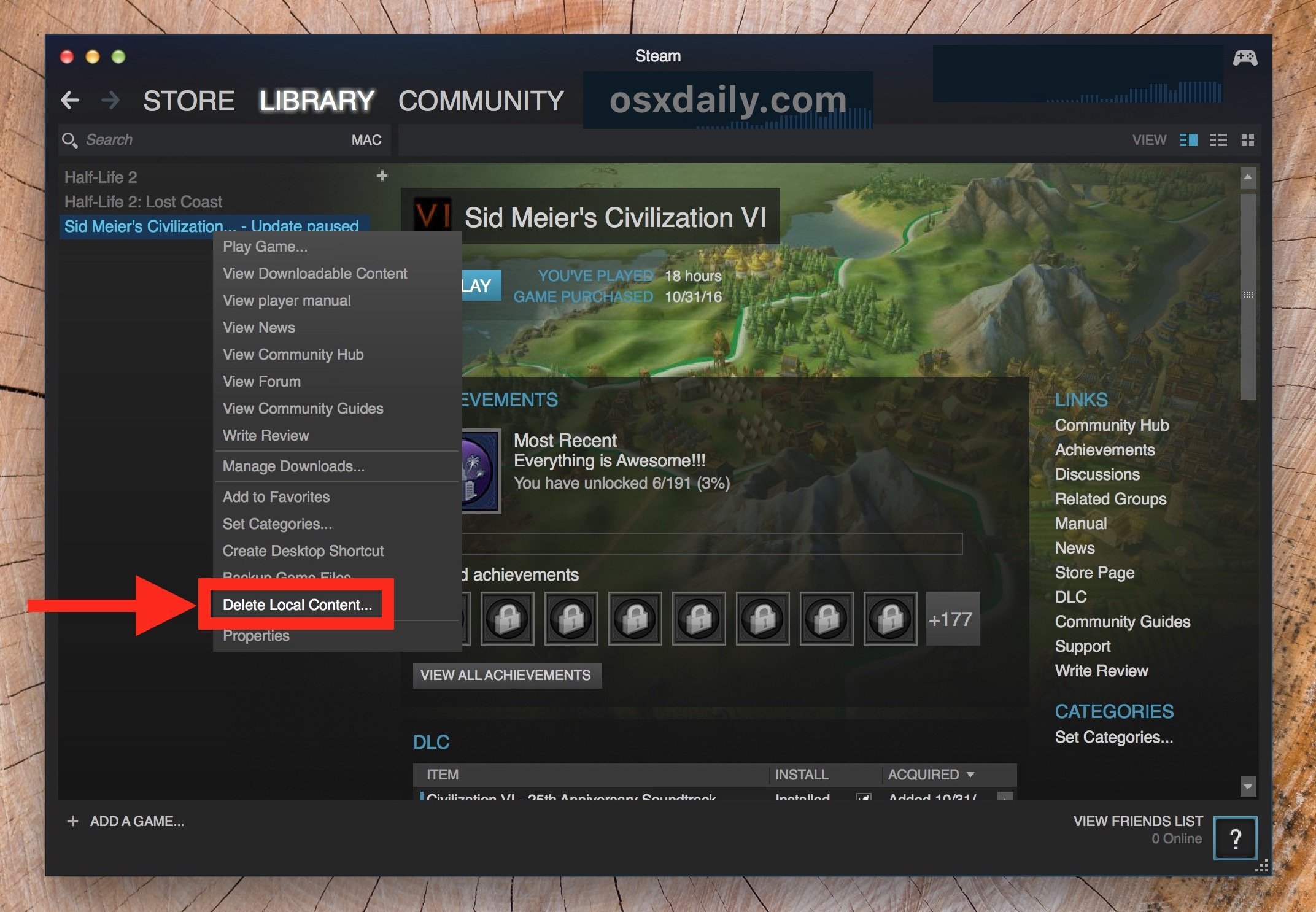
To uninstall games on Steam Mac, locate the game in your library, right-click it, select “Manage,” and then click “Uninstall.”
Mac users, does your Steam library feel a little cluttered? Perhaps some games are gathering digital dust, and you need the space. Knowing how to uninstall games on Steam Mac efficiently can keep your system tidy and running smoothly. It’s simpler than you might think. Let’s walk through the quick process and reclaim that storage space on your machine.

How to Uninstall Games on Steam Mac: A Complete Guide
Let’s face it, sometimes we need to say goodbye to a game. Maybe it’s taking up too much space, maybe you’re just not playing it anymore, or maybe you need to make room for a shiny new title. Whatever the reason, knowing how to uninstall games on your Mac using Steam is a useful skill. This guide will walk you through all the different ways you can do it, making the process easy and straightforward, even if you’re not a computer expert. We will cover the standard method, and some other useful strategies for removing games and their associated files. We’ll even explore handling those stubborn games that just don’t want to go!
The Standard Steam Uninstall Method: Easy Peasy
The most common way to uninstall a game from Steam on your Mac is through the Steam application itself. It’s a simple process, and it works most of the time. Here’s how to do it:
Step-by-Step Guide to Uninstalling Through Steam
- Open the Steam App: First, locate the Steam application icon on your Dock or in your Applications folder and click on it to open Steam.
- Go to Your Library: Once Steam is open, look for the “Library” tab at the top of the window. Click it. This will show you all the games you own on Steam.
- Find the Game You Want to Remove: Scroll through your game library until you find the game you want to uninstall. You can also use the search bar at the top of the screen to quickly find the game.
- Right-Click on the Game: Once you’ve found the game, right-click (or control-click) on the game’s name. A menu will appear.
- Select “Manage”: In the menu, hover your mouse over the word “Manage”. Another menu will pop up to the side.
- Click on “Uninstall”: From the “Manage” menu, click on the “Uninstall” option.
- Confirm Your Decision: Steam will now ask if you are sure you want to uninstall the game. Click the “Uninstall” button to confirm.
- Wait for the Uninstall to Complete: Steam will start the uninstall process, which can take a few minutes, depending on the size of the game. The progress bar at the bottom of the Steam window will show you how it’s going. Once complete, the game will disappear from your Steam library.
And there you have it! You’ve successfully uninstalled a game using the standard Steam method. Easy, right?
What Happens After You Uninstall a Game?
Uninstalling a game using the method above removes the game’s main files from your computer. However, sometimes, a few files, like save data or settings, might be left behind. These leftover files usually don’t take up much space, but if you’re trying to really clean up your Mac or you’re having issues, you may need to remove them as well. We’ll look into that in the section on deleting all game files.
Handling Games That Refuse to Uninstall
Sometimes, games might get a little stubborn and refuse to uninstall using the standard method. If this happens, don’t worry, there are a few tricks you can try. The first thing you should do is completely exit out of Steam. Then try to uninstall again using the method mentioned above. If that fails, then you can try some of these additional solutions.
Force Quitting Steam and Trying Again
Sometimes, Steam might have a hiccup and not respond to your uninstall request. In this case, force quitting the Steam application can help:
- Open Activity Monitor: Go to your Applications folder, then Utilities folder and double click to open the “Activity Monitor” application.
- Find Steam: Look for the “Steam” process in the list. You can use the search bar at the top right to quickly find it.
- Force Quit: Click on the “Steam” process, and then click on the “X” button on the top left of the window to force quit it.
- Try Uninstalling Again: Now open Steam again, and attempt to uninstall the game through your Library.
Hopefully, this works! If not, lets try another solution.
Verifying Game Files
Sometimes, corrupted game files can prevent a game from uninstalling. Steam has a built-in feature to check the integrity of these files:
- Find the Problem Game: In your Steam library, find the game that’s giving you issues.
- Right Click and Select Properties: Right-click on the game’s name, and click “Properties.”
- Click Local Files: In the Properties window, click on the “Local Files” tab.
- Verify the integrity of the game files: Click the “Verify integrity of game files…” button.
- Allow Steam to Verify Game Files: Steam will check all the files. If anything is missing or wrong, Steam will fix it. After that is finished, try uninstalling again.
Lets move onto the next potential solution
Reinstalling the Game Before Uninstalling
It may sound counter intuitive, but sometimes the solution to your problem is to actually re-install your game before uninstalling. A fresh reinstall of a game can sometimes fix whatever is preventing it from being uninstalled using the standard method. To do this, follow the install process of the game, and once that is finished, try to uninstall it once again using the standard process.
Deleting All Game Files: A Deep Clean
Sometimes, you might want to do a really deep clean and remove every trace of the game from your Mac. This is helpful if you’re dealing with a corrupted game that is causing problems or if you are trying to reclaim every bit of space possible. Here’s how to make sure every single file that is connected to the game is removed:
Using Finder to Find Leftover Files
After uninstalling a game through Steam, use Finder to search for remaining files associated with the uninstalled game.
- Open Finder: Click on the Finder icon in your Dock.
- Go to your Library: Click “Go” in the menu bar at the top of the screen, and then hold the “Option” key. You should see the word “Library” appear in the menu while holding the “option” key down. Click on “Library”. This is your user Library folder.
- Look for Application Support: Open the folder called “Application Support”.
- Search for the Game’s Folder: Look for a folder that has the same name as the game or is related to it. Games often store save data or other files here.
- Trash the Folder: If you find the game folder, drag it to the Trash.
- Check the Preferences Folder: Go back to the Library folder, and look for a folder called “Preferences”. Look to see if the game’s name appears in any file in this folder and, if so, drag the file to the trash.
- Empty the Trash: Make sure you empty the Trash to permanently remove all these files from your Mac.
This can be a little time consuming, but it can help you get rid of every last file.
Using Terminal to Locate Game Files
For a more advanced approach, you can use Terminal, a command-line tool that allows you to interact with your Mac using text commands. This method can be very helpful for locating files that are not easily seen when just searching through Finder, but be careful when using the Terminal as it can have unintended consequences.
Warning: Be very careful when using Terminal. Mistakes can cause problems with your computer. If you’re not comfortable with using Terminal, it’s best to stick to the Finder method, as mentioned above.
- Open Terminal: Go to your Applications folder, then the Utilities folder, and double click on the “Terminal” application.
- Enter the command “find”: Type the following command into Terminal, and press Enter:
find ~/Library -name "game_name"Replace
game_namewith the actual name of the game, or the name of the company that made the game. - Review Search Results: Terminal will show you a list of files or folders that match your search. Review the results carefully, making sure they all belong to the game you want to uninstall.
- Delete Files: You can use the
rm(remove) command to delete the file, but be careful when doing this! Typerm -rf, then drag the file you want to delete into the terminal window and then press the Enter key. Do this very carefully, as you will not be able to get the files back if you delete them using this command! - Empty the Trash: Again, you need to empty the Trash to permanently get rid of the files.
This command can potentially find more left over game files than Finder, but it can be risky if used incorrectly.
Managing Your Steam Library: Some Tips
Keeping your Steam library organized will make removing games much easier in the future. Here are a few tips to help you keep your library in good order.
Using Categories and Collections
Steam allows you to create categories and collections to organize your games. You can categorize games by genre, whether you’ve played them, games you plan to play, or any other way that helps you. This makes it much faster to find a game you want to uninstall:
- Create a Collection: Right click on a game in the library, click “Add To”, and then click the “New Collection” button.
- Rename the collection: You can name it something like “Finished Games” or “To Uninstall”.
- Add games to your Collection: Then, drag any games you want to add into your collections.
Using the Steam Search Function
Steam’s search function is a simple but powerful tool to quickly find games, especially when you have a large library. Just type the name of the game into the search bar at the top of your library page.
Uninstalling Multiple Games at Once
While Steam does not allow you to uninstall multiple games at once, using Collections makes it much easier. Simply make a collection for all the games you want to uninstall, and then remove each game individually from that Collection.
Important Notes
- Always be sure of the game you are uninstalling. Once uninstalled, you can’t get the game back without downloading it again.
- Uninstalling a game does not remove it from your Steam account. You can always redownload the game again later.
- Check your save data before you uninstall. Make sure you want to lose all your saved game progress if you delete all of the associated game files. Some games save your progress in the Steam cloud, but others do not.
Uninstalling games on your Mac through Steam doesn’t have to be difficult. By following the steps outlined in this guide, you’ll be able to manage your Steam library effectively and keep your Mac running smoothly. Remember to use the standard uninstall method for most games, and if you have problems you can try the additional tips. Happy Gaming!
How to remove uninstalled Steam games from Launchpad on Mac
Final Thoughts
To uninstall games on Steam Mac, right-click the game within your library and select “Manage,” then “Uninstall.” This removes game files from your system.
Alternatively, access the game’s page and click the gear icon. Choose “Manage” followed by “Uninstall” to perform the removal.
You can easily reclaim disk space by learning how to uninstall games on Steam Mac. Removing unwanted games is quick and simple with these methods.

