
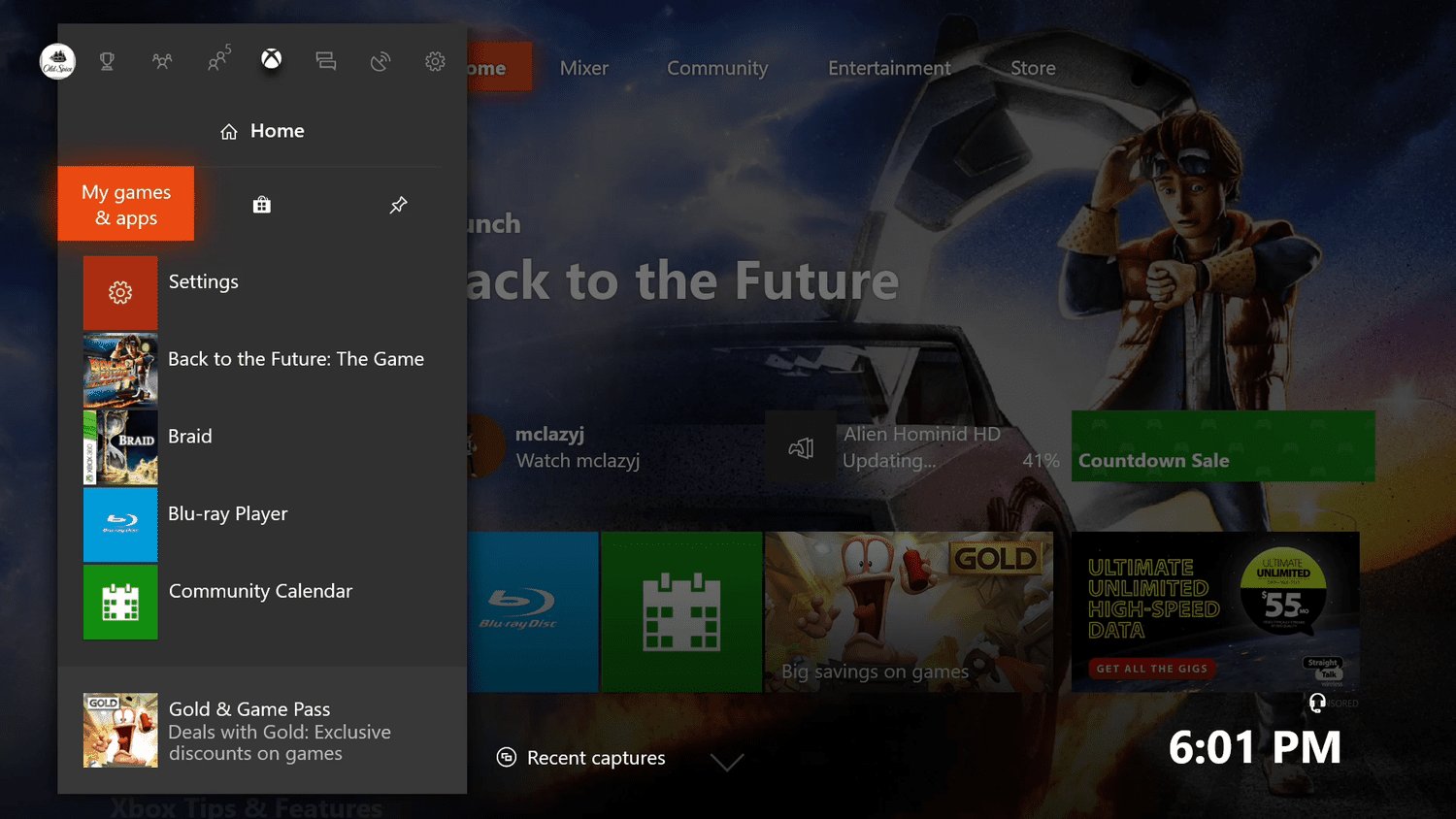
To uninstall games Xbox One, navigate to “My games & apps,” highlight the game, press the Menu button, and select “Uninstall.”
Running out of space on your Xbox One? It happens! We’ve all been there, juggling our digital libraries and needing to make some tough choices. Knowing how to uninstall games Xbox One is essential for managing your console’s storage effectively.
This short guide will quickly walk you through the simple process. Freeing up space for new games or updates becomes a breeze. Keep reading to easily reclaim precious gigabytes on your console.

How to Uninstall Games on Xbox One
Running out of space on your Xbox One? It happens! Games these days are big, and sometimes we need to make room for new ones. Don’t worry; uninstalling games is a simple process. This guide will walk you through everything you need to know to remove games from your Xbox One, freeing up precious storage space for new adventures.
Why Uninstall Games?
Before we jump into the how-to, let’s quickly talk about why you might want to uninstall a game. The main reason is usually storage space. Your Xbox One has a limited amount of storage for all your games, apps, and saved data. If that space fills up, you can’t install new games or updates. Uninstalling games you don’t play anymore is a great way to keep your console running smoothly. Another reason is decluttering your game library. Maybe you started a game but didn’t love it or finished a title long ago. It can feel nice to tidy up your digital space and remove games you’re not planning to play again.
Methods for Uninstalling Games
There are several ways to uninstall games on your Xbox One. We will cover each one step-by-step, making it easy to follow along regardless of your preferred method.
Uninstalling from the ‘My Games & Apps’ Section
This method is the most common way to remove games and is straightforward to complete. Follow these simple steps:
- Turn on your Xbox One and go to the Home screen.
- Press the Xbox button on your controller to open the guide.
- Use the left joystick or D-pad to navigate to My games & apps and select it.
- Go to the Games section (it’s usually on the left).
- Scroll through the list of games until you find the one you want to uninstall.
- Once you’ve found the game, highlight it using the left joystick or D-pad.
- Press the Menu button (the button with three horizontal lines) on your controller.
- A menu will appear. Select Uninstall.
- The system will ask you to confirm your action. Select Uninstall again.
- Wait for the process to finish. A progress bar might appear on screen showing you how much time is remaining. The game will be removed from your system.
Important Note: Uninstalling a game only removes the game data. Your saved game progress is usually saved to the cloud or on your console. So, when you reinstall the game, your progress is usually still there unless you specifically deleted it. We will talk about how to manage save game data later.
Uninstalling Games from the Xbox Store
You can also uninstall games directly from the Xbox Store. This can be useful if you’re browsing the store and see that you have a game installed that you wish to remove.
- Turn on your Xbox One and go to the Home screen.
- Navigate to the Store tab on the Home screen.
- Use the left joystick or D-pad to select the Store icon.
- Use the left joystick or D-pad to navigate to the Search option in the store and select it.
- Use the virtual keyboard to search the name of the game you want to uninstall and select it.
- Now on the page of the game, look for the Manage option (it will be beside the Play button).
- Select the Manage option and a dropdown menu will appear.
- Choose the Uninstall option from the dropdown menu.
- The system will ask you to confirm your action. Select Uninstall again.
- The game will now be uninstalled from your system.
Uninstalling Games from the Storage Management
The storage management section is another way to uninstall games, especially when you need to clear up more space quickly. This method lets you see what’s using the most room on your console, making it easy to choose the largest games for removal.
- Turn on your Xbox One and go to the Home screen.
- Press the Xbox button on your controller to open the guide.
- Use the left joystick or D-pad to navigate to Settings and select it.
- Go to System section, then Storage section.
- Select the Internal or the drive where your game is installed from the storage list.
- Select the Games & Apps option from the list.
- Scroll through the list of the games, find the game you want to uninstall, highlight the game using the left joystick or D-pad.
- Press the Menu button (the button with three horizontal lines) on your controller.
- Select Uninstall.
- The system will ask you to confirm your action. Select Uninstall again.
- Wait for the process to finish.
Managing Storage Space Effectively
Uninstalling games is just one part of managing your storage space on your Xbox One. Here are more tips to help you keep your console running efficiently:
Understanding Storage Usage
It’s helpful to know what’s taking up the most space on your Xbox. Knowing this can help you make decisions about what to remove or move. Let’s understand what the storage page can tell us.
- Games and Apps: This section includes all your installed games and applications. The largest space consuming area.
- Captured Media: Screenshots and video clips recorded from your gameplay.
- Add-ons: Includes content downloads such as DLC’s, expansions, game updates, etc.
- Save Games: Game progress saves and game settings, etc.
Moving Games to External Storage
If you don’t want to uninstall games, another option is to move them to an external hard drive. This lets you keep the games but frees up space on your console’s internal storage. External drives can also load games faster in some cases. Here is how you can move your games to an external drive:
- Make sure you have an external hard drive formatted to work with Xbox One. (You should select the ‘use this for games’ option while formatting the drive).
- Plug in your external hard drive into one of the USB ports of your Xbox One.
- Go to My games & apps.
- Navigate to the games section and highlight the game you wish to move.
- Press the Menu button on your controller.
- Select the Move option.
- Select your External Drive.
- The system will move your selected game to the external hard drive.
Tips for Optimal Storage Management
- Regularly Check Your Storage: Make it a habit to check your storage usage every few weeks. This way, you can stay on top of it and prevent it from filling up completely.
- Uninstall Unplayed Games: Be honest with yourself, if you haven’t touched a game in months, consider uninstalling it. You can always reinstall it later if you want.
- Manage Add-ons: Check your installed add-ons and see if there are any you don’t need. They can take up space too.
- Clear Captured Media: Upload your game clips and screenshots to the cloud and delete them from your console to free up some space.
Managing Saved Game Data
As we said earlier, your game progress and settings are usually saved to the cloud and on your console. When you uninstall a game, your saved data is usually not removed. This is to make sure you don’t lose progress if you want to reinstall the game later.
How to Delete Saved Game Data
If you want to delete saved game data, you’ll need to do it separately from uninstalling the game. Follow these steps:
- Go to My games & apps.
- Navigate to the games section and highlight the game whose save you wish to delete.
- Press the Menu button on your controller.
- Select Manage game & add-ons.
- In the game management screen, navigate to the Saved Data section.
- Select the save data you wish to delete, usually shown by your gamertag.
- You can either choose to delete it just from your console, or also from the cloud and all of your devices. Choose the option that works for you.
Important Note about Game Saves
- Be careful when deleting saved data. Once you delete it from the cloud, there is no way to get it back.
- If you just remove save data from your console, it might still be saved in the cloud. So, next time you play the game, your save data from the cloud will sync with your console.
Reinstalling Games
So, you uninstalled a game and want to play it again? No problem! Reinstalling games is a fast and easy process. There are several ways to reinstall games:
Reinstalling from the Xbox Store
- Go to the Store tab on your Home screen.
- Use the left joystick or D-pad to select the Store icon.
- Use the left joystick or D-pad to navigate to the Search option in the store and select it.
- Use the virtual keyboard to search for the game you uninstalled and select it.
- Select the option to Install.
- The game will now download and install on your console.
Reinstalling from ‘Ready to install’
If you have a digital copy of a game, it will still be in your library. Here is how you can reinstall it from there.
- Go to My games & apps.
- Select the Games section.
- Select the Ready to install option.
- Find the game in the list you wish to install.
- Select the Install option.
- The game will now download and install on your console.
Reinstalling from the Disc
If you own a physical copy of the game, you can reinstall it using the disc.
- Insert the game disc into your Xbox One console.
- Your Xbox One will automatically recognize the disc.
- Follow the instructions on screen to install the game.
- If you have the option to download content online, you should do so, to make sure your game is completely up to date.
Note: Make sure you have enough free space for the install and updates.
By following these instructions, you can confidently remove games from your Xbox One, manage your storage space, and make way for exciting new titles.
How to Delete & uninstall Games on Xbox One (Easy Tutorial)
Final Thoughts
To uninstall games on your Xbox One, navigate to ‘My games & apps’. Select the game you want to remove. Press the menu button on your controller and choose ‘Uninstall’.
Confirm your choice, and the system will remove the game from your console. This is how to uninstall games xbox one effectively. The process is quick and easy.
You have now successfully removed the selected game from your device. Remember to repeat these steps if you want to remove more games from storage.

