
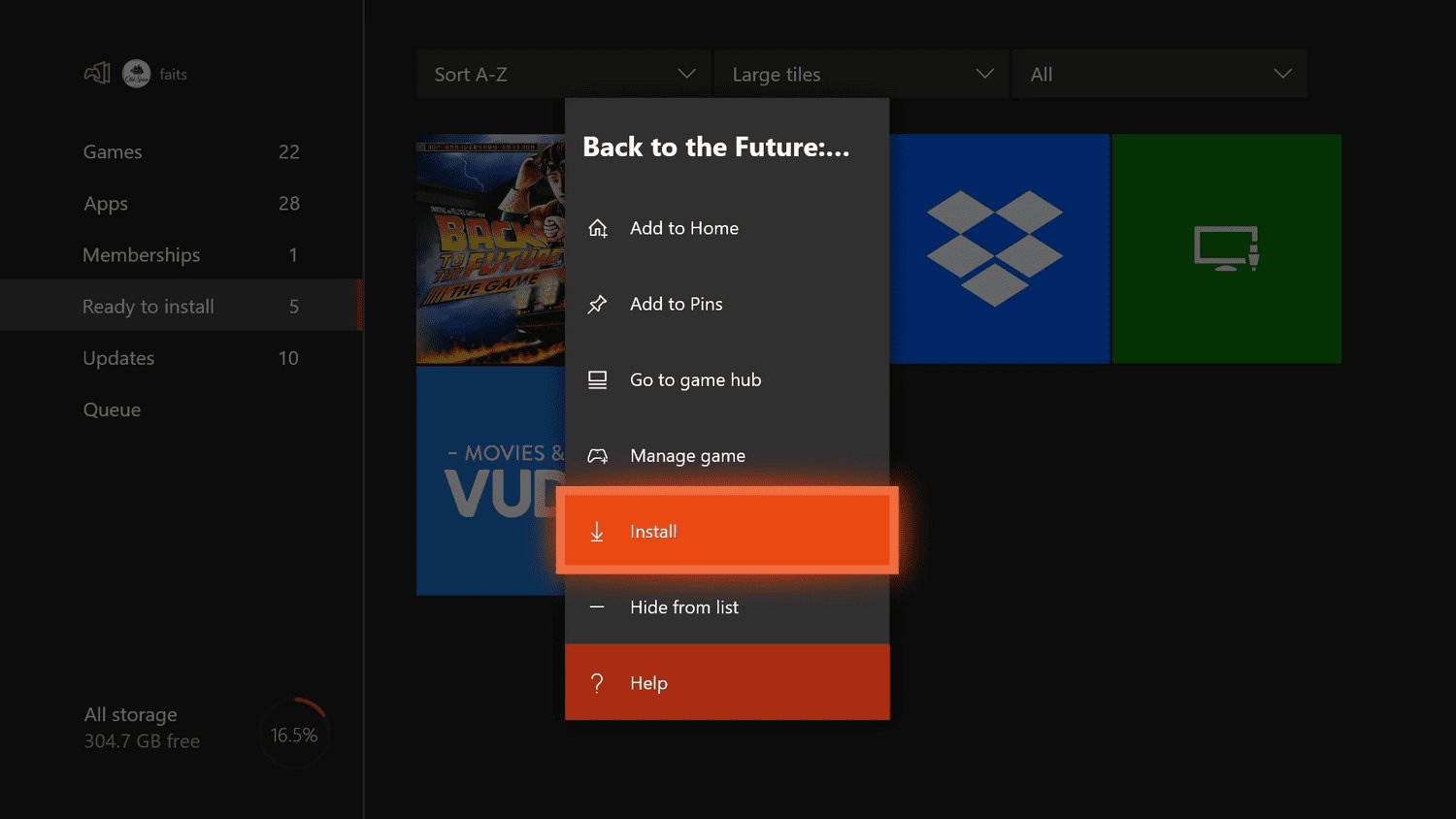
To uninstall Xbox One games, navigate to “My games & apps,” highlight the game, press the Menu button, select “Manage game & add-ons,” and then choose “Uninstall.”
Running out of space on your Xbox One? It’s a common issue as game sizes get larger. You might be wondering, “how to uninstall xbox 1 games” when you need space for new ones. We are here to help you.
It’s a quick and easy process, don’t worry. The steps are pretty straightforward, and we’ll guide you right through it. Let’s get your console storage back in order.

How to Uninstall Xbox One Games
So, you’ve got a bunch of games on your Xbox One and things are getting a little crowded, right? It happens! Maybe you’ve finished a game, or maybe you just need some space for new adventures. Don’t worry, removing games from your Xbox One is actually super easy. We’re going to walk you through all the ways you can do it, step-by-step. We’ll cover everything from the basic method to more advanced options, and even how to handle games that are on external hard drives. Let’s get started!
Uninstalling Games Directly from the Xbox Home Screen
The most common way to uninstall a game is directly from your Xbox One’s home screen. It’s quick and simple, and you’ll be a pro in no time! Here’s how it works:
Steps to Uninstall
- First things first, turn on your Xbox One and make sure you’re on the main home screen. You’ll see all of your game tiles here.
- Use your controller’s directional pad or the left analog stick to highlight the game you want to remove.
- Once you’ve highlighted the game, press the Menu button on your controller. This is the button with three horizontal lines, sometimes called the “start” button.
- A menu will pop up. Use the directional pad or stick to move down to the option that says “Manage game & add-ons”. Select this option by pressing the A button.
- You will now see a new screen with different options. Select “Uninstall” (or sometimes it might just show the name of the game followed by the word “uninstall”).
- Your Xbox will ask you one more time to make sure you want to uninstall the game, select “Uninstall” using the A button to confirm.
- The game will begin to uninstall. You will see a progress bar showing how far along the process is.
- That’s it! Once the bar is full, the game is gone. It’s no longer on your Xbox One console, freeing up valuable space.
This method works for almost all games and apps installed on your Xbox One. It’s your go-to solution for cleaning up your library.
Managing Games through My Games & Apps
Another way to uninstall games and manage other installed apps is through the “My games & apps” section of your Xbox One.
Steps to Uninstall via My Games & Apps
- From your Home screen, move the selector to the far right until you highlight the “My games & apps” tile.
- Press the A button to enter “My games & apps”.
- You will see a list of your installed games and apps. Navigate to “Games” tab and select your game that you would like to uninstall.
- Press the Menu button to open up more options.
- Select “Manage game & add-ons”.
- You will now see a new screen with different options. Select “Uninstall” (or sometimes it might just show the name of the game followed by the word “uninstall”).
- Your Xbox will ask you one more time to make sure you want to uninstall the game, select “Uninstall” using the A button to confirm.
- The game will begin to uninstall. You will see a progress bar showing how far along the process is.
- Once done, the game will no longer be on your Xbox One console.
Using “My games & apps” is a great alternative to the home screen method, especially if you prefer managing all your games and applications in one place. It also offers additional management options for add-ons.
Uninstalling Games from an External Hard Drive
Many gamers use external hard drives to store more games. If you’ve got a game on an external drive that you want to remove, you can do that too, no problem! The process is very similar to removing a game from your console’s internal hard drive.
How to Remove Games from External Drives
- Make sure your external hard drive is connected and recognized by your Xbox One.
- Follow the same steps as before. you can start from home screen or “My games & apps” section.
- Highlight the game
- Press the Menu button
- Select “Manage game & add-ons”
- Then select “Uninstall”
- Confirm the process by selecting “Uninstall”
- The game will be uninstalled from your external drive. The space will become available again.
It is very important that you don’t disconnect your external drive while a game is uninstalling. This can cause problems with your data. Just wait for the process to finish before removing the drive.
Understanding Game Data and Saves
When you uninstall an Xbox One game, you aren’t losing everything. Your game saves are usually stored in the cloud, so you don’t have to worry about losing progress. When you reinstall the game, your saved data will be there waiting for you.
What Happens to Game Saves
- Game saves are automatically backed up to the cloud as long as you are connected to the internet and signed into your Xbox Live account.
- When you uninstall a game, the save data stays in the cloud. It’s not removed when you uninstall the game.
- When you reinstall the game, your console will download your saved data from the cloud and you can continue your adventure from where you left off.
- So don’t worry about starting from scratch when you need to clear some space on your hard drive.
Keep in mind that if you uninstall a game and your internet connection is lost, or if Xbox live is facing any issues, you may experience difficulties downloading cloud saves, although this doesn’t happen very often. Ensure that you have a strong internet connection before downloading any game in order to be able to download your save data also.
Freeing Up Space: Tips and Tricks
Uninstalling games is a great way to free up space, but there are other things you can do to manage your storage better.
Strategies for Storage Management
- Check Your Storage: Go to Settings, then System, then Storage to see a breakdown of how much space is being used by games, apps, and other content. This can help you see what’s taking up the most space.
- Uninstall Unplayed Games: Have games that you haven’t touched in months? It might be time to say goodbye and reclaim that space.
- Consider an External Hard Drive: If you have a lot of games, an external hard drive can be a very good investment. You can keep more games installed without worrying about running out of space on your console.
- Manage Add-ons: Games often have add-ons that can take up a lot of space. If you aren’t using them, removing them can free up storage. This can be found under “Manage game & add-ons”.
- Move Games: You can move games between your internal hard drive and external hard drives. This can help you balance your storage. When you select the game in “My games & apps” and then select “Manage game & add-ons” you have option to move the game to other storage drives.
Being organized is key. A little storage maintenance can make a big difference in your Xbox One experience. It also reduces the risk of your Xbox running slowly.
Reinstalling Games
What if you change your mind after uninstalling a game? No problem! You can easily reinstall any game that you own.
How to Reinstall Games
- Go to “My games & apps” on your Xbox One.
- Select “Ready to install”. This is the section that shows you the games you own but have not installed currently on your Xbox.
- Find the game you want to reinstall from the list.
- Select the game, and press the A button.
- Your game will begin to download and install. The time to install depends on your internet connection speed and the size of the game.
- Wait for the installation to complete. Then you can start playing again.
If a game you own is not listed in “Ready to install”, check the Microsoft store, you can search for the game and install it from there. Remember, the game must have been bought under your account.
Troubleshooting Common Issues
Sometimes, things don’t go as smoothly as planned. Here are some tips for resolving common issues when uninstalling games:
Handling Uninstall Problems
- Game Won’t Uninstall: Sometimes a game might not uninstall. Try restarting your Xbox One. Then try the uninstall process again. This often fixes the issue.
- Stuck on Uninstalling: If the uninstall process seems to get stuck, don’t force your console to shutdown. Check your internet connection is working. Try to connect to your Xbox network.
- Check Storage Space: Ensure that you have enough free space on your storage. Sometimes, a lack of space can lead to problems.
- Update Your Xbox: Make sure your Xbox One is up to date with the latest system software. Sometimes these updates fix underlying issues that can affect uninstall process.
- Contact Xbox Support: If none of these steps solve the problem, the Xbox support team will be happy to help. Don’t hesitate to reach out to them.
Don’t stress if you hit a bump in the road. There’s usually a simple solution, or the Xbox Support Team can give you a hand.
Why Uninstall Games?
Why bother uninstalling games? Well, there are lots of good reasons! Maybe you just don’t play the game anymore, or maybe you want to free up space for new titles. Whatever your reason, you’re in the right place to do it easily.
Reasons for Removing Games
- Free Up Storage Space: This is the main reason, so that you can install new games, or to improve the performance of your Xbox One.
- Clean Up Your Game Library: Sometimes having too many games can feel overwhelming, so removing games you don’t play can give a more organized game library.
- Make Space for Updates: When new game updates arrive, sometimes they require free storage, uninstalling games you no longer play will free up this space.
- Optimize Performance: Having too many games on the hard drive can sometimes make the console run slower. Getting rid of unused games can make your Xbox run faster.
- Personal Preference: Maybe you just want to clean up. Uninstalling games is like spring cleaning for your console!
There are many good reasons for uninstalling games, just find the reason that suits you!
Managing your Xbox One game library doesn’t have to be a daunting task. By following these easy steps, you can keep your console running smoothly, make space for new adventures, and keep your digital life organized. Remember, uninstalling a game isn’t permanent, and your cloud saves will be waiting for you whenever you decide to revisit an old favorite. Now that you have the knowledge, you’re well equipped to handle your Xbox One storage like a pro! Happy gaming!
How to DELETE GAMES on XBOX ONE & Uninstall APPS (Easy Method!)
Final Thoughts
To uninstall Xbox One games, first, navigate to ‘My games & apps’. Then, select ‘See all’. Find the game you wish to remove.
Highlight the game tile and press the ‘Menu’ button on your controller. Choose ‘Manage game & add-ons’. Finally, select ‘Uninstall’ and confirm. This process details how to uninstall xbox 1 games efficiently.

