
To unlink an Epic Games account, you must visit the “Connected Accounts” section within your Epic Games account settings and remove the desired linked platform.
Ever found yourself needing to separate your Epic Games account from a console or another service? It can happen when switching platforms or simply wanting better control over your account connections. It’s a straightforward process, but knowing precisely how to unlink an epic games account can save time and frustration.
This article will provide a clear and concise guide so you can quickly manage your connected accounts. We’ll walk through the simple steps needed to achieve this.

How to Unlink an Epic Games Account
Okay, so you’ve decided you need to unlink your Epic Games account from something. Maybe you accidentally linked it to the wrong platform, or perhaps you’re just trying to tidy things up. Don’t worry! It’s a pretty common thing, and it’s totally doable. We will go through everything together step by step, so by the end of this, you’ll know exactly how to manage your linked accounts. It might seem tricky at first, but we will make it simple.
Understanding Linked Accounts
Before we dive into the “how,” let’s quickly talk about what “linked accounts” actually means. When you play games like Fortnite, Rocket League, or Fall Guys, you often have the option to connect your Epic Games account to accounts on other gaming platforms or social media. This connection allows you to share progress, play with friends across different devices, and sometimes even get special in-game items. Think of it like this: your Epic Games account is like your main clubhouse, and the other accounts are like doors that let you play with others in their clubhouses, and to enter in your own. Linking them makes it easier to move back and forth between them.
Why Unlinking Might Be Necessary
Sometimes, however, you need to undo these connections. Here are a few common reasons why you might want to unlink an account:
- Linked the wrong account: Oops! Maybe you connected your Epic Games account to a PlayStation account that belongs to your sibling instead of your own.
- Switching platforms: You might have moved from one platform to another and want a clean slate, or you don’t want your old progress tied to your new account.
- Security concerns: If you think someone else might have access to one of your linked accounts, unlinking can be a way to secure your Epic Games account.
- Starting Fresh: Maybe you simply want to start a game over from scratch, and having your old account linked doesn’t let you do that.
- Troubleshooting: Sometimes unlinking and relinking can solve technical issues with your games.
The Basics of Unlinking
The general process for unlinking an account from your Epic Games account is fairly consistent, regardless of the platform you are trying to remove. Usually, you will be working with the Epic Games website or launcher and not any external platform, however, you might need to verify on some external accounts that are going to unlink. So, let’s get to it!
Accessing Your Epic Games Account Settings
To start, you’ll need to go to the Epic Games website and log in to your account. Here’s how:
- Open your web browser (like Chrome, Firefox, or Safari).
- Go to the official Epic Games website.
- Click on the “Sign In” button, usually at the top-right corner of the page.
- Sign in with your Epic Games account username (or email address) and password. If you have two factor verification enabled, then you need to verify by your method.
- Once you’re logged in, click on your username or display name.
- From the drop-down menu that appears, click on “Account”. This will take you to your account settings page.
Navigating to the Connections Tab
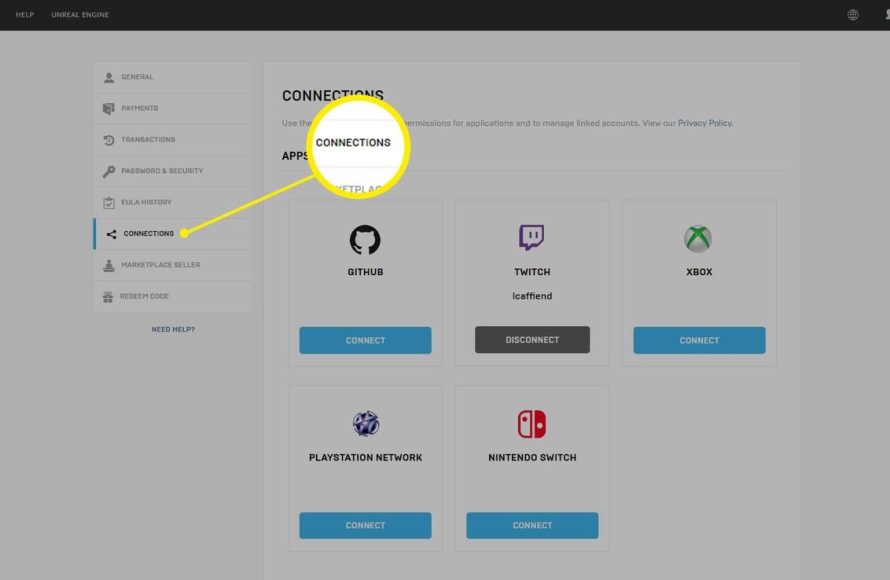
Once you’re in your account settings, you will be able to see your various account details. You need to locate the “Connections” tab. This is where you’ll see all the external accounts currently linked to your Epic Games profile.
- On the left side of your account settings page, you will see multiple options. Click on “Connections”.
- Under “Connections,” you will likely see different sections, such as “Accounts”. Click on that “Accounts” option.
- You will then be presented with a list of accounts linked to your epic account, such as Playstation, Xbox, Nintendo, Steam, Twitch etc.
Unlinking Specific Accounts
Now that you know where your linked accounts are, we will discuss how to unlink each specific account. Please note that unlinking an account might have consequences, such as lost progress in certain games. So, make sure that you really want to unlink it before you finalize it.
Unlinking a PlayStation Account
If you have your PlayStation Network account connected, here’s how to remove it:
- Find the PlayStation logo on the “Accounts” page, next to it you will see the username of your PSN profile.
- Under that, you will see the button labelled as “Remove”. Click that button.
- You will be asked to confirm that you really want to remove the account. Read carefully, as they will remind you of potential losses if you have linked accounts between them.
- If you are absolutely sure, click “Unlink Account” to finalize the process.
- After the process is complete, the PlayStation account will be unlinked from your Epic Games account.
Unlinking an Xbox Account
The process to unlink your Xbox account is similar to unlinking a PlayStation account:
- Locate the Xbox logo on the “Accounts” page, and see your Xbox gamer tag right next to it.
- Click on the “Remove” button below the Xbox gamer tag.
- A confirmation pop up message will show up asking you to confirm your unlinking process. Read through it.
- If you are ok with the terms, then click the “Unlink Account” button to remove the account.
- Now your Xbox account is removed from your epic games account.
Unlinking a Nintendo Account
If you’ve linked your Nintendo account, here’s how to unlink it:
- Locate the Nintendo logo on the “Accounts” page, and see your Nintendo account name right next to it.
- Click on the “Remove” button below the Nintendo account name.
- A confirmation window will show up. Go through the details carefully.
- If you are sure that you want to remove it, then click on “Unlink Account” to finalize the action.
- Your Nintendo account is now removed from your epic games account.
Unlinking a Steam Account
Unlinking your Steam account follows the same simple steps:
- Locate the Steam logo on the “Accounts” page, and see your Steam account name right next to it.
- Click on the “Remove” button under the steam account name.
- A confirmation box will show up, where you need to go through details.
- Click on “Unlink Account” to remove the account from your epic account.
- Your steam account is now unlinked with your epic games account.
Unlinking other accounts
The unlinking process for other linked accounts like Facebook, Twitch, or Github is very similar to all the above mentioned processes. Just locate the account from the list, and follow the similar procedure to unlink it from your account.
Important Considerations Before Unlinking
Before you click that “Unlink Account” button, take a moment to consider these important points:
Data Loss
Sometimes, when you unlink an account, you might lose access to data associated with that connection. For example:
- Game Progress: Your progress in a game that was linked across platforms might not be accessible on the unlinked platform. For example, if you linked Fortnite on PS5 and PC, and then unlinked, your progress on PS5 might become unavailable to your PC and vice versa.
- In-Game Items: Some items are tied to specific accounts. If you unlink an account, you might lose access to these items on the removed platform, or you might lose it all depending on the game.
- Cosmetics: In some games the cosmetics you purchased are linked with your game account, and you might lost those after unlinking.
Future Re-Linking
It is possible to re-link an account again. But be warned that, if you have made substantial progress on a different account after unlinking, it may not link to the same account, or might overwrite the new progress.
Temporary Issues
Sometimes when you have unlinked a account, it might not show up immediately on the platform you removed, so give some time to be reflected. It is not instantaneous process.
Game Specific Unlinking
Some games might have their own rules about account unlinking. It’s always a good idea to check the game’s official website or support pages if you are concerned about potential issues.
Troubleshooting Common Issues
Sometimes things don’t go as planned. Here are a few common problems you might encounter while unlinking and how to handle them:
The “Remove” Button Isn’t Working
If the “Remove” button is greyed out or not clickable, try the following:
- Refresh the page: Sometimes, just refreshing the page can fix display issues.
- Try a different browser: Your current browser might have an issue. Try using a different browser to access the Epic Games website.
- Clear your browser cache: Old browser data might cause the page to not load properly. Clear the cache and try again.
- Check for account verification : Some times you need to verify your account before making such major changes.
Error Messages
If you encounter an error message during unlinking, read it carefully. It might give you a clue about what’s causing the issue. You can also reach out to Epic Games customer support for help if you are stuck.
Confirmation not going through
If you have selected the unlink account button, but nothing is happening, try the below solutions:
- Double Check The Details: Confirm that you have followed all the steps correctly.
- Check the Internet: Make sure you have an active internet connection.
- Try another time: Due to high traffic on servers, it might not work. Try after some time.
What to Do if you are still having issues
If none of the above fixes your problem, here are more specific steps you can take to resolve it:
- Contact Epic Games Support : Go to the Epic Games help page and submit a support ticket. Explain your situation clearly and provide screenshots if possible.
- Check Epic Games Forums: Other users might have encountered the same issues and might have solutions. You might find similar answers in their forums.
- Check the Social Media: Epic games might announce if there is some global issue with the servers, through social media channels.
Unlinking an Epic Games account is generally straightforward, but always proceed with caution. Take your time, read everything carefully, and don’t hesitate to seek help if you get stuck.
How to Unlink Epic Games Account From PS4, PS5, Xbox, Switch, & PC
Final Thoughts
To unlink an Epic Games account, first, navigate to the ‘Connections’ section within your account settings. Find the linked account you want to remove, then click the ‘Unlink’ button. Confirm your choice when prompted.
This action disconnects the specific linked service from your Epic Games profile. Remember, doing this might affect your game progress or access. Carefully consider before you unlink.
Effectively, that’s how to unlink an epic games account. This simple process allows you to manage connections efficiently.

