
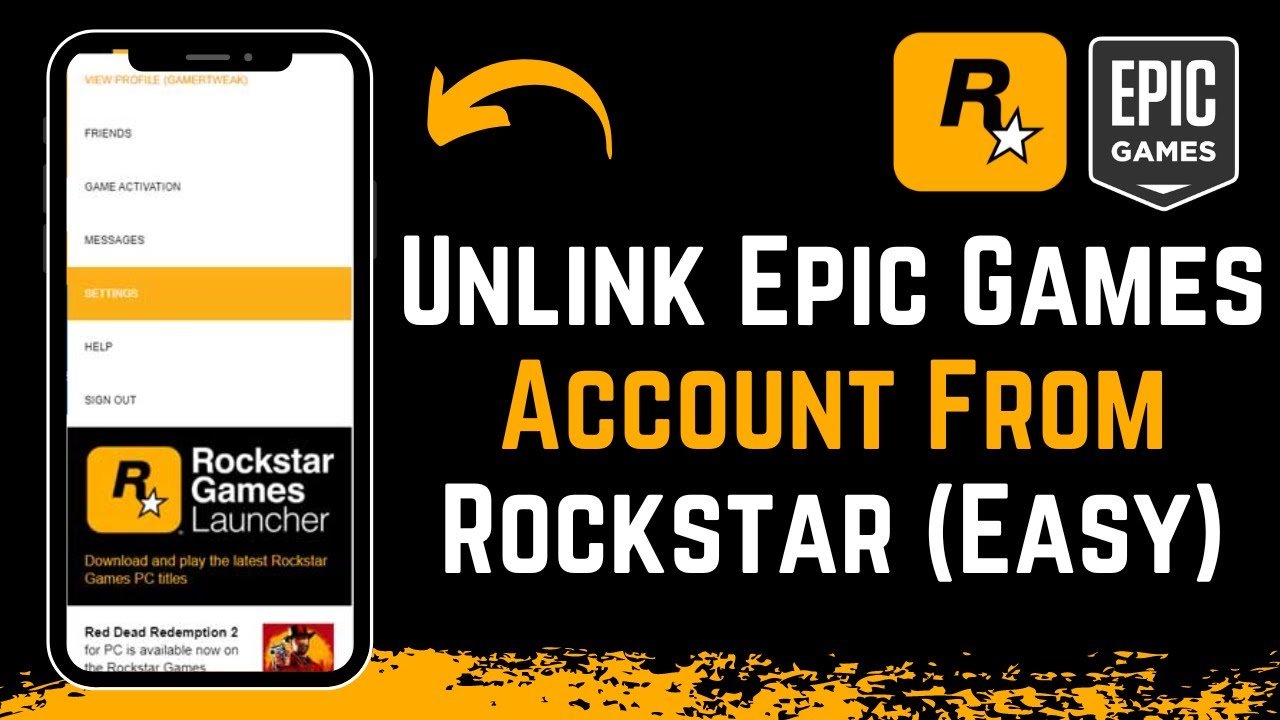
To unlink your Rockstar account from Epic Games, you must do so through the connected accounts section of your Rockstar Games Social Club profile.
Ever found yourself wanting to separate your Rockstar Games account from Epic Games? Perhaps you used the connection once for a game and now wish to manage them separately. This is a fairly common request, and understanding the process is important for account control.
Many players want to know how to unlink rockstar account from epic games because they may be experiencing issues or prefer independent control over their game libraries. This short guide will give you that specific answer and should be all you need to do it yourself.

How to Unlink Rockstar Account from Epic Games
Have you ever linked your Rockstar Games account to your Epic Games account and now you want to separate them? Maybe you want to play games on a different account, or you just don’t want them connected anymore. Don’t worry, it’s something many people want to do, and while it’s not super obvious, we’ll guide you step-by-step on how to do it. We know linking accounts can be useful for some, but sometimes you need to undo things. We’re here to help you with that!
Why Would You Want to Unlink Your Accounts?
Before we jump into the how-to, let’s talk about why someone might want to unlink their Rockstar Games account from their Epic Games account. There are a few common reasons:
- Starting Fresh: Maybe you want to begin a new game with a fresh account on one or both platforms. You might want to play games like Grand Theft Auto V or Red Dead Redemption 2 with a completely new profile.
- Accidental Linking: Sometimes, people link the wrong accounts by mistake. Maybe you thought you were linking to a different account or chose the wrong one, and now you want to fix it.
- Account Management: Perhaps you have multiple Rockstar or Epic accounts, and you want to organize them better. You might want to keep certain game accounts completely separate for organizational purposes.
- Privacy Concerns: Maybe you’re worried about your privacy, and you prefer not to have linked accounts.
- Game Specific Reasons: Sometimes, specific game updates or issues might cause you to want to unlink your accounts temporarily.
Knowing why you want to unlink can make the process a little clearer. Whatever your reason, let’s get started on the actual process.
The Official Way to Unlink Accounts: Contacting Support
Rockstar Games and Epic Games do not offer a simple button within their platforms for unlinking accounts. This is a common frustration for players, but there is an official way to do it: You need to contact their support teams directly.
Contacting Rockstar Games Support
First, we’ll focus on reaching out to Rockstar Games Support. They are the ones who can officially unlink your account from Epic Games. Here’s how to get in touch with them:
- Visit the Rockstar Games Support Website: Go to the official Rockstar Games Support website. You can find this easily by searching on Google or another search engine.
- Sign In: If you are not already signed into your Rockstar Games account, sign in. This helps them verify that you are the correct owner of the account you want to unlink.
- Choose Your Game: On the support page, you will probably see a section asking about which game your issue is concerning. Select the game that is linked to your Epic Games account. This could be Grand Theft Auto V, Red Dead Redemption 2, or another title.
- Select the Appropriate Category: There should be a category or options related to account linking, account issues, or similar options. Search for something related to “linked accounts,” or “account management.”
- Submit a Ticket: You may need to write a support ticket. It’s important to be clear and concise. Tell them that you want to unlink your Rockstar Games account from your Epic Games account. Give them the correct details of both accounts. Be polite, clear, and specific about why you want to unlink. For example: “I want to unlink my Rockstar Games account from my Epic Games account. I accidentally linked the wrong accounts and want them separated.”
- Provide Account Details: Include details like your Rockstar Games account username and the email address associated with it. Also, provide the email address linked to your Epic Games account for verification. This helps them quickly identify both accounts.
- Be Patient: After submitting your ticket, it might take some time for Rockstar Games Support to get back to you. They receive many requests, so be patient. You might get an email confirming they received your request.
- Follow Instructions: When they do reply, they will give you further instructions. Follow these carefully. They may ask more questions or give you a confirmation once the unlinking is complete.
It’s important to be patient throughout this process. Rockstar Games Support will help you, but it may not be immediate.
Contacting Epic Games Support
While Rockstar Games handles the actual unlinking of your account from their end, reaching out to Epic Games support can also be useful. They might have some additional information or alternative methods that could be helpful. Here’s how you contact Epic Games support:
- Visit the Epic Games Support Website: Open your web browser and search for the “Epic Games Support” website.
- Sign in to Your Account: Once on the support page, sign in using the Epic Games account that is linked to your Rockstar Games account. This will help them quickly identify your account.
- Find the Support Section: Look for a section that provides support or help options. Usually, this is located at the bottom of the page or within a menu.
- Describe Your Issue: Use their contact form or support ticket system to explain that you want to unlink your Rockstar Games account. Provide them with as many details as possible, such as your Rockstar Games account details (username and email) and why you need to unlink.
- Include Account Information: Just like with Rockstar support, provide the email associated with your Epic Games account and your Rockstar Games account username. This makes the process faster.
- Be Clear and Polite: Express your request clearly and kindly. The support agents are there to assist you, so being polite helps. For example: “I have linked my Rockstar Games account to my Epic Games account, and I would like it unlinked. Can you please help me with this issue?”
- Wait for a Response: After you submit your request, it may take a while for Epic Games Support to get back to you. Check your email for any messages from them.
- Follow their Instructions: When you hear from them, carefully read their instructions and follow them to the best of your ability. If they ask for more information, reply promptly.
Epic Games support might not directly unlink your account (that’s Rockstar’s responsibility), but they can be useful for clarification or guidance. They can confirm whether your accounts are correctly linked, or they could share more insight into the process.
What Information You Need to Provide
When contacting either support team, it’s helpful to have all your information ready. Here is a list of details you may need to provide:
- Your Rockstar Games Account Username: This is the name you use to sign in to the Rockstar Games platform or social club.
- The Email Address Associated with Your Rockstar Games Account: The email address linked to your Rockstar Games account is crucial for identification.
- Your Epic Games Account Username: This is the name you use when you log in to the Epic Games Store.
- The Email Address Associated with Your Epic Games Account: The email address linked to your Epic Games account is needed for cross verification.
- Any Error Messages (if applicable): If you encountered any error messages while linking your accounts or playing games, including those details will be useful.
- Reason for Unlinking: Briefly explain why you want to unlink your accounts. As mentioned above this will help the support team understand your request.
Having these details prepared will make the process quicker and easier for both you and the support teams.
What To Expect After Submitting a Request
Once you’ve reached out to support, it is important to know what will happen next. Here are some points to keep in mind:
- Confirmation Email: Usually, you’ll receive an email confirming that your support ticket has been received. Keep this email safe as it often has a ticket number or other details you can reference later.
- Processing Time: The time to resolve your issue will vary. It can take a few days or even longer. Be patient and allow the support teams time to respond.
- Possible Follow-Up Questions: Support may ask you for more details to verify your identity. Answer these questions quickly to speed up the process.
- Account Unlinking: When the process is complete, you should get an email telling you that your Rockstar Games account is no longer linked to your Epic Games account.
- Testing the Unlink: Check that your Rockstar and Epic accounts are no longer linked. If you launch the game in which you were facing issues, it should now operate without your previously linked account.
After your accounts are successfully unlinked, you can then link them to other accounts as needed. It’s good to know that the support team will likely confirm the action is completed by the support team via email.
Things to Keep in Mind
When unlinking your Rockstar account from your Epic Games account, here are some important things to remember:
- Data Preservation: Unlinking accounts usually doesn’t delete your game progress, characters, or items. Those are typically associated with your specific game account (either Rockstar or Epic). But, just to be safe, always make sure you are regularly saving your progress.
- Double Check Information: Always double check the information you are providing when making a support ticket. This includes account names and email addresses. Making a mistake can cause more delays.
- Security: If you suspect someone else linked your account without your permission, you may want to change your passwords on both your Rockstar and Epic accounts.
- Alternative Accounts: If you are trying to start fresh, make sure you have a new Rockstar and Epic account to link to and that you are ready to begin.
- Patience is Key: Unlinking accounts is not instant. It can take several days or weeks for support teams to respond and finalize the process. Be patient and check your emails regularly.
- Contact Support Again if Needed: If you don’t hear back from support after a reasonable time, don’t hesitate to contact them again to follow up on your request.
By keeping these things in mind, you can have a smoother experience unlinking your accounts.
Other Common Issues Related to Linked Accounts
Sometimes, people face additional issues when dealing with linked accounts. Here are some of them and what you can do:
- Game Launching Issues: Some players experience issues with games failing to launch after linking accounts. The best action for you is to double-check all of your login details and make sure you are launching the game from the correct account.
- In-Game Item Transfers: Sometimes players want to transfer items between linked accounts, but this often isn’t possible. Most game items are tied to specific accounts and cannot be transferred.
- Problems with Social Club: The Rockstar Games Social Club is crucial for account linking and game progress. Issues with this platform can sometimes lead to problems with linking or unlinking accounts. If you are experiencing social club issues, first make sure you are logged in correctly with the correct login details.
- Mixed Up Accounts: Some people might have linked their Rockstar account to the wrong Epic Games account. When this happens, it can be complicated to untangle. Be sure to check which email addresses and accounts are linked together. If you find any discrepancies, be sure to mention this when contacting the support team.
- Multiple Rockstar Accounts: If you have multiple Rockstar accounts linked to different platforms, keeping them organized can be a headache. In this case, writing down all account details might be useful.
Understanding these issues will help you be ready for any problems that may arise when managing your linked accounts.
Unlinking your Rockstar Games account from your Epic Games account requires contacting support. While there isn’t a quick button, by following the steps we’ve outlined and providing the correct information, you can successfully separate your accounts. This process may take some time, but by being patient and prepared, you can achieve your goal. Always remember to check your emails regularly for updates from both support teams. Knowing how to manage your accounts will help you to enjoy your games without any linking difficulties.
How to unlink Epic Games from Rockstar Account
Final Thoughts
To unlink your Rockstar account from Epic Games, you must access your connected accounts through the Rockstar Games Social Club website. There, you will find an option to disconnect the Epic Games link. This action prevents future data sharing between the platforms.
Remember, carefully consider the impact before you proceed. Confirming this decision will break the link between both services. This guide explains how to unlink rockstar account from epic games directly.

