
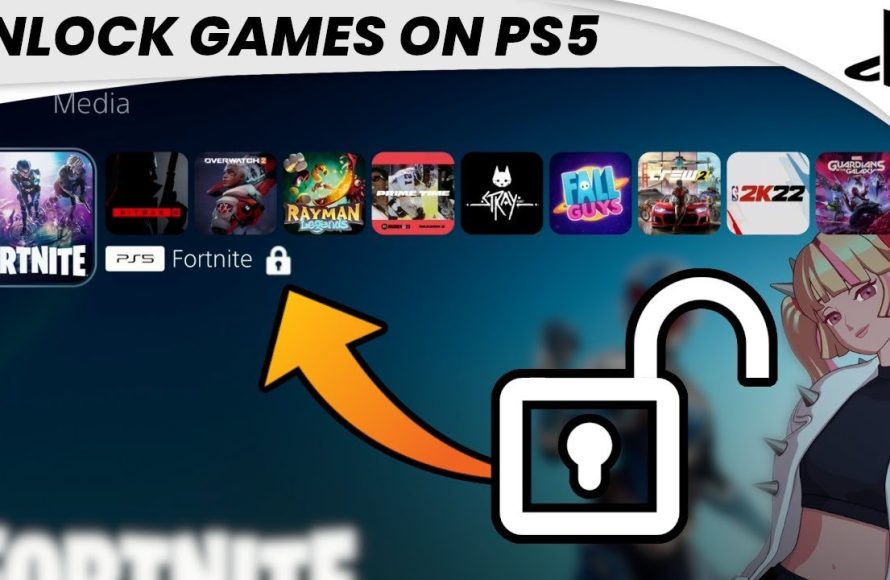
To unlock a game on PS5, you typically need to purchase it digitally from the PlayStation Store or insert the physical game disc.
Ready to dive into that new PS5 title? You’ve got the console all set up, but maybe you’re stuck wondering, “how to unlock a game on ps5?” It’s a common question and thankfully, quite easy to resolve.
The process generally involves a direct purchase via the PlayStation Network or using a physical game copy. Either method gives you access to the game and its fun.
With this in mind, let’s briefly cover both methods so you can quickly start gaming!

How to Get Playing Your Games on PS5
So, you’ve got a shiny new PlayStation 5 (PS5), and you’re eager to jump into some awesome games! That’s fantastic! But sometimes, getting started can feel a little confusing. Don’t worry, it’s usually pretty easy. Let’s go through the common ways you can start playing your games on your PS5.
Understanding Game Types
Before we dive into the “how,” let’s quickly talk about the different ways you might have your games. It’s helpful to know what you’re working with:
- Physical Games (Discs): These are the games you get in a box, with a disc inside. Think of them like your favorite movies on Blu-ray or DVD.
- Digital Games: These games exist only online. You buy and download them from the PlayStation Store, right on your PS5.
- PlayStation Plus Games: If you have a PlayStation Plus subscription, you get to play certain games for free as long as your subscription is active. These can be downloaded just like digital games.
Getting Started with Physical Disc Games
These are often the simplest games to start playing. Here’s how to get going with a game on a disc:
Inserting the Game Disc
First, find the disc drive on your PS5. It’s the slot on the front of the console. There will be a small line to indicate how to slide the disc in. Gently push the disc into the slot, with the label facing up. The PS5 will pull it the rest of the way. If your PS5 has an optical drive (the disc slot) and you don’t have a digital edition, be sure the disc is the proper kind for the PlayStation 5. Not every disc works. Usually, the game box will say if it’s compatible with a PlayStation 5. Once the disc is in, your PS5 will recognize it.
Installing the Game
Sometimes, even with the disc, the PS5 needs to copy some files onto its hard drive. This is like getting your toys ready for playtime. You’ll see a progress bar on your screen that shows the game is installing. It might take a little while, so be patient! The progress bar will indicate how much time remains and don’t shut down the PS5 while this happens. It will say ‘Copying’ or ‘Installing’.
Starting the Game
After installation, the game’s icon will show up on your PS5’s home screen. Find it and press the “X” button on your controller. It’s time to start having fun! The game might have a short introduction before you get to the main menu.
Getting Started with Digital Games
Digital games are a little different since you don’t have a physical disc. Here’s how you get them going:
Buying Digital Games
First you need to visit the PlayStation Store. You can find it on your PS5’s main menu. It looks like a shopping bag icon. You need an internet connection to access the PlayStation Store. Once inside, you can browse all the games available for purchase. Use the search bar if you’re looking for something specific. You will need to have a payment method linked to your PlayStation account (like a credit card, debit card, or PayPal) to buy digital games. Select the game you want and then click to buy it. Confirm your purchase details and the game will be added to your downloads.
Downloading Digital Games
Once you buy a digital game, the PS5 will start downloading it. You can see download progress on your PS5. It’s usually in the ‘Downloads/Uploads’ section or in the notification menu. Download speeds vary based on the internet speed you have. This can take a long time with big games, so be prepared. You don’t have to watch it, you can even go do something else. When it is finished, it will notify you.
Accessing Your Library
Once your game has downloaded, it may not be on your home screen just yet. Go to your Game Library, which is the library of all the games you have, whether digital or disc games. It’s usually right next to the home screen. Find the game in your library that you just downloaded and select it. It should be ready to play! If you can’t see it there, make sure that you log into the right PSN account. If the account you are logged in with did not purchase the game, then you cannot see it there.
Launching the Game
Select the game from your library, and click the ‘X’ button on your controller. The game will start, and you can get playing!
PlayStation Plus Games
If you have a PlayStation Plus subscription, you can play the free games that are offered each month. Here’s how:
Finding PlayStation Plus Games
Go to the PlayStation Store on your PS5. Look for the PlayStation Plus section, it’s usually at the top. Inside, you’ll find the games offered for free that month, or in the PlayStation Plus Collection. You need to “add” the game to your library before you can download it.
Adding and Downloading
Select the free game you want to play, and choose “Add to Library”. This does not download the game, but it attaches it to your account so you can download it at any time. Then, go to your library to download it. It will download like any other digital game. Just make sure that your PlayStation Plus subscription remains active, otherwise you will not be able to play the games.
Playing your PlayStation Plus Game
Once the game downloads, find it in your library and get playing, just like a regular digital game! If your PlayStation Plus membership expires, you won’t have access to play these games, but they will still be in your library. If you rejoin at any point, then you can play them once again.
Troubleshooting Common Issues
Sometimes things don’t go perfectly. If you have issues, here are some helpful tips:
Game Disc Won’t Read
- Make sure the disc is clean and doesn’t have scratches. Use a soft, dry cloth to gently wipe it clean. Don’t use water or other liquids.
- Take out the disc and put it back into the disc drive. Sometimes, the system needs a fresh try.
- Make sure that the disc is the correct disc for the PlayStation 5 and not the PlayStation 4.
Download Is Taking a Very Long Time
- Check your internet connection. Make sure your PS5 is connected and the Wi-Fi signal is strong.
- You might need to pause other downloads in progress.
- Try restarting your router. Sometimes, routers need to be reset. Turn it off, wait 30 seconds, and turn it back on.
Can’t Find the Game in the Library
- Make sure you are logged into the right account on your PlayStation 5. If the game was bought using another account, you will have to log into that account.
- Restart your PlayStation 5. Sometimes, a simple restart can fix this.
Account Issues
- Make sure that your account is connected to PlayStation Network and that you remember your login details.
- If you have forgotten your password, go to the PlayStation Network website and try to recover your password.
Getting Help From PlayStation
If you are still having issues with your games, don’t be afraid to contact PlayStation support. They can help you with more specific problems and often have help articles on their website for common issues.
Account Linking and Game Sharing
Family Sharing
PlayStation allows family sharing, which can be useful for families who share one console or account. In family sharing, one parent or primary account holder sets up sharing for other accounts on the console. This allows others to share games without purchasing them individually on every account. You must do this inside the account settings.
PlayStation Network
Make sure that you are logged into the right account when trying to play any game. If you are using someone else’s console, or another account on your console, you will need to make sure that you are logged into the account where the game was bought, downloaded, or is available in the PlayStation Plus subscription. There is no method of transferring games to other accounts.
Linked Accounts
Sometimes games will require that you link the PlayStation Network account to the game itself. If the game requires this, it will usually walk you through it at the start of the game. You may have to register an account with the game developer directly. This is especially common with online games or games with in-game purchases.
Following these steps should help you easily play your favorite games on your PS5. Enjoy the world of gaming!
Getting a game running on your PS5 is pretty easy and straight forward in most cases, and following the above steps should allow you to get started. Always make sure you are using the correct account, are connected to the internet if you need to be, and have downloaded and installed the game correctly. If you have any issues at all, you can always contact PlayStation customer support for more help.
How to UNLOCK Games on PS5 (EASY) (2022) | SCG
Final Thoughts
To play a purchased digital game on your PS5, first, ensure it’s fully downloaded. Then, go to your game library and select the title. If a lock icon appears, you may need to restore licenses.
Go to settings, then user and accounts. Choose ‘other’, and select ‘restore licenses’. This usually fixes the issue. This is how to unlock a game on ps5.
If the game is on disc, simply insert the disc into your console. The console will automatically recognize and activate it for play.

