
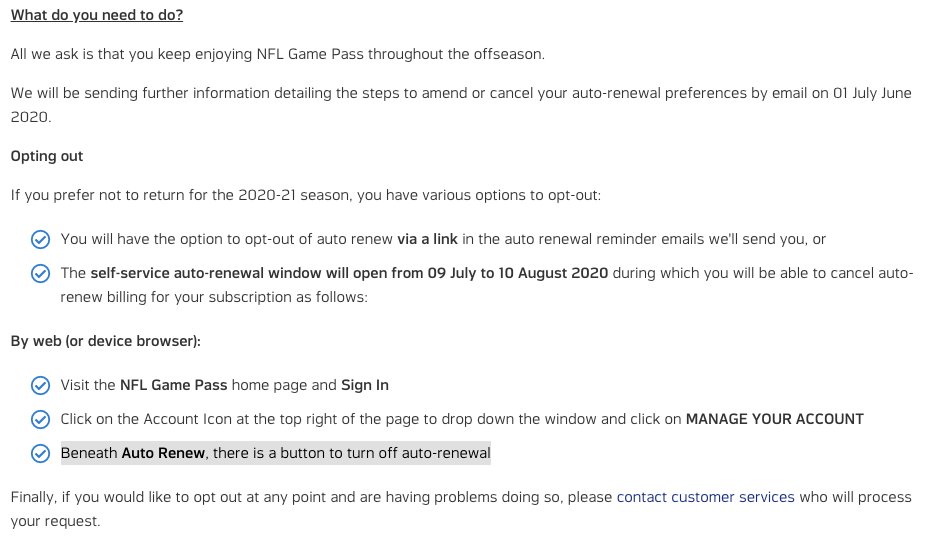
To cancel your NFL Game Pass subscription, you’ll need to visit the platform you used to subscribe (e.g., NFL website, app store) and navigate to your account settings to find the option to manage or cancel your subscription.
Are you wondering how to unsubscribe nfl game pass? Maybe the season is over, or you’ve just decided to cut back on your subscriptions. It can sometimes be confusing to find the cancellation process. Don’t worry, you aren’t alone!
This guide will walk you through the steps you will need to take. We’ll show you how to quickly and easily end your subscription on different platforms, so you can avoid any future charges.

How to Unsubscribe NFL Game Pass
Okay, so you’ve decided to say goodbye to your NFL Game Pass subscription. Maybe the season’s over, or perhaps you’re just ready to move on to other entertainment options. No matter the reason, unsubscribing from NFL Game Pass is usually a pretty simple process. But sometimes, things can get a little tricky. That’s why we’re here to help walk you through exactly what you need to do, step-by-step, so you don’t get stuck paying for something you no longer want. We will explore all the possible scenarios and platforms you might be using, so you can confidently cancel your subscription. We’ll look at everything from the common web browser method to handling subscriptions on different devices. So, let’s dive in and make sure you’re free from those recurring charges!
Understanding Your NFL Game Pass Subscription
Before we jump into the “how-to,” let’s make sure we are on the same page about your specific situation. NFL Game Pass isn’t a single product; it comes in different flavors, which means the cancellation process can vary slightly. It’s useful to know what kind of subscription you have, as this can affect the way you approach ending your membership. It’s always a good first step to check where you originally signed up for NFL Game Pass. Understanding if your subscription was through the NFL website, an app store (like Apple’s App Store or Google Play Store), or perhaps via another streaming platform (Amazon Prime Video) is very important. Knowing the source will guide you in the best way to cancel the service.
Types of NFL Game Pass Subscriptions
It’s helpful to differentiate the various subscriptions options available. This might sound tedious, but recognizing which type you are on makes the cancellation easier:
- NFL Game Pass International: This is for fans outside of the United States, who generally have more comprehensive access to live games.
- NFL Game Pass (United States): Within the US, NFL Game Pass provides access to replays and archived content, often with restrictions on live game broadcasts.
- Bundled Packages: Sometimes, NFL Game Pass might be part of a larger package with a TV provider or another streaming service. These subscriptions may have their own distinct cancellation routes.
Checking Your Subscription Details
Before you go further, let’s make sure you have all your information at hand. A quick check of the subscription details can avoid problems later. Go to your account or payment history. Look for the billing information, such as when the subscription renews and payment method. This gives you a clear picture of your agreement, helping you know when to act to prevent unwanted renewals.
- Login to your account: Access your NFL Game Pass account on the original platform where you signed up.
- Check billing cycle: Take note of your next billing date. This will help ensure you cancel before you are charged for another period.
- Note your subscription type: See which type of Game Pass subscription you have, as this will effect the cancellation process.
Cancelling via the NFL Website
The most straightforward way to end your NFL Game Pass subscription is often directly through the NFL website. This approach usually works if you initially subscribed through their site, and here’s how you can do it:
Step-by-Step Guide for Web Cancellation
- Go to the NFL Website: Start by navigating to the official NFL website. Make sure you are on the correct country specific site if you have the international subscription.
- Login to Your Account: Use your email address and password to log into your NFL account where you purchased the subscription. Look for a “Sign In” or “My Account” section usually on the top right side of the page.
- Find Your Account Settings: Once logged in, look for a “Settings,” “Account,” or “Manage Subscription” section. This is usually in a drop-down menu under your profile icon or name.
- Locate the Subscription Area: Navigate through your account settings until you find the part that details your NFL Game Pass subscription. It might be labeled “Subscriptions,” “Membership,” or something similar.
- Choose to Cancel: Within the subscription management area, find the option to “Cancel Subscription” or a button that indicates you want to stop future payments. Be careful not to accidentally restart.
- Confirm Your Cancellation: After selecting to cancel, you’ll be prompted to confirm your decision. They may ask why you’re leaving and confirm this cancellation request, they might also offer you a lower rate to convince you to stay. Make sure you review everything carefully and confirm you wish to cancel.
- Check for Confirmation: You should get an email confirming that your subscription is canceled. Keep this email for your records. This is proof of cancellation and can be handy in case of billing issues later.
Cancelling Through App Stores (Apple App Store and Google Play Store)
If you signed up for NFL Game Pass through your smartphone or tablet, you likely did it through either the Apple App Store or the Google Play Store. The cancellation process for these is managed differently from direct web cancellations. Here’s a detailed explanation for each platform:
Cancelling on Apple App Store (iOS Devices)
If you are an iPhone or iPad user, follow these instructions to cancel NFL Game Pass:
- Open Settings App: Find and open the Settings app on your iPhone or iPad. It looks like a gray gear icon.
- Tap Your Name: At the top of the Settings menu, you’ll see your Apple ID name. Tap on it.
- Select Subscriptions: From the Apple ID menu, tap on “Subscriptions.” This will show all your active subscriptions linked to your Apple ID.
- Choose NFL Game Pass: Find NFL Game Pass in the list of your subscriptions. Tap on it to view its details.
- Cancel Subscription: At the bottom of the Game Pass subscription page, you will see “Cancel Subscription”. Tap it to cancel. If you do not see this option, your subscription may have been cancelled already.
- Confirm Cancellation: A pop-up will ask you to confirm your decision. Tap “Confirm” to proceed.
- Check Confirmation: You should receive a confirmation email from Apple about your cancellation. Keep this for your records. You can also check in the “Subscriptions” area to ensure it shows as cancelled.
Cancelling on Google Play Store (Android Devices)
For users with Android devices, here’s how to cancel your NFL Game Pass subscription:
- Open Google Play Store: Launch the Google Play Store app on your Android phone or tablet.
- Tap Your Profile: At the top right of the screen, tap your profile icon. It might be a picture or your initial.
- Select Payments & Subscriptions: In the menu that pops up, choose “Payments & subscriptions,” then click “Subscriptions”.
- Choose NFL Game Pass: Find NFL Game Pass in your list of subscriptions. Tap on it to open its subscription details.
- Cancel Subscription: Select the “Cancel subscription” button.
- Confirm Cancellation: A pop-up window will appear asking you to confirm. Select “Cancel Subscription” again to confirm your decision.
- Check Confirmation: You will usually get an email from Google Play Store regarding your cancellation. Ensure you receive this and note the cancellation date. You can also verify within the Play Store app to see if the subscription is listed under “Cancelled”.
Cancelling Through Third-Party Providers
Sometimes NFL Game Pass is bundled or offered through third-party providers like Amazon Prime Video, Roku, or other platforms. If this is the case, the method of canceling differs from those mentioned previously. Here’s a rundown of how to approach these situations:
Cancelling on Amazon Prime Video
If you signed up for Game Pass as a channel add-on through your Amazon Prime Video account, this is how you would cancel:
- Go to Amazon Website: Go to the Amazon website and sign into your account.
- Access Your Account: Hover over “Account & Lists” at the top of the screen, then select “Memberships & Subscriptions” from the dropdown menu.
- Locate Your Channels: Under the Memberships & Subscriptions section, you should find an area that says “Prime Video Channels”.
- Find NFL Game Pass: Look through your list of channels until you find NFL Game Pass.
- Cancel Subscription: Once you find it, there should be a button or link to manage your subscription. Click this to find cancellation option and proceed.
- Confirm Cancellation: Confirm that you want to cancel. Amazon will probably ask you to verify your choice.
- Verify Cancellation: Look for confirmation that it is cancelled or check in the members section that the subscription is not active anymore. Amazon will also usually send confirmation via email.
Cancelling on Other Streaming Platforms
If you signed up through other streaming services, the process is usually similar:
- Login to Your Account: Go to the website or app of the streaming service and sign in to your account.
- Locate Settings/Account Management: Look for settings or account management areas within the interface.
- Find Subscription Management: Look for an area that lists all your active subscriptions.
- Choose NFL Game Pass: Find the listing for the NFL Game Pass subscription.
- Cancel Subscription: You should find a cancel or unsubscribe option there. Select it and confirm your request.
- Look for Confirmation: Make sure you get some form of confirmation of cancellation, either on screen or via an email.
Important Considerations When Cancelling
Cancelling any subscription, including NFL Game Pass, isn’t always as simple as clicking a button. Here are some important points to keep in mind:
Timing Your Cancellation
One of the key things to remember is timing. Subscriptions typically renew automatically, and if you cancel too close to your renewal date, you might still be charged for another period. It’s a good idea to cancel at least 24 hours before your subscription’s next billing date to avoid unexpected charges. If you cancel too early, you might not get to use your remaining time. If you’re not sure of your renewal date, check in the account settings on the website or app where you subscribed, as discussed earlier.
Managing Free Trials
Many subscriptions, including NFL Game Pass, often have free trial periods. If you signed up for a free trial and want to avoid being charged, make sure to cancel before the trial ends. Usually, this is very similar to the regular cancellation process mentioned previously, but again pay attention to the dates and read all the details. Set a reminder if needed, so you remember to cancel in time.
Cancellation Confirmation
After you’ve cancelled your subscription, always look for a confirmation email or notice on the app/website. This is proof that your request was successful and can help if you need to dispute any future charges. Take a screenshot or keep this email in case a problem arises.
Troubleshooting Cancellation Problems
Sometimes, you might encounter problems when trying to cancel. Here are some common issues and how you can address them:
- Can’t Find the Cancellation Option: If you don’t see a cancel button, double-check that you are in the right place, on the platform where you subscribed. You may also need to contact customer support.
- Website or App Errors: Sometimes, there are technical issues with the website or app. Try again later or try using a different device.
- Billing Issues After Cancellation: If you are charged after cancellation, contact the service you signed up with and provide your cancellation confirmation as proof.
- Problems Cancelling through a Third-Party: If you are having trouble cancelling a third-party subscription of NFL Game Pass, then refer to the third-party platform and/or its customer support team.
Seeking Customer Support
If you’ve tried everything and still can’t cancel your NFL Game Pass, reaching out to customer support is your next step. Whether it’s NFL’s direct support, Apple, Google, Amazon, or any third-party platform where you subscribed, contacting them can help solve your issue. Make sure you have details about your subscription at hand, including your account information, subscription type, and any payment information. This way, they can help you faster.
- NFL Game Pass Support: You can typically find contact info for NFL Game Pass support on their website.
- App Store Support: For subscriptions through Apple or Google, you can find help on their respective support pages.
- Third-Party Support: Contact the support team for the third-party provider directly, such as Amazon’s help center.
And that’s it! Cancelling your NFL Game Pass subscription doesn’t need to be complicated. By carefully following these steps, checking your account details, and noting your subscription method, you can avoid unnecessary billing and stay in charge of your payments. Remember to check for confirmation after you’ve cancelled and don’t hesitate to contact customer support if you face any issues. You are now prepared to manage your NFL Game Pass subscription like a pro.
How to Cancel NFL Plus Subscription (on iPhone App)
Final Thoughts
To cancel, visit the NFL Game Pass website or app. Locate your account settings, often under “subscriptions” or “manage account”. Then, find the cancel option and confirm your choice to end the service.
The steps for canceling will vary slightly depending on your device. If you paid via a third party such as google play or app store, you must cancel through them. Remember this method is important to note.
Therefore, to effectively learn how to unsubscribe nfl game pass, carefully review the specific instructions on the platform where you subscribed and follow each step to avoid future charges. It is vital to follow the correct method of unsubscribing from the service.

