
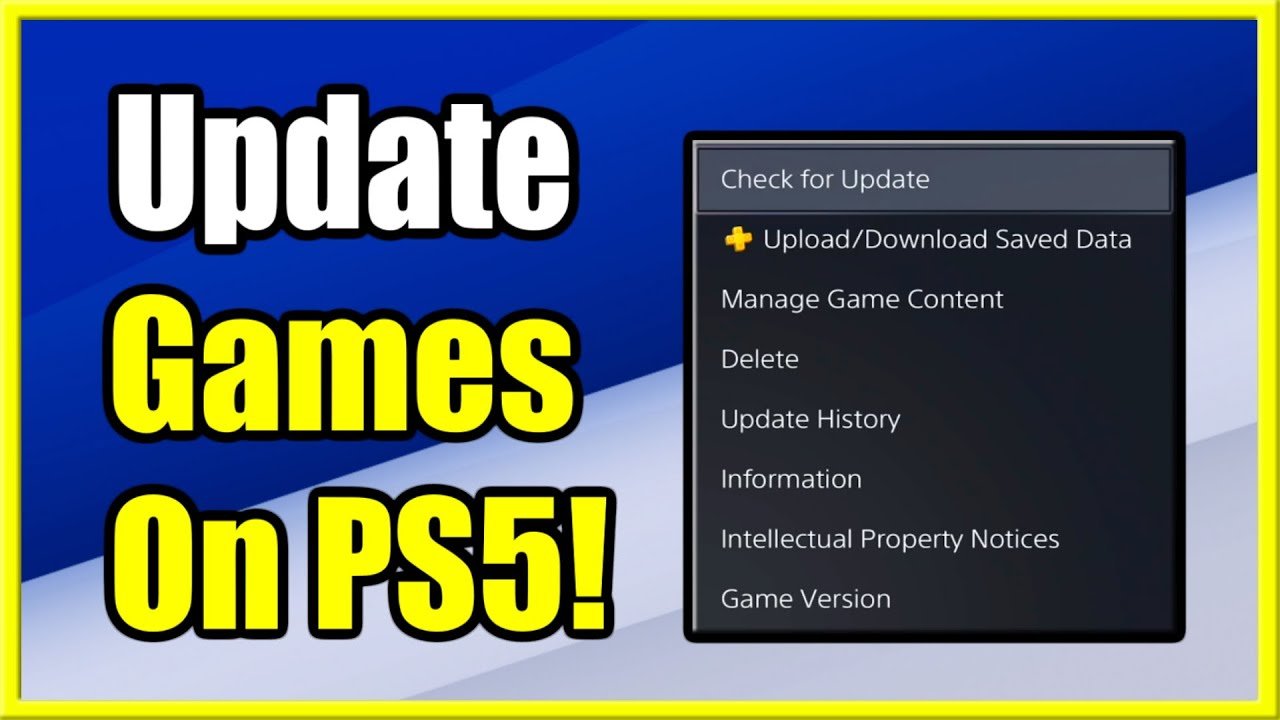
To update a game in PS5, select the game, press the options button, and choose “Check for Update”. The system will download and install any available updates.
Have you ever sat down ready to play your favorite PlayStation 5 game, only to be met with a prompt about updates? It happens to everyone, and it’s important to know how to keep your games current. The process for how to update a game in PS5 is actually quite simple.
It usually involves a quick trip to the game’s menu, where a single button press starts the download. Automatic downloads are also an option, but sometimes manual checks are necessary. This will ensure that you have the latest features and bug fixes.

How to Update a Game on PS5
Keeping your games updated on your PlayStation 5 is super important. Why? Because updates often bring cool new features, fix annoying bugs, and even make your games run smoother. Think of it like giving your game a super boost! This guide will walk you through everything you need to know about keeping your PS5 games current, so you can always enjoy the best possible gaming experience.
Understanding Game Updates on PS5
Before we dive into how to update, let’s chat about what exactly game updates are. Game developers are always working to make their games better. Sometimes they add new levels, characters, or game modes. Other times, they might fix glitches that cause problems. These improvements and fixes come in the form of updates.
These updates usually come in two forms:
- Patches: These are smaller updates that primarily focus on bug fixes, performance enhancements and small gameplay tweaks. These are released more frequently to address problems quickly.
- Major Updates/ DLC: These are bigger updates that introduce a lot of new content, features, and changes. These updates often have significant file sizes and require more download time. Downloadable content (DLC) can also sometimes be packaged with updates or sold separately.
Knowing this is important, because it helps you understand why updates are necessary and how frequently they might happen for your favorite games.
Automatic Game Updates: The Easy Way
The PlayStation 5 has a fantastic feature that makes keeping your games updated very easy: automatic downloads. With this feature enabled, your PS5 will download game updates while it’s in rest mode. This means you can often sit down to play, and your game is already updated! Here’s how to make sure automatic updates are turned on:
Enabling Automatic Game Updates
- Go to Settings: From the PS5 home screen, select the gear icon in the top right corner. This is where you access the system settings.
- Choose Saved Data and Game/App Settings: Scroll down and select “Saved Data and Game/App Settings.”
- Select Automatic Updates: In this menu, select “Automatic Updates.”
- Turn on Automatic Downloads: Make sure “Auto-Download” is switched to the “On” position. When turned on, your PS5 will download updates when available if it is in rest mode and connected to the internet.
With Automatic Downloads turned on, you mostly do not have to worry about game updates. Your PS5 does the work for you while you are not playing. But remember you need to have the rest mode enabled for this function to work.
Managing Updates in Rest Mode
To make rest mode work correctly for automatic updates, you also need to make sure your system is set up properly. Here’s how to check:
- Go to System Settings: Return to the main Settings menu.
- Choose Power Saving: Select “Power Saving.”
- Set Features Available in Rest Mode: Select “Features Available in Rest Mode.”
- Make Sure “Stay Connected to the Internet” is Enabled: This setting allows your PS5 to access the internet while in rest mode so that it can download those crucial game updates.
- Make Sure “Enable Turning on PS5 from Network” is Enabled: This is not necessarily needed for updates, but it can be useful for accessing your system remotely.
By correctly setting up your PS5 and its rest mode, you have the best chance of keeping your games updated automatically.
Manual Game Updates: Taking Control
Even with automatic updates, there may be times you need to manually check for and install game updates. Perhaps you were playing offline, or you just want to be certain you have the latest version. Here’s how to manually update games on your PS5:
Checking for Updates Manually
- Go to Your Games Library: From the PS5 home screen, scroll to the “Game Library” and select it.
- Select the Game: Find the game you want to update in your library.
- Press the Options Button: While highlighting the game, press the options button on your controller. This is the button with the three horizontal lines.
- Select Check for Update: In the menu that appears, select “Check for Update.”
- Install Update if Available: If an update is found, it will begin to download and install. Follow the on-screen prompts, if any, and wait for the update to complete.
This simple method gives you the power to manage updates when you need to or if the automatic feature fails to update a game.
Monitoring Download Progress
When you update a game, you’ll see a download progress bar on the screen. You can monitor the download progress in a couple ways:
- Notifications: Your PS5 will send you a notification when a download starts and when it finishes. This is the easiest way to see what’s happening in the background. You can access your notification by pressing the PlayStation button to open the Control Center and find it at the notifications section.
- Downloads/Uploads Menu: To view all your downloads, go to the Control Center by pressing the PlayStation button, then select “Downloads/Uploads.” This will show you all the current and completed downloads including game updates. Here, you can manage the downloads, such as pausing them, restarting them, or deleting them if needed.
Keeping an eye on these downloads ensures that the updates are moving along as they should.
Handling Update Errors
Sometimes updates might not install as smoothly as we would like. Here are some common error messages you may encounter and how to fix them:
Common Update Errors
- “Cannot Download”: This often means there is a problem with your internet connection. Make sure your PS5 is connected to the internet. Sometimes, restarting your modem and router can help.
- “Not Enough Storage Space”: Game updates can be large. If your PS5 doesn’t have enough space, it will not download updates. Check your PS5 storage and delete old games or applications you don’t use.
- “Download Corrupted”: Sometimes, the download can get interrupted and become corrupted. Restart the download. If the error continues, you may need to try restarting your PS5 or try checking for update later, as the issue may be from PlayStation’s network.
Troubleshooting Tips
- Restart your PS5: Turning off your PS5 and turning it back on can sometimes resolve minor glitches.
- Check your Internet Connection: Test your internet connection to ensure it’s working well. You can do this from your PS5 settings, under network settings.
- Free up Storage Space: If you are running out of storage space, delete old game files or data that you no longer need.
- Check PSN Status: It’s possible the PlayStation Network is experiencing problems. Check the PSN status page online to see if there are any known outages.
- Try Updating at Different Times: Sometimes, heavy server traffic can cause issues. Try updating at off-peak times.
If none of these things work, you can look at your specific error code on the Playstation official support website or contact Sony support for additional help.
Managing Game Versions and Save Data
Sometimes, after a big update, it is not always good to keep playing immediately especially if the update brings big changes. Before diving back in, here are some tips and information.
Understanding Game Versions
Each time a game receives an update, it’s like giving the game a new version. A game might start at version 1.0, and after several updates, it could be version 1.2, 2.0 or higher depending on how many updates are released. It’s rare, but sometimes you will need to know this information if a new patch comes out and causes errors. It will help you to know what version you are running for troubleshooting reasons. Knowing your game version can be useful if you need to report bugs or if you need to revert back to an older version (which is not always possible).
Unfortunately the PS5 doesn’t show you what version your games are, which is a very big downside. However, for the games with online mode, you may be able to see your version in-game by checking in the game’s settings or by looking at the game’s title screen.
Save Data Compatibility
Most game updates are designed to be compatible with your existing save data. However, major updates can sometimes change how save data is handled. If you face an issue after an update, you might try these:
- Check the Game’s Official Channels: See if the developers mentioned any save compatibility issues in their patch notes. Sometimes they may provide details or workarounds if an update affects saved games.
- Make Backups: If possible, create a backup of your game save. You can do this via PlayStation Plus Cloud Storage or via an external USB drive. If something goes wrong, you can restore your backup. But these backups are often tied to specific game versions, so you should be aware of this restriction.
- Start a New Game: If your old saved game is causing significant problems or incompatibility issues, starting a new game may be the only solution. This is not the best option for many players, but sometimes developers may have very serious issues that cannot be solved without creating a new save.
Special Cases: Game Remasters and Remakes
Sometimes a game you love gets a “remaster” or a “remake.” These are different from normal updates and are treated like brand-new games.
Understanding Remasters
A remaster is like giving an old game a fresh coat of paint. The gameplay stays mostly the same, but the graphics are improved, and they can often include updated sound design. Remasters don’t typically include any new content. They are released as new digital or physical games that you have to buy to play.
Understanding Remakes
A remake is a completely new version of an old game. It’s built from scratch and will often come with changes to graphics, gameplay, and even the story. Remakes are new games entirely so you’ll have to purchase them separately. Your old save data will not carry over to the remade version of the game.
Both remasters and remakes are treated like brand-new games. You’ll have to download them separately from the store and purchase them even if you own the original version.
The Importance of Keeping Games Updated
Why go through the trouble of updating games? Here are a few reasons why it’s so important:
- Bug Fixes: Updates often correct glitches that can make the game unstable or unfair.
- Performance Enhancements: Patches can make the game run faster, smoother, and can improve load times.
- New Features: Updates introduce new content such as new levels, characters, weapons, or game modes.
- Balance Changes: Games are often updated with new balances to ensure a fair playing experience for everyone involved.
- Security Patches: Online games require regular updates to protect against security vulnerabilities and ensure fair gameplay.
By making sure your games are updated you get a better overall experience and your games will run more efficiently. This will ensure your enjoyment of all the games that you play.
Keeping your PS5 games updated might seem like a small detail, but it makes a huge difference to your overall gaming experience. Automatic updates make it easy and most of the time, that’s all you’ll need. However, understanding how to manually update games, manage downloads, and troubleshoot errors helps you stay in control and keep playing your games at their best.
How to Update Games on PS5
Final Thoughts
To update a game on your PS5, ensure your console is connected to the internet. Highlight the game on your home screen, press the options button, and select “Check for Update.”
The system will automatically download and install any available patches. Sometimes you might need to restart the game after the update finishes.
This simple method answers the question of how to update a game in ps5. Always check for updates to make sure your games run smoothly.

