
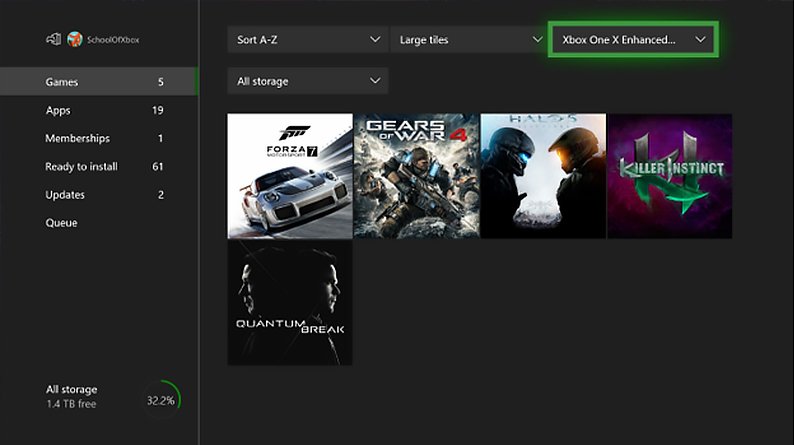
To update a game on Xbox, ensure your console is connected to the internet, then highlight the game, press the menu button, and select ‘Manage game & add-ons.’ Available updates will download automatically, or you can select ‘Updates’ to manually begin the process.
Frustrating, isn’t it? You’re ready to dive into your favorite game, but you’re met with a prompt: there’s an update! Let’s quickly address how to update a game on xbox, making sure you spend less time waiting and more time playing. It’s a very straightforward process, thankfully.
The update process usually starts automatically when your Xbox is connected online. You also have an option to check for new updates manually which makes it even faster. This ensures that you’re always playing the latest version.

How to Update a Game on Xbox
Keeping your Xbox games updated is super important! Updates often fix problems, add new cool stuff, and make your games run even better. Think of it like giving your game a power-up! This article will show you all the easy ways to make sure your Xbox games are always up-to-date.
Automatic Game Updates: The Easiest Way
The coolest thing about Xbox is that most of the time, it handles game updates all by itself! This is called automatic updating, and it’s the easiest way to make sure your games are current. Here’s how it usually works:
When you’re not actively using your Xbox, it quietly checks for updates to your installed games. If an update is available, your console will download and install it without you even lifting a finger. This typically happens while your console is in “Instant-On” mode, or while it’s just sitting idle. That’s why it’s often best to leave your Xbox in Instant-On power mode, this is the most convenient way to download game updates. You can usually just start playing, and the updates will have done their magic in the background. You won’t have to think about manually updating your games, the console will do it automatically for you.
Checking Your Update Settings
Even though updates are usually automatic, it’s a good idea to check your settings to make sure everything is set up correctly. Here’s how you can do that:
- Press the Xbox button on your controller to open the guide. This is the button with the Xbox logo on it.
- Go to “Profile & system,” which is the farthest tab on the right side.
- Select “Settings” from the menu.
- Then, select “System.”
- Next, select “Updates.”
Once you are in the “Updates” menu, you will have two options available:
- Keep my console up to date: If this box is checked, then it is confirmed that your Xbox console is set to automatically install system and game updates when they are available. This is a recommended setting to keep turned on because it ensures you always get the latest improvements.
- Keep my games & apps up to date: If this box is checked, then your console will automatically update your games and apps when updates are available. This is also a recommended setting to keep turned on so you can immediately start playing your games with all the latest features and bug fixes.
Make sure both “Keep my console up to date” and “Keep my games & apps up to date” are checked. If they are, great! Your Xbox is all set for automatic updates. If not, go ahead and check those boxes. By making sure these are enabled, you’re giving the console the go-ahead to handle updates for you, making the whole process very convenient.
Manually Updating a Game on Xbox
Sometimes, you might want to update a game right away. Maybe you heard about a cool new feature or fix, and you don’t want to wait for the automatic update. No problem! You can easily update games yourself.
How to Manually Check for Game Updates
Here’s the simple step by step guide on how to manually check for updates:
- Press the Xbox button to open the guide, just like before.
- Navigate to “My games & apps”. It’s usually located on the dashboard, or you might need to go to the “My games & apps” section in the guide.
- Select “See all” to view your complete games and apps library.
- Highlight the game you want to update. Don’t select the game. Just put the cursor over the game tile.
- Press the Menu button on your controller. (It’s the button with three horizontal lines).
- In the menu that appears, select “Manage game & add-ons”.
- On the next screen, on the left hand side of the screen, select “Updates”.
If there’s an update available, the “Updates” screen will tell you. It will also let you know how big the update is.
- If there’s an update, there will be a button to begin the update. Select this button to begin the downloading and installation process.
- If your game is already updated, it will say “No updates available”. This means your game is already current, and you don’t have to do anything.
The update will then start downloading. The time it takes will depend on the size of the update and your internet speed. Make sure to keep your Xbox connected to the internet while the update is downloading.
Manually Updating Multiple Games
If you have multiple games that need updates, the Xbox will also let you download and install all the game updates at once. This is a very good feature if your games have a lot of updates to install.
- From the dashboard or Xbox Guide, navigate to “My games & apps.”
- Select “Manage”.
- Select “Updates”.
This menu will show you if you have any game updates. If you have multiple game updates available, you will see an option to install them all at once. This makes updating multiple games very convenient and saves you the time of updating them one by one. Keep in mind you have to be connected to the internet in order for the updates to download and install.
Troubleshooting Game Update Issues
Sometimes, even with automatic or manual updating, things might not go as planned. If you’re having trouble updating a game, here are some things you can try:
Check Your Internet Connection
A stable internet connection is very important for game updates. If your internet is weak or not connected, your game might not update properly.
- Check your Wi-Fi. Make sure you’re connected to your home network.
- Try restarting your router. Sometimes, a simple reset can fix connection problems. Turn your router off, wait 30 seconds, and turn it back on.
- If you are still having internet connection issues, try to connect your console directly to the modem using a physical ethernet cable. If the connection works after doing this, it confirms the problem is with your Wi-Fi.
Restart Your Xbox Console
Sometimes, a quick restart can fix many different problems. It’s like giving your Xbox a fresh start.
- Press and hold the Xbox button on your controller.
- Select “Restart Console”.
- Your Xbox will then shut down and turn back on.
After your console turns back on, try updating the game again.
Make Sure You Have Enough Storage
Game updates can take up space, so your console needs enough free space to install them. If your console is full, you may need to free up some space by uninstalling games or apps that you don’t play anymore.
- From the dashboard or Xbox Guide, navigate to “My games & apps.”
- Select “See All” to view all your games and apps.
- Select “Manage.”
On the next screen, it will show you how much free space is available on your Xbox. If you are getting low on space, you can remove games by selecting a game you want to uninstall and press the “Menu” button on the controller and select uninstall. You will also see which game or app is taking up the most space.
Check Xbox Status
Sometimes the problem might not be with your Xbox, but with Xbox itself. There might be a problem with the servers, or maybe there is some maintenance being done. Xbox has an official status page which can tell you if there are any issues on their end.
- You can check the Xbox status page by going to the official Xbox website, and navigating to the “Support” page.
- On this page, you should be able to find information about the status of Xbox Live and game services.
If you see there is an Xbox problem, then all you can do is wait for them to fix the issue. Your console will work properly after the server issue has been fixed.
Try a Hard Reset
If restarting your console did not fix the problem, you can try a hard reset. A hard reset is when you completely turn off the console by unplugging it, instead of just restarting. This usually helps when the other methods do not work. It’s a slightly more forceful way to fix software glitches.
- Completely turn off your Xbox console.
- Unplug the power cord from the back of your console.
- Wait at least 30 seconds.
- Plug the power cord back in.
- Turn your Xbox back on.
Now, try to update the game again. Often this can fix update problems. However, if you are still facing problems, then it would be best to reach out to Xbox support, who can help you directly with your problem.
Reinstall the Game
As a last step, if all of the previous troubleshooting steps did not help fix the problem, you can try uninstalling and reinstalling the game. It’s a bit of an extra step, but this usually works if all else fails, by refreshing the install.
- From the dashboard or Xbox Guide, navigate to “My games & apps.”
- Select “See All” to view all your games and apps.
- Highlight the game you are having problems with and press the “Menu” button on the controller.
- Select “Uninstall”.
- Once the game is uninstalled, re-install the game.
After reinstalling the game, check to see if you can now update it. If you still are having trouble with the game updates, then it is time to contact Xbox Support, who can provide specific solutions for the problem you are facing.
The Importance of Game Updates
So, why bother with game updates? They’re not just about adding new features. Game updates are vital for a smooth and enjoyable gaming experience. Here’s why they matter:
- Bug Fixes: Updates often fix bugs or errors in the game, that might cause crashes or other problems. These fixes make the game work better.
- Improved Performance: Game updates can sometimes make your games run smoother and faster. They might fix things like lag, or improve the game graphics, or improve load times for the game.
- New Content: Many game updates add new levels, new characters, new challenges, and other cool stuff. They make the game feel fresh and exciting.
- Security: Game updates help protect your games, and often contain security patches that protect your console from viruses or malicious attacks.
- Compatibility: Game updates often make sure the game works correctly with the latest Xbox software, preventing potential problems with your console or game.
Keeping your games updated is like giving them a regular check-up, so that they stay in great shape!
Keeping your Xbox games up-to-date is essential for the best gaming experience. Whether you choose to rely on the convenience of automatic updates or manually check for them yourself, ensuring your games are current helps avoid common issues and lets you take advantage of everything the game has to offer. With these simple steps, you’ll always be ready to jump into your favorite games with the latest features and fixes.
How to Download & Update Games Faster in 2023 on Xbox One, Xbox Series S, & Xbox Series X
Final Thoughts
To update a game, your Xbox typically handles it automatically. Ensure you are connected to the internet. You can also manually check for updates in ‘My games & apps’. Select the game then press the Menu button and choose ‘Manage game & add-ons’.
Updates are crucial for the gaming experience. This method quickly ensures you have the latest content for games. This is all you need to know about ‘how to update a game on xbox’.

