
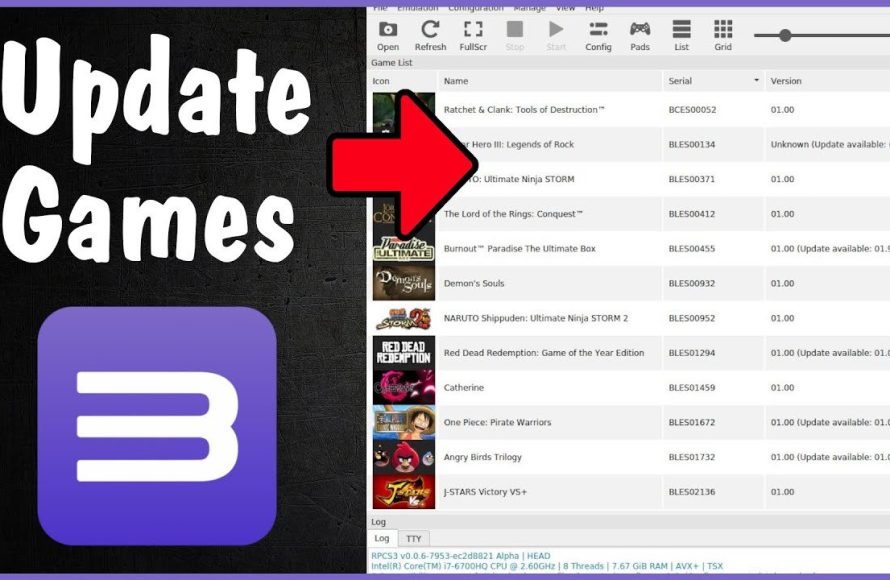
Updating the RPCS3 game emulator involves downloading the latest version from the official website and replacing the old files.
Keeping your PlayStation 3 emulator, RPCS3, up to date is crucial for the best experience. New updates often bring performance improvements, bug fixes, and compatibility with more games. So, how to update game rpcs3? It is a simple process, but you must follow steps carefully to ensure a seamless upgrade.
You will want to visit the official RPCS3 website. Then, download the latest build. After downloading, you will replace the old RPCS3 files with the new ones. This will ensure you’re running the newest version of the emulator.

How to Update Game RPCS3
Keeping your RPCS3 emulator up-to-date is super important if you want to play PlayStation 3 games smoothly on your computer. Updates often bring improvements that can make games run faster, fix problems, and even let you play games that didn’t work before! It might sound a little tricky, but don’t worry – we’ll guide you step-by-step on how to keep RPCS3 fresh and ready for gaming.
Why Updating RPCS3 is Important
Think of RPCS3 updates like a mechanic giving your car a tune-up. Here’s why you should always have the latest version:
- Better Performance: Updates often include code changes that make games run more smoothly. You might see games that used to be slow become much faster!
- Bug Fixes: Sometimes, games have glitches or errors when you play them on an emulator. Updates fix these bugs, making your games more fun and less frustrating.
- New Features: Developers add new features to RPCS3 that can make your gaming experience better. This could include support for more games, better graphics, or different controls.
- Compatibility with New Games: If a new game you want to play doesn’t work on your old version of RPCS3, an update is likely needed. New games often require the latest improvements to run properly.
- Security Enhancements: Updates can also include security improvements, protecting your computer from potential problems.
Checking Your Current RPCS3 Version
Before we jump into updating, it’s good to know which version of RPCS3 you’re using. This way, you’ll know if you even need an update.
How to Find Your Version
- Open the RPCS3 application.
- Look at the title bar of the window. Usually, it shows the version number. It might look like something like “RPCS3 v0.0.28-15811-…”
- You can also find the version number by clicking on “Help” in the menu and then selecting “About”.
Once you know your current version, you can compare it to the latest available version.
Where to Download the Latest RPCS3 Version
It’s very important to get your RPCS3 updates from the official source. This ensures you’re getting the real deal and not something that might harm your computer.
The Official RPCS3 Website
The only safe and reliable place to get the latest version of RPCS3 is its official website.
- Visit the RPCS3 website. You can find it by searching for “RPCS3” on your favorite search engine. Be sure you’re going to rpcs3.net.
- Look for the “Download” or “Get RPCS3” section. This is usually found at the top of the page or in a clear place on the homepage.
- Choose the right download for your computer. If you have a Windows computer, download the “Windows” version. For Linux users, grab the “Linux” version. There are different versions for different operating systems, choose wisely.
Avoid downloading RPCS3 from other websites. Unofficial websites may offer outdated or even harmful versions of the emulator.
Step-by-Step Guide to Updating RPCS3
Now for the main event: Let’s get RPCS3 updated! Here’s a detailed guide you can follow:
Step 1: Download the Latest Version
You have already learned from previous section about the way to download the latest version. Please do not download from any other website than the official RPCS3 website. Once downloaded the compressed file, proceed to step 2.
Step 2: Extract the Downloaded File
The file you downloaded is probably in a compressed format, like a ZIP file or a 7z file. You’ll need to extract the files from it.
- Locate the file you downloaded, typically found in your “Downloads” folder.
- Right-click on the file and select “Extract All” or a similar option. If you have a program like 7-Zip, you can use that as well.
- Choose a folder to extract the files to. It’s a good idea to make a new folder specifically for the updated version of RPCS3 to make things organized. You can create a folder called “RPCS3_Updated” for example and then extract it there. Make sure this updated version is not extracted inside your old version’s folder.
- Wait for the files to extract. This might take a few minutes, depending on the speed of your computer and size of the file.
Step 3: Back Up Your Existing RPCS3 Folder (Highly Recommended)
This step is very important and will prevent you from losing your settings and data, if something wrong happened during update. It’s always a good practice to back up your current RPCS3 setup before updating.
- Navigate to your old RPCS3 folder. This is the folder where your current version of RPCS3 lives.
- Right-click on the folder and select “Copy” or press “Ctrl + C”.
- Go to another location on your computer where you want to store the backup. For example you can back up this folder to a external hard drive or USB drive, if you have one. You can also create a new folder named “RPCS3_Backup” on any directory where you store your files. Then, right-click and select “Paste” or press “Ctrl + V” to paste your old folder into your newly created back up folder.
- Wait for the backup process to finish. This could take a little while, especially if you have a lot of games.
With backup ready, if something wrong happen during the updated, you can easily get back to your old setting with this back up.
Step 4: Replace Old Files with New Ones
Now it’s time to replace the old files with the new ones you downloaded. We are not just replacing the single rpcs3.exe file here. This is most likely a folder, that contains multiple files to make the emulator work. This step will replace all the files in older version folder with the new files you just downloaded.
- Open the new folder where you extracted the update and also open the folder where your old version is located. Keep them side by side so that, you can easily copy from new folder and paste on the old one.
- Select all the files and folders inside your new folder by pressing “Ctrl + A”, or by click “select all”.
- Copy all the selected files and folders by right-clicking on the selection and selecting “Copy” or press “Ctrl + C”.
- Go to the old RPCS3 folder, and right click, and select “Paste”, or you can press “Ctrl + V”.
- Windows may ask if you want to replace the old files with the new files. Choose “Yes” or “Replace the files in the destination”.
- Wait for the file replacement to complete. This may take a few minutes, specially if your machine have a low performance
After replacing the files, please make sure all the new files are available in the old folder. To confirm it, you can see the date on these files, it should match with the download date and time. If not, do the copy process again.
Step 5: Run the New RPCS3
Now it is time to check if the update process worked properly or not. For this, we need to run the RPCS3 executable file. Generally, this file is named “rpcs3.exe” or something similar. Let’s check how to run this
- Go to the folder where you have copied all the new files, on step 4.
- Find the file name “rpcs3.exe” inside that folder.
- Double click on the “rpcs3.exe” file.
- Wait for RPCS3 to start.
If everything was completed in the above steps correctly, RPCS3 will now run. If it shows a message something went wrong, please redo the step 4 and 5 again. Also check if you downloaded the correct version for your OS. Also check your back up if you want to get your old version back. Now, let’s check the updated version, in the next step.
Step 6: Verify the New Version
Make sure everything went as planned. It’s good to confirm that the new version is running.
- Open RPCS3.
- Check the title bar. You should see the new version number you just downloaded.
- You can also check the “About” section like we did before.
Updating RPCS3 Firmware
Sometimes, along with updating the RPCS3 emulator, you might also need to update the PlayStation 3 firmware files that RPCS3 uses. It’s like updating the software in your actual PS3. Firmware files are required for RPCS3 to correctly understand and play games.
Downloading the PS3 Firmware
You can get the official PS3 firmware from the official PlayStation website or from some other third party sources. However, make sure the third party source is trusted. If you’re unsure, stick to the official source for safety.
- Go to the official PlayStation website, and search for PS3 system software/firmware.
- Download the latest firmware file. This file is usually in a .pup format.
- Do not extract this file, keep it as it is.
Installing PS3 Firmware in RPCS3
Once you have the firmware file, you need to load it into RPCS3.
- Open RPCS3.
- Click on “File” in the menu bar.
- Select “Install Firmware”.
- Locate the .pup file you downloaded, and click it and click “Open”.
- RPCS3 will install the firmware automatically. It may take some time depending on your computer speed, please wait for it.
- After the firmware is installed, RPCS3 may ask you to restart. Please restart the RPCS3 in that case.
Troubleshooting Update Issues
Sometimes, things might not go perfectly smoothly. Here are a few common problems and how to fix them:
RPCS3 Doesn’t Start After Updating
- Double-check that you replaced all the old files with the new ones. Sometimes, a file might be missed. Please redo the step 4 from above.
- Make sure you downloaded the right version of RPCS3 for your operating system (Windows or Linux).
- You can try to delete the old folder where you installed and then copy the content of the new extracted folder and try again, to be sure no old file is causing this.
- As a last option, go to the backup and try to start again from backup, if you have taken the backup.
Games Still Don’t Work
- Make sure you have installed the latest PS3 firmware, as described above.
- Check if there are specific settings you need to change for the game. Sometimes, certain games require different configurations.
- The RPCS3 team always updating a compatibility list on their website, make sure to check the list, if your desired game is supported or not.
- Also, do a web search on your specific game to see if other players are facing similar problem. You may find solution for it by searching online forums.
Slow Performance
- Ensure your computer meets the minimum requirements to run RPCS3. Sometimes, even the latest version can be slow, if you’re using a low performance computer.
- Try closing any unnecessary programs on your computer while playing games on RPCS3.
- Adjust the settings in RPCS3 for better performance. You can check some guides online on how to optimize RPCS3 performance.
Other Issues
If you’re having other problems, check the official RPCS3 website and forums for help. Many users share tips and solve problems, so you might find a solution there.
That’s it! You’ve now learned how to update RPCS3, install the firmware and troubleshot common update related problem. It may seem complex at first, but following these steps will make your journey of using RPCS3 much easier. Keeping your emulator up to date will keep the overall performance of the emulator and your gameplay quality better. Remember to always download the updates from official sources and to take a backup before any major update. Enjoy your gaming!
How to Update Games to the Latest Version on RPCS3 | PS3 Emulator Upgrade Firmware
Final Thoughts
To update game RPCS3, you simply download the latest version from the official website. Overwriting the existing files updates the emulator. Ensure you back up your configurations before you proceed with this action.
The process is quick and easy. Frequent updates often improve performance and fix bugs. This ensures a smoother gameplay experience. Remember to check the website regularly for new releases.
Therefore, if you want to know how to update game RPCS3, download the newest release, then overwrite the old installation. This keeps your emulator up to date and optimized.

