
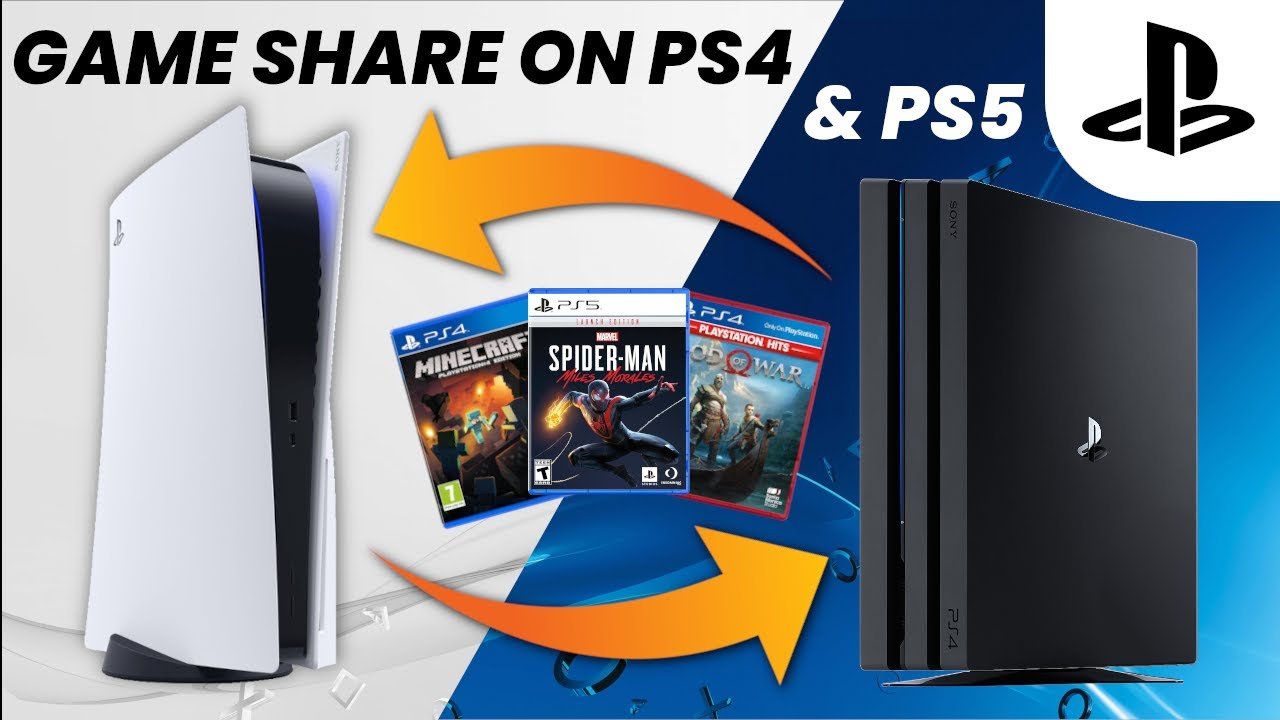
To gameshare a game on PS4, you must activate the console as primary for another user and log in with your account on that console, thus sharing your purchased digital games.
Want to share your awesome PS4 game library with a friend or family member? It’s simpler than you might think. The console allows a feature for sharing digital games, letting you both play without each needing a separate purchase.
This guide shows you exactly how to gameshare a game on PS4. This process allows another account to access the games you own, opening up a world of cooperative play and shared fun.

How to Gameshare a Game on PS4
Want to share your awesome PlayStation 4 games with your friends or family? It’s totally possible and called gamesharing! It’s like lending your physical games, but digitally. Instead of passing a disc, you’re letting someone else play your downloaded games on their own PS4. This is great for saving money and letting everyone enjoy the fun. But, how does it work? Don’t worry, it’s not as tricky as it sounds. Let’s break down how to get gamesharing going on your PS4.
Understanding the Basics of PS4 Gamesharing
Before we dive into the steps, let’s understand a few key things. Gamesharing on PS4 works using a system called “Primary PS4.” Think of it like a house key. Your account can be set as the “primary” account on one PS4 at a time. When your account is set as primary on a PS4, anyone using that console can play the games you’ve downloaded, and access your PlayStation Plus benefits (if you have them). You keep playing your games on your own console as normal. However, it only allows you to gameshare with one other person’s console and no more.
What You Need to Gameshare
To get started with gamesharing, you’ll need a few things:
- Two PS4 consoles: This is the most obvious requirement. You need two consoles to share the games.
- Two PlayStation Network (PSN) accounts: Each console needs to have its own PSN account.
- Reliable Internet Connection: Both consoles will need to connect to the internet.
- Downloaded games: Games that you want to share must be downloaded to the primary console.
- Friend or Family Trust: Because you are giving someone else access to your account, make sure you trust that person! This is very important!
Step-by-Step Guide to Gamesharing on PS4
Now that you know what you need, let’s go through the steps:
Step 1: Choosing the Primary Console
First, you need to decide whose console will act as the primary console. Usually, this is the person who owns the games. We’ll call this person “Account A,” and their console “Console A.” The person you’re sharing with is “Account B” and their console is “Console B.”
Step 2: Logging into Console B
Account A (the one who owns the games) needs to log into Console B (the console you’re sharing games to). This can be done with the regular login process like logging into your own console. Make sure you have the right account credentials, including username and password before logging in.
- Turn on Console B and select ‘New User’ or ‘Add User’
- Enter Account A’s PlayStation Network login ID and password.
Important Note: It is vital that Account A removes all the two-factor authentication before logging into Console B. If you don’t, you will face errors while trying to set the console as primary, and you won’t be able to share the games.
Step 3: Activating Console B as the Primary Console for Account A
Once logged in, it’s time to activate Console B as the primary PS4 for Account A. Here’s how to do it:
- Go to Settings. You can find it on the main screen by going up and all the way to the right side of the screen.
- Navigate to Account Management. It’s usually located towards the bottom of the list.
- Select Activate as Your Primary PS4. You will find this option inside the Account Management section.
- Choose Activate. If it’s already active, you’ll see a “Deactivate” option. Don’t select this, unless you’re unlinking and sharing with a new account, or the gamesharing process is complete.
By doing this, you’re telling the PS4 on Console B that games purchased with Account A can be played by any account on that console. Remember, you can only have one primary console set up at a time.
Step 4: Logging Out of Account A on Console B
After you activate Console B as the primary PS4 for Account A, log out of Account A on Console B. This is very important. You do not need Account A to be logged in for gamesharing to work.
- Go back to the main screen.
- Select Power. This will show a list of options.
- Select Switch User.
- Choose the account you want to log out of which will be Account A.
Step 5: Logging Back into Account B on Console B
Now, Account B can log back into their account on Console B. This will allow them to play the games of Account A, and keep their save progress separate from Account A.
- Select Switch User.
- Choose Account B’s profile and enter their login credentials if prompted.
Step 6: Enjoy Shared Games
That’s it! Account B on Console B can now access and play all the games that Account A has downloaded. They can also use Account A’s PS Plus membership on this console.
Both Account A and Account B can now play the games simultaneously on their own consoles. Account A can still play all their purchased games on Console A without any interruptions, because this is their primary console. If Account A also wants to play on Console B, it needs to be connected to internet to verify the game licenses. This should not impact gamesharing.
Important Things to Keep in Mind When Gamesharing
Gamesharing can be really fun, but there are some important things to consider:
One Primary Console at a Time
Remember, your PSN account can only have one primary PS4 at a time. If you make another console your primary, your old primary console will lose access to your shared games. This could cause disruption to the person with who you are gamesharing. It’s important to decide who will share and where the primary console will be. Also, be sure to communicate with the other person you’re gamesharing with if you plan to change the primary console.
Two-Factor Authentication
As we briefly mentioned earlier, if you have two-factor authentication enabled on your PSN account, you’ll need to temporarily disable it before setting a new console as primary, and enable it after the process is complete. This can prevent issues while gamesharing, and this will give you better protection for your account.
PlayStation Plus Benefits
If Account A has PlayStation Plus, Account B on Console B can access the benefits like online multiplayer and free monthly games. However, Account B cannot claim any free PlayStation Plus games, or claim any discounts on any purchases. These benefits apply only to the secondary account for that console. Also, remember the PlayStation Plus subscription only applies if you are gamesharing with only one other person.
Digital Games Only
Gamesharing only works with digital games that you have purchased and downloaded from the PlayStation Store. It does not work with physical games on a disc.
Account Safety
You are essentially giving someone access to your PSN account. Only gameshare with people you know and trust. Do not share your credentials with anyone else. Sharing your account information can put your account at risk of being compromised or used maliciously.
Game Ownership
It is crucial to remember that the games are still owned by the person who purchased them (Account A). Account B is simply borrowing those games through the primary console setup. Be respectful of this arrangement. If there is a dispute, the one who purchased the game retains the right to stop gamesharing. In this case, Account B won’t have access to games owned by Account A.
Internet Connection is Necessary
While gamesharing allows you to play games that are already downloaded onto the console, you will still require an internet connection. This is needed for the gamesharing and PlayStation Network to authenticate your licenses.
Troubleshooting Common Gamesharing Issues
Sometimes things might not go as planned. Here are some common problems and how to fix them:
“Cannot Use the Content” Error
If you see a “Cannot Use the Content” error, it usually means the account that owns the game isn’t the primary account on that console. Double check that you have set the console you are gamesharing on to “Primary.”
Lock Icons on Games
If games on the secondary account show a lock icon, it means the primary console was not activated correctly. You may have to re-do the process. This will happen if the primary account has been changed by mistake or the person is trying to access the game on an incorrect console.
Two-Factor Authentication Issues
If you forget to disable two-factor authentication before logging in, you will face problems. In this case, disable two-factor authentication, and then try again. Remember to enable it again after setting the console as primary, for account security reasons.
PlayStation Network Outages
If the PlayStation Network is having issues, gamesharing might not work. Be sure to check the Playstation Network status. If the PlayStation Network is down, you won’t be able to play the games until the server is back up again. You can also go on the PlayStation Network status website to check for any updates.
Account Lockout
If you try to log into too many consoles simultaneously, the PlayStation Network might temporarily lock your account. Wait for some time or contact PlayStation customer support to resolve this issue.
Game Updates
Games usually receive updates from the developers. In this case, the primary and secondary consoles would be required to download the latest update to keep playing. This may mean that both accounts might have to update the game at the same time. It may cause some interruption to playing the games, but it can be fixed easily.
Gamesharing is an awesome way to share the excitement of playing video games with the people you care about. It can allow you to enjoy your friends’ games and save some money. Just make sure you follow the steps, and be careful about sharing your account information. Gamesharing is a fantastic feature of the PS4. So go have fun with your friends, and enjoy your games!
How To Gameshare On PS4
Final Thoughts
To gameshare on PS4, you first activate your account as primary on your friend’s console. Then, they activate their account as primary on yours. This process allows both of you to access each other’s digital game libraries.
Remember that only one account can be primary on a console at any given time. Therefore, ‘how to gameshare a game on ps4’ involves a swap of primary account status. This gives access to games, but also to other benefits like Playstation Plus.

