
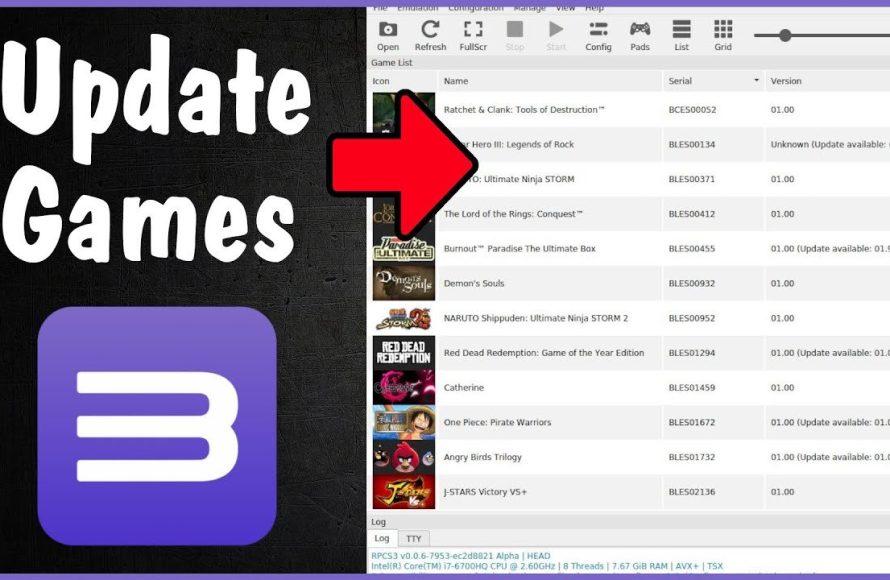
To update games on RPCS3, you typically need to obtain the game’s update files separately and install them through the emulator’s file menu, selecting the ‘Install .pkg’ option and navigating to the update files you have downloaded.
Keeping your PlayStation 3 games updated on RPCS3 can feel a little different than on the actual console. It’s not automatic like you might expect. This process involves finding the correct update files, which usually come in a .pkg format. Then, you install these files directly into the emulator, making sure everything works smoothly and you can play with latest version.
Knowing how to update games on RPCS3 is key for experiencing the best gameplay. Missing patches can mean bugs or missing features. The steps are simple once you know where to source the files and what menu option to select in the emulator.

How to Update Games on RPCS3
Keeping your games up-to-date is super important, whether you’re playing on a real PlayStation 3 or using the RPCS3 emulator. Updates often include bug fixes, new features, and sometimes even new content! When using RPCS3, updating your games might seem a little different from using a console, but don’t worry, it’s not too complicated. This guide will walk you through how to update your games on RPCS3, step by step, and we’ll explore a few different methods to help you keep your games running smoothly.
Understanding Game Updates on RPCS3
Before we jump into the how-to, let’s talk a bit about why game updates are important and how they work within RPCS3. Game updates are typically released by game developers to improve the game. These updates can fix glitches that might cause the game to crash or not work properly. They might also improve graphics, add new features, or even change how the game works. For RPCS3, applying these updates helps the emulator accurately mimic how the game should behave on a real PS3. Because RPCS3 is always being worked on, updates to the emulator itself can sometimes make updates to games necessary for better performance.
There are a few ways these updates come: as game patches, DLC content, or full game updates. Game patches are smaller fixes. DLC (downloadable content) adds more to the game, and full game updates essentially replace the entire original game data with a new version. It’s important to understand the type of update you are trying to install so you can follow the correct steps.
Methods for Updating Your Games on RPCS3
There are several ways you can update your games on RPCS3. We’ll look at the common methods, including using official game updates from the PS3, finding updates online, and using RPCS3 features.
Using Official PS3 Game Updates
The most reliable way to update your games is to obtain the official updates from a real PlayStation 3. This method ensures the updates are clean and compatible. You need to have a PlayStation 3 that has access to the PlayStation Network (PSN). Here is how you do it:
- Step 1: Start Your PS3 and the Game: Turn on your PlayStation 3 and insert the game disc or select the digital game that you want to update.
- Step 2: Check for Updates: After the game loads, the PS3 will automatically check for any available updates. It might prompt you to download and install them. Accept the update if one is available.
- Step 3: Copy the Update Files: Once the update is installed, the update files are stored on the PS3’s hard drive. You need to copy these files to a USB drive. The files are typically stored in a folder with the game ID and will end in the .pkg extension. Here are some folders you might need to look into:
- /dev_hdd0/game/
- /dev_hdd0/GAMES/
- /dev_hdd0/game_patch/
- Step 4: Transfer to Your Computer: Connect the USB drive to your computer and copy the .pkg files to a folder on your computer that you can easily access.
- Step 5: Install in RPCS3: Open RPCS3. Go to ‘File’, select ‘Install .pkg’ and browse to the location of the update files. Select the files, and click open. RPCS3 will install the updates.
Finding Game Updates Online
Sometimes, you might not have a PS3 available to download updates directly. In this case, you can try to find game updates online. Be very careful when doing this! Only download from reputable sources to avoid getting files that might be harmful to your computer. Here is how you can find updates online:
- Step 1: Find a Reliable Source: Look for sites that are known for providing safe and reliable PlayStation 3 game updates. Look for forums or websites dedicated to RPCS3 or PlayStation 3 emulation. Always check for community reviews of the sites before downloading from them.
- Step 2: Search for Your Game Update: Use the game’s title and region, along with the word “update” to search for available updates. For example, if you want to update “Uncharted 2,” search for “Uncharted 2 [Your Region] update .pkg”. Regions include EU for Europe, US for North America, and JP for Japan.
- Step 3: Download the Correct Update: Make sure to download the update file in the .pkg format and that it matches your game’s region. Downloading the wrong region’s update could cause issues.
- Step 4: Install in RPCS3: Similar to the previous method, open RPCS3 and go to “File” then “Install .pkg”. Navigate to the downloaded .pkg file and select open to install it.
Important Note: Always make sure the source of your updates is trustworthy. Downloading from unknown sources could lead to issues with your emulator or even damage to your computer. Use antivirus software to check the files before installing them.
Using RPCS3’s Built-in Features
RPCS3 is continually being developed, and its creators have added features to make game updates easier. While not always the main method, sometimes RPCS3 might handle the game update internally if the correct information is provided.
- Step 1: Ensure Proper Game Loading: Ensure your games are loaded into RPCS3 correctly, and that you have the right game settings.
- Step 2: Check for Specific Instructions: Sometimes the RPCS3 forum or online discussions might have specific instructions for installing updates for particular games. Check these resources for additional guidance if any problems happen.
- Step 3: Update RPCS3 itself: Always try to keep your RPCS3 emulator up to date. Sometimes, changes in the emulator require you to reinstall or re-apply game patches.
Troubleshooting Common Issues
Updating games in RPCS3 is generally smooth but you might sometimes run into issues. Let’s look at some common problems and their solutions:
Update Fails to Install
If the update installation fails in RPCS3, here are some common reasons and fixes:
- Incorrect Region: Make sure the game update you downloaded matches your game’s region. If your game is US, you need to install a US update.
- Corrupted File: If the download was interrupted, the update file might be corrupt. Try downloading the file again from the original source.
- Wrong Update Version: Sometimes, you might be trying to install an older version of an update, or an update for a different version of the game, which might cause issues. Always look for the latest updates and check their version details if available.
- RPCS3 Issues: Ensure your version of RPCS3 is compatible with the update. Try updating RPCS3 to the latest version.
Game Crashes After Update
If a game crashes or doesn’t work correctly after you update, try these steps:
- Clean Install: If the update fails to fix issues or introduces new problems, you might want to remove the update and try it again, or try another update file.
- Check Game Compatibility: Sometimes specific game versions or updates might have compatibility issues with RPCS3. Consult the RPCS3 wiki or online forums for known issues.
- Emulator Settings: Make sure your RPCS3 settings are correct for the game you are playing. Some games might need specific settings to run properly with the latest updates.
Where to find Game ID
Finding the correct game ID is crucial for locating and installing the right updates for your games. This ID is a unique identifier that helps in tracking the specific version and region of the game. Here’s where you can typically find the game ID for your RPCS3 games:
- On the Game Disc: If you have a physical copy of the game, the game ID is usually printed on the disc label. It’s often a string of characters like “BCES-XXXXX” for European games, “BCUS-XXXXX” for US games, or “BLJS-XXXXX” for Japanese games.
- On the Game Case: The game ID is usually located on the spine or back of the game case. Look for a label with a similar code to the one mentioned above.
- Within RPCS3: Once your game is loaded, in RPCS3’s game list, the game ID is shown next to the game name. Also, when you right-click on a game, you can see more information, including the ID, under the ‘Game Information’ section.
- Online Game Databases: Many online databases such as GameTDB contain details about PS3 games, including their game IDs. Search for your game using its name and you should find its ID listed in the details.
General Tips for Updating Games
Here are some final tips to keep in mind when updating your games in RPCS3:
- Back Up Your Game Data: Before installing any update, consider backing up your game data. This is useful for if something goes wrong.
- Use an Antivirus Program: Be careful and use an antivirus program to check downloaded files.
- Check Compatibility: Before updating, make sure your game, the update, and RPCS3 version are compatible.
- Be Patient: Updating can take time depending on the size of the update and your computer performance, so be patient during the process.
Updating your games on RPCS3 helps you have the best gaming experience. By understanding the methods and taking the necessary steps, you can ensure your games stay current, bug-free, and enjoyable. While it might seem tricky at first, with a bit of practice, you’ll become comfortable with the process. So, go ahead, update your games, and get back to playing!
How to Update Games to the Latest Version on RPCS3 | PS3 Emulator Upgrade Firmware
Final Thoughts
To update your games on RPCS3, you typically need to acquire the game updates separately. You can find these updates online through various sources. Then install these updates via the emulator’s ‘Install .pkg’ option. This action will effectively update your game files.
Remember that correctly finding and applying the updates is crucial. How to update games on rpcs3 involves using these external update packages. Proper installation ensures your games benefit from fixes and new content. These steps are key to keeping your experience current.

