
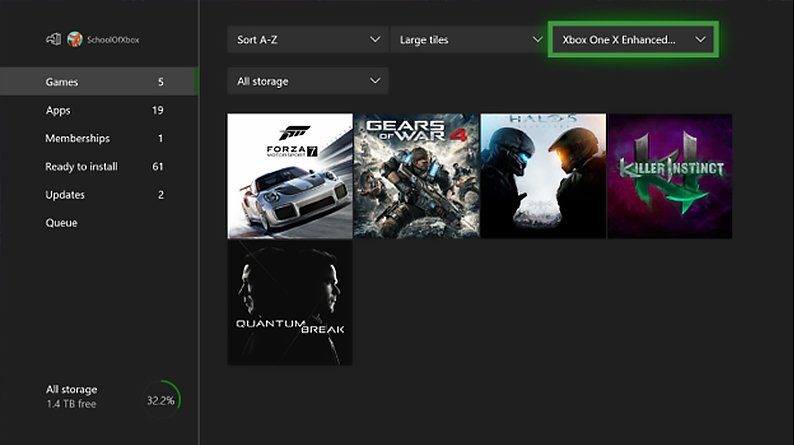
To update games Xbox One, ensure your console is connected to the internet, and it will typically download and install updates automatically. If needed, manually check for updates in ‘My games & apps’.
Have you ever been ready to dive into your favorite Xbox One game only to be met with a dreaded update notification? It can be a little frustrating, but keeping games up to date is important for the best experience. So, lets explore quickly how to update games xbox one and make sure you get back into your gameplay.
Automatic updates are the usual route your Xbox will take. However, sometimes you may want to check manually. This usually happens if your games are not updating automatically for any reason.

How to Update Games on Xbox One
Keeping your games updated on your Xbox One is super important! It’s like making sure your favorite toys are always working their best. Game updates often come with cool new features, fixes for annoying bugs, and sometimes, even entirely new levels or characters. If you don’t update your games, you might miss out on all the fun. You also might not be able to play with your friends if their game is updated and yours is not. So, let’s dive into how you can easily update your games on the Xbox One!
Automatic Game Updates: The Easy Way
The easiest way to keep your games updated is to let your Xbox One do it automatically. This means when a new update comes out, your console will download and install it without you having to do anything. This works great when your Xbox is in standby mode, meaning it’s not completely off, but in a low-power state, ready to jump back into action.
How to Enable Automatic Updates
Here’s how you can make sure automatic updates are turned on:
- Press the Xbox button on your controller to open the guide.
- Go to “Profile & system,” which looks like your profile picture at the very top of the guide.
- Select “Settings”.
- Go to “System”.
- Then select “Updates”.
- Look for “Keep my console up to date.” If the box is checked, you’re good to go! If not, click on the box to check it, turning on automatic updates.
- If you want games and apps to update automatically, also check “Keep my games & apps up to date.”
Once you’ve done this, your Xbox One will handle most of the game updating for you. Make sure you have a good internet connection for faster and smoother updates.
Checking for Game Updates Manually
Sometimes you might want to check for game updates yourself, especially if you suspect there’s a new update out but it hasn’t downloaded automatically. This is quite easy to do.
Steps to Manually Check for Updates
Follow these easy steps:
- Press the Xbox button on your controller to open the guide.
- Go to “My games & apps”.
- Select “See all”.
- Highlight the game you want to check for updates. Don’t select it; just highlight it.
- Press the menu button on your controller. (The menu button looks like three horizontal lines.)
- From the menu, select “Manage game & add-ons”.
- On the next screen, look for “Updates.” If there’s an update available, it will be listed here. Select it to start the update.
If no update is listed, your game is currently up to date. You can pat yourself on the back for staying current!
Understanding Update Sizes and Download Times
Game updates can come in all shapes and sizes. Some might be small and only take a few minutes to download, while others might be very large and take a long time. This depends on several factors:
- The size of the update: Some updates fix small issues, and others add a ton of new content. Big updates, as you can probably guess, will take longer.
- Your internet speed: The faster your internet, the quicker you’ll be downloading updates. If you have slower internet, you might have to wait longer for your downloads to complete.
- Xbox network traffic: If many people are downloading an update at the same time, the download speeds could slow down a little. This is like having lots of cars trying to use the same road at once.
Tips for Faster Downloads
Here are some things you can try to speed up your downloads:
- Use an Ethernet cable: Connecting your Xbox directly to your modem or router with an Ethernet cable often gives you a more stable and faster internet connection than using Wi-Fi.
- Pause other downloads: If other devices on your network are downloading things, try pausing them while your Xbox updates, this helps allocate the bandwidth to your xbox.
- Don’t play online: Avoid playing online while downloading updates as that will make the download slower.
- Close other games and apps: If you have any other games or apps running in the background, close them to free up system resources and bandwidth.
- Restart your Xbox: If your download seems stuck, try restarting your Xbox. This can sometimes clear up any glitches. Hold the Xbox button on the console for 10 seconds to turn it off, then turn it back on.
- Restart Router : If you still experience slow download speeds, try restarting your modem/router. Turn it off and wait for 30 seconds and then turn it back on.
Troubleshooting Update Issues
Sometimes, things might not go as smoothly as we would like. Here are some things you can try if you’re having trouble updating your games:
Common Problems and Solutions
- Update is stuck or paused: If the update seems stuck, first, check your internet connection. If everything is fine with your internet, then try restarting your Xbox and re-initiating the update.
- Not enough storage space: Updates need space to install. If your hard drive is full, you might not be able to download the update. You’ll need to free up space by deleting old games or apps you no longer need. You can check how much space you have by going to ‘My games & apps’, then going to ‘Manage’ and finally go to ‘Storage’.
- Xbox network issues: Sometimes, the problem isn’t your internet, but the Xbox network itself. You can check the Xbox network status by going to “Profile & system”, then select ‘Settings’, click on ‘General’, then click on ‘Network settings’, then click on ‘Test network connection’ and then finally select ‘Test network speed & statistics’. Also, keep an eye on the official Xbox support website or social media for announcements about network issues.
- Corrupted game data: In some cases, game data can be corrupted, preventing updates. You can try uninstalling and reinstalling the game. This will remove the game and its data and then reinstall it. Make sure you back up any game data you might have on the cloud before you do this!
The Importance of Game Updates
Game updates are more than just downloads. They play a vital role in making sure your gaming experience is the best it can be. Think of them like regular checkups for your games. They help them run smoothly and keep the fun going.
Benefits of Keeping Your Games Updated
- Fixes Bugs: Game developers are always working hard to find and fix bugs (mistakes) in their games. Updates often include these fixes, making sure you don’t run into annoying issues that stop you from playing.
- Adds New Features: Updates are not only about fixes. They can also add new content, like new characters, levels, game modes, or even completely new features that make the game more exciting.
- Improves Performance: Updates can also improve how a game runs. They might make the game run smoother, load faster, or look better. This can make your game much more enjoyable.
- Ensures Compatibility: To play online with friends, everyone needs to have the latest version of the game. Updates make sure your game is compatible with others so you can play together without any problems.
- Security : Updates often patch up security loopholes, keeping your gaming experience safe.
Managing Storage Space for Updates
Game updates can sometimes be large and take up a lot of space on your Xbox One’s hard drive. If your hard drive gets too full, you will not be able to install these updates. To make sure you have space for new updates, you’ll need to manage your storage space.
Tips for Managing Storage
- Uninstall games you no longer play: Do you have any old games you never play anymore? Uninstalling them is a great way to free up space for updates and new games. You can always reinstall them later if you want.
- Move games to an external hard drive: If you want to keep all your games but are running out of space on your Xbox One’s internal hard drive, you can move some of them to an external hard drive. It is good practice to get a high speed external hard drive, USB 3.0 or faster, for better load and performance.
- Delete unneeded game captures: Screenshots and game clips can take up a lot of space. Go through them and delete the ones you no longer need.
- Clear temporary files: Sometimes your Xbox One might store temporary files that you don’t need. Clear these files regularly to help keep your hard drive clean.
- Cloud Storage: Xbox uses cloud storage to save your progress, so that when you delete a game and its files, you don’t lose your progress. Make sure that your data is synchronised to the cloud, before uninstalling any game.
Staying Informed about Game Updates
Staying in the loop about when updates are released is important. This makes sure you can play your games as soon as possible. Here’s how you can stay informed:
How to Stay Updated
- Check in-game notifications: Many games will let you know if an update is available when you launch them. You might see a little message popping up on the screen letting you know about new updates.
- Follow game developers on social media: Game developers often post updates, news, and announcements on social media. Following them is a great way to learn about new updates.
- Join gaming communities: Online forums, groups, and communities dedicated to the games you love often have discussions about updates. Participating in these communities is a great way to stay informed and share tips with other gamers.
- Keep checking for updates manually: Even with automatic updates on, it doesn’t hurt to check manually sometimes to make sure there isn’t any new update you are missing.
- Xbox Wire : Keep an eye on Xbox Wire. Xbox Wire is the official news blog for the Xbox community where you will find news on new updates.
Updating your games on Xbox One is essential for a great gaming experience. Following the steps in this guide will ensure you get the best performance, features, and most importantly, the most amount of fun. You can choose to automatically update your games, or manually check them. Remember to keep your console updated, manage your storage, and take steps to make sure your updates download faster. Happy gaming!
How to Auto Update Games & Apps on Xbox One (Easy Tutorial)
Final Thoughts
To update games on your Xbox One, first ensure your console connects to the internet. Automatic updates typically happen in the background. If a game needs a manual update, you’ll see a prompt on the game’s tile.
Select the game and press the ‘Menu’ button on the controller. Then, choose ‘Manage game & add-ons’ to check for updates. The console will then download and install any available patches. This is how to update games xbox one.

