
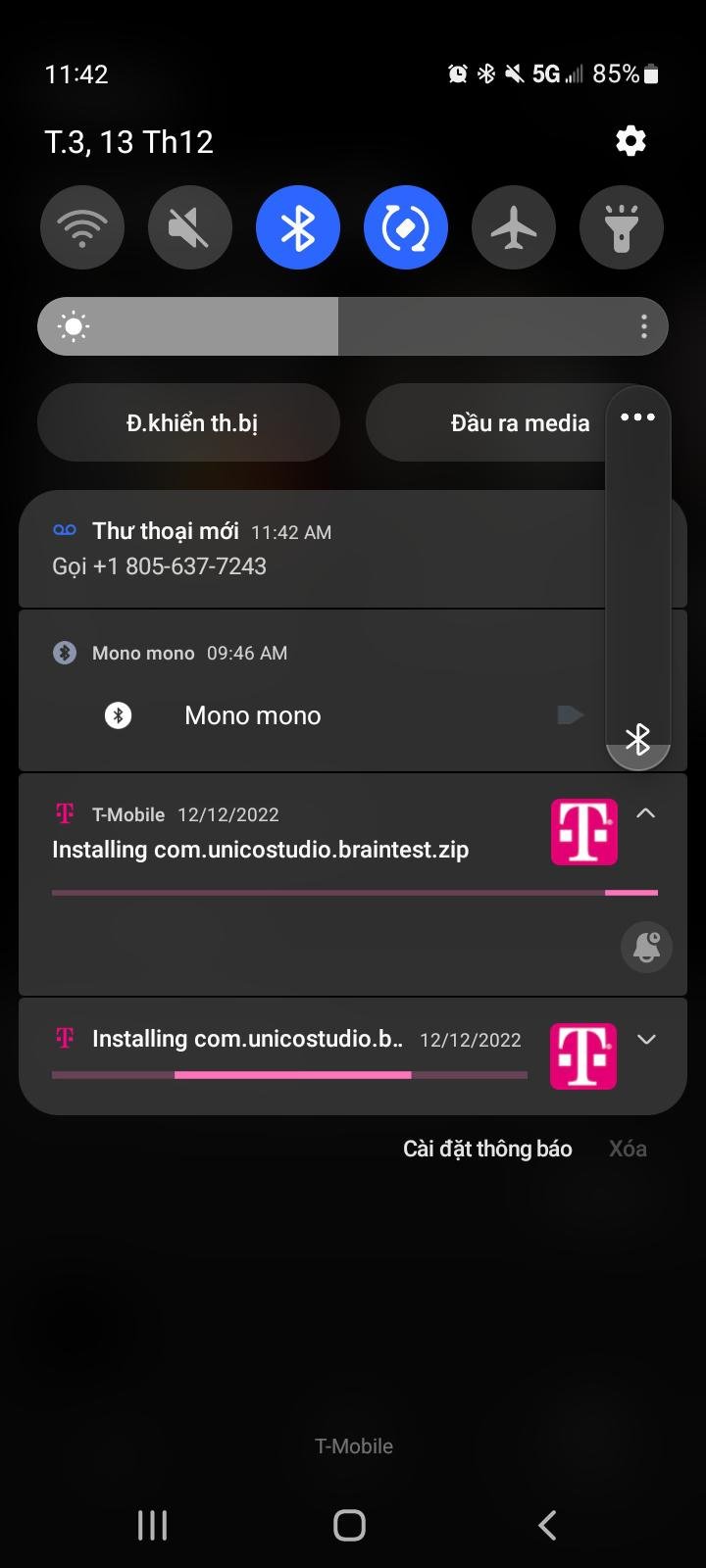
You can’t directly stop T-Mobile from pre-installing games; however, you can immediately uninstall them after your device setup, and disabling auto-updates for the app store may prevent them from returning.
It’s frustrating when you get a new phone and find unwanted games already installed, isn’t it? Many users find themselves asking how to stop tmobile from installing games. It seems like a small invasion of personal space on a device you paid for.
These pre-installed games can take up valuable storage and sometimes pop up with annoying notifications. While there isn’t a simple switch to prevent this, there are methods you can use to manage it.

How to Stop T-Mobile from Installing Games
Okay, so you got a new phone, and it’s pretty awesome. But then, bam! Games start showing up that you never asked for. If you have T-Mobile, you might be wondering why this happens and, more importantly, how you can stop it. You are not alone. Many people feel this frustration. T-Mobile, like some other carriers, sometimes adds pre-installed apps, including games, on phones they sell. This can take up storage space and be annoying. But don’t worry, there are ways to take control of your phone and say, “No more games!” This article walks you through different strategies you can use to keep your phone the way you want it. We will look at how to uninstall these games, prevent them from being installed, and what else you can do to make sure your phone stays clean and clutter-free. So, lets get started!
Understanding Why T-Mobile Installs Games
Before we jump into solutions, let’s understand why T-Mobile does this. Mobile carriers often make deals with app developers to pre-install their apps. This helps the app developers reach more users and can create a little extra income for T-Mobile. Think of it like a store getting paid to put a certain brand of cereal at the front of the aisle. You didn’t pick the cereal, but it’s there for you to see. These pre-installed games and apps are called bloatware. They’re not always bad, but many people don’t use them, and they eat up precious space on your phone, making it feel slower. So while it’s understandable from a business point of view, it’s often not ideal for the user. It’s also worth noting that this isn’t unique to T-Mobile; many carriers do the same.
The Immediate Solution: Uninstalling Games
The most straightforward solution is to simply uninstall the games. The steps for doing this will depend on your device type (Android or iPhone) and the version of software that your phone is running. Here’s how to do it on an Android phone:
Uninstalling Games on Android
- Go to your phone’s Settings app. It usually looks like a little gear.
- Find and tap on Apps or Applications.
- You’ll see a list of all the apps on your phone. Find the games that you want to remove.
- Tap on the game.
- You’ll see an Uninstall button. Tap on it, and confirm your choice.
Important note: Some pre-installed apps might not have an “Uninstall” option. Instead, you might only see “Disable.” This will stop the app from running and using resources, but it will not remove the game from your device. This approach works in many scenarios. If you see the disable option, then go for it! The app will not bother you after disabling it.
Uninstalling Games on iPhone (Less Common, But Possible)
It is very rare for T-Mobile to install apps directly on iPhones since Apple has stricter controls on how iOS works. Most bloatware on an iPhone comes from Apple itself, but sometimes carriers may have an app or two. If T-Mobile has added games on an iPhone, here is how to remove them:
- Go to your phone’s Home screen where you see all your apps.
- Locate the game you want to delete.
- Tap and hold the game’s icon until a menu pops up.
- Select Remove App, and confirm to delete the game.
Note: The option to delete may not exist for some apps. In this case, you cannot delete these apps using this technique.
Preventing Future Game Installations: Exploring Your Options
Uninstalling games is good for dealing with the immediate problem, but what about stopping them from showing up again? This is a bigger issue since some updates can automatically put these apps back. Here’s where things get a little more complicated, but don’t worry, we’ll go through each option carefully.
Checking Your Phone’s Settings for Installation Options
Some phones allow you to tweak settings that prevent automatic app installation from unknown sources. It is not a guarantee that this approach will work, but it is worth checking.
- Go to your phone’s Settings.
- Look for Apps or App Management.
- Check through the menu if there is something like, Unknown Sources or Install Unknown Apps.
- If you see a list of apps, make sure none of them have permission to install other apps on your device automatically. You should turn the permission off for all of them, or only allow it for the apps that you know and trust, like Play Store.
Using Package Disablers (Android)
Package Disablers are apps that allow you to get more control over your phone, allowing you to disable pre-installed system apps. These types of apps can be downloaded from the Google Play Store. However, a bit of caution is required since this route can cause issues if you turn off the wrong things. So, if you decide to go this route, use these types of apps with care.
- Download a Package Disabler app from the Google Play Store. Some popular options include “Package Disabler Pro” or “Debloater”.
- Read the instructions carefully, and pay attention to any warnings that the app gives you.
- Look for the specific T-Mobile game apps.
- Disable them.
Important Note: Some apps might be needed for your phone to function correctly. Disable with caution and, if you are not sure, simply use the option of disabling apps that we described in the uninstalling games section above.
Third-Party App Stores (Android)
Using third-party app stores can sometimes provide you with more control over the apps you install on your phone. While this could lead to avoiding T-Mobile’s pre-installed games, it has some risks. Third-party app stores may not be as safe as the Google Play Store. They might have apps that contain malware. So, you should be very careful if you are going to use them. This is not a good option for most people, but it is worth knowing that it is an option.
Contacting T-Mobile Support
If you’re at your wit’s end, another option is contacting T-Mobile support. Sometimes they may be able to offer options or solutions that you may not be aware of. You can explain that you want the games removed and that they should not be installed again on your phone. While T-Mobile support is not a silver bullet solution, sometimes they can be helpful.
When you call T-Mobile support, make sure that you clearly state what you need and that you have already tried uninstalling the games. Be polite, and try to be patient. Sometimes there are limitations on what they can do. But if you have a persistent issue, it’s worth asking for their assistance.
Additional Tips for a Cleaner Phone
Beyond stopping game installations, there are other things you can do to help keep your phone clean and running well. Let’s look at a few handy tips:
Regularly Checking and Uninstalling Unused Apps
Get into a habit of going through your apps every few weeks. If you see any apps you haven’t used in a while, just uninstall them. This saves space and reduces clutter.
Using Cloud Storage
Instead of storing lots of photos, videos, and files directly on your phone, use cloud storage. Services like Google Drive, Google Photos, Dropbox, or iCloud can free up space and make your phone work faster.
Keeping Software Updated
Software updates are important, as they help to fix bugs and sometimes improve performance. Keeping your phone up to date also gives you access to the newest features.
Important Note: Be aware, sometimes updates can re-introduce those annoying games or apps.
Limiting App Permissions
Go to your phone’s settings and check which permissions your apps have. If some apps have permissions that they don’t need, you should take them away. This is good for privacy and makes your phone run better. For example, you can stop a game from accessing your contact list.
Factory Reset
This should be your last resort, but you can do a factory reset of your phone. A factory reset is like bringing your phone back to the day you bought it. It will remove all the data that you have on the phone, including those pre-installed games. So, before you go this route, make sure that you save all the important data somewhere else. After the factory reset, you will be able to set up the phone again and avoid installing any unnecessary apps.
Managing your phone and avoiding unwanted apps and games is an important step to having a better user experience. By using the tips that we have provided you, you can have a phone that works well, and doesn’t waste space on unwanted stuff.
The solutions provided in this article can help you to take control of your phone. Using the strategies outlined here, you can have a phone that’s clear of clutter and full of the apps you actually want. It is a good idea to periodically check for unnecessary apps and games, since some apps can get reinstalled after an update. Taking care of these issues can make your phone run faster and be more fun to use.
Disable This Android Privacy Setting ASAP!
Final Thoughts
To stop T-Mobile from installing games, you must disable app installation permissions for their services. Check app settings; specifically, find and adjust the T-Mobile app and related services. This should prevent them from automatically pushing game installations.
Alternatively, consider contacting T-Mobile support. They might provide specific instructions or account settings to block these game installs. This is the best course of action if app settings don’t solve the problem.
Effectively, the key takeaway here is how to stop tmobile from installing games: Manage app permissions and seek support when needed for a clean device.

