
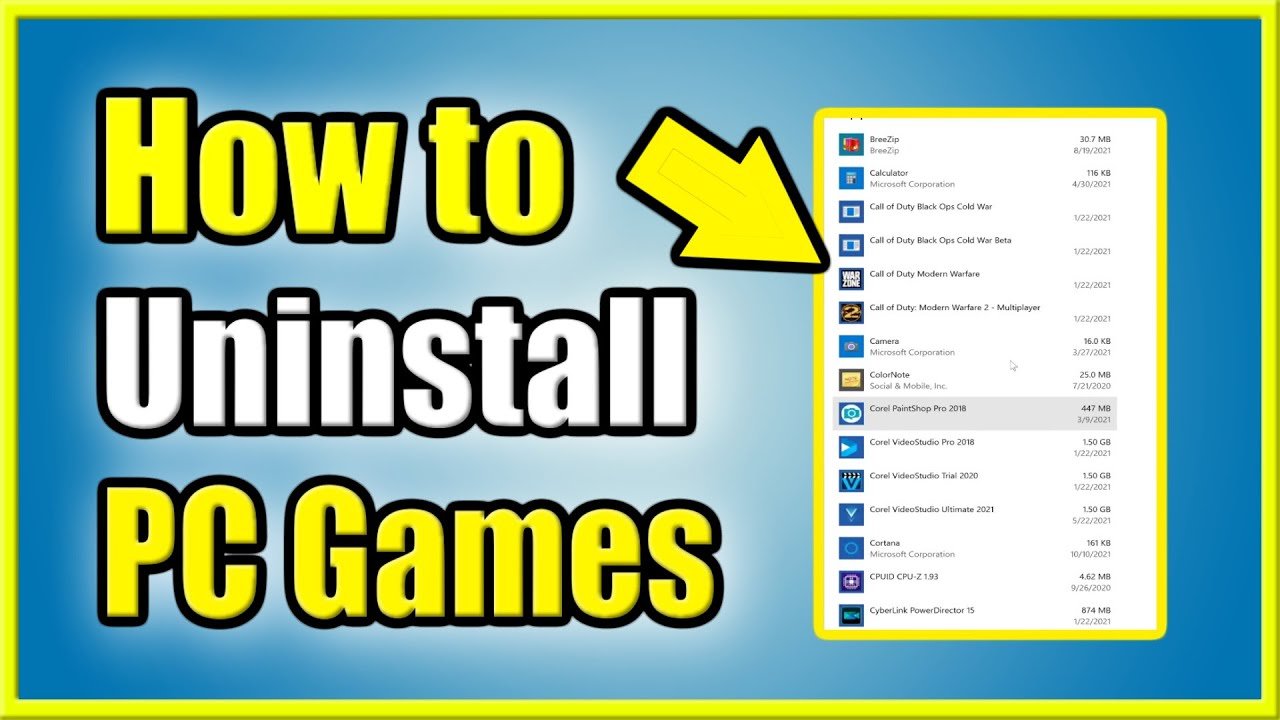
To delete a game, you typically need to find it within your device’s settings or app manager and select the uninstall or delete option.
Ever felt your device was getting a bit cluttered? Maybe it’s time to clear out some space, especially those games you no longer play. Knowing how to delete game can free up valuable storage and improve device performance. It’s a simple process, yet it varies slightly from device to device.
We will guide you through the common methods for deleting games across different platforms. This way, you can easily tidy up your digital space.

How to Delete a Game: A Complete Guide
So, you’ve decided it’s time to say goodbye to a game. Maybe it’s taking up too much space, or perhaps you’re just not enjoying it anymore. Whatever the reason, knowing how to properly delete a game is important to keep your devices running smoothly. Deleting a game isn’t always as simple as just hitting the “delete” button. There are different ways to do it depending on the device you’re using, and sometimes, you have to take a few extra steps to make sure everything is truly gone. In this guide, we’ll explore all the ins and outs of deleting games on various platforms, including PCs, consoles, and mobile devices. Let’s get started!
Deleting Games on a Windows PC
Windows PCs offer several ways to remove games, depending on where you got the game from. Knowing these methods helps to ensure no leftover files clog your hard drive. We’ll look at deleting games installed through the Microsoft Store, Steam, Epic Games Launcher, and others.
Uninstalling Games from the Microsoft Store
Games you get from the Microsoft Store are pretty easy to remove. Here’s how to do it:
- Click on the Start button (it looks like the Windows logo).
- Click on the “Settings” icon (it looks like a gear).
- Click on “Apps.”
- Select “Apps & features” on the left-hand side menu.
- Scroll through the list of apps until you find the game you want to delete.
- Click on the game, and then click the “Uninstall” button that appears.
- Confirm your choice when asked.
That’s it! The game and all its associated files should be removed from your PC.
Uninstalling Games from Steam
Steam is a very popular platform for PC games, and it has a simple way to remove titles:
- Open the Steam application.
- Go to your “Library” at the top of the window.
- Find the game you wish to remove from the list on the left.
- Right-click on the game’s name.
- Select “Manage,” and then choose “Uninstall.”
- A pop-up window will appear, asking you to confirm; click “Uninstall” again.
Steam will handle all the heavy lifting, making sure the game is completely uninstalled. Sometimes a small amount of user created files might be left. If you have issues with the game re-installing, you may need to manually remove the folder from the Steam files.
Uninstalling Games from the Epic Games Launcher
The Epic Games Launcher is similar to Steam. Here’s the removal process:
- Open the Epic Games Launcher application.
- Go to your “Library.”
- Find the game you want to delete and click on the three dots next to the game’s name.
- Select “Uninstall” from the menu.
- Confirm your selection by clicking “Uninstall” in the pop-up window.
Uninstalling Games From Other PC Game Launchers
Many other game launchers exist, like GOG Galaxy, Origin, or Ubisoft Connect. The uninstall process is generally quite similar across these, using a combination of the following methods:
- Finding the game in the launcher’s library and selecting ‘Uninstall’ from a right-click menu or a button next to the game.
- Going to your Control Panel and uninstalling like you would any other program.
Always check the launcher’s settings to make sure there aren’t any additional uninstall options to consider.
Uninstalling Games From the Control Panel
Some older games and programs might not be installed through a launcher. To uninstall them, use the Control Panel. This method is also good to use for games that have issues uninstalling via other methods.
- Type “Control Panel” in the Windows search bar and click on the result.
- Click on “Programs” and then “Programs and Features”.
- Scroll through the list and find the game you want to delete.
- Click on it, and then click the “Uninstall” button at the top of the list.
- Follow any on-screen prompts to complete the removal.
This is a classic way to remove applications, and it still works well for many games.
Deleting Games on Consoles
Consoles, such as PlayStation, Xbox, and Nintendo Switch, also have their own specific methods for removing games. Each is designed to keep your console’s storage managed.
Deleting Games on PlayStation (PS4 & PS5)
Whether you have a PlayStation 4 or a PlayStation 5, the steps are pretty similar. Here’s what you do:
On PS4:
- Go to the main menu and find the game you want to delete.
- Highlight the game using the controller.
- Press the “Options” button on your controller.
- Select “Delete” from the menu that appears.
- Confirm your decision when prompted.
On PS5:
- Go to the “Game Library.”
- Find the game you want to delete.
- Highlight the game and press the “Options” button on your controller.
- Select “Delete” and then confirm your decision.
The game, along with all its data, will be removed from your PlayStation’s hard drive. Remember, deleting a digital download will mean you must download it again if you want to play it in the future.
Deleting Games on Xbox (Xbox One & Xbox Series X/S)
Xbox consoles also have a simple process for removing games. Here’s how it works:
- Go to “My games & apps” on the main menu.
- Select “See all” to view all your games and apps.
- Highlight the game you want to delete.
- Press the “Menu” button on your controller (it looks like three horizontal lines).
- Select “Manage game & add-ons.”
- Select “Uninstall.”
- Confirm your choice when asked.
This method will remove the game from your console’s internal hard drive. If you’ve installed the game on an external drive, make sure you’re uninstalling from the correct drive. You can manage which games are stored on the internal vs external drives from within the settings.
Deleting Games on Nintendo Switch
The Nintendo Switch gives you options to delete game software and save data separately. Here’s how to delete a game:
- Go to the HOME Menu.
- Find the game you want to delete.
- Press the “+” or “-” button on your controller.
- Select “Manage Software.”
- Select “Delete Software.”
- Confirm your decision.
Deleting the software will remove the game from your Switch, but your save data will stay. This is helpful if you might want to play again someday and not lose all your progress. To remove the save data, follow these steps.
- Go to “System Settings” on the HOME Menu.
- Scroll down and select “Data Management”.
- Choose “Delete Save Data”.
- Select the game you want to remove the save data for.
- Confirm your selection.
Remember you can redownload digital versions of Nintendo switch titles at any time.
Deleting Games on Mobile Devices (Android & iOS)
Deleting games on your phone or tablet is usually quite simple. The process is slightly different for Android and iOS devices.
Deleting Games on Android
There are a few ways to delete games on Android. The easiest is usually from the app drawer:
- Go to your app drawer (where all your apps are listed).
- Find the game you want to delete.
- Tap and hold the game icon.
- Drag the icon to the “Uninstall” option (often at the top of the screen or to the side).
- Confirm your decision to uninstall the app.
Another way to delete a game on Android is through the settings menu:
- Open “Settings” on your device.
- Select “Apps” or “Applications.”
- Find the game you want to delete in the list.
- Tap on the game.
- Tap “Uninstall.”
- Confirm your choice.
Once the process is complete, the game will be removed.
Deleting Games on iOS (iPhone & iPad)
Deleting games on your iPhone or iPad is straightforward:
- Go to your home screen.
- Find the game you want to remove.
- Tap and hold the game icon until a menu pops up or the icons begin to jiggle.
- Tap the “X” that appears in the corner of the icon.
- Confirm that you want to “Delete” the app.
Alternatively, you can remove games from your settings menu:
- Go to your “Settings.”
- Tap “General.”
- Tap “iPhone Storage” or “iPad Storage.”
- Find the game you want to remove from the list.
- Tap on the game.
- Tap “Delete App.”
- Confirm your choice.
iOS will remove the game from your device, freeing up storage space.
Managing Game Save Data
Sometimes, when you delete a game, you might also want to remove its save data. This is especially useful if you are giving a device to someone else or just want to ensure there are no leftover files. Here’s how save data works on different devices.
PC Game Save Data
PC game saves are generally stored in different locations, depending on the game. Sometimes, they’re saved in the game’s installation folder, which is usually located within “Program Files.” Other times, saves can be stored in the “Documents” folder, or in the hidden “AppData” folder.
Finding Save Data
- Check the “Documents” folder for a folder related to the game.
- Open file explorer and type %appdata% into the address bar to find the AppData folder, and then look for game save data in there.
- Open steam and check the properties of the game to see where it stores data on your system.
Be careful what you delete! If you delete the save data it might not be recoverable.
Console Game Save Data
Console game saves are typically stored in the console’s internal storage and tied to your account. Each console has different ways to manage and delete save data.
- PlayStation: You can manage save data through the “Saved Data and Game/App Settings” section in settings. You can view and delete game save data, and sometimes you can upload it to the cloud.
- Xbox: Game save data is typically synced to the cloud, but you can also manage and delete saves through the “Manage game and add-ons” section. Select a game and view the save data associated with it.
- Nintendo Switch: Save data is generally tied to the console itself. You can manage and delete save data for specific games through the “Data Management” menu within the “System Settings.”
Mobile Game Save Data
Mobile game save data is often stored within the game’s app data. In some cases, it can also be stored in the cloud, particularly if you use a service like Google Play Games or Game Center.
- Android: To remove data, you can go to Settings > Apps, select the game, and clear data. This will remove all local save data associated with the game, but cloud saved data will be retained.
- iOS: You can manage some game data through Settings > [Your Name] > iCloud > Manage Account Storage > Games. Deleting save data can sometimes be done within the game itself.
Be careful when deleting save data, it can often result in the loss of your progress.
What to Do If You Can’t Delete a Game
Sometimes, deleting a game can be tricky. Here are a few things to try if you’re having trouble:
Restart Your Device
Sometimes, a simple restart can solve problems. Restarting your PC, console, or mobile device might allow you to delete the game as intended.
Close the Game Completely
Make sure the game isn’t still running in the background. If a game is running, even minimized, it can prevent the game from uninstalling. Make sure you close the game before uninstalling.
Check Your Internet Connection
Sometimes, you need to be connected to the internet, especially if you purchased the game digitally. If you aren’t connected to the internet you may experience issues during the uninstallation process.
Run the Uninstaller As Administrator
On a PC, right-click on the uninstaller and select “Run as administrator.” This can solve permission issues and allow the game to be properly removed.
Use the Game’s Built-in Uninstaller
Some games come with their own uninstallers. Check the game’s folder in “Program Files” or “Applications” to see if there is an uninstaller you can run.
Use Third-Party Uninstallers
There are several third-party uninstall programs that can help remove stubborn games and programs. These apps often look for any leftover files and remove them automatically.
Use Windows Safe Mode
Boot your PC into Safe Mode and try uninstalling the game there. Safe Mode only runs essential programs, which can prevent other processes from interfering with the uninstallation.
By following these steps, you should be able to handle nearly any game deletion. Remember to always double-check your actions before you fully delete something you might want later.
By following the guides above, you can remove games from almost any device you have. Remember that digital games can usually be re-downloaded later if you change your mind, so don’t worry about being too hasty. It’s great to free up space and get organized!
PS5: How to Delete Games & Applications Tutorial! (For Beginners) 2024
Final Thoughts
To remove a game, navigate to your device’s settings. Find the application management section. Locate the game you want to get rid of.
Select the game and choose the uninstall option. This action will completely remove the game files from your device. The process varies across platforms, but the overall concept is similar.
Successfully deleting a game clears valuable storage space. This helps to keep your device performing at its best. Therefore, knowing how to delete game is important for device management.

