
The Roblox client updates automatically whenever you launch the game. If an update is available, it will download and install before you can play.
Want to jump into the latest Roblox adventures but unsure about how to update Roblox client? The good news is, it’s mostly automatic.
The game handles its updates seamlessly in the background. This makes sure you’re always using the newest version. You’ll see this process each time you start Roblox.

How to Update Roblox Client
Hey there, Roblox fans! Ever wanted to jump into your favorite game and found out things weren’t quite right? Maybe the game is lagging, or some new features aren’t showing up. This often means it’s time to update your Roblox client! But don’t worry, updating Roblox is usually super easy. Let’s dive into how you can keep your Roblox experience smooth and fun.
Why Updating Your Roblox Client Matters
Think of your Roblox client like the engine of your car. When the engine is old and hasn’t had maintenance, it might not run as well as it should. Similarly, an outdated Roblox client can cause problems. It might slow down your games, make them glitchy, or you might miss out on exciting new updates.
Keeping your Roblox client updated ensures that you have the latest features, bug fixes, and security improvements. This means a better gaming experience for you! Regular updates help keep the game running smoothly, just like making sure your car has fresh oil.
Automatic Updates: How Roblox Keeps You Current
Good news! Roblox is designed to update itself automatically most of the time. This means you don’t usually have to worry about manually downloading files or clicking update buttons. Roblox is pretty smart about keeping you up-to-date.
When you launch the Roblox game, the system checks for any new updates in the background. If a new version of the client is available, it will start downloading and installing it automatically. This usually happens very quickly without you even noticing it.
When Automatic Updates Might Not Work
Sometimes, automatic updates might not happen as smoothly as we’d like. There can be a few reasons for this. Maybe your internet connection isn’t stable, or your computer’s settings are interfering with the update process. Don’t worry, we’ll get into how to fix it!
- Internet connection problems can stop updates from downloading.
- Firewall or antivirus programs sometimes block the update process.
- Issues with your computer’s storage or settings can cause problems.
Manual Checks for Updates: Taking Control
If you suspect your Roblox client hasn’t updated correctly, you can do a manual check to make sure everything is fine. It’s like giving your car a quick once-over to make sure everything is in order. It’s always better to be sure that you have the latest version.
How to Check for Updates Manually on Windows
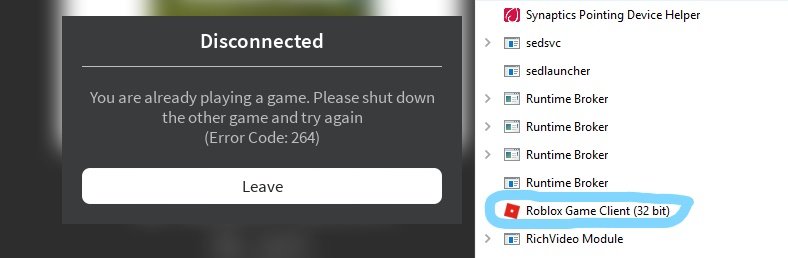
If you play on a Windows computer, you can easily force Roblox to check for updates. You can start by closing all instances of Roblox games and the Roblox launcher from the system tray. This ensures a clean update process without any background conflicts.
Then, open your start menu, search “Roblox”, and launch the Roblox Player. The game will then check for updates when it loads. It’s like asking your car to tell you if it needs fresh gas!
If an update is available, the player will download it, install it and then launch the game as usual. Now, you are set to play your favourite Roblox game.
How to Check for Updates Manually on Mac
Updating on a Mac is similar to Windows. First, quit the Roblox player application completely. Make sure the app isn’t running in the background. Right-click on the Roblox icon in your Dock and then click on ‘Quit’.
Now, just like on Windows, launch the Roblox player, the game launcher will check for available updates, download and install them automatically. Once the update is finished, it will launch the Roblox app and you can enjoy playing your favourite games.
Troubleshooting Update Issues
Sometimes, even after trying the manual checks, you may still run into issues. Let’s look at some common problems and how to fix them. It’s like having a flat tire, it needs a little extra attention to get back on the road.
Internet Connection Problems
A slow or unstable internet connection is a frequent cause of update problems. If your internet connection keeps dropping, the update file will not download completely or not at all. This can cause Roblox to not update correctly.
Check your modem and router to make sure they are working properly. If other devices are also facing connection issues, then restarting your router might fix this problem. You might also try moving closer to your router to improve signal strength.
If you’re using Wi-Fi, try using a wired connection instead. Sometimes a wired connection can provide a more stable internet connection for your updates. This often speeds up downloads and prevents problems.
Firewall and Antivirus Software
Sometimes your computer’s security programs might mistakenly block Roblox from updating. This can happen because the security system think the update file as a threat. This is not the case, though. You just need to let Roblox through it.
Check your firewall and antivirus software settings to make sure Roblox is allowed. You might have to add Roblox as an exception or allow it to have full network access. This is like giving your car permission to use the road!
Clearing Temporary Files
Temporary files can sometimes cause conflicts with updates. These are files that your computer stores temporarily, and can sometimes get corrupted or outdated. Clearing these files can sometimes fix update problems and make things smoother.
To clear temporary files on Windows, you can open the run dialog box by pressing the Windows key + R, then type %temp% and press Enter. This will open a folder with temporary files, select all files and delete them. You can skip if files can’t be deleted.
On Mac, you can clear the caches and temporary files. Navigate to the folder Library/Caches, then select all of the files and move them to the trash. You can then empty your trash and restart your Mac to complete the process.
Reinstalling Roblox Client
If none of the above solutions work, then reinstalling Roblox might be your best option. It’s like getting a whole new engine for your car. This is a great way to fix any major problems that might be affecting your Roblox experience.
First uninstall Roblox from your computer. Once uninstalled, go to the Roblox website and download the latest version of the Roblox client. Install it as you normally would. By doing this, you are ensuring that you have the latest version of the app.
Keeping Your Roblox Client Updated on Mobile
Updating your Roblox client on mobile devices is also very important. The process is usually very smooth and easy. This will ensure that you are having the best experience on Roblox on your phone or tablet.
Updating on iOS (iPhone/iPad)
On your iPhone or iPad, updates happen automatically when connected to Wi-Fi. But if you think your app hasn’t updated, you can manually check for updates in the App Store app. Open the App Store and tap on your profile picture in the top right corner.
Scroll down to see a list of updates and tap on “Update” next to the Roblox app. If you see the word “Open,” that means your app is already up to date. That’s how easy it is!
Updating on Android
Android also usually updates apps automatically. To check for updates, open the Play Store app and tap on your profile picture. Then tap on “Manage apps & device”. Then tap on “Updates available” and see if you see the Roblox app in the list.
If you see an update available for Roblox, tap on the “Update” button next to it. If you see “Open,” it means that your Roblox client is already updated. This process is also very simple.
Checking Roblox System Requirements
Sometimes, update problems can arise if your computer doesn’t meet the minimum system requirements for Roblox. If your computer is really old, it might not run the latest updates properly. Make sure your computer is still able to run the game well.
You can find the specific system requirements on the Roblox website. Check this information to make sure your computer can handle the latest version of Roblox. It’s like making sure the car you have is suited for the road you’re driving on.
| Requirement | Details |
|---|---|
| Operating System | Windows 7, 8.1, 10, or 11 (64-bit) or Mac OS 10.13 or higher |
| Processor | A processor with a clock speed of 1.6 GHz or better |
| Memory | At least 2GB of RAM |
| Graphics Card | A graphics card that supports DirectX 9 or OpenGL 2.0 |
| Storage | At least 20MB of free space |
| Internet | A stable internet connection is a must. |
Staying Ahead of the Game with Updates
Keeping your Roblox client updated is all about making sure you have the best possible gaming experience. It’s like giving your car the maintenance it needs to run smoothly. Regular updates ensure you have access to all the new features, bug fixes and security improvements.
By following these tips and tricks, you should never have problems with your Roblox client again. With a little attention to detail, you’ll have no problem having the best gaming experience that Roblox has to offer.
Updating your Roblox client doesn’t need to be a headache. Usually, Roblox handles the updates for you in the background, but now you know what to do when things don’t work as smoothly as planned. Keep your game updated and get the most of your fun on Roblox!
How To Update Roblox On PC (Full Guide) | Roblox Update Guide
Final Thoughts
To update the Roblox client, restart the application; it usually updates automatically. Sometimes, a manual check might be necessary through the app store or website.
Ensure you have a stable internet connection for smooth updates. If issues persist, consider reinstalling the application. This covers how to update roblox client easily.

