
To fix Roblox lag issues, try lowering your graphics settings, closing background apps, updating your drivers, and ensuring a stable internet connection.
Experiencing frustrating delays while playing your favorite Roblox games? It’s a common problem, but thankfully, several solutions exist. This guide will walk you through the most effective steps to understand how to fix roblox lag issues.
We will cover easy-to-implement methods that can quickly improve your gameplay experience, getting you back in the action without annoying interruptions. Let’s get started on reducing that lag.

How to Fix Roblox Lag Issues
Is your Roblox game moving like a snail? Does it feel like your character is ice skating across the map? Lag can be super frustrating, especially when you’re trying to have fun with your friends. Don’t worry, though! There are many reasons why Roblox might lag, and even better, lots of things we can do to fix it.
Understanding Why Roblox Lags
Before we jump into fixes, let’s talk about why lag happens in the first place. Think of it like a traffic jam; lots of things are trying to get through at once. This can slow everything down.
Your Internet Connection
A slow internet connection is often the main culprit. If your internet is struggling, Roblox will have trouble sending and receiving information quickly. This makes the game feel choppy and delayed.
Checking Your Internet Speed
You can easily check your internet speed using online tools. Just search for “internet speed test” on Google and run one. Look for your download and upload speeds, which should ideally be above the minimum requirements for Roblox.
- Make sure your router is close to your computer or device.
- Try restarting your router. Sometimes, this simple fix can do the trick.
What If My Internet is Slow?
If your internet speed is consistently slow, you might want to contact your internet provider. They might be able to help you improve your connection. You could also consider upgrading to a faster plan.
Your Device’s Performance
Sometimes, the problem isn’t your internet. It could be your computer, phone, or tablet. If your device is older or has a lot of other programs running, it might struggle to handle Roblox.
Too Many Programs Open
Having a lot of other apps and programs open while playing Roblox can bog down your device. Close any apps you aren’t using. This helps free up resources for the game.
Think of it like trying to run a race while carrying a bunch of heavy backpacks – it will slow you down.
Old or Weak Hardware
If your device is quite old, it might not have the power to run newer games well. This means the game will lag or even crash.
Overheating
If your device gets too hot, it might start to slow down to prevent damage. Make sure it has good ventilation. Avoid placing it on soft surfaces like blankets or pillows.
Roblox Game Settings
Believe it or not, the game settings themselves can cause lag. Higher graphics settings require more processing power.
Graphics Quality
Lowering your graphics quality can make a huge difference. It makes the game look a little less fancy but greatly improves performance.
Game Specific Settings
Some Roblox games have their own graphics or performance settings. Take a look at these settings as they may also help you reduce the lag.
Roblox Server Issues
Sometimes, the problem isn’t on your end at all. It could be that the Roblox servers are having issues. This can happen when a lot of people are playing at the same time.
Checking Server Status
You can check if there are any Roblox server problems on the Roblox website or through social media. If there is a problem you may have to wait it out.
Easy Fixes for Roblox Lag
Now that we know why lag happens, let’s get into some easy fixes you can try. Remember, you might need to try a few different things to find what works best for you.
Restart Everything
This is the oldest trick in the book, but it works surprisingly well. Restart your device, your router, and even the Roblox app. Sometimes, this is all you need to get rid of the lag.
Update Your Drivers
Your computer’s drivers are like tiny instruction manuals that tell your computer how to use its hardware. Keeping them updated can fix problems. Especially updating the graphics drivers can often make improvements to gaming performance.
How to Update Drivers
Look up how to update your specific drivers for your device. Usually, the instructions are pretty easy to follow. Most manufacturers have a page that lists the latest drivers.
Close Unnecessary Programs
We talked about this already, but it’s so important that it deserves repeating. Make sure to close any programs you’re not using. This free up resources for your game.
Checking Your Task Manager
On Windows, you can use the Task Manager to see what programs are using up resources. Just press Ctrl+Shift+Esc to open it. Close any you don’t need or aren’t using.
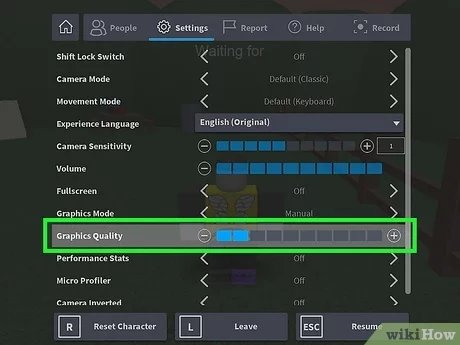
Lower Your Graphics Settings
As we discussed, lower graphics settings can greatly improve performance. You’ll find these settings in the Roblox settings menu.
How to Change Graphics Settings
Go to your Roblox game settings. Look for graphics quality or something similar. Choose a lower option. Check if the lag improves.
Adjust Game Settings
Some games have their own performance and graphical setting options, too. See if any of those help to get a smoother experience.
Clear Your Browser Cache
Your browser stores information from websites you visit. Sometimes, this cached data can slow down your internet and other programs, including roblox. Clearing your browser cache can help fix this.
How to Clear Your Cache
The way to clear your cache varies depending on the browser you use. Search for how to clear your cache for chrome, firefox, edge etc. for a quick guide.
Try a Different Browser
If you are using a browser to play Roblox, try a different browser. Sometimes, some browser work better with certain games.
Use an Ethernet Cable
If you are playing Roblox on a computer and use WiFi, try using an Ethernet cable. This means you are plugging your computer directly into your internet router. This can be much faster and more reliable than a wifi connection.
Update Roblox
Make sure your Roblox app is the latest version. Updates often include bug fixes and performance improvements. This is important so that roblox runs its best!
How to Update Roblox
Usually, Roblox updates automatically. If you are having issues, check that you are running the latest version through the app store or roblox website. Uninstalling the old roblox version and reinstalling it from roblox.com can help.
Check Your Device for Viruses
Viruses and malware can slow down your device. Run a virus scan on your computer to make sure there aren’t any unwanted programs affecting your game play.
How to Run a Virus Scan
You can use antivirus software to check your device. Many antivirus programs will run automatically or there are simple instructions for you to follow.
Reduce Background Processes
Sometimes, the background programs on your device may be taking up some processing power or affecting network connections. You can close these programs or stop them from opening when you start your device. It can help free up resources.
Adjust Visual Effects
Reducing in-game visual effects can also make performance improvement. Look for options to turn off unnecessary effects within game’s settings. Disabling shadows or reducing particle effects can help.
Advanced Fixes (If Nothing Else Works)
If none of the easy fixes work, you might need to try some more advanced options. These might require a little more technical know-how but can make a difference.
Reinstall Roblox
If the app or game itself is corrupted, reinstalling it might fix the issue. Make sure to completely uninstall the app before reinstalling it. Go to the roblox.com website and download a fresh installer.
Upgrade Your Hardware
If your device is just old and struggling, you might need to upgrade your hardware. This might mean getting a new computer, phone, or tablet. Of course this option is most costly.
Contact Roblox Support
If nothing else works, you can contact Roblox support. They can help troubleshoot problems you can’t fix on your own. You can go to the support page on the roblox.com website.
Tips for a Smoother Roblox Experience
Here are some extra tips that can help keep your Roblox experience smooth and enjoyable. These aren’t fixes, but they can help prevent lag in the first place.
- Play during off-peak hours. Avoid playing when lots of other people are using the same game server.
- Keep your device cool. Overheating will always slow your device down.
- Make sure all the hardware is working correctly
- Regularly check for viruses and run virus scans.
Lag can be annoying, but it doesn’t have to ruin your Roblox fun. By trying these fixes, you should be able to improve your game’s performance and get back to having fun. Remember, patience is key, and with a little troubleshooting you can be back in the game without the lag!
5 TIPS TO STOP LAGGING ON ROBLOX
Final Thoughts
To fix Roblox lag issues, try lowering graphics settings within the game. Close other applications running in the background.
Also, consider updating your device’s drivers or restarting your internet router. These simple steps often fix how to fix roblox lag issues.

