
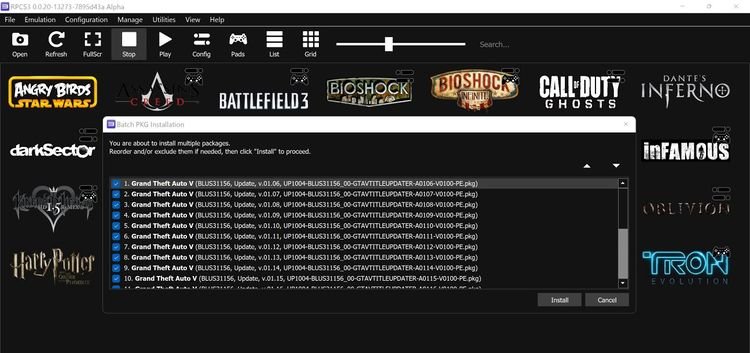
To update RPCS3 games, you typically need to acquire the game updates separately as PKG files, then install them through the RPCS3 file menu.
Ever wondered how to keep your favorite PlayStation 3 titles up-to-date while using the RPCS3 emulator? It’s a common question, and thankfully, the process is quite straightforward. Knowing how to update RPCS3 games ensures you have the latest bug fixes and content.
Many users find it slightly different from updating games on a real console, but it’s nothing complicated. The emulator’s file menu is your key to applying these essential patches and improvements to the titles you play.

How to Update RPCS3 Games
Keeping your RPCS3 games up to date is super important for the best gaming experience. Updates can fix bugs, add new features, and make games run smoother. Think of it like getting the newest version of your favorite toy – it often works better and is more fun! But, how do you actually update games on RPCS3? It’s not like your regular console or PC games, and it requires a few extra steps. Don’t worry, we’ll walk through everything you need to know, making it easy for everyone, even if you’re not a computer whiz.
Understanding RPCS3 Game Updates
Before jumping into the how-to, let’s understand what we mean by “updates” in the RPCS3 world. Because RPCS3 emulates the PlayStation 3, the way it handles game updates is unique. There aren’t automatic updates like you get with Steam or PlayStation Network. Instead, you need to manually get and install these updates. These updates usually come in the form of game patches or game updates, which are essentially files that change the game’s original data, just like in real PS3. These files are often distributed as “.pkg” files.
Why are Game Updates Necessary for RPCS3?
- Bug Fixes: Games often have small errors, or “bugs,” that the creators didn’t find before releasing the game. Updates fix these problems, making the game work as it should.
- Performance Improvements: Sometimes, updates can make the game run smoother on your computer, reducing lag and making gameplay much better.
- Content Additions: Updates can sometimes add new characters, levels, or other cool things to the game.
- Compatibility with RPCS3: As the RPCS3 emulator gets better, game updates can be needed to improve how the game works with the emulator.
Basically, keeping your games updated means getting the best, most fun, and least buggy experience possible. Ignoring game updates could mean you miss out on important fixes and gameplay enhancements.
Finding RPCS3 Game Updates
Now, where do you actually find these game updates? This is a key part of updating your games in RPCS3. Unlike typical PC or console games, RPCS3 games require a bit more detective work. You won’t find a central “Update” button within the emulator. Instead, you’ll need to use some external resources.
Trusted Resources for Game Updates
It’s important to get your updates from reliable sources, to avoid corrupted or unsafe files. Here are some of the best ways to find game updates:
- Game-Specific Forums and Communities: Many forums and communities dedicated to specific games often have threads where users share update files. It’s a good idea to look for threads that are stickied or have lots of users vouching for the files. Websites dedicated to game preservation can also be a great place to search.
- RPCS3 Discord Server: The official RPCS3 Discord server is a hub for emulator users, where you might find links to update files. Look through the channels that discuss specific games.
- Online Archives: There are several online archives that host game updates (and also game files) from the PS3 era, so by searching specifically for your game titles, you may find the appropriate update. You need to be careful and use these sites at your own risk and ensure that they are reputable before downloading any files.
Important Note: Always be careful when downloading files from the internet. Make sure to scan all downloaded files with your antivirus software. Only use trusted sources for downloading game updates, and if you’re unsure about a source, look for feedback from other users.
Identifying the Correct Game Updates
When looking for updates, keep these things in mind:
- Game Region: PS3 games often have different versions for different regions (like North America, Europe, Japan). You need to make sure the update you download matches the region of your game. The game region is usually identified by a string of characters like “BCUS” (North America), “BCES” (Europe) or “BLJM” (Japan).
- Game ID: Each game has a unique ID. This ID should match between the game file you own and the update files. The Game ID is often contained within the filename of your game or can be found on the RPCS3 GUI at the game title. Make sure to match these game id’s.
- Update Version: Game updates are often numbered (e.g., update 1.01, update 1.02). Make sure you download the correct versions and in the right order, especially if multiple updates are required. Sometimes the update version number is contained within the game update file name.
Preparing for Game Updates
Before you dive into installing updates, let’s get ready. Proper preparation can save a lot of headaches later.
Backing Up Your Game Data
It’s a very good idea to back up your original game data before applying any updates. This includes the game files and game save data. If something goes wrong during the update process or the update causes issues, you can restore your game to its original state. You can back up your game file by simply copying the game folder onto a different hard drive or storage device. For backing up save data, locate the “dev_hdd0/home/00000001/savedata” directory inside the RPCS3 directory. Copy this folder to a safe location. Remember the location where you made the backups for restoring the game or your save data.
Organizing Your Update Files
Once you have downloaded the update files, it is a good practice to organize them. The naming convention for the update files is important for RPCS3, so don’t rename them. Keep the update files separate from your game files and create a folder just for update files. This will help you stay organized and prevent confusion.
Installing RPCS3 Game Updates
Now for the main event: installing the updates. The method is simple but requires some attention to detail.
Using the RPCS3 Install PKG Option
The primary way to install game updates on RPCS3 is through the “Install .pkg” option. Here’s how to do it step-by-step:
- Open RPCS3: Launch the RPCS3 emulator on your computer.
- Locate the “File” Menu: In the RPCS3 window, find the “File” menu option at the top of the screen.
- Select “Install .pkg”: Click on the “Install .pkg” option from the “File” menu. This will open a file browser window.
- Navigate to Your Update File: Use the file browser to find the location where you saved the update .pkg file.
- Select the .pkg File: Click on the update .pkg file, and then click “Open” (or “Select”).
- Wait for Installation: RPCS3 will now begin installing the update. This may take some time, depending on the size of the update. You’ll see progress information in the RPCS3 window.
- Repeat for Additional Updates: If your game requires multiple updates (e.g., 1.01, 1.02, 1.03), install them one at a time, in the correct order.
Important Considerations:
- Install Updates in Order: If there are multiple update files available, install them in the numerical order. Starting from the lower numbers (eg. Update version 1.01, then 1.02, and so on)
- Restart RPCS3: After you’ve finished installing the update(s), it’s a good idea to close and reopen RPCS3. This will make sure all changes are properly applied.
- Test the Game: Launch the game and make sure it’s running correctly. Play for a few minutes to see if everything is okay, or if there are any issues caused by the update.
Note: Sometimes, an update may fail or cause the game to crash. If this happens, try reinstalling the update, or try searching online for specific error information.
Troubleshooting Update Issues
Sometimes, things don’t go as planned. Here are some common problems and solutions you might encounter while updating RPCS3 games:
- “Installation Failed” Error: This can happen if the .pkg file is corrupt or the update is not compatible with the game. Make sure to redownload the .pkg file from a trusted source and try again. Ensure the game region matches between the game and the update.
- Game Not Launching After Update: This could be due to a faulty update or compatibility issues. Try to restore your game from the backup, and try to apply the update again. If the problem still persists, you can try searching online or asking on RPCS3 forums for further information.
- Game Crashes or Glitches: If your game crashes or has strange glitches after updating, it is likely that the update has problems. Restore your game from backup and apply another update version or use an older update version.
- “Game Updates Not Found”: This is a common issue. If you can’t find updates for your specific game, you should check different sources and try different search terms. You can also ask the RPCS3 user community for their insights.
Advanced Techniques (Optional)
For those who are comfortable with more advanced methods, there are other ways to apply updates:
- Manual File Replacement: Some advanced users may modify the game files directly to install updates. However, this is more complicated, carries more risks, and is generally not needed for the vast majority of users. It is recommended to stay with the “Install .pkg” option if you are a beginner or an intermediate user.
- Custom Firmware or Patches: While not directly part of the update process, some users may use custom firmware or patches to get additional performance. Be aware that using modified firmwares may cause problems and should be used with caution.
Maintaining Your Updated RPCS3 Games
The process of updating games is not a one-time task. Here are some recommendations for keeping your games running smoothly and ensuring they are always up-to-date:
- Regularly Check for Updates: You should check regularly if new updates have been released. Sometimes, developers release multiple updates to fix bugs or enhance the game.
- Follow RPCS3 Development: Keep an eye on the RPCS3 emulator development progress. The emulator gets better constantly. Following these developments can help you understand changes that affect games and help you understand if a game may have a better performance in newer RPCS3 versions.
- Stay Connected with the Community: Stay active in RPCS3 communities and ask questions if you need assistance. You may get advice from more experienced users if you have any problems.
Keeping your RPCS3 games updated is essential for optimal performance and a better overall experience. While it may require a bit more work than updating games on a typical console or PC, following these steps will make the process much smoother. Remember to always back up your data, use trusted sources, and organize your files. With these tips, you’ll be well on your way to having a fantastic time playing your favorite PS3 games on RPCS3.
How to Update Games to the Latest Version on RPCS3 | PS3 Emulator Upgrade Firmware
Final Thoughts
To update your RPCS3 games, first obtain the game updates from a reliable source, ensuring they match your game’s region. Then, place the update files into the correct RPCS3 folder hierarchy. After that, launch the emulator and the game will automatically apply them.
Follow these steps carefully because failing to do so may result in errors. This method explains how to update rpcs3 games effectively. Remember this procedure for a smooth gaming experience.

