
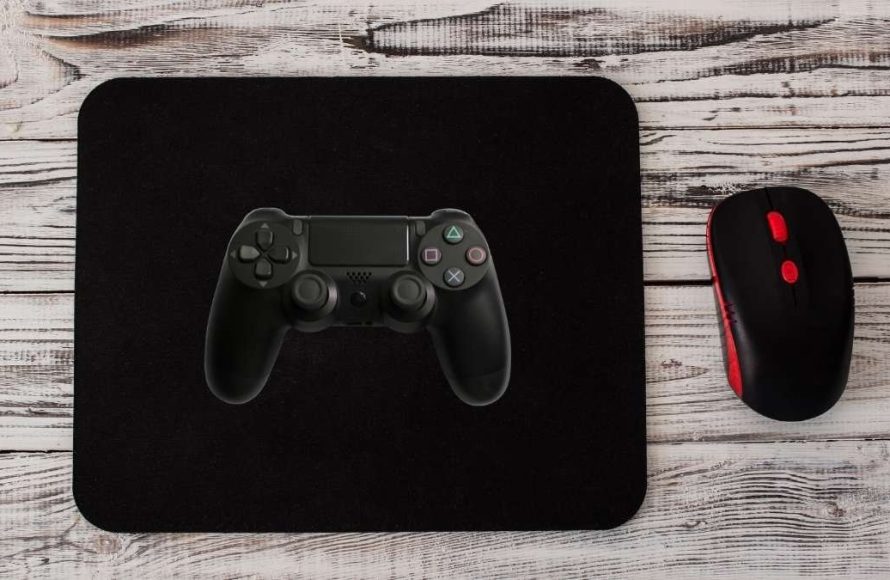
You can use a game controller as a mouse by employing third-party software that maps controller inputs to mouse actions, allowing for navigation and clicking on your computer.
Ever wished you could navigate your computer with more than just a standard mouse? Imagine kicking back on the sofa, controlling your desktop effortlessly with a familiar game controller. You can actually achieve this, learning how to use a game controller as a mouse opens up a new way to interact with your computer.
This method is surprisingly simple once you set up the appropriate software. It makes browsing the web or controlling media far more comfortable. The idea of a controller as a primary input beyond gaming is becoming more popular.

How to Use a Game Controller as a Mouse
Ever felt like your mouse is too clunky or that you need more ways to control your computer? Well, guess what? That game controller you use to play your favorite games can also become a pretty handy mouse! It might sound a little strange, but it’s totally possible, and sometimes, it’s even more comfortable than a traditional mouse. Let’s dive into how you can make this happen.
Why Use a Game Controller as a Mouse?
Before we get into the “how,” let’s talk about “why.” There are several reasons why using a game controller as a mouse might be a good idea:
- Comfort: For some people, holding a controller is more comfortable than gripping a mouse, especially during long sessions on the computer.
- Accessibility: If you have trouble using a regular mouse, a controller might offer a more accessible way to navigate your computer.
- Novelty: Let’s be honest, it’s kinda cool! Using a controller as a mouse can be a fun, different way to interact with your computer.
- Convenience: Maybe your mouse is broken, or you simply don’t have it on hand. Your trusted game controller can easily fill that role.
The Basics: What You Need
To get started, you will need a few things. Nothing too fancy, we promise!
Compatible Game Controller
Most modern controllers are compatible, including:
- Xbox controllers (Xbox One, Xbox Series X/S)
- PlayStation controllers (DualShock 4, DualSense)
- Nintendo Switch Pro Controllers
- Many generic USB controllers
Connection Method
You’ll need to connect your controller to your computer. This can usually be done in a couple of ways:
- USB Cable: Simple and direct. Just plug your controller into your computer’s USB port.
- Bluetooth: Wireless convenience. Pair your controller with your computer through its Bluetooth settings.
Software (The Key Ingredient!)
This is where the magic happens. You’ll need some software that lets your computer understand the controller’s inputs as mouse movements. The software takes signals from your controller’s joysticks and translates it into cursor movements. Let’s look at some popular options.
Software Options
There are many different software options available. Here, we will look at some of the most popular and user-friendly choices.
Steam
Yes, the same Steam you use for games can also make your controller work as a mouse. Steam has a built-in feature that allows you to customize your controller settings, so you can use your joystick as a mouse.
How to Set it up using Steam:
- Connect your controller: Make sure your controller is connected to your computer, either via USB or Bluetooth.
- Open Steam: Launch the Steam application.
- Enter Big Picture Mode: Click on “Big Picture Mode” on the top right of the Steam window. It looks like a rectangle with two arrows coming out of opposite corners.
- Go to Settings: In Big Picture Mode, click on the gear icon to access settings.
- Controller Settings: Under “Controller”, click on “Controller Settings”.
- Choose your controller type: Select the type of controller you are using.
- Define Desktop Configuration: Click on “Desktop Configuration”.
- Customize your layout: Now you can customize what each button on your controller will do. You can choose to map a joystick to control the cursor, and configure buttons for left/right click.
- Apply and Save: Once you’re happy with your settings, save your new configuration.
Steam is very powerful and gives you a lot of control over how your controller behaves as a mouse. It is great for those who use Steam a lot.
JoyToKey
JoyToKey is a very popular option. It is not free, but many find it a good investment. It is very easy to use and allows you to customize a lot about how your controller behaves like a mouse.
How to Set it up using JoyToKey:
- Download and install JoyToKey: Go to the JoyToKey website and download the software. Follow the installation instructions.
- Connect your controller: Make sure your controller is connected to your computer.
- Launch JoyToKey: Start the program. You should see a window that shows your controller’s buttons and axes.
- Configure Joystick Movement: Select a joystick that you want to use as the mouse pointer. Under the “Cursor” tab, you can map different joystick directions to move the cursor.
- Map Buttons: Assign buttons to simulate mouse clicks (left click, right click, and even double click) and other functions.
- Save your Profile: Save your settings. You can also make different profiles for different purposes.
- Start using your controller as a mouse: Enjoy controlling your mouse using your controller!
reWASD
reWASD is another powerful software option that allows you to remap your controller inputs. It’s not free, but it gives you lots of customization for your controller as mouse setup. It allows for very precise control over how the controller interacts with your operating system.
How to Set it up using reWASD:
- Download and install reWASD: Download reWASD from the official website and follow the setup process.
- Connect your controller: Connect the controller that you plan to use.
- Launch reWASD: Run the application and your controller should be detected.
- Create a New Config: Start a new profile.
- Map Sticks and Buttons: Map the desired joystick to mouse movement. Map specific buttons to your mouse click functions. reWASD lets you customize things like speed and acceleration of the mouse movements.
- Apply and Save: Save your configuration to start using your controller as a mouse.
Other Options
There are other software available, some free and some paid. Some examples are:
- AntiMicro: A free and open-source option that can be configured easily.
- Input Mapper: Another powerful piece of software that supports DualShock 4, DualSense and other controllers.
- DS4Windows: Primarily used for DualShock controllers but can be used to emulate mouse input.
Customizing Your Setup
The best part about using a controller as a mouse is how much you can customize it! You’re not stuck with default settings. Many of these software options let you tweak things until they feel just right for you. Let’s look at what you can adjust.
Sensitivity
The speed at which the cursor moves in relation to the movement of the controller stick is called sensitivity. Adjust this to make the mouse feel more or less responsive. Most software allows you to adjust this to your personal preference.
Acceleration
Acceleration is the rate at which the mouse speed increases as you move the stick farther. By adjusting the acceleration, you can achieve more precise movements when moving the stick slowly and larger movements when you push it farther. This can greatly improve the navigation experience.
Dead Zones
Dead zones are small areas of stick movement that don’t move the cursor. This helps with preventing accidental movements. Most software options let you adjust the dead zones to your liking.
Button Mapping
Button mapping allows you to customize what buttons do. You might want to have your ‘A’ button be a left click, your ‘B’ button be a right click, and your triggers be scrolling. You can customize this in the software you are using.
Tips for a Smooth Experience
Here are some tips to get a great experience using a controller as a mouse:
- Start Slow: Don’t go crazy with sensitivity and acceleration at the beginning. Start with low settings and gradually increase them until you find the right balance.
- Practice Makes Perfect: It may feel a little strange at first. Give it some time to get used to the feel of it. Soon, it will feel more natural.
- Try Different Configurations: Don’t be afraid to experiment with different button layouts and sensitivity settings until you find something that feels just right for you.
- Use Different Profiles: If your software allows it, create different profiles for different types of tasks like browsing the web and playing games. This way, you always have an optimized setup ready to go.
- Check for Updates: Always make sure you have the latest version of your software to avoid any bugs and have all the latest improvements.
Troubleshooting
Sometimes, things might not work as expected. Here are a few common issues and solutions:
- Controller Not Recognized: Make sure your controller is properly connected to your computer. Try a different USB port, cable, or try disconnecting and reconnecting Bluetooth if you are using a wireless connection.
- Cursor Moving Erratically: If the cursor moves in a strange way, check your sensitivity and acceleration settings. Also, make sure you are using the latest drivers and software updates.
- Button Mappings Not Working: Double-check that your button mappings are correct in your software settings. Make sure you have saved the profile after making your changes.
By following these steps and tips, you can comfortably control your computer using a game controller as a mouse. It’s a fun and useful trick to have in your toolkit.
How To Use Game Controller As Mouse On PC (Setup Guide)
Final Thoughts
Effectively, using software, you can map controller inputs to mouse actions like cursor movement and clicks. This makes navigating your computer with a gamepad straightforward. You simply configure the program to suit your preferred button layout.
Different applications offer varied levels of customization. Experiment with sensitivity settings to achieve the desired mouse responsiveness. It’s a great alternative to a traditional mouse.
In conclusion, you can control your computer with a game controller. This guide showed you how to use a game controller as a mouse, making navigation accessible with a familiar interface.

