
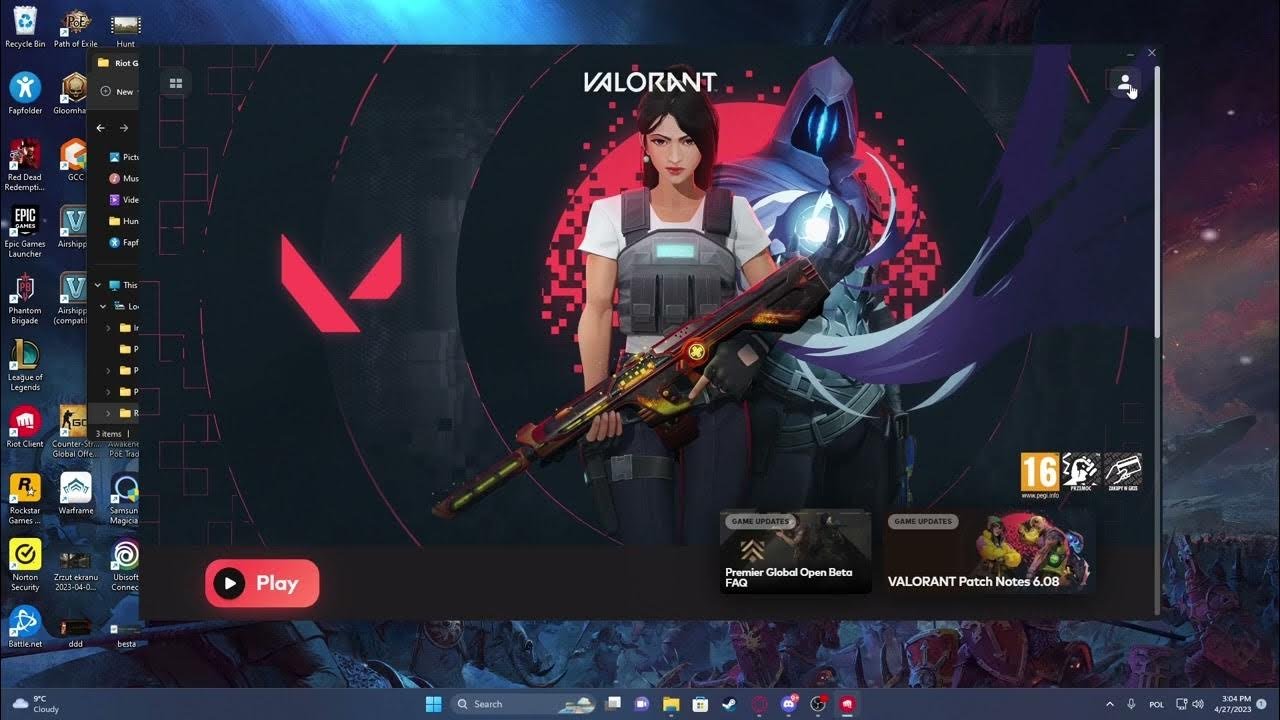
To verify game files on the Riot Client, navigate to the game’s settings, find the repair option, and initiate the verification process.
Is your game acting a bit wonky? Perhaps you’re experiencing unexpected crashes or graphical glitches? These problems can often stem from corrupted or missing game files. Luckily, the Riot Client provides a simple way to check and fix these issues. We’ll guide you on how to verify game files on riot client, ensuring your gaming experience is smooth and enjoyable.

How to Verify Game Files on Riot Client
Okay, so you’re ready to dive into your favorite Riot Games title, like Valorant, League of Legends, or Teamfight Tactics, but something feels off. Maybe you’re experiencing glitches, crashes, or just things aren’t loading correctly. Before you get too frustrated, there’s a handy tool built right into the Riot Client that can help: the game file verification tool. Think of it as a super-powered check-up for your game files. It scans all the important stuff to make sure everything is in its right place and working perfectly. If something is missing or damaged, the tool fixes it up for you. This guide will walk you through the process step-by-step, making it super easy to get back to gaming.
Why Verify Your Game Files?
Imagine building a Lego set and missing a crucial piece. The whole thing just wouldn’t work right! That’s kind of like what happens when game files get corrupted or go missing. These files are like the instructions and building blocks for your game. They tell the game how to look, how to sound, and how everything should behave. When something is wrong with these files, the game doesn’t work as it should. Here are some common reasons why you might need to verify game files:
- Corrupted Files: Sometimes, during updates or even just from regular use, game files can become damaged. This can happen because of power outages while updating, system crashes, or even because of storage issues on your computer.
- Missing Files: Occasionally, files can be accidentally deleted or might not download completely during installation or patching.
- Update Issues: Sometimes, updates don’t apply correctly. This could leave you with a mix of old and new files, causing problems.
- Performance Problems: If your game is slow, keeps crashing, or has graphical glitches, it may mean some files aren’t working as they should.
Verifying your game files is like giving your game a full tune-up, making sure all the parts are where they should be and in great working order. It’s the first step in fixing many common game-related problems.
How to Access the Riot Client
Before we dive into the file verification process, let’s make sure you know how to open the Riot Client, because that is the place where we will do all the things for verfiying. The Riot Client is like the control panel for all your Riot Games. Think of it as a launchpad for all the cool stuff Riot creates! Here’s how to get there:
- Find the Icon: Look for the Riot Games icon on your desktop or in your computer’s system tray (usually at the bottom right of your screen near the clock). It usually looks like a red and white fist.
- Double-Click: Double-click on the Riot Games icon. This will open the Riot Client.
- Log In: If you are not already logged in, enter your Riot Games username and password. If you have trouble remembering, you can always use the ‘forgot password’ option.
Once you are logged in, the client will display a main screen with the games you have available to you.
Step-by-Step Guide to Verify Game Files
Now that we are inside the Riot Client, we can start verifying your game files. It is actually a pretty simple process. Follow these steps and you’ll have your game files checked in no time.
Selecting the Game
The first thing you need to do is select the game you need to verify files for. Maybe your Valorant is acting up, or your League of Legends doesn’t want to load correctly. Here’s how to pick the right game:
- Find the Game: In the Riot Client, you will see the games you have installed. These are shown as big images or logos. Find the one that’s giving you trouble.
- Click on the Game: Click on the game’s picture or icon. This will open the game’s main page inside the client.
Accessing Game Settings
Once you select your game, you need to access its settings. This is where we will find the option to check for broken or missing files. Here’s how to reach those settings:
- Find the Settings Icon: Look for the Settings icon, It’s often in the top right corner of the game’s page within the Riot Client. It usually looks like a gear or cogwheel.
- Click the Settings Icon: Click on the gear icon. This will open a settings menu specific to that game.
Locating the Verification Option
Now that we are inside the settings, we can find the verification option and run it to ensure we have a good working game.
- Look for the Repair or Verification Option: In the settings menu, look for an option that says something like “Repair”, “Verify Game Files”, “Check for Corrupted Files”, or something similar. The wording might be slightly different depending on the game.
- Click the Verification Button: Once you’ve found the right option, click on it. The Riot Client will start the file verification process.
The Verification Process
After you click the verification button, the client will begin doing its work. Here is what you can expect during the verification process.
- The Scan: The Riot Client will start scanning your game files. This might take a few minutes, or sometimes longer depending on how big the game is, and how fast your computer is. You can usually see a progress bar or percentage showing how far the check has gone.
- Fixing Issues: If the tool finds any corrupted or missing files, it will automatically download and replace them. You might see the progress bar pause or go down a little bit if this happens, but this is normal, so don’t panic!
- Completing the Verification: When the process is complete, the Riot Client will usually display a message saying that the verification is done and that your files are all in order. Sometimes it might ask you to restart the game, or the Riot Client.
Possible Problems and Solutions
Sometimes, the verification process might not go as smoothly as expected. Here are some common issues and how you can deal with them:
Verification Taking too Long
- Internet Connection: A slow or unstable internet connection can make the verification process take a really long time. Try to make sure your internet connection is stable and working well before you start the verification process. You can also try restarting your modem or router to fix any possible problems.
- Computer Performance: If you have a very old computer or it’s very busy doing other things, this can cause the verification to take longer. Try closing other programs and restart your computer.
Verification Gets Stuck
- Restart the Client: If the verification gets stuck, try closing the Riot Client completely and opening it again. Then try verifying the game files again.
- Check Antivirus: Sometimes, your antivirus might be interfering with the file verification process. Try turning off the antivirus temporarily and try verifying your game files again. After the process is completed turn it on again.
Error Messages
- Read the Message: Pay attention to the error message. It will usually tell you what the problem is.
- Riot Support: If you can’t figure out the error, contact Riot Games support. They can help you troubleshoot problems that are specific to their games.
What Happens After Verification
After the verification is complete, you should hopefully notice that the problems you were experiencing before are resolved. However, if the issue still persists, it might be due to some other reasons. Here’s what to keep in mind after you complete the verification process:
Restart the Game
After verifying the game files, it’s a good idea to restart the game before jumping back into the action. This allows the game to apply any changes that were made and ensures everything is loaded properly.
Test the Game
Once you’ve restarted the game, take some time to play a match or just try different things in the game. Keep an eye out for those problems you were having before, so you can be sure that the verification helped. If the game is still having problems, you may need to try some other troubleshooting steps.
When the Problems Persist
If verifying the game files does not fix the issues you’re experiencing, there might be other causes. Here are some more things you can try:
- Update Your Graphics Drivers: Make sure your graphics card drivers are updated. Old drivers can often cause problems with games. You can find updated drivers on the website of your graphics card manufacturer.
- Check Your Computer’s Specs: Make sure your computer meets the minimum requirements for the game. If your computer is too old or doesn’t have enough power, it can have trouble running the game smoothly.
- Run a System Scan: Do a full scan of your computer using your antivirus software. Sometimes, viruses or other types of malware can cause games to not function correctly.
- Check For Updates: Make sure your operating system is updated. Sometimes, old versions of Windows or macOS can cause problems with games.
- Reinstall the Game: If all else fails, uninstall the game and then reinstall it. This is a bigger step, but it’s a great way to ensure that all the game files are installed correctly from scratch.
Why Is This Important for Gamers?
Verifying your game files might sound a bit technical, but it is really a simple process and can save you time and headaches. Here’s why it’s important for every gamer to know how to do this:
- Reduces Frustration: When your game isn’t working right, it can be really frustrating! By verifying your game files, you can quickly fix many common issues without having to spend hours trying to troubleshoot.
- Saves Time: It’s a quick fix compared to trying other more involved solutions. You can often get back to gaming in a short time.
- Improves Game Experience: By ensuring all your game files are working correctly, you’ll get the best possible game experience. You’ll enjoy smoother gameplay, better graphics, and fewer errors and crashes.
- Simple and Easy: You don’t need to be a tech expert to do this. It’s easy and simple to understand the steps.
Verifying game files on the Riot Client is a great first step whenever you are having issues with one of your Riot Games. It can save you time and is a great place to start when troubleshooting problems you are having. By learning this simple step, you will make your gaming life much smoother.
How To Verify & Repair Game Files Valorant
Final Thoughts
To sum up, verifying your game files is a straightforward process. Access your Riot Client settings, find the specific game, and use the repair option. This action will scan for corrupted data and replace it.
This fixes many common game issues. Doing ‘how to verify game files on riot client’ ensures a smoother gaming experience and is a simple step you should take when you see problems.

