
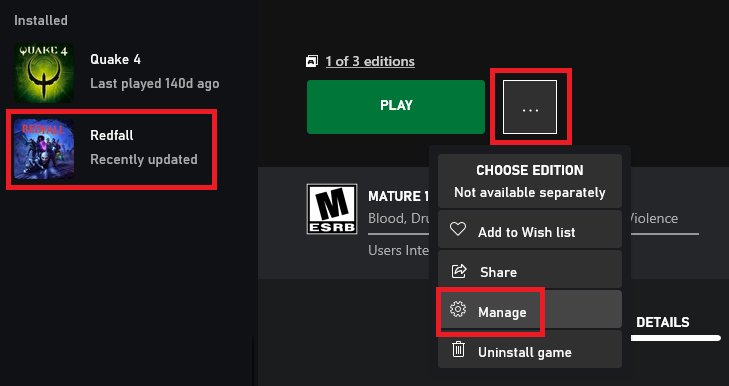
To verify game files on Xbox, navigate to “My games & apps,” select the game, press the menu button, choose “Manage game & add-ons,” then go to “Files.” If available, select “Verify.”
Have you ever experienced a game glitching or not running quite right on your Xbox? It can be incredibly frustrating, but thankfully, there is a solution that often helps: verifying your game files. Knowing how to verify game files on Xbox can save you a lot of headaches. This process checks the integrity of your game’s data, ensuring everything is as it should be. We will walk you through the easy steps needed to make sure your games are playing smoothly.

How to Verify Game Files on Xbox
Ever have a game act a little wonky? Maybe it crashes a lot, or things look glitchy? Sometimes, the problem isn’t the game itself, but that some of its files might be messed up. Think of it like having a puzzle where some pieces are bent or missing. That’s where verifying your game files comes in handy! It’s like a check-up for your game to make sure everything is working as it should. We will guide you in simple terms on how to verify those game files on your Xbox.
Why Verify Game Files?
Before we jump into the how-to, let’s talk about why this is important. Corrupted or incomplete game files can cause all sorts of problems. Imagine trying to run a race with a flat tire; it just isn’t going to go smoothly. Here are some common issues caused by bad game files:
- Game Crashing: The game might suddenly close and send you back to the Xbox home screen. This is usually one of the most noticeable problems.
- Freezing: The game might stop completely, making it so you can’t do anything until you restart the console.
- Graphical Glitches: Parts of the game might look strange, with textures missing or appearing incorrectly. You might see weird colors or shapes.
- Performance Issues: The game might run slowly or lag, even if your Xbox is usually fast. This can happen when the game is having a tough time finding and using its files.
- Installation Problems: Sometimes if some files don’t downloaded properly, it can create problems to install the game fully.
- Error Messages: The game may display errors that indicate a problem with game files.
Verifying your game files helps your Xbox to check and replace any damaged or missing parts of the game, just like replacing those bent puzzle pieces. This can often fix these problems without having to remove and reinstall the entire game.
Understanding the Process on Xbox
Unlike on PC platforms like Steam, there isn’t a specific button that says “Verify Game Files” on the Xbox interface. This might seem a bit different, but don’t worry. The Xbox system is designed to handle this process in its own way. The Xbox checks game files automatically in the background when a game has a problem. The checks aren’t an option or button you press, but are processes that occur if needed. When Xbox detects that the files of games are not running smoothly then it triggers an automatic verify and repair process to correct the issues. Here’s what actually happens when you encounter an issue with game files on Xbox:
Automatic Checks: The Xbox system constantly monitors game files and will attempt to fix them whenever it detects an issue.
Installation Updates: Games are constantly being updated with bug fixes and improvements. These updates can help to verify game files because they will overwrite the older game files. The system will check if the game is up to date with all of its update file versions. This ensures that the game’s data and executable parts are the latest versions, which can prevent many of the above-mentioned problems.
The Xbox Way: No Manual Verification Button
It is important to remember that, unlike PC gaming platforms, Xbox does not have an explicit option to manually “verify game file integrity.” That is, you can’t just push a button and say “check the files.” Instead, the system manages these processes automatically and silently behind the scenes. The steps we’re going to talk about will trigger the Xbox system to check and, if necessary, repair your game files. It’s the Xbox system’s way of looking after you behind the scene.
Triggers for File Verification
So if there isn’t a ‘verify’ button, how do you get the Xbox to check your game files? There are specific actions you can take that will trigger the Xbox’s built-in systems to check for and fix file errors. Here are some common situations that can kick off an automatic file verification:
- Launching a Game After a Crash: If a game crashes, the Xbox often initiates a file check the next time you try to start the game. The system assumes that something may have gone wrong with the game during the crash, and it initiates the file checks to ensure it is running correctly the next time.
- Game Update Installations: When you update a game, the system not only adds new files but also checks existing ones to ensure they match the new update. This will include re-downloading the files that may have some issues, if necessary.
- After a System Update: When the Xbox system itself updates, it often runs checks on installed games to make sure everything is compatible and running smoothly.
- When there is poor network connection: When there is an unstable network connection it causes issue while downloading game and game files, this may result in missing or corrupt files.
Understanding these triggers can help you understand when and why the system is running these file checks and repairs. If you’re having problems, it’s a good idea to use these triggers to prompt a system check.
Steps to Indirectly Verify Game Files on Xbox
Even though there is no direct “verify” option, there are some steps you can take that will indirectly trigger the Xbox system to check your game files. These aren’t magic, but they use the Xbox’s automatic system to your benefit. These methods encourage the system to check and repair any issues it may encounter. Let’s go through these step by step:
Method 1: Restarting Your Xbox
Sometimes, a simple restart can fix a lot of problems, including those with game files. When you restart your Xbox, the system goes through a refresh process, checking on the operating systems and files of all applications including games. This often can initiate a file check during the process:
- Press the Xbox button on your controller to open the guide.
- Use the directional buttons to select Profile & system.
- Select Settings.
- Navigate to System and select Console info.
- Select Restart console, and then confirm your choice.
- After your Xbox has restarted, try launching your game. This process will ensure that the Xbox has checked the game file upon starting the game.
This restart gives your console and games a clean slate. It’s like a mini-reset button and can address the errors by checking all the necessary files.
Method 2: Checking for Game Updates
Game updates are important because they don’t just add new features; they also include fixes for bugs and problems. These fixes often involve overwriting or correcting damaged files. Let’s go through how to check for updates:
- Navigate to the home screen of your Xbox, by pressing the Xbox button on your controller.
- Select My games & apps.
- Select See all to view your game library.
- Select the game with the issue.
- Press the Menu button on your controller and select Manage game & add-ons.
- Select Updates.
- If there is an update available, select it and install it.
By ensuring your game is updated to the latest version, you’re forcing the system to check the game files and overwrite any errors. It is a good practice to keep all your games updated to prevent any game file issues.
Method 3: Reinstalling the Game
If the other methods don’t work, uninstalling and reinstalling a game can resolve any persistent problems. This is like starting fresh with a new, perfect copy of the game. It is the most straightforward way to address all the possible errors, when all else fails. Here are the steps for how to reinstall a game:
- From your Xbox home screen, select My games & apps.
- Select See all to view your game library.
- Select the game having the issues, press the Menu button, and select Uninstall.
- Once the game is uninstalled, go back to My games & apps.
- Select Ready to install and select the game to begin re-downloading the game.
This may take some time depending upon the size of the game and your internet speed. But this is often the last step in ensuring that all the game files are fresh and working properly.
Method 4: Using the Troubleshoot Option (if available)
Some games might have their own troubleshoot option or diagnostic menu within the game settings. Although, it is not a standard for all games, but if a game has an in-game tool to check game files, it’s good to use that also. To use this option:
- Launch the game and go to its main menu or settings options.
- Look for options like “Troubleshooting,” “Support,” or “Verify Files” within the game menu.
- If there is an option to check the files, select it and let the game do the check.
This is game-specific, so it won’t be available for every game. However, if available, it’s a valuable way to verify game file from within the game itself.
Network Connections and Game Files
The stability of your internet connection plays a crucial role in ensuring that games download and update without corruption. A weak or unstable connection may result in incomplete or corrupt downloads, which will lead to various game problems. Here are some factors you must keep in mind related to internet connection:
Stable Internet Connection
A strong, reliable internet connection is crucial for downloading and updating games without corruption. You want a connection that does not fluctuate or drop frequently. Use the following steps to check your connection:
- Use speed test website or application to check your network speed.
- Make sure that other devices on your network are not using up too much bandwidth.
- Restart your router to refresh your network connection.
Wired Connection
If possible, using a wired connection instead of wireless (Wi-Fi) can provide a more stable and consistent connection, reducing the risk of data corruption during downloads and updates. Connect your Xbox directly to the router with an Ethernet cable if it is possible for you.
Background Downloads
If your game has problems after downloading or updating, it’s possible the files were corrupted due to background network activity. Ensure there is no heavy background downloads that will conflict the game downloads or update process.
When to Contact Xbox Support
If you’ve tried all the above steps and your game is still causing problems, it may be time to contact Xbox Support. They may have other fixes for common problems, or may need to investigate issues that can’t be fixed through normal user methods. Here is when you should contact the Xbox support:
- If the problem persists after reinstalling. If the game still crashes or glitches even after you reinstall it then it may be a different issue.
- If multiple games have problems. If more than one game is having issues, then there might be an issue with Xbox itself or with your internet network.
- If you are facing other errors that you do not understand. Sometimes the error is not always clear and hard to understand, in such cases Xbox support is necessary.
Xbox Support can provide specific help tailored to your issue. Before contacting them, note down the game error codes and the exact steps you have taken while doing the troubleshooting process, this helps them to solve your issue faster.
Verifying game files on Xbox is not always a direct process, but following these steps can help you tackle many problems related to corrupted files and ensure your games run correctly. By taking these steps, you can often get back to enjoying your games without further problems.
How to Verify Game Files on Xbox App in 2024
Final Thoughts
To fix game issues, you can verify files on your Xbox. Navigate to “My games & apps,” select the game, and press the menu button. Then, choose “Manage game & add-ons.”
After that, select “Files” and then “Verify”. The system will then check for corrupted or missing data. This action helps you repair potential game problems.
The process to verify game files on Xbox is straightforward. Regularly doing this maintains your games’ health.

