
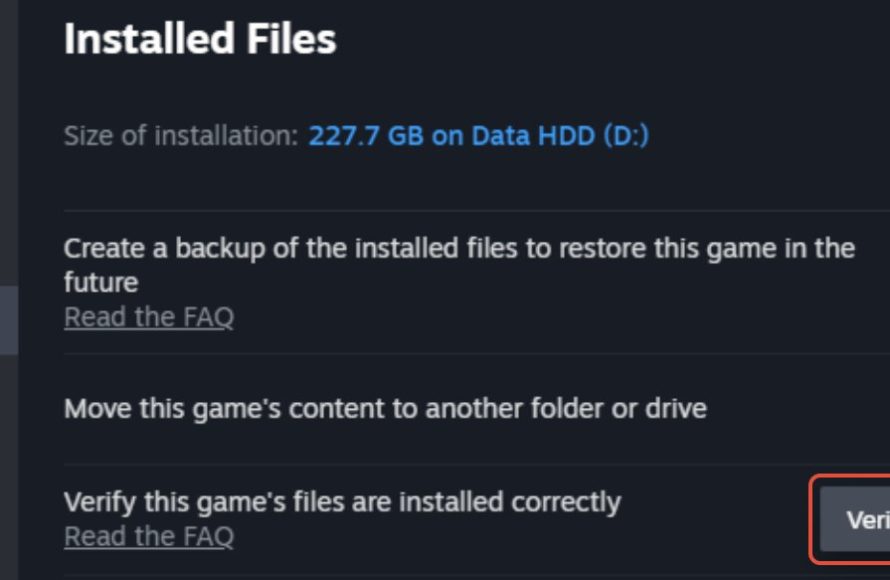
To verify game files on Steam, navigate to your Steam library, right-click the game, select ‘Properties,’ go to ‘Installed Files,’ and click ‘Verify integrity of game files’.
Is your favorite Steam game acting up? Perhaps it’s crashing, missing textures, or just generally behaving strangely. These issues can often stem from corrupted or incomplete game files. Luckily, Steam provides a straightforward tool, letting you check the integrity of your game installation.
Using this feature, ‘how to verify game files steam’ is easy. Steam will compare your local game files against the official version on their servers. Any inconsistencies or problems will trigger a re-download of the faulty files automatically. This often solves many gameplay issues and gets you back in the game faster.

How to Verify Game Files on Steam
Ever had a game that just wouldn’t cooperate? Maybe it crashes all the time, or looks weird with glitchy graphics. Sometimes, the problem isn’t with your computer or the game itself, but with the game’s files. These files can get messed up or go missing. Luckily, Steam has a handy tool to check and fix these problems: the “Verify Integrity of Game Files” feature. Let’s dive into how this works and why it’s super useful.
Why Game Files Get Corrupted
Before we jump into the “how-to,” let’s talk about why your game files might get messed up in the first place. It’s not always your fault! There are several reasons why your game’s digital pieces can go wonky. These include:
- Download Interruptions: If your internet connection drops out during a game download, some files might not finish downloading correctly. This can cause issues when the game tries to use those broken files.
- Disk Errors: Sometimes, problems with your hard drive or SSD can cause files to get corrupted, especially during write operations. It can also happen when your storage drive starts to get old.
- Software Conflicts: Sometimes, other programs running on your computer might interfere with Steam or your game, leading to file corruption. Maybe an antivirus software is overly aggressive, or an old application might have caused changes.
- Unexpected Shutdowns: If your computer shuts down suddenly while a game is installing or updating, it can leave behind unfinished or incomplete files.
- Game Updates: While game updates are usually great, sometimes, a bad update can mess up existing game files.
Understanding File Integrity
Imagine your game as a giant puzzle made up of thousands of tiny pieces (these are your game files). Each piece has to be in the right place and in good condition for the puzzle to work correctly (the game runs smoothly). If even one piece is missing or damaged, the whole puzzle might not be complete, or might have gaps. Steam’s Verify Integrity tool is like a puzzle checker. It looks at each piece to see if it’s still good and fits where it’s supposed to.
The verification process works by comparing your existing game files to the original files stored on Steam’s servers. If the tool notices a difference, it re-downloads the correct, original files to replace the corrupted or missing ones.
Step-by-Step Guide: How to Verify Game Files
Now for the fun part: actually using the tool! Here’s a straightforward guide on how to verify the integrity of your game files on Steam.
Step 1: Open Steam
First things first, you need to open your Steam application. Make sure you are logged into your Steam account. This is the account you use to play your games. You will need an internet connection for this process, because it needs to connect to Steam servers to compare game files.
Step 2: Go to Your Library
Once you’re in Steam, click on the “Library” tab at the top. This will take you to the list of games you own.
Step 3: Find the Problem Game
Scroll through your game list and find the game that’s having issues. You’ll need to right-click on its name to access a list of options.
Step 4: Select “Properties”
Right-clicking on the game will bring up a menu. In this menu, find and click on the “Properties” option. This will open a new window for that particular game.
Step 5: Navigate to the “Installed Files” Tab
In the “Properties” window, you will see several tabs at the top. Click on the “Installed Files” tab. Here, you’ll find various options related to your game’s local files.
Step 6: Click “Verify Integrity of Game Files”
Under the “Installed Files” tab, there’s a button that says “Verify Integrity of Game Files…”. This is the magic button! Click on it to start the verification process.
Step 7: Wait for Steam to Do Its Thing
Once you click the “Verify Integrity” button, Steam will begin checking your game files. You’ll see a progress bar showing you how far it has gone. This process can take some time, depending on the size of the game and your computer’s speed. For big games, it might even take an hour or more. Be patient and let Steam do its work.
Step 8: Check the Results
When the verification is done, Steam will tell you if it found any issues. If everything is okay, it will say “All files successfully validated.” This means all your files are good. However, if Steam did find some problems, it will re-download and fix the files for you. You’ll see the total number of the files that have been re-downloaded.
After the download completes, try playing the game again and see if the problem is fixed.
What Happens During Verification?
You might be curious about what exactly happens when you click on that “Verify Integrity of Game Files” button. Here’s a more detailed view:
- Checksum Calculation: Steam uses a technique called “checksumming” or “hashing” to make a unique digital fingerprint of every game file. Think of it like a unique code for each piece of the puzzle.
- Comparison: It then compares these “fingerprints” to the original “fingerprints” of the game files on Steam’s servers. Any difference between your local files and Steam’s files will signal an issue.
- Re-downloading: If a discrepancy is found, Steam automatically re-downloads the correct files to replace the faulty ones.
- File Replacement: Steam carefully replaces the incorrect file(s) with the new, good ones. This is important so the game runs properly with the correct files.
Troubleshooting Verification Issues
While the verification tool is quite reliable, you might occasionally encounter problems. Here are some things to try if the verification doesn’t seem to work correctly:
Restart Steam and Your Computer
Sometimes, simple things can solve the problem. Close Steam completely, and restart your computer. After restarting, try running the verification again. It’s a good idea to try this first.
Check Your Internet Connection
The verification process relies on a stable internet connection. A bad connection can cause verification to fail. Try restarting your router, or check if other devices are also experiencing connection issues.
Temporarily Disable Antivirus
Sometimes, your antivirus software may interfere with Steam. Temporarily disable your antivirus and then try running the verification. Just remember to turn it back on once you’re done.
Check Your Storage Drive for Errors
Issues with your storage drive can also cause problems. You can use tools like Windows Check Disk (chkdsk) to check for and repair errors on your hard drive or SSD. If it has logical errors, then fixing these errors can resolve the verification issue.
To run chkdsk in Windows:
- Press the Windows key.
- Type “cmd”.
- Right-click on “Command Prompt” and select “Run as administrator”.
- Type chkdsk /f and press Enter.
- Type Y to schedule check after rebooting the system and press Enter.
- Restart your computer for the check disk process to begin.
Run Steam as Administrator
Giving Steam administrator permissions can sometimes fix file access issues. Right-click on your Steam shortcut and select “Run as administrator”.
Reinstall the Game
If the issue still persists, you can try uninstalling and then reinstalling the game. This is more time-consuming, but it can fix problems that the verification tool can’t resolve, like if the game has issues at initial installation.
When to Verify Your Game Files
Now that you know how to do it, here are some situations where you might want to use Steam’s game file verification tool:
- Game Crashing: If your game crashes frequently or randomly, verifying game files is a great place to start.
- Graphical Issues: If you are seeing strange graphical problems, missing textures, or visual glitches.
- Performance Problems: If the game suddenly runs much slower than usual, even on capable hardware.
- Update Problems: If a game doesn’t update properly, or if updates seem stuck, verifying game files may help.
- After Modding: After installing or removing mods for your games, verifying your game files can help repair any damage.
- General Troubleshooting: If the game has any issue that you don’t know how to fix, this can be an efficient way to start troubleshooting.
Preventing File Corruption
While you can’t always prevent file corruption, here are a few things that can help:
- Stable Internet: Use a stable and reliable internet connection when downloading or updating games.
- Clean Computer: Keep your computer clean and free from malware. Run regular antivirus scans to keep your computer healthy.
- Proper Shutdowns: Make sure to shut down your computer properly. Avoid using the power button in a rush or when the game is in process.
- Storage Drive Maintenance: Monitor the health of your hard drive or SSD. Use disk checking tools to fix any errors and consider replacing it if you see signs of failure.
- Avoid Extreme Overclocking: Overclocking your PC can make your system unstable and cause issues with file access.
Benefits of Verifying Game Files
Using the “Verify Integrity of Game Files” tool is a simple yet powerful way to keep your game library running smoothly. Here are some key advantages:
- Fixes Common Problems: It addresses many common game issues, including crashing, visual glitches, and poor performance.
- Saves Time and Effort: It’s usually faster than having to completely uninstall and reinstall a game, which can save you time and bandwidth.
- User-Friendly: The process is very easy, even for people who aren’t tech experts.
- Keeps Games Updated: It helps ensure all your game files are up-to-date and correct.
- Improves Gaming Experience: By fixing corrupted files, it contributes to a much smoother and better gameplay experience.
The “Verify Integrity of Game Files” feature is an essential tool that every Steam user should know how to use. It can save you a lot of frustration and get you back to gaming quickly.
By knowing how to verify the game files on Steam, you are well-equipped to handle a number of game problems. By using the process outlined in this guide, you can maintain a healthy game library and keep enjoying your favorite games without issues. It’s a useful tool, so remember to make the most of it!
2023: How to Verify Game File Integrity on Steam UPDATED Guide
Final Thoughts
To summarize, validating your game files through Steam is a simple yet effective way to fix many issues. It checks for corrupted or missing data. This process is essential when games crash or don’t perform well.
Using ‘how to verify game files steam’ helps resolve problems without reinstalling the entire game. Steam will download and replace only the necessary components. It keeps your games in working order and saves time.

