
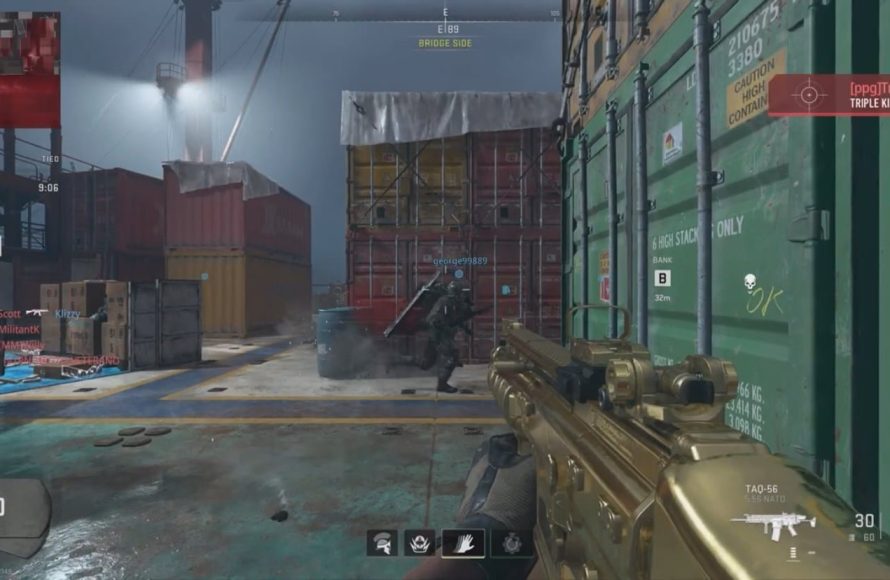
‘Your games are lagging on PC likely due to insufficient hardware, outdated drivers, background processes consuming resources, or overheating.’
Is your gaming experience suddenly a slideshow? It’s incredibly frustrating when your favorite titles become unplayable. You’re probably thinking, ‘why are all my games lagging on pc?’ and searching for answers. Let’s explore the common culprits behind this performance drop.
Several factors could be causing your PC games to perform poorly. These range from issues with your hardware to software problems. We’ll guide you through the steps to identify and fix these problems.

Why Are All My Games Lagging on PC?
It’s super frustrating when you’re ready to dive into your favorite game, only to find it’s stuttering, freezing, or just plain slow. You’re not alone! Many gamers experience lag, and there are several reasons why this happens. Let’s explore the most common culprits and what you can do to fix them.
Your Computer’s Hardware: The Heart of the Matter
Think of your computer like a car. If the engine isn’t powerful enough, you’re not going to get very far, very fast. The same applies to gaming. Your computer’s components need to be up to the task.
Graphics Card (GPU)
The graphics card is the main piece of hardware for gaming. It’s like the artist of your computer, drawing everything you see on the screen. If it’s not powerful enough, your games will look choppy and slow.
- Outdated GPU: Older graphics cards struggle with new games. If your GPU is a few years old, it might be time for an upgrade.
- Overheating GPU: If your graphics card gets too hot, it can slow down to protect itself. Check if your computer’s fans are working correctly, and make sure they aren’t covered in dust.
- Driver Issues: Your graphics card needs special software called drivers to work correctly. Outdated or corrupted drivers can cause big problems. We’ll talk more about drivers later.
Central Processing Unit (CPU)
The CPU is like the brain of your computer, handling all the calculations and instructions. While the GPU draws the images, the CPU tells it what to draw and makes sure everything runs smoothly.
- Slow CPU: If your CPU is older or not powerful enough, it can’t keep up with the game’s demands. This leads to stuttering and lag.
- Overheating CPU: Just like the GPU, the CPU can overheat and slow down. Check your CPU fan to ensure it’s clean and working.
- CPU Bottleneck: Sometimes, the CPU can’t feed the GPU data fast enough, creating a bottleneck that slows everything down.
Random Access Memory (RAM)
RAM is like your computer’s short-term memory. It keeps the data your computer is actively using readily available. Games need a good amount of RAM to load textures, characters, and other game assets quickly.
- Not Enough RAM: If you don’t have enough RAM, your computer will start using your hard drive as a temporary memory, which is much, much slower. This causes massive lag and stuttering. A minimum of 8 GB is recommended for gaming. 16GB is becoming the standard and for AAA titles you may even want 32 GB of RAM.
- RAM Speed: The speed of your RAM also matters. Faster RAM allows your computer to access data quicker, improving performance.
Storage Devices (HDD/SSD)
The storage device, such as a hard drive (HDD) or solid-state drive (SSD), stores your games and operating system. An SSD is much faster than an HDD.
- Slow HDD: If your games are installed on an old-fashioned HDD, they will take much longer to load, and you might experience stuttering as the game tries to access files.
- Full Storage: When your storage drive is almost full, your computer might struggle to operate. Make sure you have plenty of free space.
- Fragmented Storage: If your hard drive is heavily fragmented, the data is spread all over the disk, making it slower to access. It is good to defrag HDDs, but this is not necessary for SSDs.
Software and Drivers: The Invisible Hand
Hardware is just one part of the equation. Software plays a crucial role too. Having the correct, updated, and properly configured software is essential for running games smoothly.
Graphics Drivers
We mentioned this earlier, but it’s important enough to warrant its own section. Graphics drivers are the software that allows your operating system to communicate with your graphics card.
- Outdated Drivers: Outdated drivers often have bugs or are not optimized for new games, which causes performance problems. Always download the latest drivers from the NVIDIA or AMD website.
- Corrupted Drivers: Sometimes, drivers can become corrupted, leading to all sorts of issues, including game lag. Use the Display Driver Uninstaller (DDU) to remove the old drivers before installing new ones.
- Incorrect Drivers: Make sure you are installing the right drivers for your specific graphics card model.
Operating System (OS)
Your operating system needs to be in good shape to provide a solid base for gaming.
- Outdated OS: Outdated operating systems might not be fully compatible with the latest games or drivers. Ensure your Windows is updated to the latest version.
- Background Processes: Lots of applications running in the background use system resources, which can impact your game’s performance. Close any unnecessary programs before gaming.
Game Settings
Sometimes, your game settings are simply too high for your computer to handle.
- High Graphics Settings: If you have all the settings at “Ultra” or “High,” your computer might be struggling. Lowering the settings, like texture quality, shadows, and anti-aliasing, can have a significant impact on performance.
- Resolution: A higher resolution puts more load on your computer. If you are gaming at 4K resolution, consider reducing this to 1080p or 1440p, this is especially helpful with older computers.
Internet Connection: The Online Factor
If you’re playing online games, your internet connection is just as important as your computer hardware. A bad connection can lead to lag even if your computer is powerful.
Slow Internet Speed
If you have a slow internet plan, it may not be able to keep up with the game’s data requirements. Check your internet speed with an online speed test. For a smooth online gaming experience, a download speed of at least 25 Mbps is recommended.
High Ping
Ping measures how long it takes for data to travel between your computer and the game server. High ping means there’s a delay, leading to lag. Test your ping to the game server or in game using in game ping indicator to see what is the ping. A ping below 50ms is generally considered good for gaming.
WiFi Issues
While convenient, WiFi connections can be less stable than wired connections. It’s better to use an Ethernet cable to connect directly to your router if possible.
- Weak WiFi Signal: If your WiFi signal is weak, you’ll have a higher chance of experiencing lag. Move your computer closer to the router, or use a WiFi extender.
- WiFi Interference: Other devices using WiFi nearby can interfere with your connection. Minimize WiFi usage from other devices.
Network Congestion
If other people are using your internet connection at the same time, it can slow down your game. Ask others to reduce their internet usage while you’re gaming.
Other Possible Causes
Let’s explore some of other issues that may be the reason behind your lagging game
Overheating
As mentioned previously, both the CPU and GPU can overheat, causing performance throttling. Make sure your computer’s ventilation is clear and that your fans are working correctly. Consider adding more fans to your computer case or investing in a liquid cooling system.
Background Application Conflicts
Other applications running simultaneously with your game may cause conflict. Close unnecessary software while playing games.
Malware and Viruses
Malware and viruses are another potential cause of lag. Scan your computer with a reliable antivirus program and get rid of malicious software.
Game Specific Problems
Sometimes, a game itself is not optimized properly. If the game is poorly optimized, you’ll have to wait for a patch update that fixes the performance issues. You can also try to change the game setting to the minimum and see whether this fixes the problem.
Power Issues
Make sure your computer is plugged in and you aren’t using it on battery power. The system reduces power usage when it detects it is running on battery which also results in reduced performance. Also, check that your power supply is sufficient to power all your components. A faulty PSU can cause unexpected slowdown.
Troubleshooting Steps: Getting Your Game Back on Track
Now that you know the possible causes, let’s go through some steps to fix your game lag.
- Update Your Drivers: Download the latest graphics and other drivers for your PC. You can find these on the NVIDIA, AMD, or Intel websites.
- Close Background Programs: Before gaming, close any unnecessary programs running in the background.
- Adjust Game Settings: Lower the graphics settings and resolution in the game.
- Check Your Internet Connection: Test your speed and ping. If possible, use a wired connection to your router.
- Clean Your Computer: Dust buildup can cause overheating, so clean your fans and heatsinks.
- Scan for Malware: Run a full system scan with your antivirus software.
- Check Temperature: Monitor the temperatures of your CPU and GPU while gaming.
- Update Your Operating System: Always make sure you’re running the latest version of Windows or your OS.
- Defragment Your Hard Drive: If you have an HDD, defrag it regularly. Don’t do this on SSDs.
- Ensure you are using the correct power settings: In your computer’s power options, set your performance to high, and make sure you are plugged into the wall socket.
- Upgrade Your Hardware: If you have tried all of the above, and you are still experiencing issues, it may be time to upgrade your hardware. Upgrade your GPU, CPU, or RAM. SSDs are also a great addition if you are still using an HDD.
By carefully working through this guide and implementing the troubleshooting steps, you should be able to identify and resolve the reasons behind your game’s lag. Remember, patience is important as finding the exact reason and the right solution will take time. Good luck, and happy gaming!
Fix Games Stuttering In 15 Seconds
Final Thoughts
Ultimately, multiple factors contribute to “why are all my games lagging on pc”. Outdated drivers, insufficient hardware, and background apps all impact performance. These issues cause noticeable frame drops and slow gameplay.
Overheating components, a must to consider, also create problems. Check your PC’s cooling system for dust buildup and ensure proper airflow. This will improve your gaming experience.

