
Accessing deleted content within BG3 game files typically requires specialized tools that can extract and display data from game archives. These tools will allow you to view BG3 game files of deleted content.
Ever wondered what secrets lie buried within the code of Baldur’s Gate 3? Players often speculate about cut content, intriguing elements that didn’t make the final release. This curiosity often leads to questions about how to view bg3 game files of deleted content.
Peeking behind the curtain of game development is possible. There are ways to explore these discarded assets, though it requires some technical know-how. Let’s dive into the world of game files and see what treasures we might find.

How to View BG3 Game Files of Deleted Content
Have you ever wondered what secrets lie hidden within the game files of Baldur’s Gate 3? Maybe you heard about some cool items or quests that didn’t make the final cut and now you’re curious to see what they were like. Well, you’re in the right place! This guide will show you how to explore the game files and take a peek at content that was removed. It’s like being a detective, but for video games! It’s important to be careful, though. We are just going to look, we won’t change anything. Think of it like looking at a museum display case – you can see everything, but you shouldn’t touch anything.
Understanding Game Files and Why Content Gets Cut
Before we jump in, let’s quickly talk about what game files are. Imagine a game like a big house. The game files are like the blueprints, furniture, and all the stuff inside. They tell the game how to work, what the characters look like, what items exist, and what story to tell. Sometimes, developers, like the people who built the house, decide to remove some things for different reasons. They might decide some furniture doesn’t fit, or that a room is not needed.
Here are some common reasons why developers cut content:
- It didn’t fit the story: Maybe a quest or item made the story confusing, or didn’t go well with other parts of the game.
- It was too buggy: If something doesn’t work correctly, developers have to remove it before releasing the game.
- It wasn’t fun: If playtesters didn’t have a good time with an item, skill, or quest, it might be cut.
- Time constraints: Making a video game takes a very long time, so sometimes developers don’t finish everything they planned.
- Performance issues: Sometimes, certain game content can cause problems for how well the game runs. If it slows things down or causes errors, it might get cut out.
Tools You’ll Need to Explore BG3 Game Files
Okay, so we know what game files are, and we know why content can be cut. Now let’s gather our tools! Think of them as the things you would need to read a different language if you were a detective. We need these to look at the game’s inner workings.
Here are the important tools and software you’ll need:
The BG3 Modding Tools
The community has created some helpful tools specifically for Baldur’s Gate 3. We are going to use these to see the files. It’s important to download these from trustworthy sources. These tools are not made by the game developers, so use caution and research before downloading anything. A good place to start is Nexusmods, it’s known as a safe resource for downloading these tools.
- The BG3 Mod Manager: This helps manage different ways to play BG3 and helps us look at content.
- The LSLib Tool: This is the key tool that can open the game’s files so we can see the content inside.
A File Explorer
You should already have one of these installed on your computer! It is how you move files, see files, and do a lot more. On Windows computers, it’s called “File Explorer,” and on Mac computers, it’s called “Finder.”
A Text Editor
Sometimes we need to read text files within the game files. A regular notepad application may work, but there are other text editors that may be better for the job, like VS Code, Atom or Notepad++. These text editors will read code a lot better than the standard notepad app.
Finding the Game Files
Now that we have all our tools, it’s time to find where Baldur’s Gate 3 has all its files. It can be like looking for buried treasure but we have the map!
The files are kept in different spots, depending on where you got the game. Here’s where you should look:
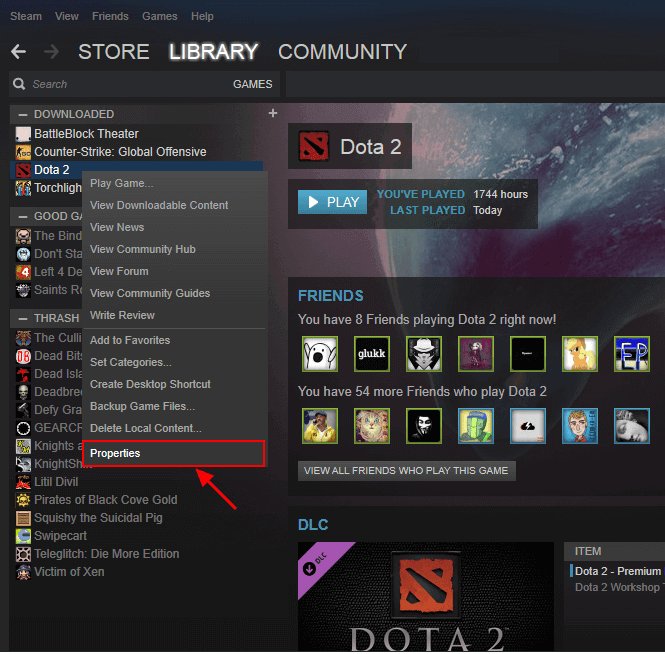
- Steam: Usually, Steam games are kept in a folder like this: C:\Program Files (x86)\Steam\steamapps\common\Baldurs Gate 3. If you have steam installed to a different drive or directory, you will need to navigate to that install location instead.
- GOG: For GOG, the files are usually in: C:\GOG Games\Baldur’s Gate 3. Again, if you have gog installed to a different drive or directory, you will need to navigate to that install location instead.
Remember, your drive letter (C:, D:, etc.) may be different based on where you put the game files. If you are unsure where your game files are, you can also check the game’s settings in the Steam or GOG client.
Once you find the game folder, you might see many different things like ‘Data’, ‘bin’, ‘Launcher’, and many more! We’re mostly interested in the files within the ‘Data’ folder.
Using LSLib to Access the Game Data
Okay, we’ve found the game files, and we’re ready to get into the game’s data. This is where the tool, LSLib, comes in. Remember, be careful not to change anything when we’re just looking.
Launching LSLib
First, open the LSLib tool. Once it’s open, you will have different tabs along the top. Select the “Package” tab.
Opening the .pak Files
Inside the Data folder, you will see different files that end in ‘.pak’. These files are like packed boxes that store a lot of the game’s content. They might look like “Patch1.pak”, “Patch2.pak”, “Data.pak” or a name that is similar.
In LSLib, click on “File” then “Open Package,” and choose one of these .pak files. Start with the “Data.pak” file first. LSLib will take some time to open this file, so be patient. It’s unpacking a whole lot of stuff!
Navigating Through the Files
After LSLib loads the contents of the package, you’ll see a list of folders and files within the LSLib window. It will likely be structured like a file explorer window.
Now, the tricky part, how to know what you’re looking for.
- Localization Files: If you are looking for cut dialogs or text, look in folders like “Localization” or “English”.
- Character Files: If you are looking for cut character information, look in folders like “Characters”, “Creatures” or “Stats”.
- Item Files: If you are looking for cut item information, look in folders like “Items” or “Weapons”.
- Quest Files: If you are looking for cut quest information, look in folders like “Quests” or “Story”.
Viewing Different File Types
Inside these folders, you’ll see files with different endings, called file extensions. Each type of file needs a different way to look at it. It’s like having different keys for different locks.
.lsf or .lsj Files
These files are like game data files with content information, such as story data, quest data, dialogs, character stats, and many more. LSLib can open and view these in a text format that can be easily read.
.dds Files
These are texture files that make up the images and graphics of the game. You might need a special image viewer to view these like IrfanView or XnView.
.GR2 Files
These files contain 3D models of characters, items, and parts of the world. These files are extremely complex, but it may be possible to view them if you have the correct tools, such as the Larian Studios own modeling software or 3rd party softwares. It’s generally recommended that you not try to open these files as they can often crash programs and cause issues.
.txt, .xml or .json files
These files contain text, and they can be viewed with a regular text editor, but you may want to use a code editor. These files are often used to store information about how the game works. They may have scripts, dialogues, and other pieces of information. It is also often structured for data.
Searching for Specific Content
Now that you know how to open game files, how do you find the content you’re looking for? It can be very overwhelming to browse through the files, so let’s go over how to search for specific content. It’s like using a map to find a hidden treasure.
Using Keywords
Start with simple keywords that describe what you’re looking for, like character names, specific items, or quest titles. Use the find function in the text editors, this will allow you to quickly search the text.
Use the search function in LSLib to look for specific file types or folder names. This will help narrow your search.
Understanding File Names
Pay attention to file names and folder structures, as they can give you clues on what’s inside. Developers often name files using abbreviations or names that can tell you what they contain.
Community Resources
The modding community is very active, and it’s worth looking at forums, mod sites, and videos about datamining. Often, other people have already looked at the files and have shared their findings. This can save you a lot of time and effort. Be cautious of spoilers, though.
Examples of Cut Content
Here are some examples of cut content that players have found in Baldur’s Gate 3. Some of these may be partially in the game, or totally missing.
- Cut Dialogue: Many dialogues in the game were changed or cut from the final version. Players have found these hidden away in the data files. Sometimes there are different story options, outcomes, or even extra characters that didn’t make the final cut.
- Cut Items: Several interesting items were removed from the final version of the game, from special unique weapons to potions, armors and other equipment.
- Cut Quests: There are a few quests that seem to exist in the data, but are not available in the game. These are often partially completed or don’t work in the current state of the game.
- Cut Character Models: The files have included cut character models that aren’t in the game, and may have been characters that were planned for the game.
It’s important to note that just because you find it in the game files, it doesn’t mean it will be added into the game. Sometimes, things that are cut, will be cut for a good reason.
Important Tips and Cautions
While it’s exciting to explore the files, here are some things to keep in mind:
Back Up Your Game Files
Before doing anything, make a copy of your game folder. This way, if anything goes wrong, you can just restore the original game without needing to install again.
Do Not Edit Game Files
Never try to change or modify any game files unless you know what you’re doing. Changing these files can break the game and lead to serious problems. We are just here to look, not to change anything.
Be Patient
Exploring game files can take a lot of time. It is not like a treasure hunt that ends quickly. Be patient and take your time searching.
Use Caution When Downloading Mods and Tools
Make sure you get the modding tools from reliable sites. Always double check and research before you download anything.
Check the Community
If you’re having trouble, ask in the Baldur’s Gate 3 modding community. There are plenty of people who can help you.
By using these steps you’ll be on your way to viewing the game files of Baldur’s Gate 3. Remember to be careful and patient. Have fun!
Exploring the Cut Content of Baldur's Gate 3
Final Thoughts
Locating game files, especially deleted content, requires navigating Baldur’s Gate 3’s file structure. Use file explorers to access the game’s data folders. Tools like modding utilities can help identify removed assets.
These methods may reveal textures, models, or text from cut content. Remember modifying game files carries inherent risks, back up important data. Be careful when experimenting with unknown files.
So, how to view bg3 game files of deleted content is achieved using exploration techniques and modding software carefully. You can now explore some of the cut assets.

