
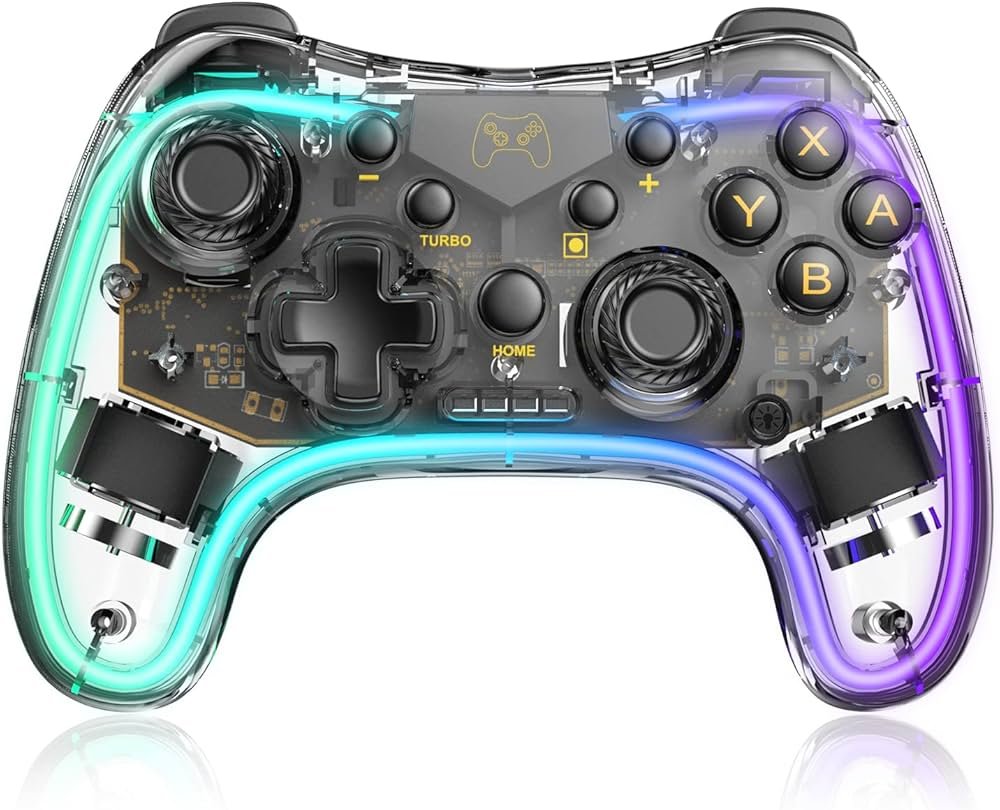
Use a game controller’s button press, often the “home” or “start” button, to wake popos from sleep.
Have you ever been frustrated when your device goes to sleep and you’re across the room? Many people search online how to wake popos with game controller. It turns out, it’s quite simple.
This often-overlooked trick provides a handy way to bring your system back to life. Just grab your gamepad. A simple button press can often do the trick.
No more reaching for a keyboard or mouse. A game controller becomes your convenient remote for waking your popos system.

How to Wake Pop!_OS With a Game Controller
Have you ever settled into your comfy chair, ready to play some games on your computer, only to find your Pop!_OS system snoozing? It can be a bit of a bummer to reach for the keyboard or mouse just to wake things up. But what if I told you there’s a cooler way? You can actually use your favorite game controller to wake your Pop!_OS machine! Sounds fun, right? Let’s explore how.
Why Wake with a Game Controller?
Before we get into the “how,” let’s chat about the “why.” Why would you even want to wake your computer with a game controller? Well, for starters:
- Convenience: It’s super convenient! If you’re already holding your controller, you don’t need to move to find the keyboard or mouse.
- Gaming Focus: It keeps you in the gaming zone. No need to break your concentration to fiddle with other input devices.
- Cool Factor: Let’s be honest, it’s pretty cool to wake up your computer with a button press on your game controller.
- Accessibility: For some folks, using a controller might be easier than using a keyboard or mouse.
Using a game controller to wake your Pop!_OS computer is a simple but very useful trick that any user can enjoy. This way, you don’t need to scramble around for the keyboard or mouse when you just want to hop back into your favorite game.
Understanding How it Works
Okay, let’s talk about the techy side. How is this controller magic even possible? Well, it involves a feature called “wake-on-input” or “wake-on-USB.” Your computer is always listening for certain signals, even when it’s sleeping. When you press a button on your game controller, it sends a signal to the computer through the USB port. If this feature is enabled, your computer wakes up!
However, there’s a catch. not every device is going to work the same way, this process varies a little on the hardware you are using. We will cover those differences in detail in this article.
The Role of USB Power
To make “wake-on-USB” to function, the USB port where your controller is plugged in has to stay powered on when the system goes to sleep, a process often referred to as power management. This allows the controller to send those important signals. if your USB port is turned off when the computer sleeps, it won’t be able to send the signal to wake it up.
We will cover how to ensure your usb port stays powered up later on in the article.
Getting Started: Checking Your System Settings
Before we start with the complicated stuff we must start with easy first, these are some things you need to check on your system for the game controller to wake up your system.
Checking for ‘Wake on USB’ in your BIOS/UEFI Settings
The first step you must do is that you must be very sure that your motherboard supports ‘wake on usb’ feature. This feature is typically controlled within your computer’s BIOS or UEFI settings. These settings are like the core instructions that tell your hardware what to do. Here’s how you can access and check for this option:
- Restart Your Computer: The first thing you need to do is restart your computer.
- Enter BIOS/UEFI Setup: During the start-up process, right after you turn on your computer, quickly press the correct key to enter the BIOS/UEFI setup. This key is different on different computers, some popular keys are (Del, F2, F10, F12, Esc). Refer to the documentation of your motherboard to figure out the exact key for your motherboard.
- Navigate to Power Settings: Look around in the BIOS/UEFI menus for a section related to “Power Management”, “Power Options”, “USB Settings”, or similar names. This part can be a bit different based on the motherboard manufacturer.
- Find ‘Wake on USB’ or Similar: Within the power settings, search for an option that includes “Wake on USB,” “USB Wake Support,” or “USB Power During Sleep.”
- Enable the Feature: If the option is disabled, then use your keyboard to select the option and enable it. The option must be set to “Enabled”.
- Save Changes and Exit: Don’t forget to save the changes. There will be an option to save changes and exit the BIOS/UEFI menu. Choose this, and your computer will restart.
Note: The exact menus and names might vary depending on your motherboard manufacturer and model. If you are having some problem finding this setting, you might need to look into your motherboard manual.
Checking Power Management Settings in Pop!_OS
After you confirm that ‘wake on usb’ is enabled from the BIOS/UEFI you also have to check that Pop!_OS is not preventing the usb ports to be active when your system goes to sleep. This can be done through the power management settings of the system, here is how you can check and tweak the settings:
- Open Settings: First, go to your Pop!_OS desktop environment and click on the ‘Settings’ menu from the top right part of your screen.
- Select Power: From there, locate the ‘Power’ section from the left menu, click on the Power option, it will bring up the power management screen.
- Check Suspend & Power settings: Now check the suspend and power settings to ensure that your computer is allowed to wake on USB events when the system is sleeping or suspended.
- Check the ‘When inactive’ Options: Ensure that the ‘When inactive’ option does not interfere with the ‘wake on USB’, generally, the default setting should be fine, but it is good to check it.
With these steps you can make sure that your Pop!_OS is not interfering with the wake on USB events.
Setting Up Your Game Controller for Waking
Now that you’ve checked the system settings, let’s get to the exciting part—setting up your game controller. The specific steps might vary slightly depending on the type of controller you are using (Wired or wireless), we will cover both options in this section.
Setting Up a Wired Controller
Wired controllers are generally easier to set up for this purpose. Here’s what you typically need to do:
- Plug it in: Make sure your controller is plugged into a USB port on your computer.
- Test it: Wake up the computer if it is sleeping, make sure that the controller is functioning properly by checking a game or some other program.
Typically, a wired controller should automatically work for waking the computer if you have enabled the ‘wake on usb’ functionality from the BIOS/UEFI and the power management setting from the Pop!_OS.
Setting Up a Wireless Controller
Wireless controllers, like Bluetooth controllers, are a bit more complicated to set up for waking your computer because the connection can be interrupted when the system goes to sleep. The power management of wireless devices is a bit more complex, here’s how you can set it up:
- Pair it: Make sure your wireless controller is paired with your computer via Bluetooth.
- Ensure Bluetooth Stays On: After pairing the controller make sure that the Bluetooth is still turned on while the system is suspended. This can be done through the power management settings of Pop!_OS.
- Check the “Bluetooth” option: Go back to the power management settings. find the “Bluetooth” option and make sure the settings are appropriate to keep the controller connected to the system even while the system is suspended. Generally default values should work.
- Test it: Put your computer to sleep, and try to wake it up with your controller. If it works, then congrats! If not, you may need to explore the device-specific configuration in the next section.
Troubleshooting Common Issues
Even with all the steps done correctly, sometimes it might not work as intended. Here are some of the common problems and solutions you might face:
Controller Not Waking the Computer
If your game controller isn’t waking up your Pop!_OS machine, here’s what you should check.
- BIOS/UEFI Setting: Make sure the “Wake on USB” or equivalent setting is enabled in your computer’s BIOS/UEFI.
- USB Port: Check that the USB port your controller is plugged into is providing power while the system is sleeping. Try a different port just to make sure.
- Controller Issues: Ensure your controller is working correctly. Test it on other games or devices to be sure it isn’t defective.
- Power management: Go back to the power management setting of the system and double-check that the settings are appropriate.
Wireless Controller Disconnecting on Sleep
If your wireless controller disconnects when your computer goes to sleep, this can be tricky to resolve.
- Bluetooth Power Management: In the power management settings of Pop!_OS, make sure that Bluetooth is set to remain active even when the system is asleep or suspended.
- Controller Firmware: Update the firmware of the controller. Outdated firmware might cause issues with the power management of the controller.
Specific Game Controller Configurations
Some controllers might require device-specific configurations, here are some of them that you may encounter.
- Xbox Controllers: Xbox controllers are usually plug-and-play, but sometimes updating the drivers might help to solve some rare problems.
- PlayStation Controllers: PlayStation controllers sometimes might need some third-party software to make sure that they are functioning properly, but they are generally good.
- Third-Party Controllers: Some cheaper third-party controllers might have some problems with power management, you may need to look into their documentation for more information.
Device Specific Problems
If you are having problem with a specific device, then you may need to search on the internet for specific solutions to that problem. The solution will often be device specific.
Advanced Tips and Tricks
If you want to customize things more, here are some advanced stuff that you might want to try.
Customizing Button Mapping
While any button press should wake your computer, you can often customize specific buttons to perform other actions after waking. This usually involves third-party software that can make shortcuts through controller key presses.
Power Saving
If you are worried about the power draw of keeping the USB ports active, modern systems handle this efficiently, so there shouldn’t be a noticeable impact on battery consumption for laptops.
Checking the Logs
If you want to check the system logs to diagnose some problem, you can use the terminal command ‘journalctl’ to search for any error when the system wakes or suspends.
Community Forums
There are many online communities to help you with specific problems, such as the Reddit page of Pop!_OS, or other related forums. Do not hesitate to ask if you are having specific device-related problems.
Using a game controller to wake your Pop!_OS computer adds a bit of fun and convenience to your daily routine. By following these steps, you should be able to get everything set up quickly and start using your controller to wake your computer. It’s a nice little trick to keep in your tech arsenal. Remember to check your BIOS settings and operating system settings to make sure everything is working perfectly. Experiment with different controllers, and don’t be afraid to customize your setup to suit your needs. Now, go ahead, grab your controller, and wake up your Pop!_OS with a press of a button.
NEW! Quest 2 Hand Tracking Shortcut!
Final Thoughts
Ultimately, you can wake popos with game controller by configuring specific button presses as keyboard inputs. You’ll need software to map controller actions to the desired key sequences. Test configurations thoroughly to ensure popos wake successfully each time.
Remember, the correct key mapping is key for success in how to wake popos with game controller. Different systems might require different approaches, so patience is beneficial. This method provides a convenient alternative to using the power button.

