
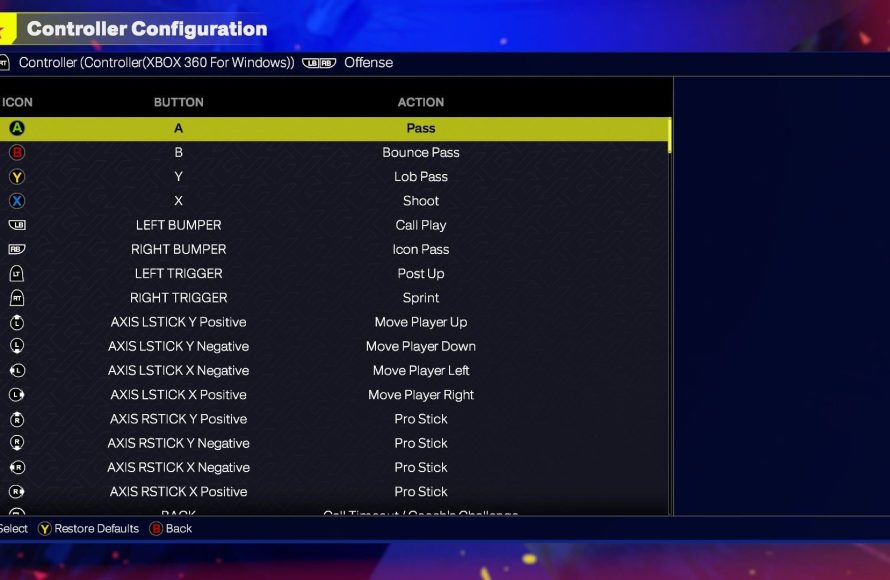
The NBA 2K25 controller mapping analysis reveals that current controls prioritize realistic movements and complex offensive maneuvers, necessitating practice for effective gameplay.
Ever felt like your thumbs just can’t keep up with the on-screen action? The complexity of modern basketball games often lies in its controls. Let’s discuss how button layouts impact your game. Specifically, we’ll be diving into NBA 2K25 controller mapping analysis.
We’ll break down what these changes mean for your experience on the court. It is important to understand how different button combinations affect your play. Getting to grips with these mappings can improve your in-game performance drastically.

NBA 2K25 Controller Mapping Analysis
Alright, basketball fans! Let’s talk about something super important in NBA 2K25: how your controller is set up. Think of your controller like the steering wheel of a race car. You need to know exactly where every button is and what it does to win. If your controller setup is confusing, you’re going to be in trouble on the court. We will look closely at the default settings and why some people change them.
Understanding the Basics: Default Controller Layout
When you first fire up NBA 2K25, you’ll notice a specific way the buttons are set up. This is called the “default layout.” It’s how the game creators intended you to play. Let’s break down what each button usually does on a PlayStation (PS5/PS4) and Xbox (Series X/S/One) controller. Keep in mind that these are the most common mappings, and things can vary a little based on specific game modes or if you are playing on PC using a different controller:
PlayStation Default Controls (PS5/PS4)
- Square Button (□): Used for shooting the ball, making layups and dunks.
- X Button (X): Used for passing the ball to your teammates.
- Circle Button (O): Used to perform crossover moves. It is also used for switching your currently controlled player on the defensive end.
- Triangle Button (Δ): This button is used for calling a pick-and-roll or screen. Also used for passing to a player that is making a cut toward the basket.
- L1 Button: Used to call a timeout in the match
- R1 Button: Used to use a double team on the defense
- L2 Button: Used to post up an opponent, used for protecting the ball.
- R2 Button: Used for sprint, used for accelerating on offense. Also used to play on-ball defense and keep position in front of the opposing player on the defensive side.
- Left Analog Stick: This is how you move your player around the court.
- Right Analog Stick: This stick is used to perform dribble moves or move the player on the defensive end, can also be used to control your shot.
- D-pad: Used to call plays and use the quick menu
- Touchpad: Used for pausing the game
Xbox Default Controls (Series X/S/One)
- X Button: Used for shooting the ball, making layups and dunks.
- A Button: Used for passing the ball to your teammates.
- B Button: Used to perform crossover moves. It is also used for switching your currently controlled player on the defensive end.
- Y Button: This button is used for calling a pick-and-roll or screen. Also used for passing to a player that is making a cut toward the basket.
- LB Button: Used to call a timeout in the match
- RB Button: Used to use a double team on the defense
- LT Button: Used to post up an opponent, used for protecting the ball.
- RT Button: Used for sprint, used for accelerating on offense. Also used to play on-ball defense and keep position in front of the opposing player on the defensive side.
- Left Analog Stick: This is how you move your player around the court.
- Right Analog Stick: This stick is used to perform dribble moves or move the player on the defensive end, can also be used to control your shot.
- D-pad: Used to call plays and use the quick menu
- Start Button: Used for pausing the game
Understanding these default settings is the first step. You should try these default controls before thinking of making changes. It gives you the chance to learn the basic functions of the game without getting confused by different button mappings.
Why Change Your Controller Mapping?
Okay, so the default settings are good, but why would anyone want to change them? There are several reasons why a player might change controller mappings.
Comfort and Ergonomics
Sometimes, the default buttons don’t feel right for everyone. Maybe you have bigger hands, smaller hands, or a particular way you like to hold your controller. Changing the button layout can make the game more comfortable and easier to play for long periods. For example, some players find it easier to shoot by using the right trigger instead of the face buttons. It’s all about what feels best in your hands.
Improved Reaction Time
Another big reason for remapping is speed. For example, having your shooting button closer to your main finger can let you react quicker when you see an open shot. By moving key actions to more accessible buttons, you can improve your response time, letting you react to opportunities on the court faster.
Personal Preference and Playstyle
Every player has their own unique style of playing the game. Some people like to be offensive threats. For others, they love playing on defense. Some like to dribble and do fancy moves, while others are all about passing and setting up their teammates. Changing your buttons will make your preferred style of play more fun and easier to pull off. If you’re a big post scorer, you might want your post-up button to be in a very convenient location. If you’re a three-point shooter, you might change the controls to make your shooting more fluid.
Accessibility Needs
For players with disabilities, customizable control options are essential. Some players might need to use special controllers or assign important functions to specific buttons or triggers because the default layout is not suited for them. NBA 2K25, thankfully, provides customization options for these players.
Key Buttons to Consider Remapping
When thinking about changing your controller settings, certain buttons tend to be more commonly changed than others. Let’s look at some of the usual suspects:
Shooting Controls
The shooting button (Square on PlayStation, X on Xbox) is one of the most frequently remapped buttons. Many players find it easier and more intuitive to shoot with the right trigger button instead. The trigger gives them more control over the shot meter.
- Right Trigger Shooting: Moving the shooting action to the right trigger helps because it provides a more natural feel, just like releasing a real basketball.
Dribbling and Ball Handling
For players who like to dribble the ball, having quick access to moves is important. Some people like to move the crossover move button to the right stick so that it can be combined with the stick moves.
- Right Stick Dribbling: Moving dribbling moves to the right stick helps because it will allow the player to do any move quickly on the court with ease.
Passing Controls
While the default passing button is quite popular, some players might want to use a different button to help execute more accurate passes. For example, a player might move the pass button to the left trigger for easier access when using different passing modes.
- Left Trigger Passing: Moving the passing to the left trigger helps in some specific situations, so it makes sense to use the triggers as your passing buttons.
Defensive Controls
For defensive specialists, quick access to defensive controls is essential. Things like switching players or getting into a defensive position are very important. Having the switch-player button within easy reach can make a huge difference in close games.
- Defensive Stance on Trigger: Some players might move their defensive stance button to the left trigger for quick access.
How to Remap Your Controller
Changing your button settings is very simple. Here’s a basic guide on how to do it:
- Go to Settings: In the main menu, find the settings or options menu.
- Controller Settings: Look for controller settings or button mapping options.
- Customize: You should see an option to customize the buttons. You’ll probably see a picture of your controller and a way to change what each button does.
- Choose Buttons: You’ll then be able to choose what each button should do by using another button on your controller or you can choose a specific action from a menu.
- Save and Apply: After you make changes, don’t forget to save your setup!
Tips for Effective Remapping
Before you go crazy remapping everything, here are some tips to help make your changes better:
- Start Small: Don’t change every button at once. Pick one or two key buttons that you think need improvement, and see how it feels after playing a few games.
- Practice: After you make changes, it’s important to practice. Go into practice mode and get used to your new settings. You will need some time to become comfortable with the changes.
- Be Patient: It will take time to get used to your new button layout. Be patient and don’t get discouraged if it feels weird at first.
- Listen to Your Hands: How your controller feels is super important. If something doesn’t feel right after making some changes, feel free to go back and make adjustments.
- Find What Works For YOU: The best controller setting is the one that feels best for you. Experiment and find the combination that allows you to perform your best.
Advanced Controller Mapping Techniques
Once you understand the basic remapping, you can begin to experiment with more advanced techniques. Here are some ideas to try out:
Trigger Discipline
Moving key actions to the triggers can help you play faster. Because your fingers are already resting on them, you can react very fast to different situations on the court.
Combining Functions
Some players like to combine button functions. For example, maybe you can use one button for both passing and a specific dribble move, depending on how long you press the button. This will allow you to do several things by using one button, instead of having them mapped to separate buttons.
Custom Profiles
Some players will set up different button layouts for different game modes. For example, you might want one setup for playing online, and another for offline game modes, like MyCareer. This lets you tweak the controller to match the style of the game mode. NBA 2K25 lets you save multiple custom profiles so you don’t have to change everything every time.
Common Mistakes to Avoid
Changing your buttons can be really helpful, but there are some mistakes that people make. Here are some things to avoid:
- Overdoing it: Avoid changing too many buttons at once. It’s easy to get confused if you change everything at once.
- Ignoring the Default: The default settings aren’t bad. Don’t change them just because you feel like it. If they feel good for you, use them.
- Not Practicing: You need to practice, practice, and practice. You won’t get better with your changes if you are not playing the game with those changes.
- Copying Others Blindly: Just because a professional NBA 2K player uses a certain layout, doesn’t mean that layout is best for you. Find something that works best for you.
In conclusion, while the default controller mappings are a good starting point in NBA 2K25, customizing your controller can make a huge difference in how well you play. By taking some time to learn how to change your controller settings and experimenting with different options, you can greatly improve your performance and have more fun on the court. Remember to find a setup that feels comfortable and suits your individual style of play.
Watch This Before Playing NBA 2K25…
Final Thoughts
In short, analyzing NBA 2K25 controller mapping is vital. Players should familiarize themselves with button layouts to improve gameplay. Optimized settings can give a significant advantage on the court.
Understanding each control’s function greatly increases your skill. A proper setup, therefore, enhances overall game experience and effectiveness. NBA 2K25 controller mapping analysis proves essential for any serious player.

