
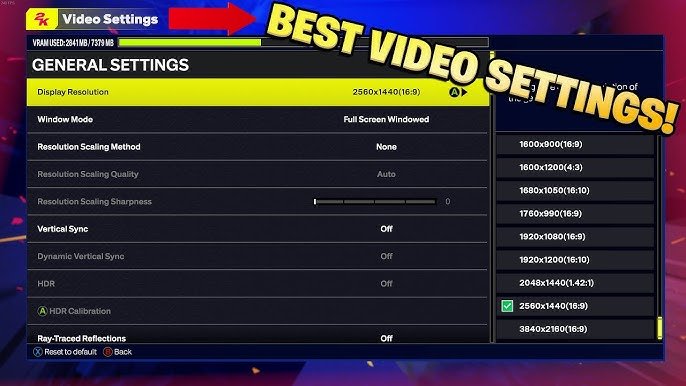
The NBA 2K25 graphics configuration details allow players to adjust settings for resolution, texture quality, shadows, and more, optimizing performance and visual fidelity on their specific systems.
Getting the most out of NBA 2K25 visually depends on your setup. We know you want the game to both look incredible and run smoothly. This requires understanding the available settings.
This article dives into what you can tweak within the NBA 2K25 graphics configuration details. We cover the important settings that greatly affect the visual experience. You will see how to balance detail and performance.

NBA 2K25 Graphics Configuration Details
Hey there, basketball fans! Getting ready to jump into NBA 2K25? That’s awesome! But before you hit the court, let’s talk about making the game look its absolute best. We’re going to dive into all the cool graphics settings so you can tweak things just the way you like them. Whether you’re on a powerful gaming PC or a console, understanding these settings will make your gameplay smooth and amazing. Let’s get started!
Understanding Graphics Settings: The Basics
Before we go deep into the menus, it’s good to know what some of these words mean. Don’t worry, it’s not as tricky as a behind-the-back dribble!
Resolution
Think of resolution like the number of tiny dots (pixels) that make up the picture on your screen. The more pixels, the sharper and clearer the image will look. Higher resolutions like 1920×1080 (also called 1080p) or 3840×2160 (4K) make everything look fantastic. But they also need more power from your computer or console. If your game feels slow, try lowering the resolution. Here’s a quick look:
- 720p (1280×720): Pretty basic, good for older systems.
- 1080p (1920×1080): A popular, sharp choice.
- 1440p (2560×1440): An even sharper picture than 1080p.
- 4K (3840×2160): The highest resolution, makes the game super crisp.
Refresh Rate
The refresh rate tells you how many times your screen updates the picture each second. This is measured in Hertz (Hz). A higher refresh rate (like 120Hz or 144Hz) means a smoother picture, especially during fast-moving action in the game. If you have a monitor or TV that supports high refresh rates and a powerful computer or console, you definitely want to use it!
Graphics Quality Settings
These are the controls you use to adjust the detail in your game. Think of it like painting a picture; more detail takes more time and energy but results in a better-looking image. Common quality settings include:
- Low: Uses less power but sacrifices some detail. Good for older computers.
- Medium: A good balance between visual quality and game speed.
- High: Makes the game look much better with more detailed visuals.
- Ultra: The best visual quality, needs a powerful computer or console.
You’ll find options for things like texture quality (how detailed surfaces look), shadows (how realistic the shadows are), and effects (like player sweat or crowd details).
Diving into Specific Graphics Options
Okay, now for the good stuff! Let’s explore the settings you’ll actually find in NBA 2K25. These might be a little different depending on if you’re playing on a PC, PlayStation, or Xbox, but the general ideas are the same.
PC Graphics Settings
PC gamers usually have the most control over graphics. Here’s what you might see:
Display Mode
- Full Screen: The game takes up the whole screen. It’s usually the best option for performance.
- Windowed: The game runs in a window on your desktop, so you can easily switch to other apps.
- Borderless Windowed: The game runs in a window, but it looks like it’s full screen. Good for alt-tabbing without problems.
Resolution Scale
This setting lets you render the game at a different resolution than what your screen displays. It’s a neat way to improve performance without making things blurry.
- Lower Scale: Can help make the game run faster on less powerful computers.
- Higher Scale: Can make the game look even more detailed on very powerful systems.
Anti-Aliasing
This makes lines and edges in the game look smoother and less jagged. There are different types, like:
- FXAA: Fast and uses less power.
- MSAA: Can make the game look a bit better than FXAA, but it might slow things down.
- TAA: Generally the best option, offers a nice balance of quality and performance.
Texture Quality
This setting controls how detailed the surfaces of objects and players appear. It determines how sharp the jersey fabrics and basketball patterns look.
- Low: Blurry textures, good for low-end computers.
- Medium: Acceptable level of details.
- High: Crisp, detailed textures.
- Ultra: The most detailed textures, needs high-end hardware.
Shadow Quality
Shadows can really bring a game to life. You can control the detail of the shadows here.
- Low: Simple, basic shadows.
- Medium: A little more detailed than Low.
- High: More detailed and realistic shadows.
- Ultra: Highest quality shadows, with soft edges.
Effects Quality
This controls things like the blur effect when players move fast, the sparks when shoes squeak on the court, and other visual effects. Setting this to high makes the game very lively, but it can take a hit on the speed.
- Low: Basic effects
- Medium: Moderate level of details in effects
- High: Enhanced effects with more details
- Ultra: The most detailed effects, like player sweat and crowd movements
Motion Blur
Motion blur adds a slight blur to fast-moving objects. Some people love it because it looks more realistic, while others turn it off. It’s totally a personal preference!
- On: Adds motion blur to fast-moving objects and player movement.
- Off: Removes motion blur.
Ambient Occlusion
Ambient occlusion adds realistic shading to the corners and crevices in the game. It makes the game feel more realistic and three-dimensional.
Anisotropic Filtering
This setting makes textures look sharp from all angles. It’s a great option to make your textures look better if your system has some power to spare.
Note: Depending on your graphics card, you may see additional specific options for features like Ray Tracing or DLSS. Ray Tracing creates very realistic lighting and reflections but needs a very powerful graphics card. DLSS (Deep Learning Super Sampling) uses AI to upscale the resolution, making it look great while reducing the need for raw power.
Console Graphics Settings
Consoles like PlayStation and Xbox usually have simpler menus, with less settings to adjust. The developers have already optimized the game to look good on each system, but there are a few options available:
Performance vs. Fidelity Mode
Many modern consoles allow you to choose between two main modes:
- Performance Mode: This prioritizes a smooth frame rate, usually at 60 frames per second (fps) or higher. The game might look a little less detailed in this mode.
- Fidelity Mode: This prioritizes visual quality, with more detailed graphics and textures. Frame rates may be lower in this mode.
HDR (High Dynamic Range)
If your TV or monitor supports HDR, you’ll probably see a setting for it in the menu. HDR can make colors look more vivid and vibrant. Turning on HDR can be amazing, especially if you have a good TV for it.
Motion Blur
Just like on PC, some consoles might let you turn motion blur on or off.
Fine-Tuning Your Settings for the Best Experience
Now that we know all the settings, let’s talk about how to find what works best for you. This is like tweaking your basketball shot until it’s perfect. It might take some trial and error.
Start with a Preset
Most games offer graphic presets like “Low,” “Medium,” “High,” or “Ultra.” Start with a medium or high preset and then adjust individual settings as needed.
Test, Test, Test
After you change a setting, play a quick match to see how the game feels. Do you see any choppiness or lag? If so, try lowering some settings. If it’s smooth as butter, then you are good!
Prioritize Frame Rate
A smooth frame rate is really important for a good gaming experience. It helps you react quickly and feel immersed in the action. If you can’t keep a stable frame rate, especially in fast-paced games like NBA 2K25, try lowering settings that impact your game performance the most.
Match Your System
If you have a powerful gaming PC, you can go for high or ultra graphics settings. If you’re playing on an older system, don’t push it too hard. Try playing on a lower settings.
Read Forums and Guides
Online communities and guides can be really helpful. People love to share their experiences. If you’re stuck, check out forums to see what settings work best for others with similar setups to you.
Tip: Look for performance benchmarks from other players online. They will provide tips and settings suggestions for various hardware configurations.
Advanced Tips for PC Gamers
For those playing on PC, here are a few extra tips to try:
Update Your Graphics Drivers
Make sure you always have the most recent drivers for your graphics card. The latest drivers often provide better performance in new games.
Use Monitoring Software
Programs like MSI Afterburner can show you things like your frame rate, graphics card temperature, and other useful information. It can help you see what settings use the most power so you can fine-tune everything.
Experiment with V-Sync
V-Sync synchronizes the game’s frame rate with your monitor’s refresh rate. This can help eliminate screen tearing but may introduce input lag. Try turning it on and off to see which works best.
Check Background Programs
Make sure there aren’t a lot of other apps running that could slow down your game. Close any unneeded background programs.
Graphics Settings and Competitive Play
If you’re playing in a competitive environment, even minor graphics changes can matter.
Frame Rate Over Detail
For competitive play, prioritize a high and stable frame rate over ultra-high visual quality. A smoother game allows faster response times, which is important in fast paced games like this.
Minimize Distractions
Turning off things like motion blur and extra effects can help you focus more on the game and make it easier to see other players. Simple, clean graphics can be more effective.
Consistency is Key
Once you find settings that work well, stick with them. Avoid constantly changing the game settings as it can affect your muscle memory.
Finding the right graphics settings in NBA 2K25 can make a big difference to your gameplay. Playing the game at maximum frames with good visual clarity, is what everyone is looking for, by tuning these settings to your liking. Take some time to explore the different options, find your ideal balance between graphics quality and game speed, and get ready to ball out!
Best Graphics Settings for NBA 2K25 (FIX LAG AND STUTTERING)
Final Thoughts
Fine-tuning graphics settings is key for optimal performance in NBA 2K25. Players should experiment with resolution, texture quality, and shadow options to find a balance. This will ensure the game runs smoothly on their particular hardware.
Adjusting anti-aliasing and ambient occlusion also helps. These settings impact visual clarity and resource usage. Prioritize frame rate if you experience lag.
Optimizing these settings provides a great experience. Consider your hardware when adjusting NBA 2K25 graphics configuration details.

