
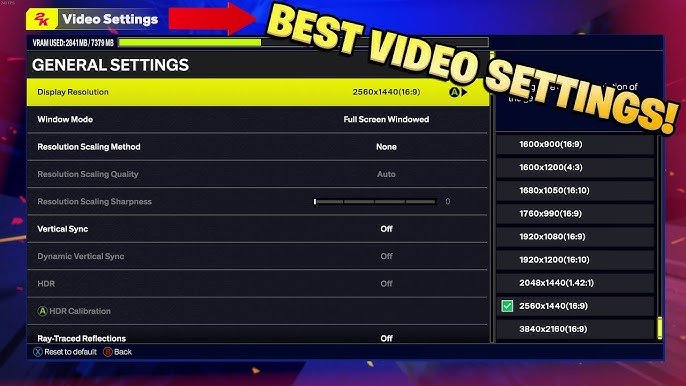
The ideal NBA 2K25 graphics configuration setup requires adjusting in-game settings like resolution, texture quality, and anti-aliasing based on your PC specs to achieve smooth gameplay.
Getting the perfect visuals in NBA 2K25 is crucial for an immersive experience, but finding the right settings can be tricky. Achieving that balance between stunning graphics and smooth performance depends heavily on your hardware and how you configure the game.
Many gamers struggle with the game’s default settings, experiencing lag or visual compromises. We’ll explore how to adjust various options in the NBA 2K25 graphics configuration setup to get the most out of your gaming rig.

NBA 2K25 Graphics Configuration Setup
Okay, gamers, let’s talk about making NBA 2K25 look its absolute best! This isn’t just about having the coolest-looking sneakers; it’s about making the whole game feel smooth and look amazing. If your game is looking a little blurry or choppy, don’t worry! We’re going to walk through how to adjust the graphics settings in NBA 2K25, so you get the best possible experience. Think of it like tuning a race car – a little tweak here and there can make a huge difference.
Understanding Graphics Settings
Before we jump into changing things, let’s chat about what some of these settings actually do. It might seem like a bunch of techy words, but they’re actually pretty simple when you break them down.
Resolution
Resolution is all about how many tiny dots (pixels) make up the picture on your screen. Higher resolution means more pixels, so you get a sharper, clearer image. Think of it like having more LEGO bricks to build a detailed picture. Common resolutions include:
- 1920 x 1080 (1080p or Full HD): This is a very common resolution and usually a good starting point.
- 2560 x 1440 (1440p or QHD): A step up from 1080p, providing a sharper picture with more detail.
- 3840 x 2160 (4K or Ultra HD): The highest resolution we’ll talk about here. It offers the most detail but requires a powerful computer to run smoothly.
Generally, you want the highest resolution your monitor and computer can handle without the game slowing down. If you see the game getting jerky, you might need to lower the resolution a bit.
Refresh Rate
Refresh rate is how many times per second your monitor updates the image. It’s measured in Hertz (Hz). A higher refresh rate makes the game look smoother and more responsive. Think of it like flipping through a flipbook really fast – the faster you flip, the smoother the animation looks.
- 60Hz: A standard refresh rate, often seen on older monitors.
- 120Hz/144Hz: These provide a much smoother experience, especially noticeable in fast-paced games like NBA 2K25.
- 240Hz or higher: The top tier, offering incredible smoothness, but can be overkill for some players and require a very powerful PC and monitor.
If your monitor supports a higher refresh rate, it’s definitely worth trying! Make sure your computer is also able to keep up.
Anti-Aliasing
Anti-aliasing makes the edges of objects in the game look smoother and less jagged. Imagine drawing a circle with a thick marker – it can look a little bumpy. Anti-aliasing helps smooth out those bumps. Common settings include:
- Off: No anti-aliasing. Edges can look jagged.
- FXAA (Fast Approximate Anti-Aliasing): A lighter form of anti-aliasing that doesn’t require a lot of processing power.
- MSAA (Multisample Anti-Aliasing): A more powerful anti-aliasing method that gives better results but requires more power.
- TAA (Temporal Anti-Aliasing): A type of anti-aliasing that reduces flickering and shimmering, while providing a sharper look.
A little bit of anti-aliasing can make the game look much better. Experiment with the different options to see which one works best for you.
Texture Quality
Texture quality controls the detail of surfaces in the game, like the wood of the court or the fabric of the jerseys. Higher texture quality makes these surfaces look much more detailed and realistic. Settings usually range from low to ultra. Low texture quality can make the game look blurry, while ultra provides the best visuals at the cost of performance.
Shadow Quality
Shadow quality affects how realistic shadows look in the game. Realistic shadows add a lot to the game, but higher quality shadows also demand more from your computer. Shadow quality settings typically include: Off, Low, Medium, High and Ultra.
Other Important Settings
There are a few other settings that can have a big impact on the game’s performance:
- Ambient Occlusion: This setting adds depth to the scene by creating shadows where objects meet.
- Motion Blur: Motion blur makes fast movement look smoother, but some players don’t like it because it can make the game feel a little blurry.
- V-Sync (Vertical Sync): V-Sync prevents screen tearing, which is when parts of the screen don’t line up correctly. However, it can sometimes cause input lag (a delay between pressing a button and seeing it happen on screen).
Adjusting Settings for Your PC
Okay, now that we understand what these settings do, let’s talk about how to actually adjust them in NBA 2K25. The best settings for you will depend on your computer’s specifications. If you have a powerful gaming PC, you can probably crank everything up to the max. If your computer is a bit older, you might need to dial things back a little.
Step-by-Step Guide
Here’s a basic guide to get you started:
- Start the Game: Launch NBA 2K25.
- Go to Settings: Find the “Settings” or “Options” menu. This is usually found on the main menu.
- Find Graphics Settings: Look for the “Graphics”, “Video”, or “Display” settings.
- Adjust Resolution and Refresh Rate: Start by setting the resolution to the highest your monitor can handle. If it’s 1080p, start there. Set the refresh rate to whatever your monitor supports, for example, 60Hz, 144Hz, or 240Hz.
- Try the Game: Play a quick game to see how it runs. If it’s smooth, great! If not, move to the next step.
- Lower the Resolution: If the game is choppy, drop the resolution one step at a time until the game is smooth. Keep the refresh rate the same.
- Adjust Anti-Aliasing: Try switching anti-aliasing from off to FXAA, then MSAA, and then TAA, observing how the change affects both visual quality and performance. Choose the best you can get without impacting performance.
- Fine-Tune Other Settings: Now you can start tweaking things like texture quality, shadow quality, and ambient occlusion. Try turning them up one setting at a time, and keep testing the game. If you get a drop in performance, drop the setting back down.
- Test V-Sync: Enable and disable V-Sync to see if screen tearing is present and how it impacts input lag.
- Keep Testing: The key here is to keep testing the game after each change. You will have to make adjustments based on what looks and feels best to you.
Predefined Graphics Presets
NBA 2K25 often has predefined graphics presets that can make the tuning process a bit easier. These are usually labeled “Low,” “Medium,” “High,” and sometimes “Ultra.”
- Low: This setting is for older or less powerful computers. It prioritizes performance over visual quality.
- Medium: A balanced setting that gives you a decent visual experience while maintaining good performance.
- High: This setting provides a better visual experience with a slight impact on performance.
- Ultra: This provides the best visuals possible, but requires a powerful computer to run smoothly.
If you’re not sure where to start, try one of these presets. Then, if you have a little more power, try increasing individual settings.
Tips for Getting the Best Performance
Here are some extra tips to help you get the best performance from NBA 2K25:
- Update Your Drivers: Make sure you have the latest graphics card drivers installed. This can often improve performance and fix bugs. You can find these on the website of your graphics card manufacturer (NVIDIA, AMD, or Intel).
- Close Background Apps: Close any programs you’re not using while playing the game. Background apps can use up valuable resources and slow down your game.
- Monitor Your Temperatures: Keep an eye on your computer’s temperature. Overheating can cause performance issues.
- Clean Your PC: Dust buildup inside your computer can cause overheating issues. Clean it regularly.
- Experiment: Don’t be afraid to experiment with different settings. What works best for one person might not work best for another. Every computer is different, so find what works for you.
- Use the in-game FPS counter: Most modern games, including NBA 2K25, have an in-game option to see the frames per second you are getting in real time. This helps you see the actual impact of your changes.
Specific Scenarios and Solutions
Sometimes you might run into specific problems. Here are some solutions for common issues:
The Game is Choppy or Lagging
If the game isn’t running smoothly, try these steps:
- Lower the resolution.
- Lower the graphics settings (texture quality, shadow quality, etc.).
- Close background apps.
- Make sure your drivers are up-to-date.
- Check your computer’s temperatures.
The Game Looks Blurry
If the game looks blurry, you may be running the game at too low a resolution or not using any type of anti-aliasing. Try these steps:
- Increase the resolution if your system can handle it.
- Try a form of anti-aliasing.
- Make sure your display settings are correct.
Screen Tearing
If you see lines on the screen or the image appears to be split or not aligned, this is screen tearing. Try these steps:
- Turn on V-Sync.
- Make sure your refresh rate matches the game.
Input Lag
If there is a delay between pressing a button and seeing the action on screen, it may be caused by V-sync, try these steps:
- Turn V-Sync off.
- Make sure your refresh rate is correct.
- Try other methods to eliminate or reduce input lag from your computer.
Remember, it’s all about finding the best balance between visual quality and performance for your specific setup. Don’t be afraid to experiment!
Setting up the graphics configuration in NBA 2K25 can seem tricky at first, but with a little experimentation, you can achieve the perfect balance of visual fidelity and smooth gameplay. By understanding what each setting does and how it affects your system, you can tailor your gaming experience to your specific needs. Keep trying different combinations of settings and you’ll be dunking in crystal-clear resolution and at a perfectly smooth refresh rate in no time! Enjoy the game!
Best Graphics Settings for NBA 2K25 (FIX LAG AND STUTTERING)
Final Thoughts
Optimizing your NBA 2K25 graphics configuration setup is key for the best experience. Adjust settings like resolution, textures, and shadows to match your system’s capability. Experiment to find the perfect balance.
Finding the right NBA 2K25 graphics configuration setup ensures smooth gameplay and visual fidelity. Don’t just settle for default options. A bit of tweaking goes a long way.
Ultimately, personalizing your settings gives you the edge in getting the most out of the game. Everyone’s setup is unique, find yours.

