
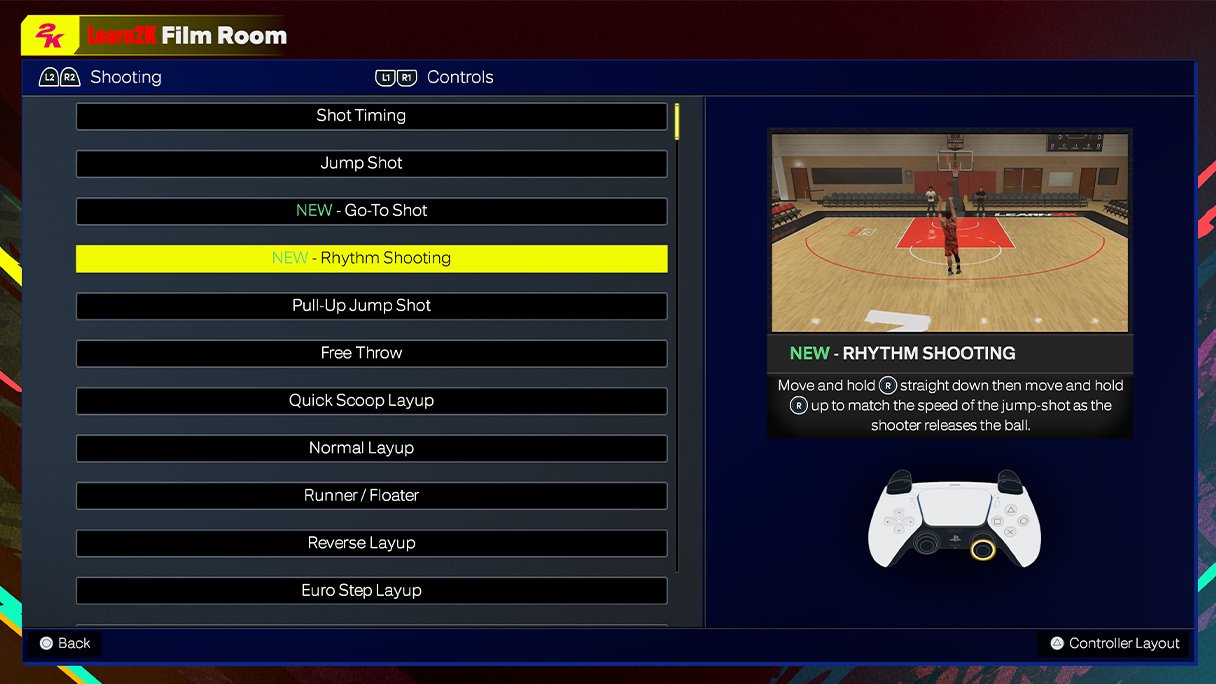
NBA 2K25 in game setting explanations cover options like difficulty levels, controller configurations, camera angles, and gameplay sliders, allowing players to tailor their experience.
Tired of the default setup? Many players seek to fine-tune their game. NBA 2K25 provides a plethora of options to tweak the gameplay. Let’s explore NBA 2K25 in game setting explanations.
These settings let you adjust various aspects. From the challenge of AI to your preferred camera view, the game has plenty to customize. Understanding these settings is key to your best experience.

NBA 2K25 In-Game Setting Explanations
Okay, hoop fans! Let’s dive deep into the nuts and bolts of NBA 2K25’s settings. This is where you take control and really shape your gameplay experience. We’re going to look at everything, from the basics to the slightly more advanced options, so you can play the game exactly how you want. Think of this as your personal playbook for customizing the game just for you.
Difficulty Levels: Finding Your Sweet Spot
The first big choice you’ll make is how tough the game is. NBA 2K25 offers several difficulty levels, each affecting how smart the computer-controlled players are, how well they shoot, and how aggressively they defend. Here’s a rundown:
Rookie
This is the most forgiving setting. If you are new to basketball games, or just want to have a relaxed gaming experience, Rookie mode is perfect for you. The computer players will be less likely to make great plays, and you’ll find it easier to score. It’s like playing against a team that’s still learning the ropes.
Pro
Pro difficulty is a step up from Rookie. The CPU players get a bit smarter, and you’ll start needing some strategy to win. It’s still not super hard, but you can’t just run around without a plan. It feels like a real, but not too intense, basketball game.
All-Star
Now we’re talking! All-Star mode provides a real challenge. The computer players will make smarter plays, be tougher on defense, and nail some difficult shots. You’ll need to use all your skills to come out on top. If you’ve played NBA 2K before, this is a great starting point to really test your abilities.
Superstar
Superstar is where things get serious. The CPU plays at a very high level, making few mistakes. You’ll need to be precise in your plays, and make the right decisions all the time. Be ready for a tough fight. It’s for skilled players who want a real challenge.
Hall of Fame
This is the hardest difficulty setting in NBA 2K25. Hall of Fame is only for the most expert players. The CPU is practically perfect, almost never missing a shot, and defending like a brick wall. If you can win on Hall of Fame, you are a true NBA 2K legend!
Controller Settings: Making the Game Feel Right
How you control the game is super important. NBA 2K25 allows you to adjust your controller settings to fit your personal preference. This can make a big difference in how smoothly you play.
Shot Meter
The Shot Meter is a visual aid that helps you time your shots. Here are your options:
- On: The meter appears every time you shoot.
- Off: No shot meter. You rely completely on your own feel for timing.
- Pro Stick Only: The meter only appears when you use the Pro Stick to shoot.
Experiment with these options to see what feels most natural for you. Some players swear by the meter, while others prefer the more organic feel of turning it off.
Vibration
The vibration feature in your controller gives you feedback during the game. This can help you to feel the impact of your actions.
- On: Vibration enabled. You’ll feel the game events in your hands.
- Off: Vibration disabled for a quieter experience.
If you want to be really ‘in’ the game, keep vibration on. If it bothers you, or you want to focus more on visuals, you might like it off.
Pro Stick Function
The Pro Stick is how you shoot, dribble, and sometimes pass. You can customize what the stick does when you press different directions.
- Shooting: This is the most common setting, using the stick for shooting.
- Dribble Moves: This switches the Pro Stick to perform dribble moves instead of shooting.
- Default: A mix of shooting and dribbling depending on context.
Camera Shake
Camera shake adds a small shaking effect to the screen, especially when doing actions like making a block or completing a dunk. Some players like it for making the game more intense, while others may find it distracting.
- On: Screen shakes when big events happen.
- Off: No screen shake. For those who like a steadier view.
Gameplay Settings: Adjusting the Pace
Beyond just the difficulty and controls, NBA 2K25 offers settings that adjust the flow of the game itself. These can change how players move, how the AI behaves, and many other important factors.
Game Speed
This setting lets you adjust how fast the game moves. Some people like a fast-paced, arcade-style feel, while others prefer a slower, more realistic pace.
- Fast: The game will feel quicker, with faster player movement.
- Normal: The default speed. This is the standard pace.
- Slow: Movement is slowed down, leading to a more deliberate game.
Game Camera
Choose the angle from which you view the action. It’s something very personal, with each option offering a unique feel.
- 2K: A classic side-view camera.
- Broadcast: An angle similar to what you see on TV.
- Baseline: A camera view from behind the net.
- Custom: Adjust the camera to your exact preference.
Try them all to see which one you enjoy most. Some cameras are better for offense, and others for defense.
Player Movement
How your players move is important. You can customize the stickiness and responsiveness of players.
- Ball Handling Responsiveness: How quickly your player responds to your moves with the ball.
- Movement Stickiness: How closely the players move according to the direction you are pushing the stick.
Making changes here can help you to make the player movement to feel exactly right for you.
Adaptive Coaching Engine
This feature adjusts the gameplay strategies of the AI on the fly, based on how you play.
- On: The AI changes how they play throughout the game to try to counter your strategy.
- Off: AI remains consistent in their play, and don’t adjust to you.
It can make the game more dynamic and challenging, forcing you to change your game plan from time to time.
Fatigue
Fatigue is how tired your players get as the game goes on. Adjusting fatigue can make the game more or less realistic. You can adjust the settings based on your preference:
- On: Player stamina depletes over time, impacting their effectiveness.
- Off: Players don’t get tired, allowing you to perform to the max throughout the game.
If you want the game to be closer to real life, keep fatigue on. If you want to play at full speed for all 48 minutes, turn it off!
User Timing
Timing is a huge part of 2k. The user timing system helps to measure how good your timing is in shooting the ball. This is a crucial setting for the shooting aspect of the game. You can change the user timing setting by:
- On: you have to make sure you make your timing perfect when releasing the ball.
- Off: You don’t need to time the release, simply pressing the button is enough to release the shot.
Perfect timing will always reward you with a green release. Keep it on if you want the game to be realistic, turn it off if you just want to shoot easily.
Shot Feedback
This setting tells you about the quality of your shots.
- On: You will receive real-time feedback after you attempt a shot, including information such as how good was your timing and if your shot was open.
- Off: No shot feedback.
This tool can be very helpful for players of all skill levels. If you are a beginner, you can see what mistakes you are doing. If you are skilled, it will help you see the tiny bits of differences in your timing.
Gameplay HUD
The Heads-Up Display (HUD) provides you with information such as the score, clock, and player information. It can be a crucial tool to keep updated during a game. Here are your options:
- On: Show the on-screen display.
- Off: Hide on-screen display for a minimalist look.
Keeping the HUD on can be helpful to keep track of the game and the player stats. Turn it off for a more clear screen view.
MyCAREER Specific Settings
MyCAREER is a very popular game mode where you create your own player and follow their path. This mode has its own set of settings that can shape how your player progresses and the type of experience you have.
Player Progression
MyCAREER is all about improving your player. You can adjust the rate at which your player improves skills.
- Normal: Standard progression rate.
- Accelerated: You will improve your skills much quicker than in the normal setting.
- Slowed: Player skills increase at a slower rate.
Choose what rate you want to see your character growth and improvement in skills.
Badge Progression
Badges give your player special abilities. Similar to the player progression settings, you can change the rate at which you earn the badges by using these setting:
- Normal: Standard badge progression rate.
- Accelerated: Earn badges much faster.
- Slowed: Badges are acquired much slower.
These settings can greatly change the feeling of the game and how you progress through the story mode.
VC Earning Rate
Virtual Currency (VC) is used to buy items and improve your player in MyCAREER. The rate at which you earn VC changes how quickly you can buy these items. Here are your settings:
- Normal: Standard VC earning.
- Boosted: Earns VC more quickly.
- Reduced: Earns less VC.
If you want to quickly buy items and upgrade your player, choose the boosted rate option. If you want more of a slow progression, go with reduced or normal.
Sound and Visual Settings: The Finishing Touches
These settings may not directly affect gameplay, but they greatly improve how the game looks and feels. It’s worth taking time to set these up correctly for best experience.
Audio Levels
Here you can change the volumes of different sounds. It is crucial to find the perfect balance.
- Music: How loud the background music plays.
- Commentary: How loud the game commentators speak.
- Sound Effects: How loud the sounds from the game are, such as the sound of a buzzer or the sound of a player’s sneakers on the floor.
Adjusting the volume will allow you to hear the audio better, whether you like commentary more or want to focus on sound effects.
Brightness and Contrast
These visual settings change how light and dark the game looks. Finding the right balance makes the game look better.
- Brightness: Change the general intensity of light.
- Contrast: Change the difference between light and dark areas.
Correctly adjusting these will make the game look more enjoyable. You don’t want to strain your eyes while playing.
Resolution
This setting changes how detailed and crisp the game looks. You can increase it for more detail or lower it if your system is having trouble keeping up. The higher the resolution the more detailed the graphics of the game will be.
That’s a wrap on the main in-game settings for NBA 2K25! Take your time exploring these settings and find out what you like best. The right adjustments can truly improve your experience. Have fun out there on the virtual court!
5 SECRET Settings That You NEED To Use In NBA 2K25
Final Thoughts
Adjusting the settings correctly is key for optimal gameplay. The various options affect difficulty, controls, and presentation. You must experiment to find what fits your play style.
Understanding these choices improves your experience significantly. Consider adjusting camera angles and controller sensitivity. Practice with different settings in various game modes.
NBA 2K25 in game setting explanations provide players with control over their gaming session. Tailoring the experience to your preferences is easy. Enjoy the game your way.

