
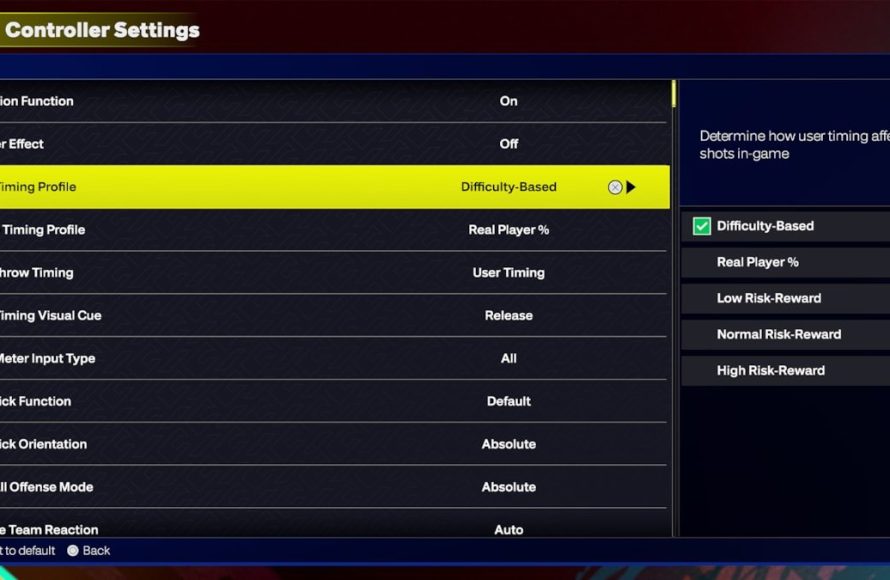
Here’s a brief overview of NBA 2K25 in game settings: you can adjust difficulty, camera angles, controller configurations, and audio levels to personalize your gameplay experience.
Are you eager to fine-tune your NBA 2K25 experience? This article provides a simple guide to the game’s settings. We will cover the key areas you can modify to suit your play style. Let’s dive straight into the NBA 2K25 in game settings overview.
Understanding the customization options allows you to improve your gameplay. Adjusting the difficulty level impacts the challenge. You can also change camera angles for better court view.

NBA 2K25 In-Game Settings Overview
Alright, let’s dive into the nitty-gritty of NBA 2K25’s in-game settings. It’s like having a super-powered remote control for your game, and knowing how to use it can seriously up your game. We’re talking about making those crucial adjustments to get the gameplay feeling exactly how you want it, from the speed of the game to how your players move and react. It’s not just about being a good player; it’s about tailoring the game to your style. Let’s break it all down so you can become a true 2K master.
Difficulty Settings: Finding Your Perfect Challenge
First off, let’s talk about difficulty. This isn’t about just picking ‘Easy’ or ‘Hard’ and hoping for the best. NBA 2K25 gives you some flexibility here, allowing you to fine-tune the challenge. Choosing the right difficulty is super important for a fun experience. Too easy, and you’re bored; too hard, and you might throw your controller across the room.
Rookie, Pro, All-Star, Superstar, and Hall of Fame
These are your main difficulty levels, moving from the easiest to the most challenging. Rookie is like training wheels, giving you a taste of the game. Pro is a step up, where the AI starts to play smarter. All-Star throws some real challenge your way, asking you to think more strategically. Superstar ramps up the pressure with tougher defense and better offensive plays from the AI. And Hall of Fame? That’s for the hardcore players, where every possession is a battle. Think of it as climbing a mountain; you start at the bottom and climb higher as your skills improve.
Custom Difficulty Sliders
Here’s where it gets interesting. NBA 2K25 lets you tweak tons of sliders, which are like little levers that control how the game behaves. Want the AI to shoot fewer three-pointers? There’s a slider for that! Want to make your layups easier? Yep, there’s a slider for that too. You can adjust:
- Gameplay Speed: This controls how fast the players move around the court.
- Shooting Success: Make it easier or harder to sink those shots.
- AI Offense and Defense: How smart the computer plays.
- Rebounding: How often rebounds go to you or the computer.
- Steals: How easy it is to steal the ball.
- Fouls: How often fouls are called in the game.
Playing around with these gives you the power to customize the game to exactly your comfort level. If you find a combination that feels just right, you can save it and use it every time you play.
Camera Settings: Finding Your Perfect View
The camera view is another crucial element that can significantly affect how you play. Different camera angles can completely change how you perceive the court. It’s all about what feels comfortable and what allows you to see the game best. Here’s a rundown of the available options.
2K Camera
This is the default camera angle, and it’s used by many players. It offers a good balance of viewing the court and your player, and it stays pretty consistently behind the player you are controlling.
Broadcast Camera
This view mimics what you’d see on a TV broadcast of a real NBA game. It can feel immersive, but sometimes you might lose track of your player.
Side Camera
This camera angle offers a side-view of the court. It gives you a different look at the game, and can be good for understanding player positioning.
Baseline Camera
This view is situated behind the basket, allowing you to see plays develop from an offensive perspective. It’s a different feel but a nice option to switch to every now and then.
Custom Camera Settings
Just like the difficulty, you can change the camera settings. You can modify:
- Zoom: How close or far away the camera is.
- Height: How high the camera is from the court.
- Angle: The tilt of the camera.
- Switching Options: Whether you want to switch automatically or manually.
Experimenting with these settings can lead you to find a perfect view that feels like an advantage to your gameplay. Maybe you like playing zoomed in, maybe you like a wider angle to see more of the court. It’s all up to your personal preference.
Controller Settings: Fine-Tuning Your Controls
Having the right controller settings is like finding the perfect pair of shoes for your feet – it makes everything flow more naturally. NBA 2K25 gives you control over many aspects of how your controller functions.
Basic Controller Customization
This includes remapping buttons for dribbling, shooting, passing, and defense. It means if you don’t like the default settings, you can change them and put buttons where they feel most comfortable.
Advanced Controller Settings
Go beyond just remapping. This setting lets you adjust:
- Shot Timing: Changes how sensitive the shot meter is.
- Dribble Sensitivity: How responsive the ball is to your stick movements.
- Pass Assist: How much help the game gives you in passing.
- Defense Assist: How much help the game provides when guarding players.
These advanced options can truly fine-tune your game. Maybe you want to have full control of your shots, or you prefer to have the game assist you more. The choice is yours.
Gameplay Settings: Adjusting the Pace
Gameplay settings affect the overall flow and feel of a match. These settings control how the game behaves at its core and can make a big difference in your overall gaming experience.
Game Speed
This is a crucial setting that controls how quickly the game runs. Want the game to feel fast and furious? Increase the game speed. Prefer a slower, more strategic pace? Reduce the game speed. You have complete control over how the action unfolds.
Game Rules
Here, you can tweak some of the rules of the game to your liking. This includes:
- Quarter Length: Want faster games? Shorten the quarters. Prefer a longer game that feels more like a real NBA match? Extend them.
- Foul Rules: How often fouls are called, and how severe the penalties are.
- Timeouts: The number of timeouts you have in each game.
- Injuries: Adjust how often players get injured.
These options allow you to bend the rules to suit your preference and gaming style.
Presentation Settings
Beyond the action on the court, the visual and sound aspects of the game play a big role. In presentation settings you can customize:
- Commentary Volume: Adjust how loud the commentators are.
- Crowd Noise Volume: Adjust how loud the crowd is.
- Menu Music: Change the background music.
- Vibration: Adjust controller vibration settings.
- Replay Frequency: Adjust how often you see replays.
These settings can make the game more visually pleasing and make it sound exactly how you want it.
Sound Settings: Dialing in the Audio
Sound is very important in a game, and NBA 2K25 lets you modify everything related to sound. Whether you want the crowd roaring or prefer quieter commentary, it’s all up to you.
Master Volume
The master volume slider gives you the basic volume control over everything in the game. You can increase or decrease the volume of every game aspect.
Individual Volume Sliders
You can customize each element of the game individually through the volume sliders. These options include:
- Commentary Volume: Adjust the volume of the game commentary.
- Sound Effects Volume: Increase or decrease game sounds like dribbling, shooting and the ball bouncing.
- Crowd Volume: Modify the loudness of the crowd.
- Music Volume: Control the in-game music volume.
This gives you the ability to make sure that you only hear the parts of the game audio that you want to hear. If you do not like the commentator you can put their volume down.
Graphics Settings: Fine-Tuning the Visuals
For PC users, getting the graphics settings right is crucial for optimal performance. These options allow you to adjust visual settings to make the game run smoothly, or to make the graphics look better.
Resolution
This setting affects the sharpness and clarity of the game. A higher resolution means a sharper image. You may need a good PC to be able to use the highest resolution settings.
Graphics Quality
You can choose between different graphics quality levels: low, medium, high, and ultra. Higher quality means better visuals, but it also requires more processing power from your computer. Choosing a setting that suits your PC’s performance is important.
Advanced Graphics Settings
These settings give you fine-grain control over the visual aspects of the game, letting you adjust specific visual details.
- Anti-Aliasing: Reduces jagged edges on objects.
- Texture Quality: Controls the level of detail on objects.
- Shadow Quality: Adjusts the detail and rendering of shadows.
- Motion Blur: Adds a blur effect to moving objects.
Adjusting these options can make a game look better, but also can help it run smoother if your PC struggles with the higher settings.
Accessibility Settings: Making the Game More Inclusive
Accessibility is very important, and NBA 2K25 has settings to make the game enjoyable for everyone. These options offer players with different needs the chance to enjoy the game.
Colorblind Modes
These modes make it easier for players with colorblindness to see the game. Different colorblindness settings change the game to ensure the colors stand out.
Subtitle Options
You can choose to have subtitles displayed during gameplay and cutscenes. These settings allow for the subtitles to be made bigger and brighter to help more people see them.
Controller Remapping
This feature lets you remap controls to best suit your needs. If you have issues with one hand, you can remap all the controls to the other side of the controller.
Audio Assistance
This feature provides additional sound cues to help players understand game information. These extra cues can be useful for someone that has difficulty seeing.
Saving and Loading Settings: Your Personal Presets
Once you’ve tweaked everything to your liking, NBA 2K25 allows you to save your settings. This is especially handy if you’ve spent a lot of time finding the perfect configuration, and want to use it every time you play.
Creating Custom Presets
You can save different custom presets for various situations. For example, you might have one for solo play, and another for playing with friends. This way you can quickly switch between your preferred settings.
Loading Saved Presets
You can easily load your custom settings anytime you want to play, and not having to change all the settings again. Once you have found that perfect setting, just use it every time.
Sharing Settings
Sometimes you want to share the perfect settings, and you can share it with a friend. By sharing settings, you can play with the exact settings you like.
NBA 2K25 gives players many options to adjust the game to their liking. Taking the time to experiment with these settings can enhance your enjoyment and give you an advantage on the court. The more you play with these settings, the more control you will have over the game.
With all these settings now explained, you are ready to jump into the game and make it your own. Have fun exploring and adjusting the game, you will be a true 2K master in no time!
BEST SETTINGS, TIPS and TRICKS on NBA 2K25 (NEW SHOT TIMING PROFILE)
Final Thoughts
Fine-tuning the NBA 2K25 in game settings allows for a personalized and optimized gaming experience. Players can adjust various parameters like difficulty and camera angles. This customization is must for peak enjoyment.
With the right configurations, gameplay feels much smoother. Experimenting with controller sensitivity is essential for finding your perfect feel. This NBA 2K25 in game settings overview highlights the importance of tailored preferences.

