
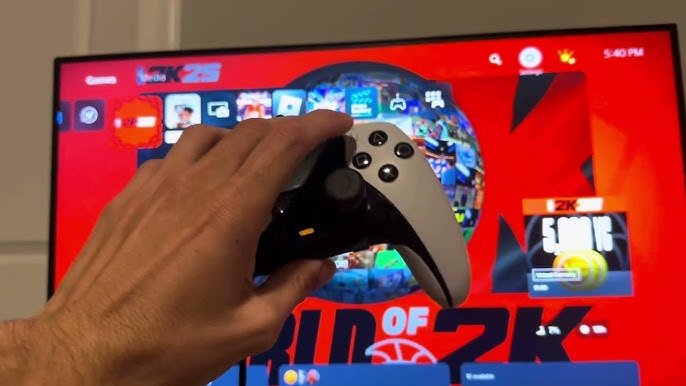
Input delay in NBA 2K25 often stems from network issues, controller problems, or game settings; adjusting these can improve responsiveness.
Frustration mounts when your on-screen actions lag behind your controller inputs, especially in a fast-paced game like NBA 2K25. Many players experience this troublesome issue, known as NBA 2K25 input delay, which significantly impacts gameplay.
This delay can hinder precise dribbling, accurate shooting, and timely defensive movements. Fortunately, there are solutions available to help reduce or eliminate this frustrating lag and regain your competitive edge.

NBA 2K25 Input Delay: Understanding and Reducing the Lag
Okay, let’s talk about something that can really mess with your game in NBA 2K25: input delay. It’s that frustrating moment when you press a button to shoot, pass, or move, and there’s a noticeable delay before your player does what you want them to do. It can feel like you’re playing underwater! Input delay can totally throw off your timing and make even the easiest moves feel impossible. But don’t worry, we’re going to break down what causes it, how it affects your gameplay, and most importantly, what you can do to make it better.
What is Input Delay?
Imagine you’re trying to make a perfect three-pointer. You press the shoot button right when you think your player is in the best position. But instead of launching that shot, there’s a tiny pause. Your player might move a bit more, or the timing of your shot might be completely off. That pause is input delay. It’s the gap between your action with the controller and that action happening on your screen. It’s like trying to talk on the phone when there’s a bad connection, there is a little delay between your conversation.
This delay can be caused by different things, but it boils down to the time it takes for your button press to travel from your controller, through your device, and finally to the game itself. This might seem like a small delay, but it’s enough to throw off even the best players in the NBA 2K series.
How Input Delay Ruins Your Game
Input delay in NBA 2K25 is a game-changer, and not in a good way. It messes with the heart of the gameplay: timing. Here are some ways it affects your experience:
- Shooting Struggles: Imagine trying to hit a perfect green release when the shot timing is off due to delay. It’s like trying to hit a moving target while wearing blurry glasses. Your shot will often miss the mark, making it hard to score consistently.
- Defensive Difficulties: Timing your steals, blocks, and jumps are critical for good defense. But with input delay, you’ll often be a step behind. By the time you press the button, the opposing player might already have passed you.
- Play Calling Problems: Passing is all about accuracy and timing. If there’s input delay, your passes might go to the wrong players. This causes turnovers and it can stop your plays before they even begin.
- Dribbling Disasters: A great dribbler needs to be quick and responsive. Input delay slows down your reactions, which makes it tough to pull off advanced dribbling moves. You are stuck in the mud instead of moving around freely.
- General Frustration: The biggest problem with input delay is simply that it’s annoying! It makes the game feel clunky and unresponsive, taking away the enjoyment of playing.
Basically, input delay makes the game feel unfair and makes you feel like you can’t play your best.
Common Causes of Input Delay
Why does this delay happen in the first place? There are a few common culprits, and understanding them is the first step to fixing the problem.
Controller Issues
Your controller plays a key role in the communication between you and your game. Here are some things to think about:
- Wireless Connections: Wireless controllers are convenient, but they can introduce input delay. The signal between the controller and the console or PC can sometimes be interrupted. The Bluetooth connection may also be a little bit slower than the wired connections.
- Low Batteries: When your controller’s battery is low, it might not send signals as quickly. Keeping your controller charged or using a wired connection could be a simple way to address this problem.
- Damaged Controllers: A faulty or damaged controller with worn-out buttons can be slow to respond to your inputs.
Display Problems
Your screen is where you see the game, and it can also add input delay:
- TV/Monitor Settings: Many TVs have processing features designed to make images look better. However, these features can add input delay by delaying the time from the console to the screen. Game mode or low-latency mode on your TV or monitor is designed to reduce this processing and reduce the delay.
- High Resolution or Refresh Rate: While a 4K screen with a high refresh rate usually looks great, sometimes it can cause input delay if your console or PC is struggling to keep up.
Gaming Device Problems
Your console or PC also plays a big role in how fast the game responds:
- Console/PC Performance: If your console or PC is struggling to run the game smoothly, it can cause delays. This can happen if other programs are running in the background or if the system is getting too hot.
- Internet Connection (for Online Play): When playing online, your internet connection is also very important. If your connection is slow or unstable, it can add to the input delay.
Game Settings and Software
Sometimes the game itself or other software can introduce lag:
- Game Graphics Settings: Higher graphics settings demand more processing power. This can lead to input delay, especially on older consoles or PCs. Reducing graphics settings will reduce the game demand from your system.
- Background Software: Other programs running on your console or PC might be using up resources and slowing down the game. Close any unnecessary programs when playing to keep things running smoothly.
How to Reduce Input Delay
Now that we understand the causes, let’s explore what you can do to make input delay less of a problem. These tips will work on most devices, but you should always try out a variety of changes to see what works best for you.
Controller Fixes
- Use a Wired Controller: If you can, use a wired controller. A wired connection is usually faster and more stable than wireless. You should always prefer a wired controller if you are having input delay.
- Keep Your Controller Charged: Make sure your controller is fully charged to avoid any power-related issues. You should also charge the controllers when not in use.
- Try a Different Controller: If you are having trouble with a particular controller, try using another one. There may be damage with your old controller.
- Clean Your Controller: Clean your controller buttons to ensure that they are not sticking and have the maximum level of responsiveness.
Display Adjustments
- Enable Game Mode: Most modern TVs and monitors have a game mode or low-latency mode. It bypasses some image processing to reduce input delay. You should always have this feature enabled when you are playing games.
- Lower Resolution/Refresh Rate: If you are still having issues, you can try lowering the resolution or refresh rate of your TV/monitor. This can make the screen respond more quickly.
Gaming Device Optimization
- Close Background Programs: Close other applications on your console or PC. The fewer programs that are running, the more resources are available for the game.
- Keep Your Console/PC Cool: Make sure your console or PC has good ventilation to prevent overheating. Overheating can cause performance problems, including input delay.
- Update Drivers and Software: Keep your console or PC’s system and graphics drivers updated. Software updates often include improvements that can help to improve game performance.
- Reboot Your Device: Restarting your console or PC can clear some temporary issues that could cause the delay.
Game Settings Adjustments
- Lower Graphics Settings: If you are having issues with delay, lower the graphics settings within the game. This will reduce the game’s demand on your system. You can always increase settings one by one until you find the perfect spot.
Internet Connection Tweaks (for Online Play)
- Use a Wired Connection: If possible, use an Ethernet cable for a stable and reliable internet connection, instead of WiFi. Wired is faster and more reliable than wireless.
- Restart Router: Restarting your router can fix some internet connection problems.
- Limit Network Usage: When playing online, avoid downloading or streaming other stuff. This will make sure that the game can use all the internet connection needed.
Testing for Input Delay
After trying these fixes, how can you tell if it helped? Here are some simple ways to check if you still have delay:
- Watch Your Player: Pay close attention to how quickly your player reacts when you press a button. Any delay, no matter how small, can indicate input lag. You should be looking for a delay between the button press and the action on the screen.
- Try Quick Reactions: Try quick moves such as dribble moves. If there is delay, it will be hard to do these reactions correctly. You will be able to notice the delay in these quick moves.
- Shoot Jump Shots: Pay attention to the timing of your jump shot. With less input delay, it will be easier to time your shots perfectly.
Keep in mind that some delay might be normal, but these tests can help you determine if there’s a problem that needs to be fixed.
Advanced Troubleshooting
If the above fixes don’t work, you might need to try some more advanced troubleshooting steps:
System Level Analysis
Sometimes there are underlying issues with your computer or console that might be causing the input delay issues.
- Run System Diagnostics: Check your device’s diagnostics tools to look for hardware problems. System issues can be a big cause of input delays.
- Update System Software: Keep the console or PC’s operating system updated. Updates often include performance improvements.
- Check for Conflicts: See if any recently installed programs or drivers might be conflicting with the game. If there is a conflict, it may be causing your input delay.
Network Analysis
If your input delay only happens during online gameplay, a deeper look into your network connection may be needed. Your internet could be the source of the problem.
- Network Speed Tests: Use online speed tests to check your download and upload speeds. A slow connection will make input delay much worse.
- Router Configuration: Look at your router settings. You may want to prioritize the console or PC on your network. This will help with network speeds.
- Contact ISP: Contact your internet service provider if you think there might be internet problems. They may also be able to help with router configurations.
Game Specific Checks
If you’re still struggling after trying everything else, you can try some game-specific checks to see if your issues are related to the game itself.
- Game Forums: See if other players are experiencing similar issues. Look for official solutions to the problem.
- Reinstall Game: Sometimes reinstalling the game will fix the problem. You can also try clearing the game’s cache files.
- Contact Support: If the problem continues, you can contact the game’s support team for assistance.
Dealing with input delay in NBA 2K25 can be frustrating, but by understanding its causes and implementing these fixes, you can significantly improve your gameplay experience. Remember to test each solution to find what works best for your setup.
Ultimately, reducing input delay in NBA 2K25 is about optimizing each part of your gaming setup, from your controller to your console to your internet connection. By paying attention to these details, you can enjoy a more responsive and satisfying gaming experience. Remember that some delay may be a part of playing video games, but working to minimize that delay can make a world of difference to your overall enjoyment.
How to Get Rid of Delay in NBA 2K25! Tips to Eliminate Delay/Latency!
Final Thoughts
Addressing NBA 2K25 input delay is vital for a smooth gaming experience. Players often notice a frustrating lag between button presses and on-screen actions. This delay severely impacts gameplay.
Optimizing your setup, like wired connections or monitor settings, can help reduce this problem. These steps are crucial for competitive play.
Ultimately, minimizing ‘NBA 2K25 input delay’ will improve your performance and enjoyment. Remember to check system requirements.

