
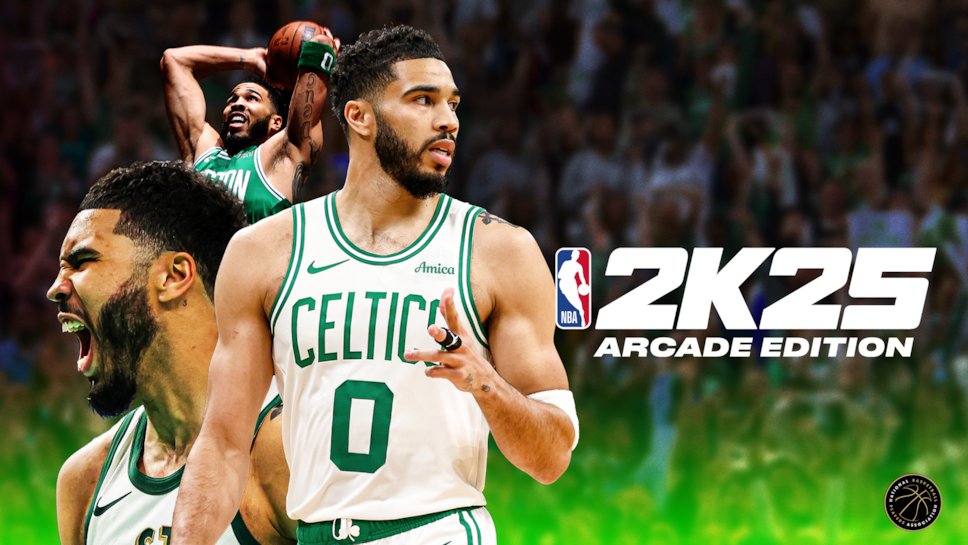
Troubleshooting NBA 2K25 issues often involves updating drivers, verifying game file integrity, or adjusting in-game settings for optimal performance.
Experiencing frustrating glitches in your much-awaited NBA 2K25 game? It’s a common annoyance that players face, and you are not alone. Thankfully, many of these problems have fixes, and this article aims to provide you with effective NBA 2K25 issue solutions.
We will cover a variety of common issues that plague the game. We aim to help you get back to enjoying the courts as soon as possible.

NBA 2K25 Issue Solutions
So, you’re excited to play NBA 2K25, right? It’s the game everyone’s talking about! But sometimes, things don’t go as smoothly as we’d like. You might run into a few bumps in the road, like the game freezing or not connecting to your friends online. Don’t worry; it happens to everyone! This guide is here to help you fix those pesky problems and get back to playing the game you love. We’ll cover all sorts of issues, from basic things you can check to more detailed fixes. Let’s get started and make sure your NBA 2K25 experience is awesome!
Common Connection Problems
One of the most frustrating things is when you can’t connect to the internet to play online games. Let’s look at why this might be happening with NBA 2K25 and what you can do about it.
Checking Your Internet Connection
First things first, let’s make sure your internet is working properly. Sometimes, the problem isn’t with the game, it’s with your connection to the internet.
- Restart Your Router: This is like giving your internet a quick nap. Unplug your router from the wall, wait for about 30 seconds, and then plug it back in. This often fixes connection glitches.
- Check Other Devices: See if your phone or computer can access the internet. If they can’t, the problem might be with your internet service, and you might need to call your provider.
- Wired Connection is Better: If you’re using Wi-Fi, try plugging an ethernet cable directly into your console or computer. This can give you a faster and more stable connection.
NBA 2K25 Servers
Sometimes, the game’s servers are the ones having a problem. When this happens, there is not much you can do, but you can always check to be sure.
- Check Server Status: Go to the official NBA 2K social media or support pages. They often post updates if there are server issues. Other websites also keep track of game server problems.
- Wait it Out: If the servers are down, the best thing to do is be patient. The game makers will be working hard to get them back up and running. You can try again later.
Game Freezing and Crashing
Game freezing or crashing is super annoying. It can happen when you are right in the middle of a great play. Here’s how to try and stop that from happening.
Keeping Your System Updated
Just like your phone or tablet, your console or PC needs updates. These updates often have fixes that can make games work better.
- Console Updates: Make sure your PlayStation or Xbox has the latest system software installed. Usually, you can find this in the settings menu.
- PC Updates: If you play on a PC, make sure your Windows or other operating system is up to date. Also, check for updates for your graphics card drivers, as these can greatly impact how games perform.
Closing Unnecessary Programs
Running too many programs at the same time can make your game slow down or crash. Try to close any other apps that you’re not using when playing NBA 2K25.
- Console: Close any games or apps that you have running in the background.
- PC: Close web browsers, chat programs, and any other apps that are open. Use Task Manager (Ctrl+Shift+Esc) to see what’s running and close anything you don’t need.
Game Settings
Sometimes, the game settings are too high for your system to handle. Adjusting these settings might help.
Lower the Graphics Settings:
- Go to the game’s settings menu, find the graphics options and try lowering things like resolution, shadow quality, and texture detail.
- If the game runs more smoothly, great! If it’s still slow, try lowering the settings even more.
Audio and Visual Issues
Is your game looking or sounding weird? Let’s check out what you can do.
Checking Audio
Sometimes you might not hear the game music, the players’ voices, or the crowd. Here are some quick fixes.
- Check the Volume: This sounds obvious, but make sure your TV or speakers are turned up and that the game volume is not turned down in the game settings.
- Headphone Connection: Try disconnecting and reconnecting your headphones or headset. Also, try a different set of headphones to see if they are the problem.
- In-Game Settings: Go to the game settings and check the audio settings. Make sure the correct output is selected and that the audio levels are not set to zero.
Visual Problems
If the game looks distorted, blurry, or has other odd visual effects, here are a few things to try:
- Monitor or TV Settings: Check the display settings on your TV or monitor. Make sure the resolution matches what you’re using on your console or PC.
- Cable Connections: Check the cable that connects your console or PC to your screen. Make sure it’s plugged in securely. You can also try a different cable to see if that fixes the problem.
- Game Settings: Lowering the resolution or turning off some visual effects in the game’s settings can sometimes help.
Controller Issues
Is your controller acting up? Here are some simple things you can do to try and fix it.
Controller Connection
- Check Batteries: Make sure your controller batteries are charged or replace them with fresh ones.
- Wireless Connection: If you’re using a wireless controller, make sure it’s paired correctly. Try turning it off and back on again to reconnect.
- Wired Controller Connection: Check the wire to make sure it is properly plugged into the controller and the system.
Controller Not Responding
If your controller is connected but not doing anything in the game, try these steps.
- Restart Your Game: Sometimes, just closing the game and starting it again can fix controller problems.
- Restart Your System: If restarting the game doesn’t work, try restarting your console or PC. This is like giving everything a fresh start.
- Try a Different Controller: If you have another controller available, try using that to see if it works better. If a different controller works, it suggests that the original controller has an issue.
Stuck on Loading Screen
Getting stuck on the loading screen is a frustrating situation. Here’s what might help you get past that screen.
- Be Patient: Sometimes loading screens can take a little longer, especially after an update or new content has been added to the game. Just give it a little time.
- Restart the Game: If it seems to be stuck, try closing the game and launching it again. This can often fix the problem.
- Restart Your Console or PC: If restarting the game doesn’t work, restarting your console or PC might.
Other Troubleshooting Tips
Here are some other things you can do that might help with various issues.
Reinstalling NBA 2K25
Sometimes the best solution is to start over with a clean install. This can fix many problems by replacing corrupted files and other potential issues.
- Uninstall the Game: On your console or PC, find where the game is installed and uninstall it.
- Reinstall the Game: Download and install the game again. Make sure you’re downloading it from the official store or source.
Checking for Game Updates
Game developers are always working to make the game better. Make sure you have the latest version of the game because these updates often contain fixes to problems.
- Automatic Updates: Most consoles and PC game platforms will automatically download and install updates for you. Make sure this setting is enabled.
- Manual Updates: Sometimes, you need to manually check for updates, you can usually find this setting in the game’s menu or your console’s game management settings.
Contacting Support
If you’ve tried everything and still have problems, reaching out to the official NBA 2K support team might be your best bet.
- Check the 2K Support Website: You can often find helpful information and solutions on the official support pages.
- Open a Support Ticket: If you cannot find a solution to your problem, open a support ticket or contact customer service for further assistance, they may have a better solution for your particular issue.
We’ve covered a lot of ground, from connection problems to visual glitches and controller issues. Remember, these problems can sometimes be a pain, but with a little patience, you can usually get things back on track. Keep these tips in mind, and you’ll be back on the court in no time, hitting those game-winning shots in NBA 2K25! Don’t give up and keep playing!
How To Fix NBA 2K25 Error Code 56d85bb8
Final Thoughts
Addressing common glitches and bugs is crucial for a smooth gaming experience. Players should always check for game updates and ensure their systems meet the minimum requirements. Tweaking graphics settings can also improve performance.
Seeking help from community forums provides additional support. You might find solutions from other players who have faced similar problems. Considering these steps can help tackle those frustrating bugs.
Ultimately, navigating NBA 2K25 issue solutions requires a combination of troubleshooting and community engagement. Players who follow this advice can enjoy the game with fewer interruptions.

