
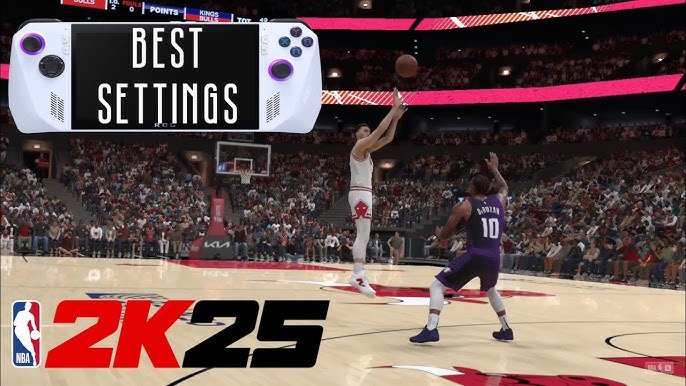
To improve NBA 2K25 performance, try adjusting graphics settings like resolution, texture quality, and disabling unnecessary features. Ensure your PC meets the minimum or recommended specifications and update your graphics drivers.
Experiencing lag in NBA 2K25? It’s frustrating when your game isn’t running smoothly, especially during crucial moments. That’s why we’re diving into NBA 2K25 performance optimization help.
Let’s explore some simple tweaks you can implement to get the best experience. From graphics settings adjustments to checking system requirements, there are ways to improve performance.
We want you back in the game, enjoying all the action, without interruptions. So, let’s get started and get your game running at its best.

NBA 2K25 Performance Optimization Help
Alright, gamers, let’s talk about making NBA 2K25 run smoothly! Sometimes, even on a good computer or console, the game can get a little choppy. That’s not fun when you’re trying to nail a perfect three-pointer or pull off a sweet crossover. This article is here to help you make sure your game is running at its best, so you can focus on dominating the court. We’ll go through all the common issues and how to fix them, so get ready to optimize!
Understanding the Basics
Before we dive into specific fixes, let’s understand why NBA 2K25 might be having performance issues. Think of it like this: your game is like a race car. If the car isn’t tuned up right, it won’t run as fast as it could. Several factors can cause your game to slow down or become jerky. These factors include:
- Your computer or console isn’t powerful enough.
- Your graphics settings are too high.
- Other programs are running in the background.
- Your game files need to be checked.
- Your hardware drivers need to be updated.
Knowing these factors is the first step to getting better game performance.
Tweaking Graphics Settings for Better Performance
One of the biggest things that can affect how your game runs is your graphics settings. These settings decide how detailed the game looks. The more detailed it is, the harder your computer has to work. Lowering some of the settings can make a big difference in how smoothly your game plays.
Adjusting Resolution
The game’s resolution is like the size of the picture on your screen. A higher resolution means a sharper picture, but it also requires more power from your computer. If you’re experiencing slow gameplay, try lowering the resolution. For example, if you’re playing at 1920×1080 (which is called 1080p or Full HD), try dropping it down to 1600×900 or even 1280×720 (called 720p). This will make the picture a little less sharp, but it can significantly improve game performance.
Lowering Detail Settings
NBA 2K25 often has many settings that affect details, such as:
- Texture Quality: This setting determines how detailed the textures in the game appear, like the players’ uniforms, the court, and the crowd. Lowering this can help a lot with performance.
- Shadow Quality: Shadows can make the game look more realistic, but they also require a good amount of power to render. Try turning down the shadow quality or turning them off entirely if your game is struggling.
- Anti-Aliasing: This setting makes lines and edges look smoother. Turn it down or off if you’re experiencing slow gameplay. It will make the edges a little more jagged, but it will help with speed.
- Effects Quality: Effects like motion blur and depth of field can look cool but they can also affect performance. Try reducing them or turning them off.
- Crowd Detail: The crowd can be very detailed in NBA 2K25, and reducing the crowd detail can increase performance as well.
You can usually find these settings in the game’s graphics menu. Experiment with these settings to find the best balance between picture quality and performance. Start by making small adjustments and see how they affect your game. Don’t be afraid to play around with them!
Vertical Sync (Vsync)
Vsync helps to match the game’s frame rate with your monitor’s refresh rate. When Vsync is on, it can sometimes prevent “screen tearing,” which is when parts of the image don’t line up correctly. However, Vsync can also sometimes slow down the game. Try turning it on or off in the settings and see which works better for your setup. Generally, you should turn it off when experiencing stutter, or turn on when you have screen tearing.
Keeping Your Computer or Console Clean
Just like your room can get messy if you don’t clean it, your computer or console can get slowed down if you don’t keep it tidy. Here are a few tips for making sure it is running at its best:
Closing Background Apps
Have you ever tried to do too many things at once? It can get overwhelming, right? Your computer is the same way. When you have lots of apps running in the background, they use up your computer’s power, which can make your game slower. Before you start playing, make sure you close any programs you aren’t using. This includes web browsers, music players, or anything else that might be running. You can often close apps in task manager (Windows) or the equivalent on your console.
You can close apps on your device by following these steps:
- Windows: Press Ctrl + Shift + Esc to open Task Manager. Go to the Processes tab and close any apps you don’t need.
- PlayStation 5: Press the PlayStation button, go to your Active Cards and close the applications.
- Xbox Series X/S: Press the Xbox button, highlight the game, press Menu and select Quit.
Updating Your Drivers
Drivers are like special instructions that tell your computer how to use its different parts, like the graphics card. Keeping these drivers up to date is super important because newer drivers often have performance improvements and can fix problems. Make sure you have the latest drivers for your:
- Graphics Card (Nvidia, AMD, Intel)
- Sound Card
- Motherboard
You can usually download the latest drivers from the manufacturer’s website. For example, if you have an Nvidia graphics card, go to the Nvidia website to get the newest drivers. Same goes for AMD and Intel graphic cards. Make sure to select the right model of your graphics card.
Checking for System Updates
Just like apps and drivers, operating systems need to be updated as well to keep things running smoothly. Make sure you have all the latest system updates for your:
- Windows
- PlayStation 5 System Software
- Xbox Series X/S System Software
Keeping everything updated is crucial for smooth game play. To update your OS, check for the updates in the settings section.
Game Specific Optimization Tips
Besides the common computer and console tricks, there are also some things you can do inside the game itself to improve performance.
Verify Game Files
Sometimes game files can get corrupted or go missing, which will make your game run badly. Most game platforms have a tool that will let you check and repair your game files. Here’s how:
- Steam: Right-click on NBA 2K25 in your library, go to Properties, then Local Files, and click on “Verify integrity of game files”.
- Epic Games Store: Click the three dots next to the game, then click on “Verify”.
- PlayStation 5: On the Home screen, highlight the game, press the Options button on the controller, and select Check for Updates.
- Xbox Series X/S: Highlight the game in the list, press the Menu button on the controller, and select “Manage game & add-ons,” then “Updates.”
These options help ensure that all game files are present, and not corrupted. This will help a lot with overall performance.
Online Gameplay Optimization
If you’re playing NBA 2K25 online, your internet connection can greatly affect performance. If your connection isn’t good, you might experience lag, which is when the game freezes up or skips around. Here are a few tips for improving online play:
- Use an Ethernet Cable: Connect your computer or console directly to your router using an ethernet cable. Wi-Fi is convenient, but wired connections are often much more stable and faster.
- Close other Apps: Make sure other devices are not using too much internet while playing the game.
- Restart Your Modem and Router: Sometimes restarting your internet equipment can help fix connection problems.
- Check Your Internet Speed: Use an online speed test tool to make sure you are getting the internet speed that you’re paying for.
Advanced Optimization Tips
For users comfortable with tweaking a bit more, there are some advanced options that could help performance. Please be careful when making changes here and follow the instructions very carefully.
Adjusting Power Settings
Your computer might be using a power-saving mode that limits performance. Check your power settings and make sure you’re using a high-performance mode. This will make sure that your computer is using its full power while playing NBA 2K25.
Here’s how to do this:
- Windows: Click on the Windows button, type “power settings,” and click on “Power & Sleep Settings”. Under related settings, click on Additional power settings and select High Performance.
- Console: These typically run in a high-performance mode already.
Overclocking
Overclocking is an advanced method that increases the speed of your computer’s processor. This can help improve the game’s speed, but it can also make your computer run hot and even cause damage if not done carefully. This is not recommended for beginners and only proceed when you have thorough knowledge. If you are not sure, it is best to leave it alone.
Upgrading Hardware
If you’ve tried all these tips and you are still having performance issues, your computer might not be strong enough to run the game smoothly. If that is the case, upgrading your hardware might be the only solution. You can consider upgrading the following:
- Graphics Card: This is often the most important part for gaming. If you have an older graphics card, you might need to upgrade to a newer model.
- RAM: More RAM can help the game run smoothly, especially when you have other apps open. 16GB is a good amount for most games.
- Processor (CPU): If your processor is very old, upgrading it can also improve performance.
Upgrading hardware can be expensive, but it can also make a big difference in your gaming experience.
By following these tips, you’ll be well on your way to getting the best possible performance out of NBA 2K25. Remember, the goal is to keep your game running smoothly so you can focus on having fun and making those game winning plays. Don’t be afraid to try different combinations of these tips to find what works best for your setup. Happy gaming!
Best Graphics Settings for NBA 2K25 (FIX LAG AND STUTTERING)
Final Thoughts
Following these tips should significantly improve your game experience. Tweaking graphics settings and ensuring updated drivers are crucial. Closing background applications also aids in boosting performance.
Remember, consistent optimization is important for smooth gameplay. If you face persistent issues, you might need to adjust in-game settings further. NBA 2K25 performance optimization help can often involve simple changes.
By implementing these strategies, you’ll achieve a better experience playing your favorite basketball game.

