
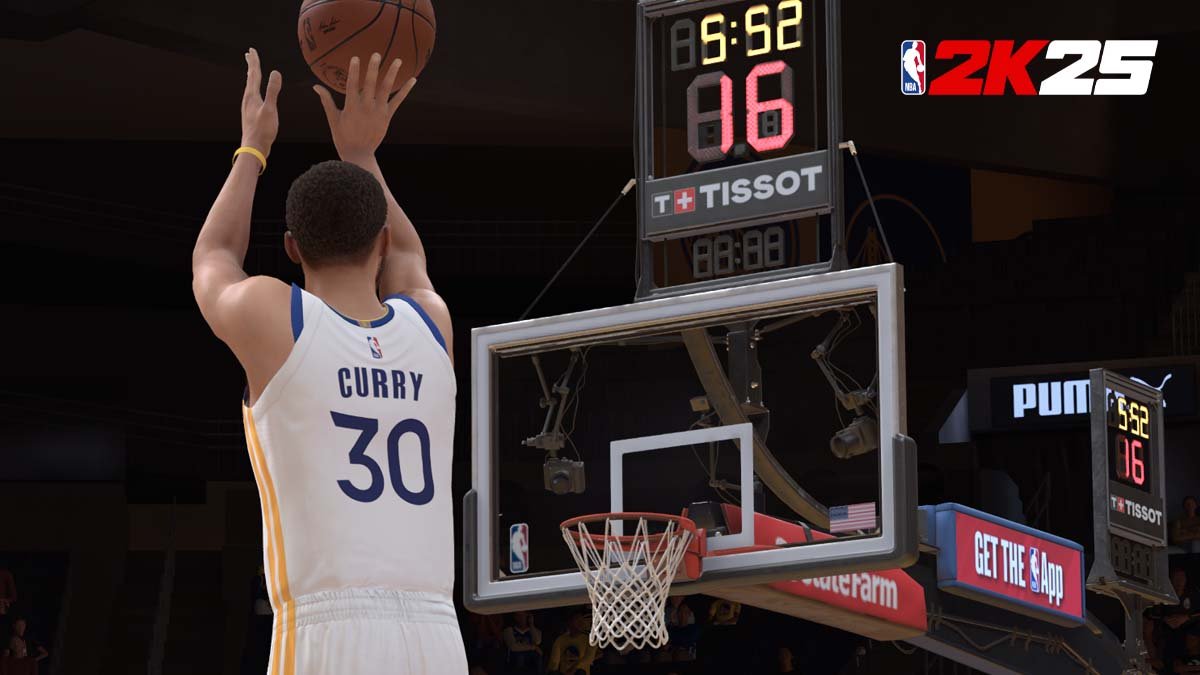
Here’s how to improve the game’s performance: Lower graphics settings, update your drivers, close background apps, and ensure your PC meets the minimum or recommended specifications. Following these tips in this NBA 2K25 performance tuning guide can improve your gameplay.
Experiencing choppy gameplay in NBA 2K25? Don’t worry, many players face this. This article is your guide, a complete NBA 2K25 performance tuning guide, that will help you achieve smoother, more responsive basketball action. We’ll go over practical steps you can take.
By implementing these specific changes, you’ll improve how the game runs on your system. You will find the game is much more enjoyable and visually appealing. Let’s dive into optimizing your 2K25 experience.

NBA 2K25 Performance Tuning Guide
Hey there, ballers! Ready to take your NBA 2K25 game to the next level? Sometimes, even with a top-notch setup, things might feel a little sluggish. Maybe your shots aren’t as smooth as they should be, or the game just feels choppy. Don’t worry, you’re not alone! This guide is here to help you get the best possible performance out of NBA 2K25. We’ll walk through all the settings and tweaks you can make to improve your gameplay experience. Let’s dive into making your game feel super smooth and responsive!
Understanding Performance Bottlenecks
Before we start making changes, let’s talk about what can cause your game to run slower than you’d like. Imagine your computer is like a team, and each part has a job. If one part isn’t working as well as it should, it can slow down the whole team. For NBA 2K25, the main “players” are:
- The Graphics Card (GPU): This is like the team’s star player when it comes to visuals. It makes sure everything looks great, from the players’ jerseys to the details of the arena.
- The Processor (CPU): Think of this as the team’s coach. It handles all the thinking, like where the players should move and how the game works.
- Memory (RAM): This is like the team’s training space. It’s where the computer stores information for quick access. The more RAM you have, the more information it can handle at once.
- Storage (Hard Drive or SSD): This is where the game itself is kept. A fast storage drive, like an SSD, will load the game and the levels faster than an old spinning hard drive.
When one of these parts is having a hard time, it can create a bottleneck. This means that one part is holding back the other parts, causing lag or stuttering in the game. Figuring out which one is the problem is the first step to fixing it!
Adjusting In-Game Graphics Settings
NBA 2K25 gives you a lot of control over how the game looks. Changing these settings is a key way to improve performance without needing to buy new computer parts. Here’s what you should look at:
Resolution
Resolution is like how many tiny dots make up the pictures you see on your screen. A higher resolution makes the game look sharper, but it also requires more power from your graphics card. If your game is running slow, try lowering the resolution. For example, if you’re running at 1920 x 1080 (which is a common setting), try dropping down to 1600 x 900 or even 1280 x 720. You might not notice a huge difference in clarity, but it can greatly improve performance.
Graphics Quality Presets
Most games, including NBA 2K25, have presets for graphics quality – like “Low,” “Medium,” “High,” and sometimes “Ultra.” Starting with “Medium” is often a good place to start. If things are still slow, go down to “Low.” You’d be amazed how much smoother the game will run. You can also adjust individual settings if you want more control.
Specific Graphics Settings
Within the graphics options, you’ll find some specific settings that have a big impact on performance. Here are some of the key ones and what they do:
Anti-Aliasing
Anti-aliasing makes the edges of objects look smoother, so you don’t see so many jagged lines. Turning it down or off will give you a performance increase, but at the cost of slightly less smooth visuals. Common options include MSAA, FXAA, and TAA. Try turning it off or selecting the least demanding version (FXAA is usually lighter than MSAA).
Texture Quality
This setting controls the detail of textures (like the court or the players’ jerseys). If you have a graphics card with less VRAM (the graphics card’s own memory), lowering this setting can help a lot. Try setting this to “Medium” or “Low”.
Shadow Quality
Shadows can be really demanding on your system. Set it to “Medium” or “Low” to make the game run faster. You might not see much difference during gameplay, but it can help quite a lot with performance.
Reflections
Reflections make shiny surfaces, like the court, look more realistic. Turning this setting down or off will give you a performance boost. The differences in visuals are not always noticeable, but you’ll feel the gain in performance.
Motion Blur
Motion blur makes the game look smoother when things are moving fast, but it takes extra power. If you turn motion blur off, the game may feel a little less smooth, but you will see improved framerates.
Ambient Occlusion
Ambient occlusion adds realistic shading and depth to objects by simulating how light interacts with them. It’s a nice visual effect, but it can be demanding on your system. Try turning this setting down or off for a performance boost.
Crowd Density
This setting determines how many people you see in the stands. A higher crowd density looks great, but can slow down the game. Try reducing crowd density for a performance gain.
The best thing to do is to experiment with these settings, change one at a time, and see how the game performs. The “best” settings are different for each player’s system.
Updating Graphics Drivers
Graphics drivers are special software that help your graphics card communicate with your computer and games. Having the newest drivers can make a big difference in performance. It’s like giving your graphics card a fresh update to play games better. To update your graphics drivers, you need to know who makes your graphics card, you have three main companies that makes graphics cards, Nvidia, AMD, and Intel, here is what you have to do to update their drivers:
NVIDIA
If your graphics card is from NVIDIA, go to the NVIDIA website and find the “Drivers” section. Download the latest driver for your specific graphics card model. Install it, and then restart your computer. You can also use Nvidia’s GeForce Experience App to check for driver updates.
AMD
If your graphics card is from AMD, go to the AMD website and find the “Support” or “Drivers” section. Download the newest driver for your specific card. Install it, and then restart your computer. You can also use AMD Adrenalin Software to check for new driver updates.
Intel
If you are using an integrated graphics card from Intel, go to Intel’s website and look for the “Support” or “Drivers” section, find your exact intel integrated graphics model, and download and install the latest drivers, after that, restart your computer.
Make sure you only download drivers from the official website for your graphics card to avoid downloading any unwanted software.
System Tweaks Outside of the Game
Sometimes, changes to your computer’s settings outside of NBA 2K25 can also make a difference. Here are some things you can try:
Closing Background Programs
Lots of programs running at the same time can slow down your computer. Before you start NBA 2K25, close any programs you’re not using. This includes your web browser, chat apps, or any other extra software you have running in the background. The more programs you close, the more resources your computer can use for the game.
Power Settings
Your computer has different power settings that can change how much power it uses. To get the most performance for your games, make sure you are using the “High Performance” power setting. To do that on windows, follow these steps:
- Right click on the windows icon on the bottom left.
- Click on the “Power Options”
- Select “High Performance”
If you have a laptop, it’s best to make sure that it is plugged into power when you’re gaming because the power saving modes will always limit your performance while the laptop is on battery power.
Game Mode (Windows)
Windows has a special “Game Mode” designed to improve game performance. Here’s how to turn it on:
- Go to “Settings” from your start menu.
- Click on “Gaming”
- Choose “Game Mode” and turn it on.
This tells your computer to prioritize resources for your games.
Storage Space
Make sure that you have enough free space on your hard drive or SSD. If your hard drive is full, your computer can slow down. Try deleting old games, pictures, videos and other files you don’t use anymore to free up some space.
SSD vs HDD
If your computer has an option for SSD, try installing the game on SSD. SSDs are way faster than HDDs and can help you load into the game faster and provide better in game performance. It will also reduce the game stutter if you have it installed on an HDD instead of an SSD.
Monitor Refresh Rate
The refresh rate of your monitor is how many times per second the image on your screen gets updated. It is measured in Hertz (Hz). If you have a monitor that is capable of doing more than 60Hz, it will provide much smoother image, it is usually 144Hz, 165Hz, and 240Hz for gaming monitors. Make sure that your monitor refresh rate is set to your monitor’s refresh rate, if it’s set too low you may see the image stutter or screen tear. To do that, follow these steps on windows:
- Right click on the desktop screen.
- Click on “Display Settings”
- Go down to “Related Settings” and click on “Advanced Display”
- Under “Choose a Refresh Rate”, make sure that it is set to your monitor’s refresh rate, for example 144Hz, or 165Hz, etc
Advanced Tweaks
If you’ve tried the other steps and are still looking for extra performance, here are some more advanced things you can try. But please be careful with them, because they can be risky if you don’t know what you are doing:
Overclocking
Overclocking means making your CPU or GPU run faster than it’s supposed to. This can give you a performance boost but may also generate extra heat or damage parts if done incorrectly, so this is only for advanced users who are comfortable with this type of modification and know what they are doing. Make sure that you do your own research before you try overclocking.
XMP Profile
XMP profiles are special settings for your computer’s RAM that allow them to run at their optimal speed. If you are using a custom build pc, it’s likely that you will have XMP memory, here’s how to turn that on:
- Restart your computer
- When your computer is starting, press the key that takes you to your bios, usually it’s the DEL key, F2 or F12, depending on the brand of your motherboard, you should see the key on the first screen when your PC is turning on
- After you’ve reached the bios, go to the advanced setting section of the bios
- Then find the XMP profile settings, it’s usually labeled as such, or “memory profile”
- Turn the XMP profile on
- Save settings and exit, then your pc will restart.
This way your RAM will work at the speed that the manufacturer intended for them.
Monitoring Hardware
If you still have performance issues you can monitor your hardware while you play the game to see what is causing the bottleneck, you can do that by installing monitoring software like:
- MSI Afterburner
- HWMonitor
- Task Manager (Windows)
These software programs will show you how much your CPU, GPU, and RAM are being used. If any of these is close to 100% while you’re playing, that’s probably where your problem lies. Then you can go online and try finding a solution for that particular bottleneck or buy a better component. If you notice that your CPU, GPU, or RAM are heating up quite a lot while you are playing, it may be time to buy better cooling solution.
By using these steps, you can find the settings that are right for you and have your NBA 2K25 game running as smoothly as possible. Remember to be patient and try different things until you are satisfied with your performance!
Performance tuning isn’t a one-size-fits-all solution. What works for one person might not work for another. The key is to be patient, experiment with settings, and find what works best for your computer. Happy gaming and see you on the court!
NBA 2K25 Fix Low FPS And Stutters
Final Thoughts
To conclude, achieving optimal gameplay involves careful adjustment of visual settings and consistent driver updates. Tweaking in-game graphics options can improve frame rates. Also, ensure your PC meets minimum specs for a smoother experience.
Proper configuration and system upkeep are crucial for enjoying the game. This NBA 2K25 performance tuning guide helps you optimize your experience. You should see better gameplay after these tweaks.

