
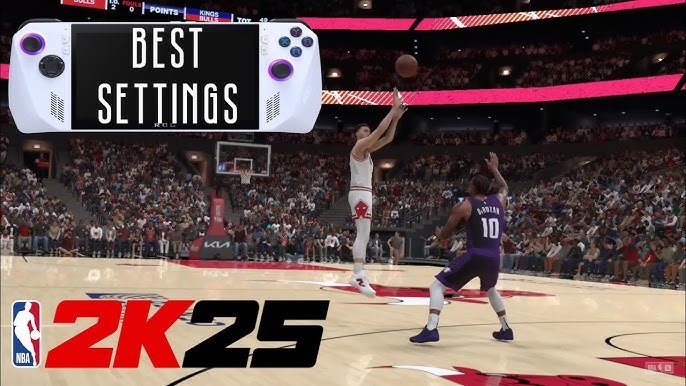
Optimizing your NBA 2K25 experience requires adjusting graphics settings, updating drivers, and closing background applications to achieve smoother gameplay.
Experiencing lag or stuttering in NBA 2K25? It’s a common frustration, but you can improve your game. Many players want better performance from their setup. Effective NBA 2K25 performance tuning is within reach with a few key adjustments.
Tweaking your in-game graphics settings can make a significant difference. Lowering resolution or turning down effects often leads to smoother frame rates. You should also verify that your graphics card drivers are up to date.
Closing unnecessary programs running in the background also helps. This action frees up your system resources, improving overall game performance. These simple tweaks can significantly improve your experience.

NBA 2K25 Performance Tuning
Getting the most out of NBA 2K25 can sometimes feel like a tricky shot. You want the game to look great and play smoothly, right? Well, sometimes your computer or console might need a little help to make that happen. That’s where performance tuning comes in! It’s like giving your game a pep talk and making sure everything is running at its best. This article will show you how to tweak different settings to get the best performance out of NBA 2K25, so you can enjoy every dunk, three-pointer, and buzzer-beater without any annoying lag or stutters. Let’s dive in!
Understanding the Basics of Performance
Before we start adjusting settings, it’s good to know a bit about what affects how NBA 2K25 runs. Think of it like a car. It needs fuel (processing power), good tires (graphics card), and space to move (memory). If any of these things aren’t working well, your ride won’t be smooth.
What Makes a Game Run Well?
- Processor (CPU): This is the brain of your computer or console. It does all the thinking for the game, like figuring out where the players should move and how the ball should bounce. A faster CPU means the game can do more things quickly.
- Graphics Card (GPU): This is what makes the game look pretty. It draws all the pictures you see on the screen. A better graphics card can handle more detail and make the game look much more realistic.
- Memory (RAM): This is like the short-term memory of your computer or console. It holds the information the game is currently using. More RAM means the game can access information quickly and have more space to do its thing.
- Storage (Hard Drive or SSD): This is where the game lives. A faster storage device, like an SSD (Solid State Drive), can load the game faster and help with smoother gameplay.
Optimizing Your Graphics Settings
The graphics settings in NBA 2K25 are like the dials on a TV. You can turn them up to make the game look really detailed, or turn them down if you need to make it run faster. Finding the right balance is key.
Resolution: Finding the Sweet Spot
Resolution is like how many tiny dots make up the picture on your screen. A higher resolution means a clearer picture, but it also needs more power from your graphics card. If you are having trouble running the game, try lowering the resolution. It can make a big difference. Try these steps:
- Full HD (1920×1080): This is a good starting point for most systems. It looks pretty good and doesn’t require as much power as higher resolutions.
- 1440p (2560×1440): If your graphics card is strong, this can make the game look even sharper.
- 4K (3840×2160): Only use this if you have a high-end computer, as it requires the most power. If you’re having issues, definitely drop down from this resolution.
Experiment and find what resolution provides the best blend of visuals and performance for you. If the game feels laggy, try going one step lower.
Visual Quality: Adjusting the Details
NBA 2K25 has a lot of options to adjust the visual quality of the game. Here’s how some of them can affect performance:
- Texture Quality: This determines how detailed the surfaces in the game look, like player jerseys or the basketball court. If you lower it, you can free up some graphics power but the game might not look as sharp.
- Anti-Aliasing: This makes the edges of objects look smoother, removing jagged lines. Turning it down can make things look a bit rougher but could give you a performance boost. Common options include FXAA, MSAA, or no anti-aliasing.
- Shadow Quality: The shadows in NBA 2K25 can be quite detailed, but they can also use a lot of power. Try turning down the shadow quality to help your game run smoother.
- LOD (Level of Detail): LOD controls how detailed objects are at different distances. Turning this down can help performance, especially in crowded scenes.
- Crowd Detail: Having a large, active crowd can be fun, but it’s taxing on the system. Reducing the crowd’s detail or density can help you gain frames per second.
Remember that it’s better to make incremental changes to these settings, testing after each adjustment to see what impact it has on your gameplay. Don’t feel like you need to lower everything, either. Just lower what needs to be lowered to get optimal performance.
Frame Rate: Aiming for Smoothness
Frame rate, measured in frames per second (FPS), is how many pictures the game shows you every second. A higher frame rate means the game looks smoother and more responsive. Try to keep your game around 60 FPS or higher if possible. If you are experiencing lag or stutters, it may mean you need to adjust settings so that the game will run above 30 FPS. If you are consistently getting around 30 FPS, then your game will be playable but you’ll probably still notice a lack of smoothness.
- Targeting 60 FPS: This is a good goal for a smooth, enjoyable gaming experience. Most monitors have a 60 Hz refresh rate, so 60 FPS will generally be a good baseline to target.
- Lowering Settings to Improve FPS: If your frame rate is low, try reducing the visual quality settings we talked about.
- V-Sync: V-Sync tries to sync the game’s frame rate with your monitor’s refresh rate. It can stop screen tearing, but it can sometimes make the game feel a little sluggish. Try experimenting with it turned on and off to see what works best for you.
If your monitor supports it, turning on G-Sync or FreeSync can also help smooth out gameplay.
Computer Specific Optimizations
Beyond the in-game settings, there are some things you can do on your computer to get the most out of NBA 2K25.
Keeping Your Drivers Up to Date
Your graphics card drivers are the software that lets your computer talk to the graphics card. New drivers can fix bugs, improve performance, and make your game run better. Here’s how to update them:
- NVIDIA: Go to the NVIDIA website and get the latest driver for your graphics card. You can also download GeForce Experience for auto updates.
- AMD: Go to the AMD website and download the newest drivers for your AMD graphics card. AMD also has a tool called AMD Software: Adrenalin Edition which will automatically keep drivers updated.
- Intel: If you have an Intel integrated graphics card, make sure you’re using the latest driver that Intel provides.
Keeping all of your drivers updated is important for optimal performance and compatibility.
Closing Unnecessary Programs
Other programs that are running on your computer can steal processing power and memory away from NBA 2K25. Before you start the game, close any programs that you’re not using. This can help make sure the game has all the resources it needs.
- Web browsers: Chrome, Firefox, and other browsers can use a lot of memory even if you are not actively using them. Close them before playing.
- Music apps: Music programs like Spotify and Apple Music can use a small amount of processing power. Close them to help NBA 2K25 run more smoothly.
- Other games: Games that are still running in the background can use resources. Close them before running NBA 2K25.
Having other programs open can also cause input lag. This will reduce your reaction time in the game. Make sure to close unnecessary programs before you start to play.
Tweaking Power Settings
Your computer’s power settings can affect how much power it gives to your games. Make sure your computer is set to use its full power when you play NBA 2K25.
- Windows: Go to the Power Options in your Windows settings and make sure the power plan is set to “High Performance”.
- Mac: If you are using a Mac, make sure that your device is plugged in to an outlet for the best performance.
Overclocking: Use with Caution!
Overclocking is when you make your CPU or GPU run faster than it’s supposed to. It can give you a boost in performance, but it can also make your computer hotter and potentially damage components if not done carefully. Only do this if you know what you are doing.
- Research: Read about your CPU and GPU and learn what overclocks they can handle and how to achieve them.
- Cooling: You need a good cooling system to handle the extra heat that comes from overclocking. Make sure you have a good cooler in place.
- Testing: After making changes, test your computer to make sure it’s stable.
If you are unfamiliar with overclocking, it’s best to avoid it, as it can result in damage to your system if done improperly.
Console Specific Optimizations
If you play NBA 2K25 on a console, some of the same principles apply. Let’s look at some ways to improve performance on your console.
Making Sure Your Console is Cool
Your console works best when it’s cool. If it gets too hot, it might slow down to protect itself. Make sure your console is in a well-ventilated spot.
- Keep It in the Open: Don’t put it in an enclosed space or cover it with anything that would trap heat.
- Check for Dust: Dust can clog the console’s vents. Try to clean them regularly with a can of compressed air.
Storage Management
Having a nearly full hard drive can slow down your console. If it’s too full, it can be harder for your console to run the game. Here are some things you can do:
- Delete Games You Don’t Play: Go through your library and delete any games you don’t use anymore.
- Remove Media: If you have old videos, screenshots, or other media that you don’t need, remove them.
Game and Console Updates
Just like with your computer, game updates can improve performance and fix bugs. Always install the latest updates from the game and console makers.
- Always check for updates: When updates become available, make sure that you download and install them.
Console Performance Mode
Some consoles, especially newer ones, have a “Performance Mode” option. If you have this, make sure it is enabled when you play NBA 2K25.
- Settings: Look for this option in your console settings.
- Prioritize FPS: Performance mode usually gives you more FPS and smoother gameplay, even if it means the graphics might be slightly less detailed.
Network Optimizations for Online Play
If you are playing online, a good network connection is essential for smooth gameplay. A bad connection can cause lag, disconnections, and other problems.
Using an Ethernet Cable
Wi-Fi can be convenient, but a wired connection is much more reliable. If you can, plug your computer or console directly into your router with an Ethernet cable. This will give you a more stable connection and can reduce lag.
Closing Other Programs
Just like when playing offline, having other programs open on your computer or phone that use the internet can make the game lag. Close any programs or devices that are using your internet connection.
Check Your Internet Speed
A slow internet connection can be a major cause of lag in online games. You can test your internet speed with a free online speed test tool. If your speed is low, try contacting your internet provider to improve your service.
- Test: Use online tools to test your download and upload speeds.
- Call Provider: If the speed test is not meeting your expectations, you should contact your internet provider and try to improve your service.
Restart Your Modem and Router
Sometimes, your modem or router just needs a reboot. Unplug them, wait a minute or two, and plug them back in. This can fix a lot of connection problems and improve your online experience.
By understanding how different settings impact performance and taking the time to optimize your game and your system, you will be able to get the most out of NBA 2K25. This will allow you to enjoy a smooth and exciting game with all of the details that you enjoy.
These settings will help ensure you have the best gaming experience, allowing you to play NBA 2K25 without frustration.
Best Graphics Settings for NBA 2K25 (FIX LAG AND STUTTERING)
Final Thoughts
In short, optimizing your settings greatly impacts the fluidity. Experimenting with graphics options is crucial for better gameplay. Lowering certain settings can provide a noticeable boost.
Finding the right balance is key to improving your experience. NBA 2K25 performance tuning is an ongoing process. Adjust resolution, texture details, and frame rate for your specific hardware.

