
User settings in NBA 2K25 allow players to customize gameplay elements such as camera angles, difficulty, and controller preferences, influencing their overall experience.
Fine-tuning your game experience is vital in NBA 2K25. Navigating through the options menu and understanding the impact of each choice on the court makes all the difference. Knowing how to adjust NBA 2K25 user settings lets you tailor the game exactly to your liking.
From choosing the perfect camera angle for your plays to setting the game’s challenge to your skill level, these settings are the key to enjoying a personalized basketball simulation. Whether you prefer a more arcade-style feel or a realistic simulation, the game empowers you to make those decisions.

NBA 2K25 User Settings: Your Key to Victory
Okay, gamers! So you’ve got your hands on NBA 2K25, and you’re ready to hit the court. But before you start trying to pull off those amazing dunks and three-pointers, let’s talk about something super important: user settings. These aren’t just some boring options you skip past. They are your secret weapon to making the game feel just right for you. In this guide, we’ll break down all the essential user settings in NBA 2K25, making sure you know exactly how to tweak them for the best possible experience. Whether you’re a seasoned pro or a rookie just starting out, understanding these settings will make a big difference in how much you enjoy the game. Let’s jump in!
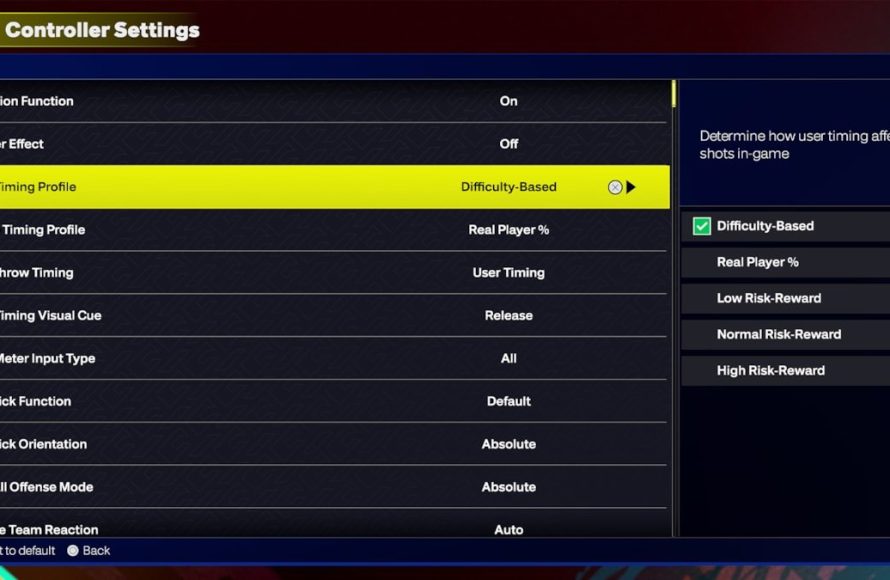
Controller Settings: Getting a Grip on the Game
Your controller is your connection to the court. Getting the controller settings dialed in perfectly is crucial for smooth gameplay. NBA 2K25 offers many ways to customize your controls, so let’s explore what you can change.
Vibration: Feel the Intensity
Vibration is a way to feel the action. When you get bumped, make a big play, or get a steal, your controller might shake. Some players love this feeling because it adds to the game’s energy. However, others find it distracting. You can:
- Turn vibration on: Feel every impact and big moment.
- Turn vibration off: Keep things calm and smooth without the shakes.
Try playing with it both ways to see which you prefer.
Controller Orientation
This setting might seem small, but it’s worth knowing. Controller orientation affects which buttons on the screen respond to your controller. For example, a setting like ‘right’ would allow you to use the right stick for movement. Some players prefer different orientations, such as left-handed controller setup. Changing the controller orientation will simply make the layout of buttons on the controller be interpreted differently on the game. There are a few options:
- Right: (Most common) Standard layout for right-handed players.
- Left: Standard layout but allows a left handed player to use their dominant hand for the actions.
Pick the one you find most comfortable.
Gameplay Controller Settings
The next set of settings relates to how the buttons will be used during the game.
Shot Button Settings
In NBA 2K25, there are various methods to shoot the basketball. You can select different methods like, X button shooting or stick shooting. This setting enables you to choose between using the button or the analog stick to shoot. Here are the various options:
- Button: Press the designated button to shoot. Simple and straightforward.
- Stick: Use the analog stick to shoot. Some players find this gives more control.
Shot Meter
The shot meter is an onscreen guide that helps you know when to release a shot for optimal accuracy. You can choose how you like to have the meter displayed, if at all.
- On: Displays a meter next to your player during a shot.
- Off: No meter is shown. Great for veteran players.
- Free Throws Only: Only shows meter during free throws.
Try each out to see which one you like best!
Defensive Assist Strength
Defense is as important as offense. Defensive assist strength settings allow you to choose how much the computer helps you on the defensive side of the ball.
- 0-100 scale: This gives you control over how much help you get from the computer. The higher the number, the more help you get. If you want more control or more of a challenge, turn it down!
Pro Stick Function
This is how the right stick is used. You can select between dribble moves or shooting actions. Here are the available options:
- Dribble Moves: Use the right stick for crossovers, spins, and other cool dribble moves.
- Shots: Use the right stick for shooting.
Pro Stick Orientation
Pro Stick orientation is how the direction of the right stick movements are interpreted. Options for the orientation include:
- Absolute: This means the direction you move the stick is relative to the camera, not to the player. If you move the stick to the right, the player will move to the right of the screen.
- Camera Relative: If you move the stick to the right, the player will move to the right of the camera angle.
- Player Relative: If you move the stick to the right, the player will move right relative to their direction.
Icon Passing
This setting determines how you pass the ball. Icon passing allows you to assign icons above players heads so you can pass directly to them.
- On: Use icons to quickly pass to the player you want.
- Off: Use regular passing.
Receiver Control
This setting allows for a more controlled passing scheme. It allows you to pick a player and control the player after you pass to them.
- On: After passing, take control of the receiver.
- Off: Regular passing, you will retain control of the player you were controlling before the pass.
Game Camera Settings: Seeing the Action
How you see the game is a big deal. The camera settings affect your perspective and how you experience the gameplay. NBA 2K25 gives you choices to find the best view for you.
Camera Views
There are several camera views to choose from. Each gives you a different feel. Here are some of the popular choices:
- 2K: This is the default view. It gives a good overall view of the court.
- Broadcast: Similar to watching a real game on TV.
- Baseline: A closer view behind the baseline, like you’re courtside.
- Freelance: This camera follows your player.
- Custom: Lets you create your own camera view by adjusting different parameters.
Experiment with different camera views to find the one that helps you play your best game.
Camera Zoom and Height
After choosing your camera view, you can further customize it. Adjust the zoom and height to your liking.
- Zoom: How close or far the camera is from the court. Zooming in can give you better focus on your player, while zooming out can help you see the court as a whole.
- Height: How high the camera is positioned. A lower height might feel more like you’re on the court, and a higher height might help you see more of the floor.
Gameplay Settings: Fine-Tuning the Experience
This section deals with the core gameplay mechanics. These settings are very useful for crafting a game that’s perfect for your skill level and preferences.
Game Difficulty
How hard do you want the game to be? NBA 2K25 allows you to choose the difficulty, and these are very different. The difficulty levels include:
- Rookie: Very easy, great for beginners.
- Pro: A little harder, good for new players who are picking up the basics.
- All-Star: A decent challenge for most players.
- Superstar: Quite hard, for experienced players looking for a good game.
- Hall of Fame: The toughest setting for the highest level players looking for the ultimate test.
You can change the difficulty at any time, so you don’t have to be stuck at the start. Select the one that provides a good challenge without being overly frustrating.
Game Speed
Game speed controls how fast the game flows. Adjust it to match your preferences and play style.
- Slower: Allows more time to react and make decisions. Good for players who like a more methodical game.
- Faster: Makes the game feel more intense and action-packed. Good for players who like quicker, more exciting gameplay.
Play around with it to find the speed that suits your style.
Fatigue Effects
Fatigue effects how tired your players get during the game. You can choose how big of an impact this has.
- On: Players get tired faster and perform worse when fatigued. Adds to the realism.
- Off: Players don’t get as tired, so they maintain peak performance longer. Good for arcade style playing.
Injuries
Injuries are a factor in professional basketball. You can choose if you want them to impact your game.
- On: Players can get injured during games. This adds a element of realism.
- Off: No player injuries will occur. Good for players who do not like to be held up by injuries.
Game Rules
Customize the rules to suit your preferences. You can decide if you want to abide by the standard rules or adjust them to your liking. Examples include:
- Fouls: Change the frequency of fouls called.
- Timeouts: Alter the number of timeouts allowed.
- Overtime: Choose different overtime rule types.
- Quarter Length: Alter the length of the quarters.
You can even choose if you want to use the NBA, FIBA, or College rules.
Audio Settings: Sounds of the Game
The sounds of the game add to the atmosphere. NBA 2K25 allows you to control all the audio in the game, from the roar of the crowd to the music.
Music Volume
Control the volume of the music. You can:
- Turn Music On: If you like the soundtracks of the game.
- Turn Music Off: If you want to focus on the in-game sound.
You can choose the volume level or remove the music entirely.
Sound Effects Volume
Adjust the volume of the in-game sound effects. These include:
- Crowd Noise: Turn up the cheering or turn it down for focus.
- Commentary: Adjust the commentator volume, which can affect the amount of useful info or banter you get from the broadcasters.
- Ball Sounds: Control the sound of the ball dribbling or hitting the net.
Balancing these levels can really affect the atmosphere of the game.
Accessibility Settings: Making the Game Inclusive
Accessibility settings help make the game easier for everyone to enjoy. These options cater to a wide range of needs.
Color Blind Mode
For players who have color vision deficiencies, this setting allows adjustment of the colors in game.
- Turn Color Blind Mode On: Pick from different settings depending on your specific color blindness.
- Turn Color Blind Mode Off: Select this setting if you do not have color vision deficiencies.
Subtitle Settings
Subtitles can help you keep up with the commentary and other dialogs, especially for gamers with auditory issues or if you want to keep your game volume low.
- Turn Subtitles On: Display the text of what people are saying in game.
- Turn Subtitles Off: Hide the subtitles.
You can also select different subtitle sizes and colors for better readability.
Menu Narration
This feature narrates the menu for players who have low vision or other accessibility issues.
- Turn Menu Narration On: The menu will be read aloud.
- Turn Menu Narration Off: You will need to manually explore the menus.
MyCAREER Settings: Your Personal Journey
If you’re playing MyCAREER mode, there are extra settings just for you. These help you customize your player and the overall experience.
Player Appearance
In MyCAREER, you have control over how your player looks. Change everything from your hairstyle to your equipment. You can customize:
- Hairstyle and Color: Go for something unique that reflects you.
- Facial Features: Use the editor to get your look right.
- Body Type and Measurements: Edit your player to their ideal size and shape.
- Clothing and Accessories: Deck your player out in the latest styles and custom accessories.
Badges and Takeover Abilities
Badges and Takeovers play a huge role in MyCAREER mode. Here are some notes:
- Choose your Badges: Select badges that fit your play style.
- Upgrade your Badges: Increase your badge abilities by completing in game objectives.
- Select your Takeover: Select an ability that suits your play style.
Experiment with different badges and see how they impact your player’s abilities.
Team Preferences
In MyCAREER, you can choose the kind of team you want to be on. You can:
- Pick the Team You Want to Play For: Choose based on team success or location.
- Adjust Your Role on the Team: Be a star or work your way up.
Difficulty in MyCAREER
MyCAREER has it’s own difficulty separate from the standard game mode. You can adjust:
- Rookie to Hall of Fame: Adjust the difficulty to suit your individual needs in the MyCAREER mode.
Saving and Resetting Settings: Never Lose Your Progress
It’s important to know how to save your settings and reset them if needed.
Saving Settings
NBA 2K25 usually saves your settings automatically. However, be sure to check if there’s a save prompt to make sure your changes are kept. If you are playing on a console, you will want to make sure that the game saves before closing the program. You can also have different settings depending on the different profiles or game modes. This is great for having multiple user profiles with different settings for multiple gamers in the same house.
Resetting to Default
If you ever want to start from scratch, the game allows you to reset your settings to the default values. There is generally a “Reset to Default” button in the user settings menu.
These features help you quickly return to a basic experience if you get too far out of your comfort zone.
The user settings in NBA 2K25 are designed to help all players have a tailored experience. Take some time to go through these settings and find out what works best for you. Experiment with different configurations to find the perfect gameplay experience that matches your playstyle and maximizes your potential on the virtual court. Happy gaming, everyone!
5 SECRET Settings That You NEED To Use In NBA 2K25
Final Thoughts
Fine-tuning your gameplay with the right NBA 2K25 user settings is paramount for peak performance and enjoyment. Adjusting sliders to match your preferred play style will significantly affect the game’s flow. Exploring options lets you create a personalized basketball experience.
Experimenting with camera angles and controller configurations improves your comfort and control. These adjustments allow you to fully immerse into the game. NBA 2K25 user settings truly let players tailor the game for their maximum benefit.

