
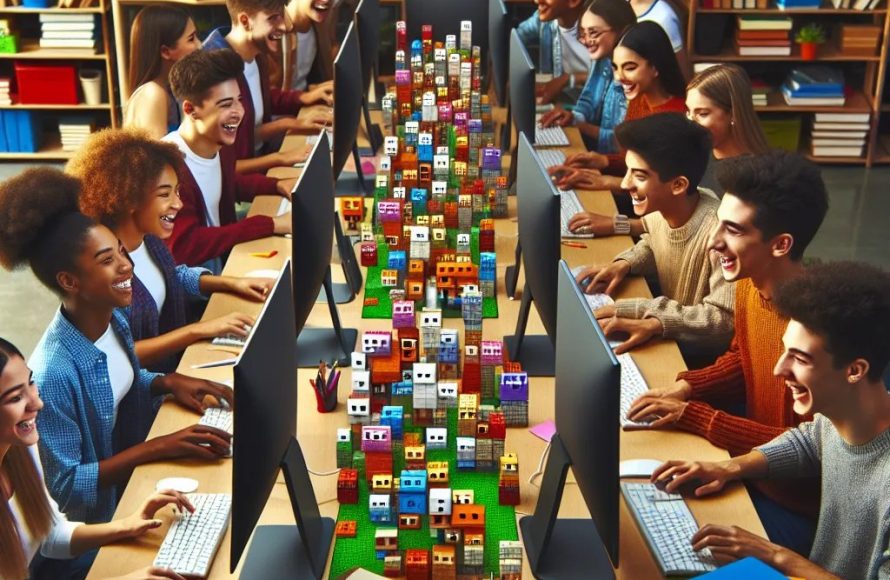
The Roblox educational accessibility guide provides information and tools to create inclusive learning experiences within the platform, ensuring all students can participate and benefit.
Roblox offers unique educational opportunities, but how can we guarantee every student can access them? This is where the importance of the Roblox educational accessibility guide comes in. We must consider how different users interact with the platform.
We need to ensure everyone, regardless of their abilities, can navigate and learn effectively.
This guide will cover key aspects that helps educators create inclusive and engaging experiences using Roblox.

Roblox Educational Accessibility Guide
Roblox is not just a game; it’s a universe where kids can build, explore, and learn. But what happens when some kids have trouble accessing this fun world? That’s where accessibility comes in! Think of it like making sure everyone can play, no matter their abilities. This guide is here to help you understand how to make Roblox a place where everyone can learn and have fun together.
Understanding Accessibility in Roblox
Accessibility means making sure that games and tools can be used by everyone, including people with disabilities. This could mean anything from visual, hearing, motor, or cognitive differences. When a game is accessible, more kids get to join in the fun and learning. It’s like adding ramps to a building so everyone can get inside, not just those who can climb stairs. In Roblox, there are many features we can use and some we can adjust to make it easier for kids of all abilities.
Why is Accessibility Important in Educational Settings?
When Roblox is used for learning, accessibility becomes even more important. It’s not enough to just have fun; everyone needs a fair chance to learn and grow. If some kids are struggling to use the controls, understand the instructions, or see the screen, they will miss out on the learning experience. Creating an accessible Roblox experience helps kids with different needs engage and participate. It builds a more inclusive and collaborative learning atmosphere. In the classroom, this is like making sure every student gets the support they require, regardless of their needs.
Navigating Roblox: Controls and Settings
Let’s start with how to move around and interact in Roblox. Understanding the controls and how to change them can make a big difference. It’s like learning how to use a new remote control for the TV; you need to know what each button does!
Adjusting Movement Controls
Roblox usually uses the WASD keys for movement on a keyboard. Some kids might find this difficult, and that’s okay! Here are some things you can do:
- Arrow Keys: Many games also allow the use of arrow keys for movement, which may be easier for some. Try switching between WASD and arrow keys to see what works best.
- Controller Support: If using a controller is easier, many Roblox games support game controllers. Just plug in your controller and see if it works within the game.
- Game-Specific Controls: Remember that some games will have unique controls. Check the game instructions or settings menu for specific tips.
Customizing Camera Controls
Controlling the camera view can also be a hurdle for some kids. Here’s how to make it easier:
- Mouse Sensitivity: Adjust mouse sensitivity in the game’s settings to slow down or speed up how quickly the camera moves.
- Camera Options: Some games offer first-person or third-person views. Try both to find what is most comfortable.
- Fixed Camera: In some cases, a fixed camera angle might be helpful, where the camera doesn’t move with the player. Look for game settings that offer this.
Using the Roblox Settings Menu
Roblox has a settings menu you can use to adjust different options. This menu is key to making your experience better.
- Graphics Quality: Lowering the graphics settings can make the game run more smoothly, which is useful on older computers. It can also reduce visual clutter for some learners.
- Sound Settings: You can adjust the sound levels for music, sound effects, and other players. This helps kids who are sensitive to loud noises or who use headphones.
- Privacy Settings: Privacy settings can be adjusted to control who can contact you or see what you’re playing. This helps ensure a safer experience for everyone.
Visual Accessibility Features in Roblox
For kids with vision issues, seeing the details in Roblox can be difficult. Here are some features and tricks that make the game more visually accessible.
Screen Readers and Text-to-Speech
While Roblox itself does not have built-in screen reader support or text-to-speech options, there are third-party tools that could be helpful. If you use a screen reader on your computer, it might be able to read some text elements within the Roblox interface. Check the documentation for your screen reader software to see if it can help. Some third-party software or game-specific features might offer text-to-speech options, so it’s always good to explore.
Color Contrast and Clarity
Making sure there’s enough contrast between colors can help kids who have trouble seeing differences in shades. Here’s what you can do:
- Game Settings: Some games might have options to change color themes or increase contrast. Look through game settings to find options.
- Operating System Settings: You can also adjust color settings in your operating system (like Windows or macOS). These changes might affect how the game appears.
- Avoid Clutter: Choosing games with simple visuals and less distracting backgrounds can make it easier to see key elements on the screen.
Font Size and Text Options
When text appears in the game, it should be easy to read. Here are some ideas:
- Game-Specific Options: Some games might have text scaling or font options. If they do, change them to be more readable.
- Adjust Screen Resolution: Changing screen resolution on your computer can make text larger, but can sometimes make images pixelated, you should experiment with different resolution to find one that’s best for you.
- Clear Fonts: Look for games that use clear, easy-to-read fonts rather than fancy or stylized ones.
Auditory Accessibility in Roblox
Not all kids can hear sounds well, and some might find certain sounds uncomfortable. Here are some ways to adjust the sound in Roblox games.
Adjusting Volume Controls
The first thing is to turn down sounds that are too loud or that distract. In most Roblox games, you can adjust the main volume, and you can often adjust music and sound effects separately in the game settings menu.
- Master Volume: This controls the overall loudness of the game. If sounds are too loud, start by turning this down.
- Music Volume: If the game has background music, turn it down or off if it distracts.
- Sound Effects Volume: Adjust the level of sound effects to be quieter.
Subtitles and Captions
Subtitles are text versions of sounds and speech. They help players who can’t hear what’s happening in the game.
- Game-Specific Subtitles: Some Roblox games might offer built-in subtitles. Look for settings menus or in-game features for this option.
- Third-Party Captioning: If Roblox does not have native captioning, some third party tools might provide overlay captions for the screen, you can check these options with your teachers and/or guardians.
Visual Cues for Sounds
Sometimes, games use visual cues to indicate a sound. For example, the screen might flash when a loud sound happens, this is helpful for people who are hard of hearing.
- Visual Alerts: Look for visual indications of sound events, such as flashes or icons.
- Game Documentation: Check the game’s instructions or the developer’s notes for more information on sound cues and other accessibility features.
Motor Skills and Physical Accessibility
For some kids, using the keyboard or mouse can be difficult. Here’s how you can make it easier to play Roblox with motor skill challenges.
Key Mapping and Alternative Input Devices
Key mapping is when you change which keyboard keys do different things. For example, you can switch some keys around or map them to a different device. Using an alternative input device might help, which could be a controller, a specialized mouse, or some other device.
- Key Mapping Software: Some software lets you change the function of your keyboard buttons. This helps you customize what each key does.
- Specialized Peripherals: Explore different kinds of controllers or mice that can be easier to use, depending on needs.
Simplified Controls and Gameplay
Some games have easier gameplay modes or simplified controls, and these are helpful for kids who have trouble with complex commands or quick movements.
- Simple Games: Start with games that are not complicated and do not require lots of buttons or fast movements.
- Accessible Design: Look for games that are made with accessibility in mind, this might involve games that require less precision.
Adjusting Game Difficulty
When learning and playing, game difficulty can be a hurdle for some kids, so its great when games have adjustable difficulty levels. If the game allows you to change the difficulty, choose a level where the learning and experience will be enjoyable.
- Beginner Levels: Start with the easiest difficulty levels.
- Pace: Games that let you move through the content at a slower pace are better for some kids.
Cognitive Accessibility Features
Kids who have trouble concentrating, remembering things, or focusing on tasks will benefit from cognitive accessibility features. Here are ideas about how to make the game easier to understand and enjoy.
Clear and Concise Instructions
When instructions are easy to read and understand, it helps more kids learn the game faster.
- Simple Text: Look for games that use clear, simple sentences in their instructions.
- Visual Aids: Games that use pictures or icons along with text can help kids understand what to do.
Game Tutorials and Guided Experiences
Tutorials can guide players through the gameplay step-by-step, this is helpful for some kids.
- In-Game Tutorials: Look for games that have tutorials that show you what to do in the game and guide you.
- Teacher Guidance: If the game doesn’t have its own tutorial, the teacher can guide players step-by-step as they play.
Minimizing Distractions and Overload
For some kids, busy screens or lots of sound effects can be too much. Here is how to minimize distractions.
- Focus Mode: Choose games that have a “focus mode” or allow players to turn off unnecessary elements.
- Simple Design: Choose games that have simpler graphics and backgrounds so the focus is on key elements.
Creating Accessible Roblox Experiences
If you or your students are building your own Roblox games, you can be inclusive by thinking about accessibility during the game creation process. This is a great chance to make the game welcoming for everyone.
Using Clear and Simple UI Design
User Interface (UI) is how the player interacts with the game screen. A simple and clear design helps the player get around the game.
- Easy-to-Read Text: Use simple and clear fonts that are large enough to read.
- Clear Icons: Use simple and recognizable icons for commands and other things in the game.
- Consistent Layout: Keep the layout consistent throughout the game so it’s easy to know where things are.
Providing Alternative Text for Images
If you add images to the game, add alternative text descriptions. This is so players using screen readers know what is shown.
- Alt Text Descriptions: Write short descriptions of the images you use.
- Descriptive Language: Use descriptive language so that it is easy to understand.
Testing for Accessibility
Always test your game with different players. It helps you to know what’s working well and what needs fixing. By observing how others use the game, you can make sure it works for everyone.
- Diverse Testing Group: Ask different kinds of players to try your game.
- Feedback Loop: Listen to what players say about the accessibility of the game, and use their feedback to make improvements.
Tools and Resources for Accessible Roblox Education
There are many tools and resources to make Roblox more accessible for learning. Some tools have features that make Roblox easier to understand and navigate.
Assistive Technology Software
Many kinds of assistive technology can help kids use the computer and Roblox. These include screen readers, voice recognition tools, and other programs.
- Screen Readers: Help read aloud the text that appears on the screen.
- Voice Recognition: Lets you use your voice to control the game.
- Text-to-Speech: Reads written text out loud.
Educational Roblox Experiences
Many Roblox games focus on learning specific topics, and some have built-in accessibility options.
- Educational Games: Look for educational games that are designed with accessibility in mind.
- Teacher-Created Games: Some teachers create their own Roblox games or use experiences that fit their classroom needs.
Online Guides and Tutorials
There are many online resources to help you learn about Roblox accessibility. These guides and tutorials offer strategies and best practices.
- YouTube Tutorials: There are tutorials on YouTube about Roblox and accessibility.
- Educational Websites: Many educational websites have articles about how to use Roblox in inclusive classrooms.
By focusing on these key areas, you make Roblox a place where all kids can explore, learn, and play. Accessibility ensures that nobody is left behind and everyone can share the fun of learning in the Roblox universe.
When you publish your first Roblox game…
Final Thoughts
This guide serves as a starting point for inclusive Roblox experiences. Creators must prioritize accessible design practices. Consider visual, auditory, and motor impairments when developing games. Following this Roblox educational accessibility guide ensures more players can enjoy and learn from your creations.
It’s crucial to include alternative text for images. Provide clear audio cues. We must remember that various input methods improve gameplay for many. Making games more accessible benefits everyone.

