
Optimizing your Roblox games involves carefully managing assets, using efficient coding practices, and periodically removing unused instances to prevent memory leaks, thus improving overall game performance.
Have you ever wondered why some Roblox games run so smoothly while others lag? The secret often lies in how well the game handles its resources, especially memory. Effective roblox memory management in games is crucial for creating enjoyable experiences. Poor memory handling leads to performance issues, impacting player satisfaction. Let’s explore key strategies to keep your games running efficiently and smoothly, for players to have fun without lags.

Roblox Memory Management in Games
Ever played a Roblox game and felt it getting slow and choppy? That’s often because of how the game uses your device’s memory. Think of memory like a desk – if it gets too cluttered, it becomes hard to find things, and everything slows down. In Roblox, managing this “desk” (memory) is super important for a game to run smoothly and not crash. This is what we call memory management, and it’s a key skill for any Roblox game developer.
Why Memory Management Matters
Good memory management in Roblox games is not just about making your game faster; it also allows more players to enjoy your creation. When a game uses memory wisely, it can handle more complex scenes, detailed characters, and lots of action without lagging. Poor memory management can lead to several problems:
- Lag and Choppiness: The game might start running slowly, making it hard to play.
- Crashes: Sometimes, if the game uses too much memory, it can crash, kicking players out.
- Limited Scale: If not managed well, your game might not handle lots of players or big areas.
- Unsmooth Gameplay: Movements and actions can feel clunky instead of smooth and responsive.
- Frustrated Players: Nobody likes a laggy or crashing game, leading to bad reviews and fewer players.
Therefore, learning how to effectively manage memory is vital for any Roblox developer who wants to create great, well-performing games. So, how exactly do we do that?
Understanding Roblox Memory
Before diving into solutions, let’s understand what uses up memory in Roblox games. There are several components that impact memory use.
Game Assets
These are the building blocks of your game like:
- Models and Meshes: Think of these as the 3D shapes in your game like buildings, characters, and trees. Complex ones, especially with many parts or high polygon counts, use more memory.
- Textures: These are the pictures that go on the surfaces of your 3D models to make them look interesting, like brick walls or grassy plains. High-resolution textures take up a lot of space in memory.
- Sounds and Music: While sounds don’t take as much memory as models or textures, too many high-quality sound files can add up, impacting performance.
- Scripts: Your game’s code also takes up memory. Poorly written scripts, especially those that create a lot of objects or run inefficiently, can create memory problems.
Runtime Objects
These are objects created during the game:
- Clones: When you make copies of existing parts, models or other instances in game through scripts, each clone uses extra memory.
- Variables and Data: Variables used by your scripts to hold information also consume memory. For example, tracking player positions or scores requires memory.
Player Data
Each player in the game uses memory as well. Their character, inventory, and other data need to be stored and managed. The more players you have, the more memory is needed. So, if your game is multiplayer, it’s crucial to manage memory correctly.
Techniques for Effective Memory Management
Here are several techniques you can use to manage memory in your Roblox games efficiently:
Optimizing Models and Meshes
One of the biggest memory hogs are complex 3D models.
- LOD (Level of Detail): Use different versions of models. When an object is far away, use a simpler version of the model. Use more detailed models as the object gets closer. This reduces memory usage without losing too much visual detail. Roblox actually has tools to help with this.
- Reduce Polygon Count: When creating models, try to use as few polygons as possible while keeping the model’s shape and detail. Programs like Blender can help you reduce polygon counts.
- Use Simple Parts: When possible use simple parts instead of complex meshes, simple parts use less memory then meshes.
Managing Textures Effectively
Textures can take up a lot of memory. Here’s what you can do to reduce their impact:
- Use Smaller Textures: Don’t use very high-resolution textures. For example, a texture of 512×512 pixels is often good enough. Very high resolution textures aren’t needed in all cases.
- Reuse Textures: Use the same texture for multiple objects. For example, if you have multiple brick walls, they can use the same brick texture.
- Texture Atlases: Combine many smaller textures into one big texture. This way, Roblox only has to load one texture for many different surfaces.
Script Optimization
Your code also has a big role in how memory is used. Let’s see how you can write memory-friendly scripts:
- Avoid Creating Objects in Loops: Avoid creating objects repeatedly within loops. This can quickly use up memory, especially with large loops.
- Destroy Unnecessary Objects: If you have objects that you no longer need, make sure to destroy them through scripts to free up memory. For example, if you create special effects for a bullet, destroy the effect when the bullet disappears.
- Use efficient coding practices: For example, using ipairs when looping though numerical indexes for arrays is faster then using pairs.
- Avoid Infinite Loops: Very important, since infinite loops can create problems and can even crash the game, ensure that loops that you write actually end at some point.
- Use Local Variables: Use local variables as much as possible. Local variables use less memory then global variables.
Using Streaming Enabled
Roblox has a feature called Streaming Enabled that can make a big difference in memory management. It only loads the parts of your game that are nearby the players, so it doesn’t load the entire game at once.
- How it Works: With Streaming Enabled, Roblox only loads what’s visible to players within a certain distance. As they move, more areas load in and areas far away are unloaded.
- Benefits: This reduces the amount of memory used at any given time, making your game perform better, particularly in large environments.
- Considerations: Make sure to properly test streaming enabled for your game because it might not work perfectly with all game types.
Object Pooling
Object pooling is a technique that can be used for objects that get created and destroyed frequently, such as bullets. Rather than creating new objects each time, you can recycle them:
- How it Works: Instead of creating new bullets each time the player shoots, create a pool of bullets at the start of the game. When the player shoots, take a bullet from the pool, use it, and then put it back in the pool.
- Benefits: This helps avoid spending extra time creating and destroying instances, as well as managing garbage collection.
Garbage Collection Awareness
Garbage collection is like tidying up the desk. Roblox automatically gets rid of objects no longer used by your game. Understanding this process can help you manage memory better. If you make a lot of objects and then delete them all at once, it can create a small lag, because the garbage collector has to tidy everything up.
- Avoid Creating and Destroying Objects in Loops: As mentioned, avoid creating and destroying objects in quick succession to prevent the garbage collector from working overtime.
- Destroy Objects When Not Needed: Once an object has served its purpose make sure to destroy it, this prevents memory leaks.
Table: Common Memory Issues and Solutions
Here’s a summary of common memory issues and ways to solve them:
| Issue | Cause | Solution |
|---|---|---|
| Lag and Choppiness | Too many complex models and textures. | Use LODs, reduce polygon counts, and reuse textures. |
| Crashes | Memory overload due to poorly written scripts, too many objects, or large textures. | Optimize scripts, destroy unused objects, and use lower-resolution textures. |
| Limited Scale | Game uses too much memory. | Implement Streaming Enabled to load only visible areas to player. |
| Unefficient Object Creation | Creating and destroying many objects rapidly. | Use object pooling to reuse existing objects. |
| Memory Leaks | Not cleaning up unused objects. | Destroy objects when they are not needed. |
Tools for Monitoring Memory Usage
Roblox provides tools that allow you to monitor memory use. This can help you identify which parts of your game are using up the most memory, allowing you to take the appropriate action.
The Developer Console
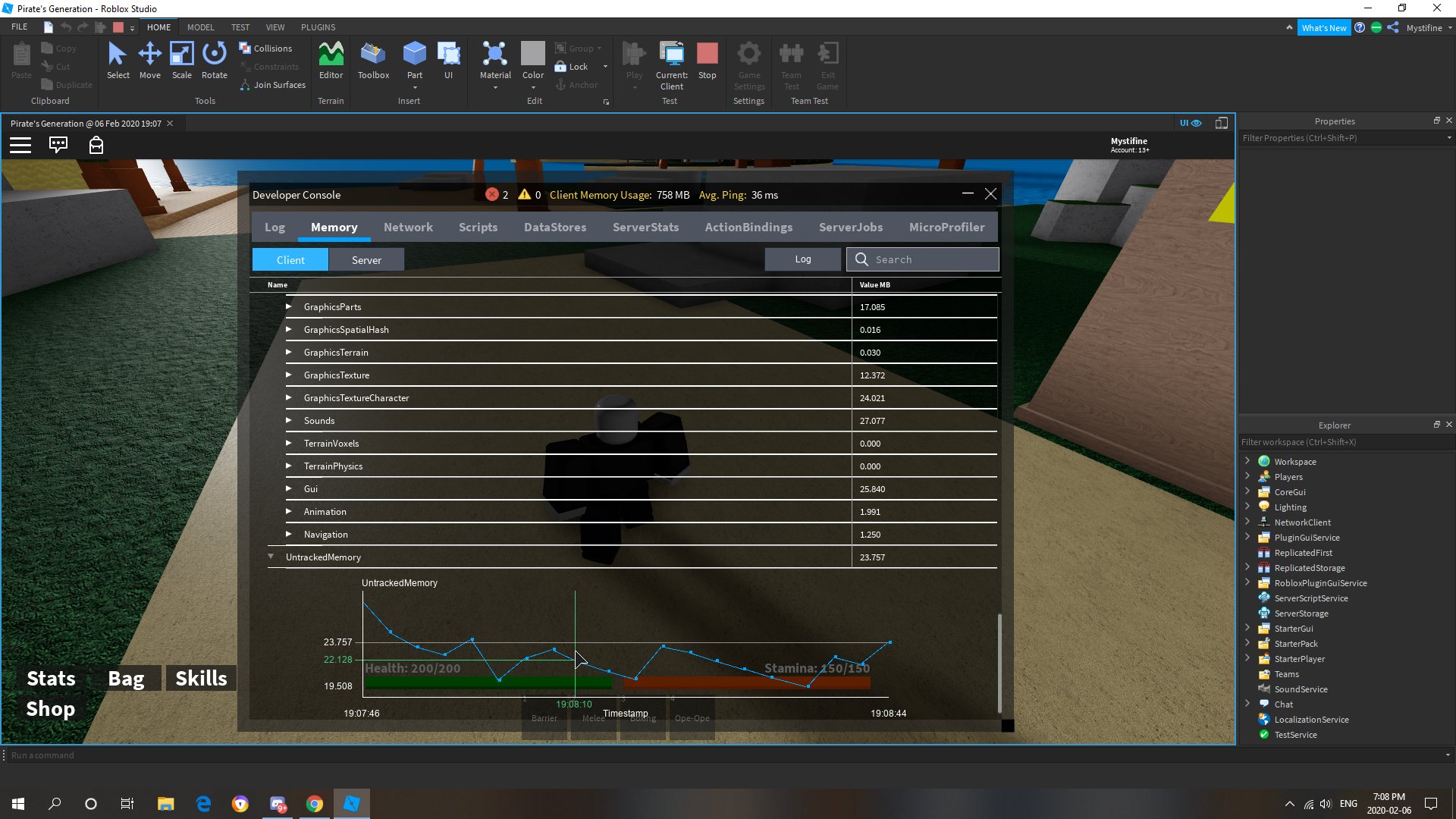
You can access this by pressing F9 while playing your game in Roblox Studio or when playing a live game. The console shows various statistics, including memory usage.
- View Memory Stats: You can use the stats command to see the total memory used and where it is being used by different game systems.
- Identify Memory Issues: Check if specific types of objects are consuming a lot of memory.
Roblox Studio Performance Tab
In Roblox studio, there is a performance tab in view section, which you can use to inspect game performance and memory usage in details.
- Performance Graphs: The performance tab provides real time graphs to see cpu, memory and network performance of the game.
- View Memory Usage: You can check memory usage of various components of your game and which of them are using most of the memory.
Best Practices
Here are some best practices that you should use in game development.
- Test Regularly: Constantly test your game on different devices to see how it performs. Don’t just test on high-end PCs.
- Iterate Based on Feedback: Review the feedback that you get from your players and use the developer console to identify memory issues.
- Start Small: When starting a new game, make sure to start small, so you can iterate on features.
- Code Review: If you are working in team, make sure to check other people’s code and see if there are any obvious memory issue problems.
- Stay Updated: Keep checking the latest Roblox documentation and updates for new features and ways to optimize performance and memory use.
Managing memory in Roblox games can be difficult but very important. By following these techniques and being aware of how your game uses memory, you can make sure your creations run smoothly for everyone. Remember, a well-optimized game not only performs better but also leads to happier players. So, go ahead and apply what you have learned and create amazing Roblox experiences.
How One Memory Leak Can Kill Your Game
Final Thoughts
Effective Roblox memory management in games is vital for smooth gameplay. Players will experience lag and crashes without proper resource control. Developers must actively optimize assets and scripts.
Implementing techniques like object pooling and careful garbage collection will reduce memory consumption. This ensures enjoyable experiences. These strategies impact overall performance and stability.
Therefore, optimizing for Roblox memory management in games is not optional; it’s essential. Proper technique will give better game performance and happier players.

