
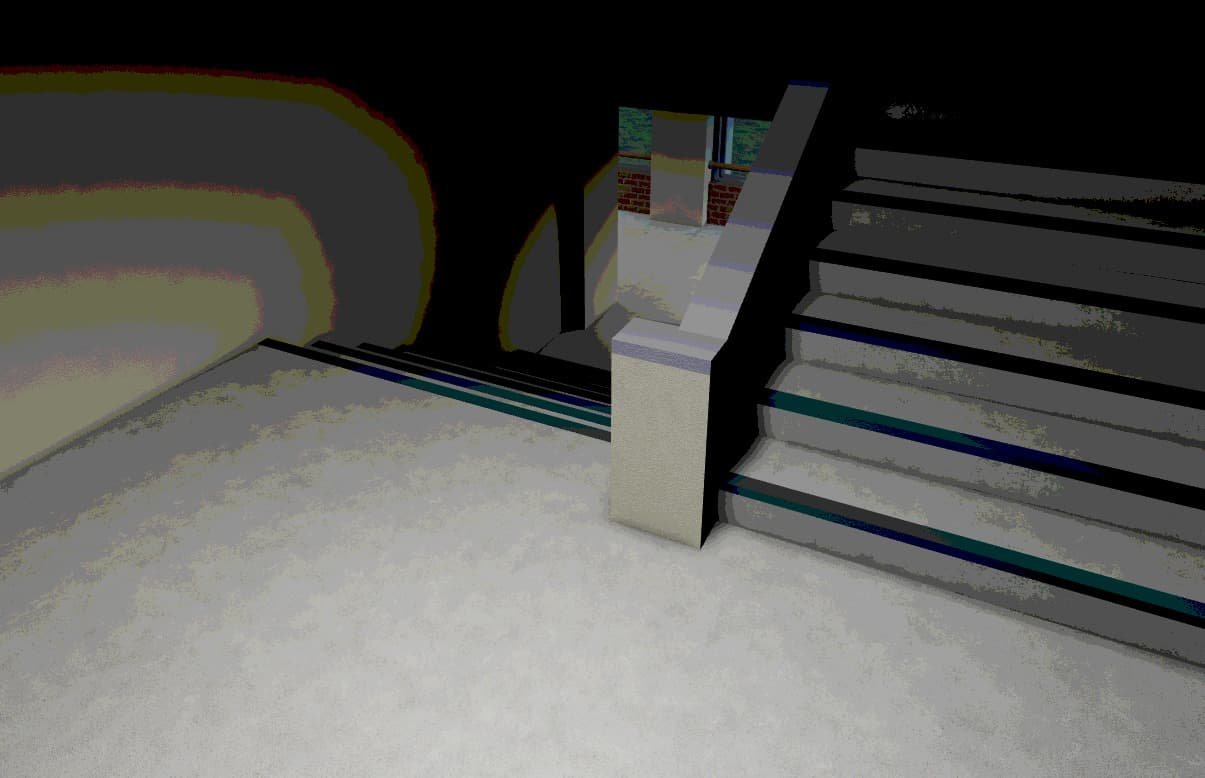
Post processing effects in Roblox alter the visual presentation of your game through adjustments to color, lighting, and overall image appearance.
Have you ever wondered how some Roblox games achieve such stunning visual depth? Many accomplish this using clever applications of Roblox post processing effects. These effects are a powerful tool that developers use to enhance the atmosphere and mood of their creations. They work by making alterations to the rendered image after the initial drawing process is complete.
Think of it like applying a filter to a photograph. You can use these features to create unique art styles and improve the gaming experience. Roblox post processing effects can make a huge difference in the final impact your games provide.

Roblox Post Processing Effects: Adding Visual Magic to Your Games
Have you ever played a Roblox game and thought, “Wow, this looks amazing!”? Chances are, that visual sparkle wasn’t just from the cool models and builds. A lot of it comes from something called “post processing effects.” These are like special filters that get applied after the game is drawn, kind of like how you might add a filter to a photo. They can make your games look more vibrant, dreamy, scary, or whatever vibe you’re going for! Let’s dive in and learn more about these awesome effects.
What Exactly are Post Processing Effects?
Imagine your game is like a painting. You’ve created all the characters, buildings, and landscapes. Post processing effects are like the final touches that a painter might add – shading, highlighting, or maybe even a special gloss. Instead of being painted directly onto the canvas, they’re applied as a layer on top of everything else. In Roblox, these effects use the graphics card in your computer or device to change how everything looks. This can make a huge difference in how a game feels and plays.
The Technical Side (Don’t Worry, It’s Not Too Scary!)
When your Roblox game runs, it first creates a “scene,” which is all the objects and elements in the game world. Then, the graphics card takes that scene and turns it into what you see on your screen. Post processing effects happen at this final step. They work by using mathematical calculations (algorithms) to change the colors, brightness, and even the way light moves. Don’t worry, you don’t need to know all the math, but it’s good to know that some clever programming makes these effects possible.
Common Post Processing Effects in Roblox
Roblox provides a set of built-in effects that you can easily use. Think of them as tools in your visual effects toolbox. Here’s a look at some of the most popular ones:
Bloom
Bloom makes bright parts of your game look like they are glowing or spreading light. Imagine the sun in your game is super bright. With bloom, the light would appear to expand out a little, giving it a warm, radiant feel. This can be really useful for making things seem magical, futuristic, or just more visually exciting.
- Use case: Making light sources like lamps or laser beams appear brighter, creating a fantasy or sci-fi atmosphere.
- How to use it: Usually involves adjusting parameters like intensity and threshold (how much glow is applied).
Color Correction
Color correction is like editing the colors of your entire game. You can make things brighter, darker, warmer, cooler, or even change the overall color scheme. This is great for setting the mood or making sure the colors in your game match the environment.
- Use case: Creating a gloomy or scary feel by desaturating colors or adding a blue tint; making a sunny scene more vibrant with brighter colors.
- How to use it: Usually involves adjusting parameters like brightness, contrast, saturation, and hue.
Depth of Field
Have you ever taken a photo where the background is blurry while the main subject is sharp? That’s depth of field! In Roblox, it can make your games look more cinematic by focusing on what’s important and blurring out the rest. It’s like having a real camera focus on certain objects.
- Use case: Focusing on the player character or a specific important object; making a scene look like it was shot with a real camera.
- How to use it: Involves setting a focus point and adjusting the blur strength and size.
Motion Blur
When something moves quickly, it looks blurry. Motion blur is a post processing effect that simulates this effect in your games. This can make movement feel more fluid and realistic.
- Use case: Showing fast-moving objects, like vehicles or projectiles; adding a sense of speed and action.
- How to use it: Usually involves controlling the blur strength and the time it takes to apply.
SunRays
SunRays effect simulate sunbeams. You can make light shafts visible in your games by using this effect. This effect can add an extra layer of detail and ambiance to outdoor scenes, especially when the sun is partially obstructed by trees or clouds.
- Use case: Creating volumetric light effects, especially when sunlight is passing through leaves or other objects, enhancing the atmosphere of natural environments.
- How to use it: You can adjust parameters like light intensity, sun direction and density of rays.
Vignette
Vignette adds a subtle darkening around the edges of the screen. This can draw the player’s attention towards the center of the screen. It’s a great way to create a more dramatic or cinematic feel.
- Use case: Creating a more focused view, adding a sense of drama, or simulating the effect of looking through a camera lens.
- How to use it: Typically involves adjusting the radius and intensity of the vignette effect.
Adding Effects with Roblox Studio
Applying post processing effects is quite straightforward in Roblox Studio. Here’s how you can do it:
- Open the Explorer window: If you don’t see it, go to View and click “Explorer.”
- Find the Lighting service: In the Explorer window, find the “Lighting” service. It’s usually at the very top.
- Add an effect: Right-click on “Lighting” and select “Insert Object.” From the menu, choose the effect you want to add (e.g., “BloomEffect,” “ColorCorrectionEffect,” “DepthOfFieldEffect”).
- Adjust the properties: Select the effect you just added in the Explorer. In the Properties window, you will see different settings (like intensity, radius, etc.). Change these settings to get the look you want. Experiment a bit!
Tips for Using Post Processing Effects Effectively
Using post processing effects can significantly enhance your game, but it’s important to do it thoughtfully. Here are some tips:
Less is Often More
It can be tempting to crank up all the effects to the maximum, but this can actually make your game look worse. Start with subtle adjustments and gradually increase the effects until you reach the sweet spot. Overdoing it can also slow down your game on older devices.
Match the Mood
The visual effects should match the mood and style of your game. For example, a horror game might benefit from a dark color palette with a slight vignette, while a bright, cheerful game should have vibrant colors and a bit of bloom.
Test on Different Devices
What looks great on your computer might not look the same on a mobile phone or tablet. It’s always a good idea to test your game on different types of devices to ensure that the post processing effects look good and don’t cause performance problems.
Don’t Forget Optimization
Post processing effects can use up processing power (especially on less powerful devices). Try to use them strategically and avoid stacking too many complex effects at once. Keeping performance in mind will make sure that everyone can enjoy your game.
Experiment and Have Fun!
The best way to learn how to use post processing effects is to experiment with them. Try different combinations and settings, and don’t be afraid to make mistakes. That’s how you’ll find what works best for your game.
Advanced Post Processing Techniques
Beyond the built-in effects, there are also some more advanced techniques you can use to add even more visual flair. These usually involve writing your own shader code which is a little more complicated but lets you create custom effects.
Custom Shaders
Shaders are small programs that run on the graphics card and control how objects are rendered. Roblox allows you to write your own shaders to create completely custom post processing effects. This is a more complex process but it allows for far more control. For instance, you could create an effect that makes it look like your game is being viewed through old tv or make it look like your game is in a different dimension.
Scripted Effects
You can use Roblox’s scripting language, Lua, to control post processing effects dynamically. For example, you could make the bloom effect increase when a player uses a special ability or make the colors change when a player is in a certain location. You could also make the depth of field effect change during the cut scenes.
Combining scripting with the existing effects and new shader effects can add another level of sophistication to your games.
Post Processing and Game Performance
While post-processing effects are incredibly powerful for making games visually appealing, they also impact performance. Here’s a closer look at how they work with performance, and how you can manage them.
GPU Load
The most important factor to think about with post-processing effects is that they happen on the GPU (Graphics Processing Unit). Every single pixel that is drawn to the screen requires calculation by the GPU. When you add a post-processing effect, it runs those algorithms on the whole image. This can slow things down, especially on low end hardware.
- Complex effects: Things like depth of field, bloom or custom shaders require more calculations per pixel than effects like color correction and vignette.
- Resolution: The higher the screen resolution of your game, the more calculations there are to be done with post-processing. A game in 4k will use a lot more GPU processing than a game in 720p.
Impact on Different Devices
The type of device a player uses will greatly affect how post-processing impacts their game experience. Here is a little explanation.
- High-end PCs: High-end desktop computers and gaming laptops usually have powerful GPUs. These can handle multiple layers of complex post-processing without any big performance drops.
- Low-end PCs: Older or low-end PCs may struggle. They may need to lower the resolution of the game, or to disable certain post processing effects to play.
- Mobile Devices: Mobile devices like phones and tablets have very limited GPU capabilities compared to PCs. Performance is much more critical here, therefore developers need to be very careful in implementing post-processing effects.
Optimisation Techniques
As a Roblox creator, you have ways to ensure that post processing works well for a wide variety of players. Here are some things to keep in mind:
- Use effects sparingly: Only use the effects that are needed to achieve the style you are trying to achieve.
- Use simple effects when possible: Instead of using a custom shader, try to use simple color correction or a small amount of bloom.
- Allow for user customization: Let players change their graphics settings and turn certain effects on or off.
- Test thoroughly on different devices: Test with low-end devices or emulators to be sure that all players can enjoy your game.
Examples of Post Processing in Popular Roblox Games
Let’s take a look at how some well known Roblox games use post processing to improve the visuals:
- Brookhaven: This popular roleplaying game uses a soft bloom effect, color correction, and vignette to create a dreamy, inviting atmosphere. The subtle effects add a touch of realism, making the game feel more cozy and comfortable to explore.
- Adopt Me!: This game uses a vibrant color palette with a touch of bloom. This vibrant look is really great for capturing the playful and colorful atmosphere. Also, Depth of field is often utilized in the game to emphasize important elements such as pets or interactions.
- Phantom Forces: A popular first-person shooter game uses motion blur and color correction to make the fast paced action more intense. The effects add to the sense of action, giving players a more immersive experience.
- Piggy: This scary game uses desaturation and a vignette to create a tense and frightening atmosphere. The dark colors and limited view help make the game really scary for players.
These are just a few examples, there are hundreds of games on Roblox that utilize post processing in amazing and creative ways.
Post processing effects are incredibly powerful tools that can dramatically improve the look of your Roblox games. By experimenting and understanding the different effects available you can add a layer of polish that will make your games look more interesting and engaging to play. When used effectively, post processing effects can help you make your Roblox games come to life.
Roblox Custom Post-Processing Effects Are Actually Possible…
Final Thoughts
Roblox post processing effects provide a great way to enhance visual experiences. Experimenting with bloom, color correction, and depth of field can dramatically change how a game appears. These effects allow developers to add their unique touch to visuals.
Using post processing correctly can create atmosphere and mood effectively. Careful adjustments will ensure performance isn’t impacted negatively. Understanding these tools is key for game creation.
In short, roblox post processing effects are important. You can use them to add a professional feel and depth to games. Explore these options to improve your creations visually.

